Global chat Discord bot
One chat, shared across your servers.
Link a channel in each server your bot is in, and a message in one shows up in all of them, with the member's name, picture and server. Members accept the rules first, filters keep out invite links and spam, and network staff can ban someone from every server at once. It's all set up on one page in BotGhost, the no-code Discord bot maker.
Every setting is free on every bot, from filters to network bans.
How a global chat network works
From linking a channel to handling a report. Press a step to see it in Discord.
Pixel Cove joins
You make a network called Global Chat on the dashboard. Pixel Cove's admins run /globalchat join in their #global-chat with the network's name and code.
The bot checks the link and posts the linked notice with the rules. Every other linked channel hears that Pixel Cove joined.

Be kind and keep it friendly. No spam, ads or invite links. Nothing NSFW. What you write here shows in every linked server.
Jayce says hi
The first time Jayce writes, the bot shows the network's rules with an Accept button. Their message isn't shared until they press it.
Discord's rules ask for this kind of consent, because what members write shows in other servers. The card goes away after a minute.
Tom's message goes everywhere
Tom writes in Ghost Hangout. In every other linked channel, the copy shows Tom's name and picture with · Ghost Hangout after it, so everyone knows where it came from.
Replies show what they answer, pictures come along, and for 24 hours edits and deletes follow every copy.
A filter stops an ad
Dax posts an invite link. Invite links are blocked to start with, so the message gets a 🚫 and isn't shared. The bot tells Dax why, once an hour at most.
Blocked words, links and long messages work the same way, and each server can be stricter than the network.
Fabian reports a scam
A scam slips through from Night Owls. Fabian right clicks the copy and picks Report to network staff from Apps.
The network's staff get a report card with Delete everywhere, Ban from network, Warn and Dismiss. A ban follows the member to every linked channel.
Networks of linked channels
A network is one shared chat. Make up to 5, each with up to 25 linked channels, one per server. Pick who can join each one.
With the code
DefaultServer admins join with /globalchat join and the network's code, or on your bot's website. Make a new code and the old one stops working.
Open
Any server your bot is in can join from /globalchat join or the bot's website, with no code.
Only me
Only you link channels, from the Networks tab in your dashboard. Good for a group of servers you run.
An age-restricted network only links age-restricted channels, and a normal one never does. When a server joins, every other linked channel can be told.
Messages that look like the member wrote them
Each copy is sent through the bot's webhook in that channel, so it reads like a normal chat.
- Their name and picture, with their server's name after it. Or a card from the bot, if you'd rather.
- Replies show a quote line naming who they answer.
- Pictures and files come along under the message.
- Edits and deletes follow every copy for 24 hours.
- A name that looks like staff always goes as the bot, so nobody can pretend to be your team.
Rules first, then filters that keep out spam
What members write shows in other servers, so Global Chat asks first and checks every message before it's shared.
- Rules with Accept before a member's first message is shared. /globalchat rules shows them any time.
- Invite links blocked to start with. Allow other links, only some sites, or none.
- Blocked words, with a * to match part of a word, and a longest message.
- New accounts and new members wait for the number of days you pick.
- Slowmode of one message every 3 seconds, and a pause when the network gets busy.
- Stricter servers: each server can add its own blocked words or block links.
- /globalchat optout keeps a member's messages in their own server.
Reports and bans that cover every server
Each network has its own staff channel and staff role. Each server's own staff look after their own channel.
- Report to network staff: any member right clicks a copy, then Apps, and gives a reason.
- The report card has Delete everywhere, Ban from network, Warn and Dismiss.
- /globalchat ban blocks a member in every linked channel, for 7 days or as long as staff pick.
- /globalchat warn posts a warning in the member's own linked channel.
- /globalchat hide lets a server stop another server's messages showing there.
- Who sent this shows server staff who wrote a copy, and from where.
Every Global Chat setting in the dashboard
Global Chat has one page in your dashboard: six tabs, then its commands and events. A live preview beside the tabs shows the messages as you change them. Networks are set for the whole bot, and each server's link and stricter rules from the server menu at the top.
Networks and linked channels
A network is one shared chat. Make up to 5, give each a name and say who can join, then link one channel in each server. Get started at the top ticks off making a network and linking two channels.

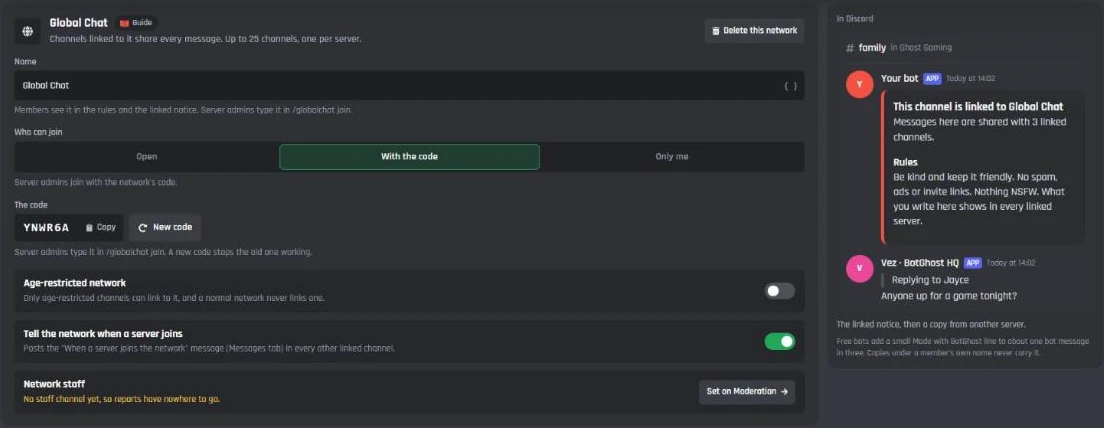
A network
Up to 5 networks, each with up to 25 linked channels, one per server.
- Name
- Members see it in the rules and the linked notice. Server admins type it in /globalchat join.
- Who can join
- Open, With the code (the default) or Only me. Only me means you link every channel here on this page.
- The code
- Six letters and numbers people can read out. A new code stops the old one working.
- Age-restricted network
- Only age-restricted channels can link to it, and a normal network never links one.
- Tell the network when a server joins
- On to start with: every other linked channel gets the joined message.
Linked channels
- One channel per server
- Pick it here, or a server's admins link it with /globalchat join or on the bot's website. The bot checks the link and posts the linked notice.
- Leaving
- /globalchat leave unlinks a server. Switching a server's link off keeps every message there in that server.
Rules, who can write, and slowmode
Each network has its own rules, and members accept them before their first message is shared. New accounts and new members can wait, and slowmode keeps a busy chat readable.
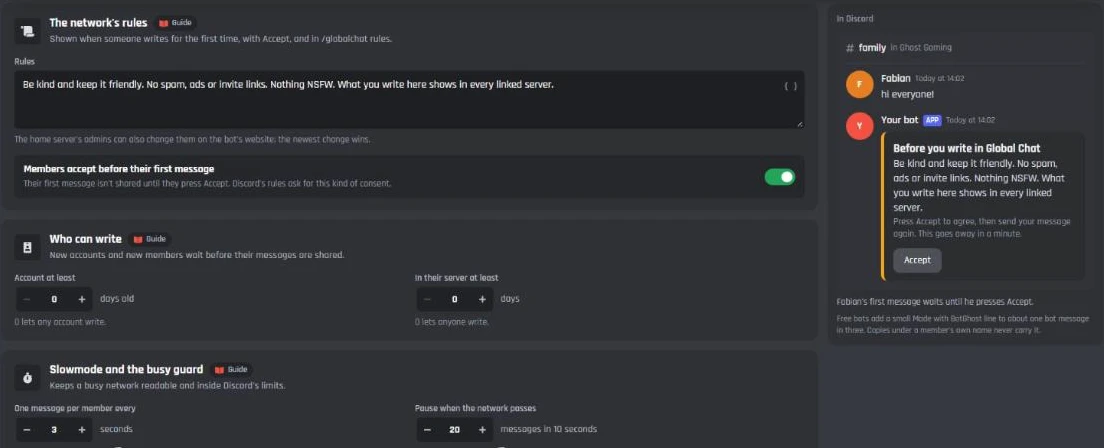
The network's rules
- Rules
- Kind and friendly, no spam, ads, invite links or NSFW to start with. Up to 1,800 characters. The home server's admins can change them on the bot's website.
- Members accept before their first message
- On to start with. Discord's rules ask for this kind of consent.
Who can write
- Account at least
- 0 days to start with, so any account can. Up to 3,650.
- In their server at least
- 0 days to start with. New members wait before their messages are shared.
Slowmode and the busy guard
- One message per member every
- 3 seconds to start with, up to an hour. Faster messages get ⏳ and aren't shared.
- Pause when the network passes
- 20 messages in 10 seconds to start with, up to 500. Messages past it wait a few seconds.
What the network shares
Invite links are blocked to start with. Allow other links, allow only some sites or block them all, and add your own blocked words. Each server can be stricter than the network.
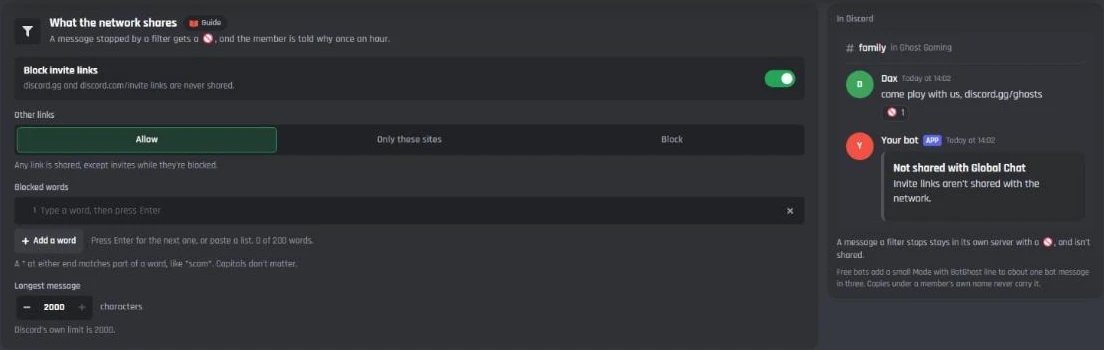
What the network shares
- Block invite links
- On to start with. discord.gg and discord.com/invite links are never shared.
- Other links
- Allow (the default), Only these sites, or Block.
- Blocked words
- A * at either end matches part of a word, like *scam*. Capitals don't matter. Up to 200.
- Longest message
- 2,000 characters, Discord's own limit, or shorter.
A server's own filters
Stricter only. Its admins can also set these on the bot's website.
- More blocked words
- Messages written in that server with these words aren't shared.
- Links written here
- Same as the network, only the network's sites, or block links.
How copies look
A copy can look like the member wrote it, with their name, picture and server, or come as a card from the bot. Replies, pictures, edits and deletes follow the message everywhere.
anyone up for movie night on Friday?
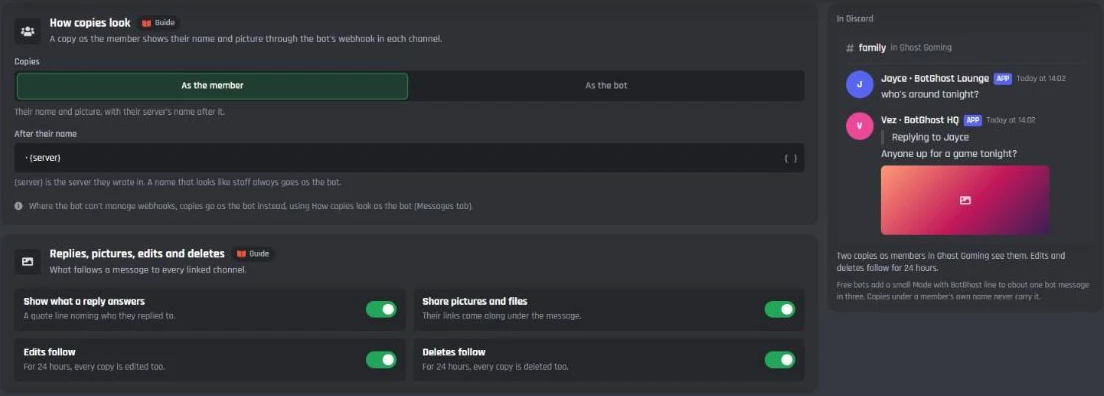
How copies look
- As the member
- The default. Their name and picture through the bot's webhook in each channel, with their server's name after it.
- As the bot
- A card from the bot naming who wrote it. Also used where the bot can't manage webhooks.
- After their name
- " · {server}" to start with. A name that looks like staff always goes as the bot.
Replies, pictures, edits and deletes
All on to start with.
- Show what a reply answers
- A quote line naming who they replied to.
- Share pictures and files
- Their links come along under the message.
- Edits and deletes follow
- For 24 hours, every copy is edited or deleted too.
Eight messages, each one yours to change
Every message Global Chat sends is a whole message you can change with Edit message, with the details it fills in listed under it. Each server can have its own.
Reason Spamming a scam link
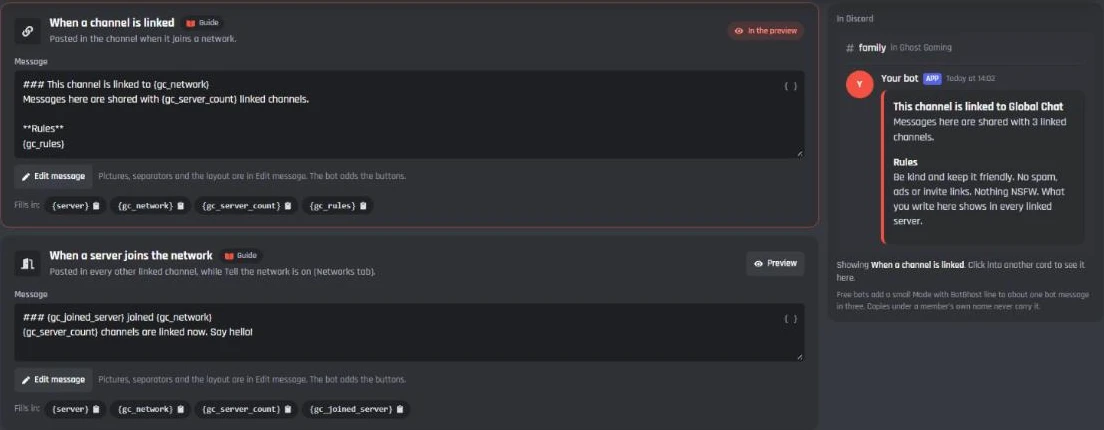
In linked channels
- When a channel is linked
- Posted in the channel when it joins, with how many channels are linked and the rules.
- When a server joins the network
- Posted in every other linked channel, while Tell the network is on.
- When someone writes for the first time
- The rules with an Accept button, until they accept.
- When a message isn't shared
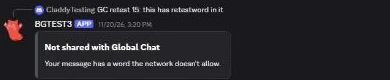
- Why, once an hour per member.
- How copies look as the bot
- Each copy, while a network's copies go as the bot.
For staff and members who broke the rules
- When someone reports a message
- Sent to the network's staff channel, with Delete everywhere, Ban, Warn and Dismiss.
- When someone is banned from the network
- When a banned member writes, once a day, and in the staff channel when staff ban someone.
- When staff warn someone
- Posted in the member's own linked channel.
Network staff, reports and bans
Pick a staff channel and role for each network. Members report a copy from its right click menu, and staff act on it from the report card. Each server's own staff only change what their own channel shows.
Reason Spamming a scam link
Jump to the originalDelete everywhereBan from networkWarnDismiss
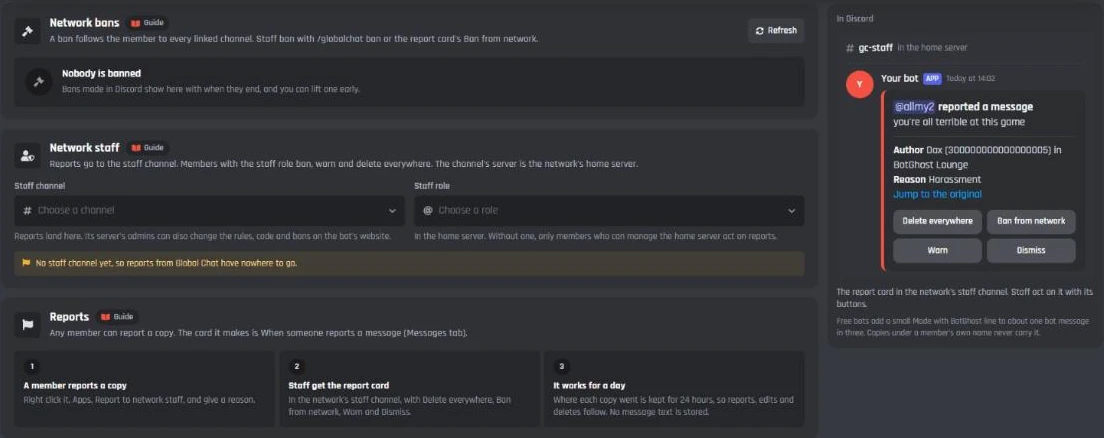
Network staff
- Staff channel
- Reports land here. Its server is the network's home server, whose admins can also change the rules, code and bans on the bot's website.
- Staff role
- In the home server. Without one, members who can manage the home server act on reports.
Network bans
- /globalchat ban
- Bans a member from every linked channel. 7 days unless staff give a number; 0 is for good.
- Lift ban
- Bans show with when they end, and you can lift one early, like /globalchat unban.
A server's own moderation
- Global Chat staff role
- Can hide servers with /globalchat hide and see who wrote a message. Empty means anyone with Manage Server.
- Hidden servers
- Their messages don't show in this server's channel. Nobody else is affected.
Under the tabs: the commands and events
Global Chat adds /globalchat with 12 subcommands, three right click commands, and its events. They are made of ordinary builder blocks, so you can open any of them in the builder, see how it works and add your own blocks.
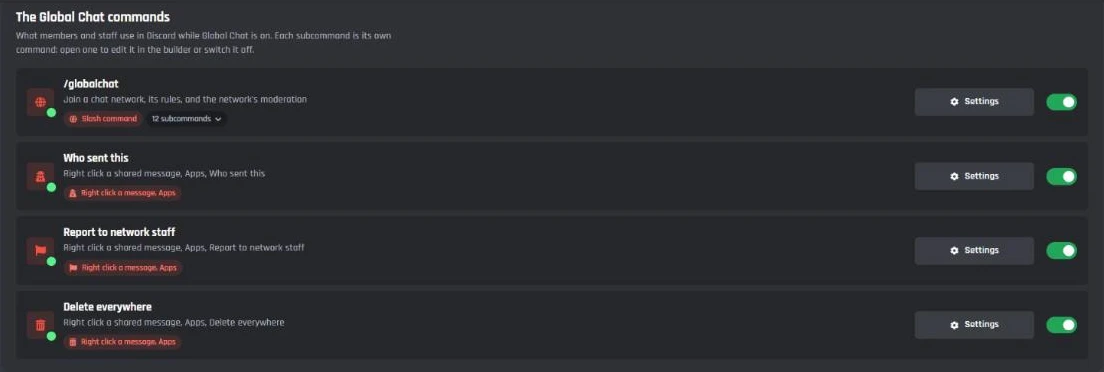
For members
- /globalchat rules and info
- Read the network's rules and accept them, or see the network this server is in.
- /globalchat optout and optin
- Stop sharing your messages with the network, or start again.
- Report to network staff
- Right click a copy, then Apps.
For staff
Server staff: Manage Server, or the server's Global Chat staff role. Network staff: the network's staff role.
- /globalchat join and leave
- Link this channel to a network by its name (and code), or unlink the server.
- /globalchat hide and unhide
- Stop one server's messages showing here, or show them again.
- /globalchat ban, unban, banned and warn
- For network staff, across every linked channel.
- Who sent this and Delete everywhere
- Right click a copy, then Apps.
Change anything, in the builder or on your website
Global Chat is made of the same blocks you use for your own commands and events, so nothing about it is locked.
Open it in the builder
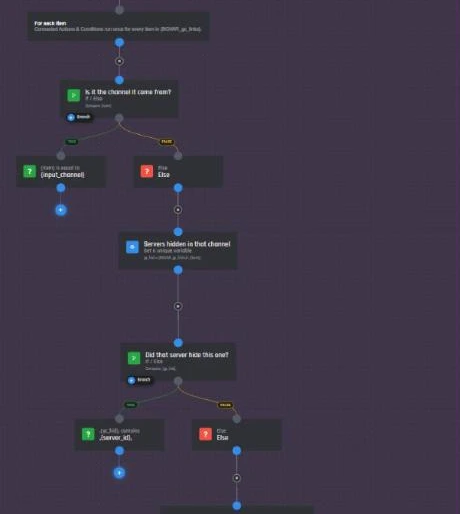
Every Global Chat event and /globalchat command opens in the builder. See how a message is checked and shared, or add your own blocks, like a role that can't write in the network.
Server admins join on your website
With a BotPanel website for your bot, each server's admins sign in to link their channel, pick a network and set stricter filters. The home server's admins can change the rules, the code and the bans.
Set up a global chat on Discord
Haven't got a bot yet? Start with how to make a Discord bot, then add it to each server you want to link.
- 1Open Global Chat from Modules in your dashboard and switch it on.
- 2On the Networks tab, make a network and give it a name.
- 3Under Linked channels, link one channel in each of two servers. Server admins can also use /globalchat join with the network's code.
- 4Press Save Changes.
- 5Try it: write in one linked channel and watch it show up in the other.
Give the bot Manage Webhooks in linked channels, so copies show the member's name and picture.
A free Discord global chat
Every Global Chat feature works on the free plan. There's nothing to unlock, only the limits below, which are the same on every bot.
Free
$0- Networks of linked channels, open, with a code or only yours
- Copies as the member, with replies, pictures, edits and deletes
- Rules with Accept, filters, slowmode and the busy guard
- Reports, network bans, warnings and Delete everywhere
- Stricter filters and hidden servers for each server
- Its commands, events and saved values never count toward your free limits
On free bots, a small Made with BotGhost line shows under the bot's own cards about one time in three. Copies under a member's own name never have it.
The limits
for each bot- Networks
- Up to 5
- Linked channels in a network
- Up to 25, one per server
- Blocked words
- Up to 200
- Slowmode
- Up to an hour
- Busy guard
- Up to 500 messages in 10 seconds
- Edits and deletes follow
- 24 hours
Free bots go offline after 2 days with no activity, and Start brings them back. Read about free hosting
Discord global chat questions
Didn't find your question? Ask us in the BotGhost Discord, or read the Global Chat docs.
Yes. Every Global Chat feature is free on BotGhost: up to 5 networks with 25 linked channels each, rules, filters, slowmode, reports and network bans. Its commands, events and saved values don't count toward your free limits.
Global Chat on the free planAdd your bot to each server, make a network on the Global Chat page, and link one channel in each server, either on the page or with /globalchat join in that channel. Messages in one linked channel then show in all the others.
See a network step by stepEveryone. To start with, a copy shows the member's name and picture with their server's name after it, like Tom · Ghost Hangout. You can send copies as a card from the bot instead, and server staff can right click a copy and use Who sent this.
See how copies lookInvite links are blocked to start with, and members accept the rules before their first message is shared. Add blocked words, block links or allow only some sites, set a slowmode, and make new accounts or new members wait. Each server can be stricter than the network.
See the filtersYes. Network staff run /globalchat ban, or press Ban from network on a report card. The ban follows the member to every linked channel, for 7 days unless staff give a number, or for good. Staff can also warn members and delete a message everywhere at once.
See reports and bansYes. A server's staff run /globalchat hide with the other server's ID, and its messages stop showing in their channel. Nobody else is affected, and /globalchat unhide brings them back.
See what server staff can doYes. /globalchat optout stops sharing a member's messages with the network, and /globalchat optin starts again. Global Chat never stores what people write: it only remembers where each copy went for 24 hours, so edits, deletes and reports can follow.
See the rules and consentYes. Switch on Age-restricted network, and only age-restricted channels can link to it. A normal network never links an age-restricted channel, so the two never mix.
See networksThe new page offers to move it. It checks what moves first, turns your linked channels into a network, copies your bans, and switches the old module off. You can undo the move for 30 days.
Read the Global Chat docsBring your servers into one conversation
Switch on Global Chat, make a network and link a channel in each server. The free plan doesn't need a card.
Set up Global Chat for free