Discord verification bot
Keep bots and raids out of your server.
New members press Verify and type a code from a picture, press a button, or answer a few questions before they can chat. Then your bot gives them their roles. It's all set up on one page in BotGhost, the no-code Discord bot maker.
Every setting is free on every bot, from the captcha code to raid locks and staff review.

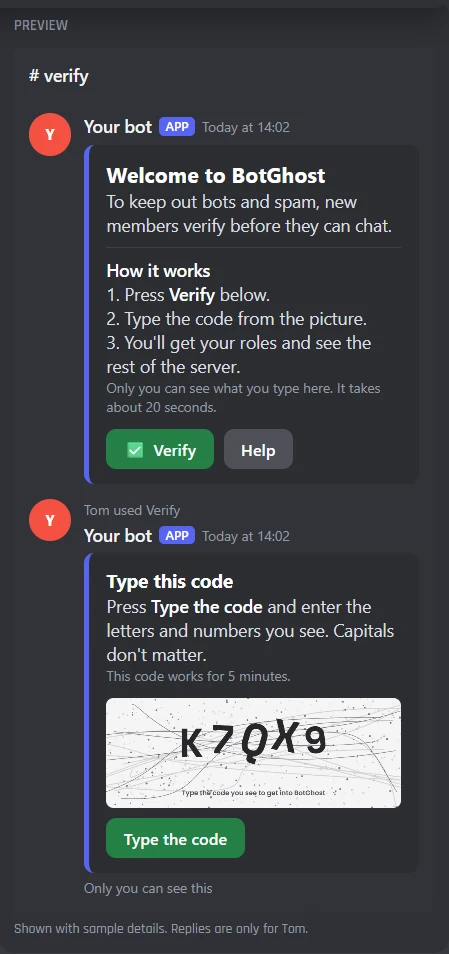
- Press Verify below.
- Type the code from the picture.
- You'll get your roles and see the rest of the server.
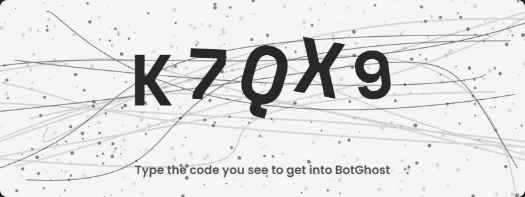 Type the codeMade with BotGhost
How members verify
Pick one way for each server. Every reply is private, so only the member who pressed Verify sees their code or their answers. Press a way to see it play out.
Press a button
Tom presses Verify on the panel and he's in. The bot gives him your Verified roles, and only he sees the reply.
Quick for members, and it stops most bots that only join and post.
Type a code
Tom presses Verify and gets a code in a picture only he can see. He presses Type the code and types it back. Capitals don't matter.
Every press gives a new code, so it stops bots that can press buttons. A wrong code counts as a wrong try.
Rules before the code
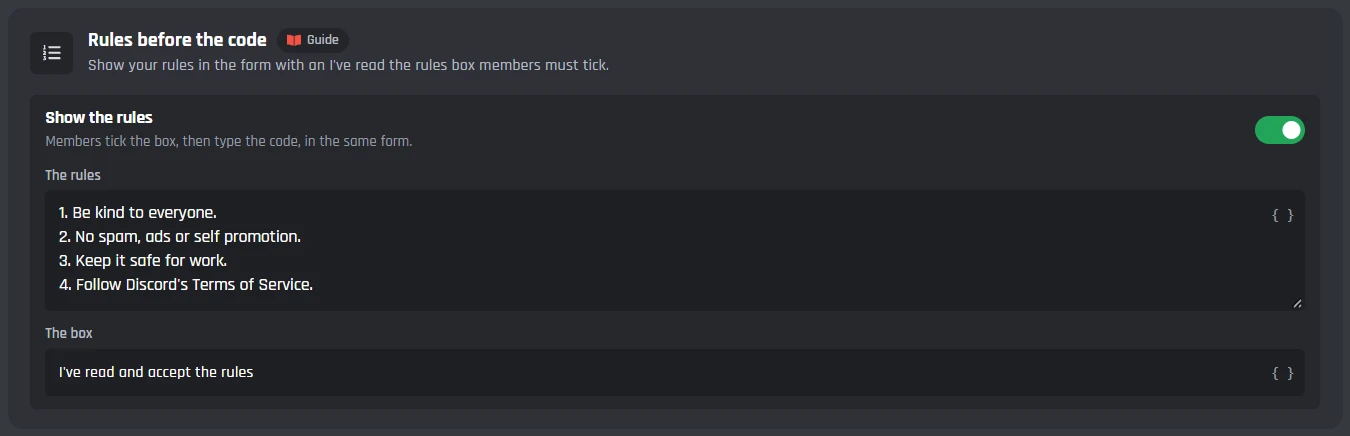
Switch on Show the rules, and your rules sit at the top of the form Tom types the code in, with a box he has to tick.
He can't send the code without ticking it.
Answer questions
Tom presses Verify and fills in a short form, up to 5 questions. With right answers set, the bot lets him in when every answer is right.
Leave a question's answer empty to take any answer. Capitals don't matter.
Staff approve
Or your staff read the answers. They're posted in your review channel with how old Tom's account is and when he joined, and Vez presses Approve.
Tom gets his roles straight away. Deny can do nothing, kick or ban.
Who gets in, and who doesn't
Brand new accounts, accounts with no picture, and waves of joins are where spam bots come from. Each check is a setting you switch on, and members who are stopped are told why.
- Tom types the right codeHe's inHe gets the Verified roles, and the Unverified role is taken away if you use one.
- Jayce gets the code wrongTold how many tries are leftAfter 3 wrong tries he waits 10 minutes, to start with. Wrong tries allowed and Then change it, up to a timeout or a kick.
- An account made 2 days agoTold when to come backWith Discord account at least set to 7 days. Or kick it, or let it in by itself once it's old enough.
- An account with no profile pictureAsked to add oneWhile Needs a profile picture is on. Or kick it.
- Fabian hasn't accepted the rulesAsked to accept them firstWhile Wait for Discord's rules screening is on, verification starts once he accepts your rules.
- An account that looks fine joinsStraight inWith Only suspicious accounts: new, no picture, or a name AutoMod flagged.
- 14 accounts join in a minuteVerification locksWith Lock it by itself on. Your staff are pinged, and invites can pause too.
- Dax never verifiesRemoved after 30 minutesWhile Remove members who don't verify in time is on, with a warning DM if you want one.
- Vez leaves and comes backGets his roles backWithin 90 days of leaving, to start with. Or he verifies again.
- Tom presses Verify againTold he's already verifiedPressing twice never does anything twice.
- A staff member with a skip roleNever has to verifyRoles in Skip roles. Bots that join are always skipped.
You set every one of these on the Checks, Limits and Raids tabs, server by server.
Every Verification setting in the dashboard
Verification has one page in your dashboard: a tab for each part, then its commands and events. A live preview beside the tabs shows the panel and the replies as you change them. You set it up server by server, from the server menu at the top.
The panel and the roles
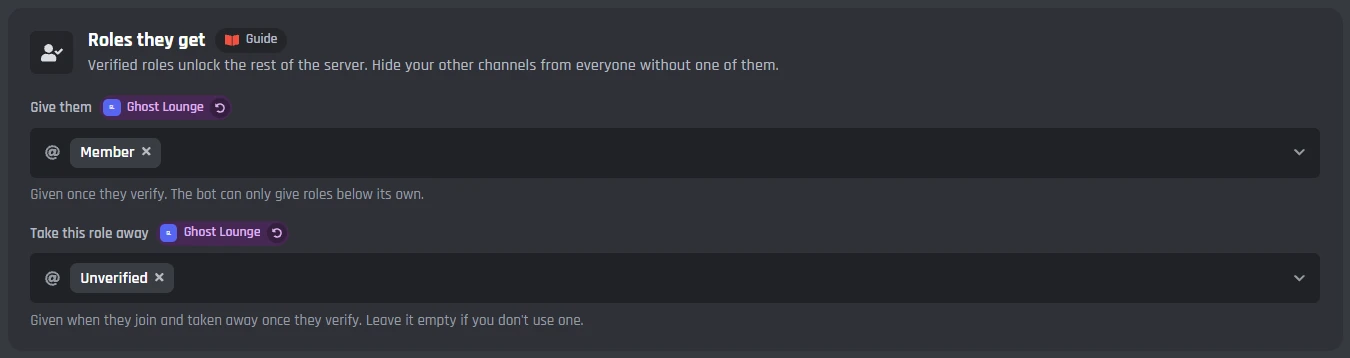
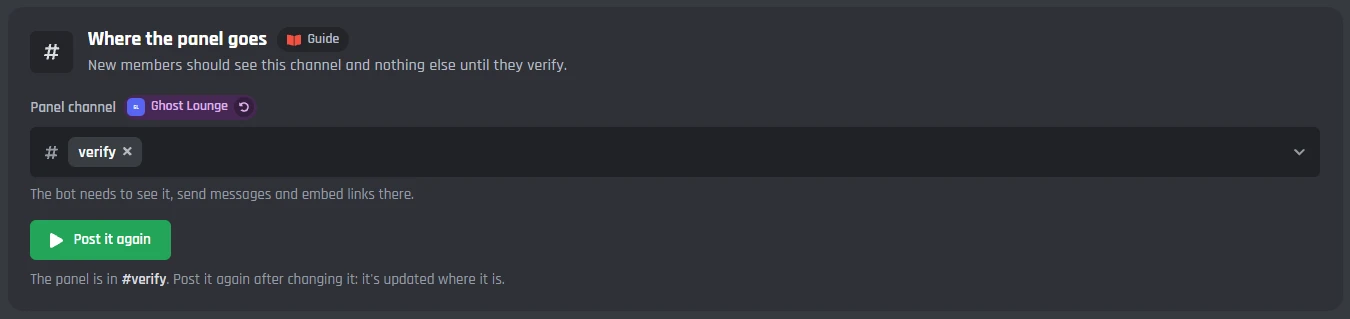
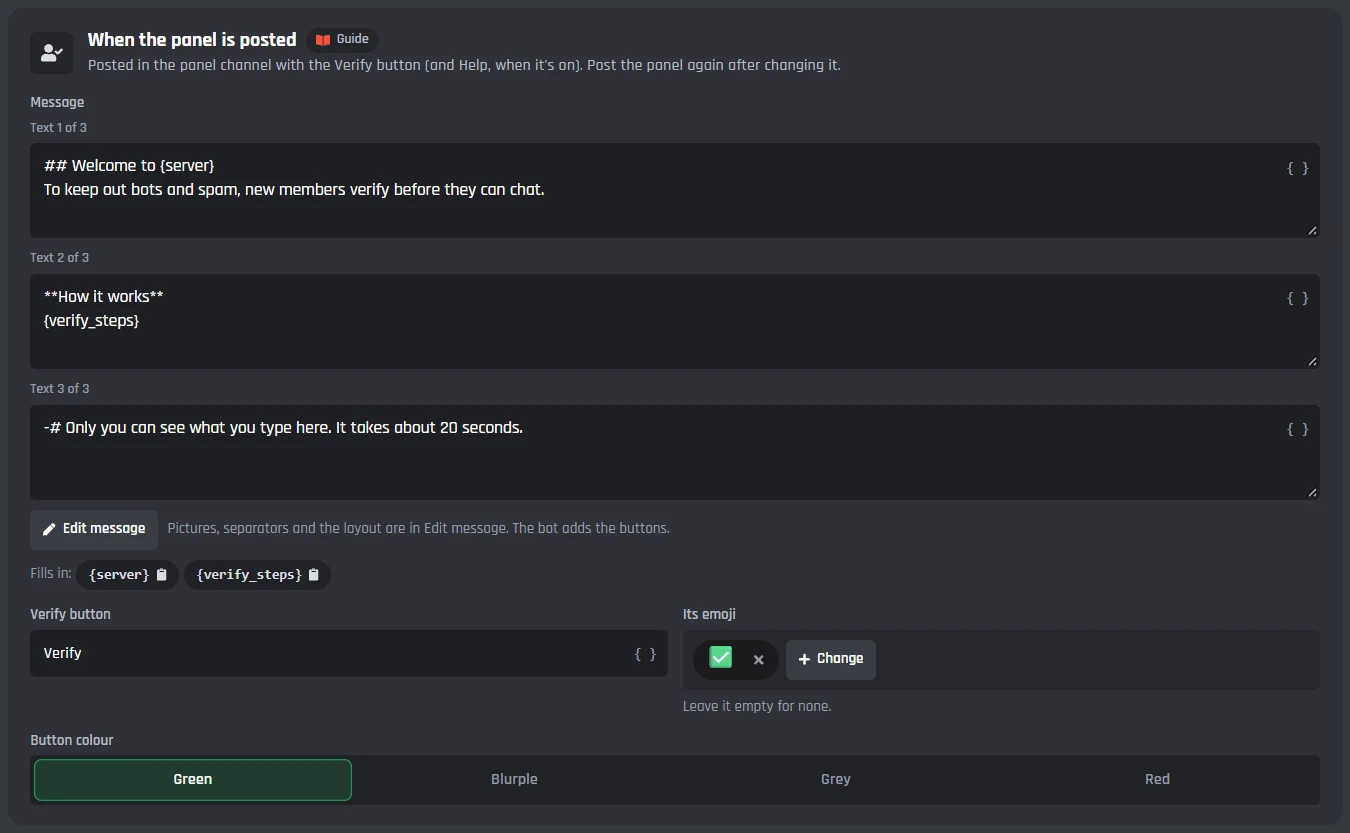
Pick how members verify, the roles they get, and where the panel goes, then post it from the page. The panel is a whole message you can change, with its Verify button under it.
- Press Verify below.
- Type the code from the picture.
- You'll get your roles and see the rest of the server.

How members verify
- Press a button
- Members press Verify and they're in. Quick, and it stops most bots that only join and post.
- Type a code
- Members get a picture with a code only they can see, and type it back. Stops bots that can press buttons. It starts on this one.
- Answer questions
- Members fill in a short form. The bot checks the right answers, or your staff read them and approve.
Roles and the panel
- Give them
- The Verified roles, given once they verify. The page warns you about any role the bot is too low to give.
- Take this role away
- An Unverified role, given when they join and taken away once they verify. Leave it empty if you don't use one.
- Panel channel
- Where the panel goes. New members should see this channel and nothing else until they verify.
- Post the panel
- Posts it, or updates the one that is there after you change it. Its buttons keep working for as long as the panel is there.
The panel message
- When the panel is posted
- The whole panel, with Edit message to open the Message Builder. {verify_steps} fills in the steps for the way you picked.
- Verify button
- Its words, its emoji, and green, blurple, grey or red.
- Help button
- A second button that shows how to verify, privately. Off to start with.
- Replies
- When someone is verified, when they already are, and when something goes wrong, each one only they see.
The code picture
Members who press Verify get a new code every time, drawn in a picture only they can see. They press Type the code and type it back. Capitals don't matter.
Type the codeMade with BotGhost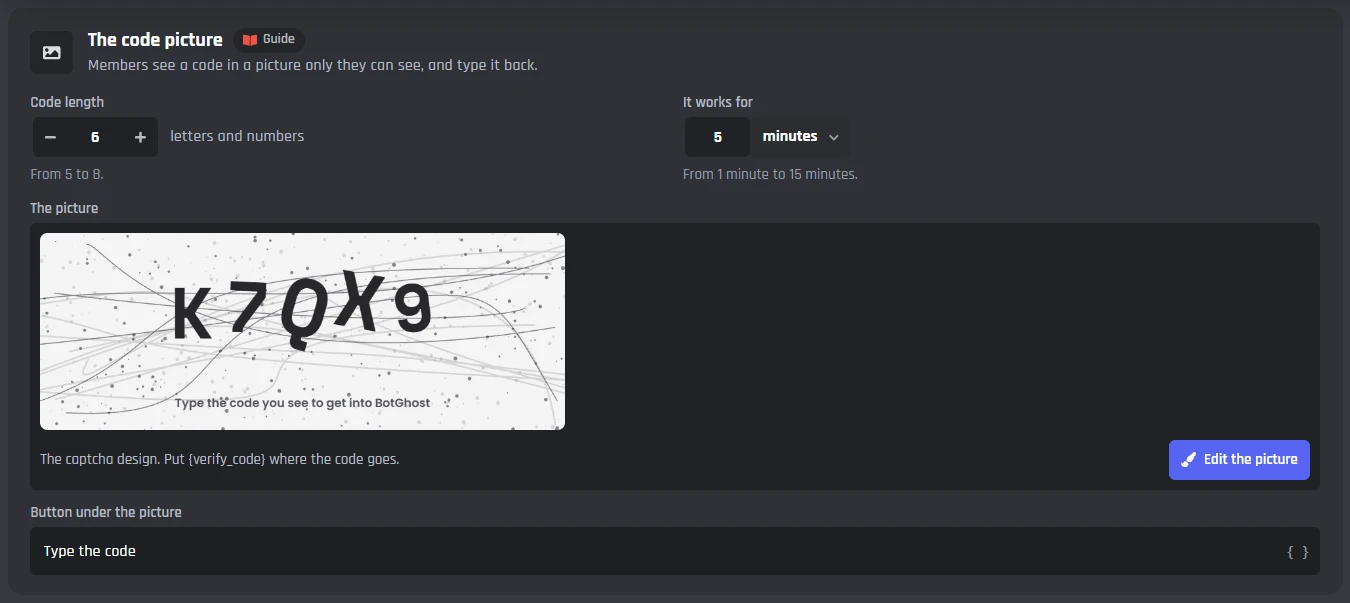
The code
- Code length
- 5 to 8 letters and numbers, 6 to start with. Letters and numbers that look alike, like O and 0, are left out.
- It works for
- 1 to 15 minutes, 5 to start with.
- The picture
- The captcha design to start with. Edit the picture opens the Card Studio, to change its colours, background and font.
- Button under the picture
- Type the code to start with.
Rules before the code
- Show the rules
- Puts your rules at the top of the form they type the code in, with a box they must tick. Off to start with.
- The rules and the box
- Up to 4,000 characters of rules, and the words beside the box, like I've read and accept the rules.
Replies
- When the answer is wrong
- They have tries left. It says how many.
- When the code has run out
- They typed it too late. Pressing Verify gives a new one.
- When the picture can't be drawn
- Lots of people are verifying at once. They press Verify again in a few seconds.
Questions, checked by the bot or your staff
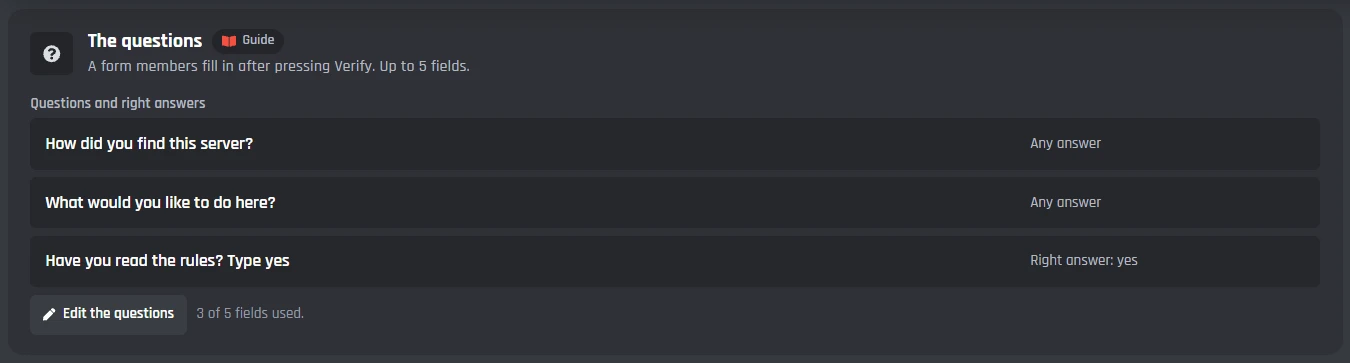
Members fill in a short form. The bot lets them in when every answer is right, or posts the answers for your staff with Approve and Deny.
Joined 3 minutes agoHow did you find this server?
A friend sent me an invite.What would you like to do here?
Play together on weekends.Have you read the rules? Type yes
yesApprove or deny them below.ApproveDeny
The questions
- The form
- Up to 5 fields: text boxes, dropdowns or choices. It starts with three questions.
- Right answers
- Each question can have one. Capitals don't matter. Leave it empty to take any answer.
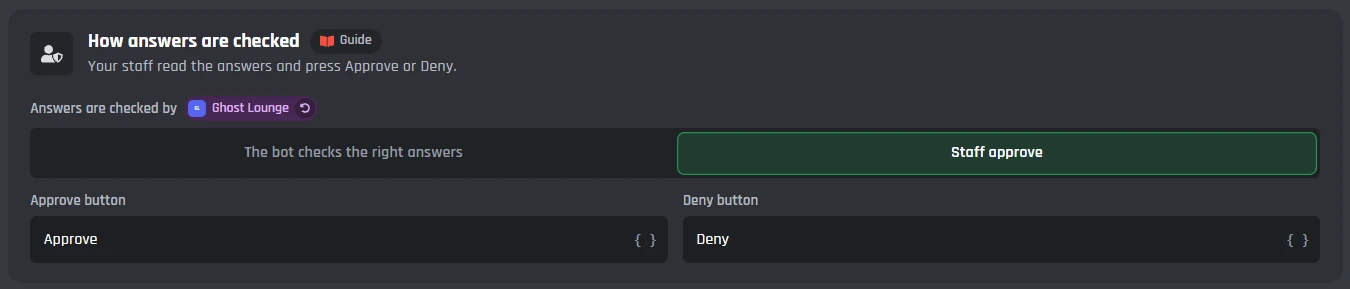
How answers are checked
- The bot checks the right answers
- Every answer right and they're in. A wrong answer counts as a wrong try.
- Staff approve
- The answers go to a review channel, or the log channel, with Approve and Deny. Only staff can press them.
- If denied
- Nothing, kick or ban.
- DM them the result
- A DM when they're approved or denied. Off to start with.
Who has to verify
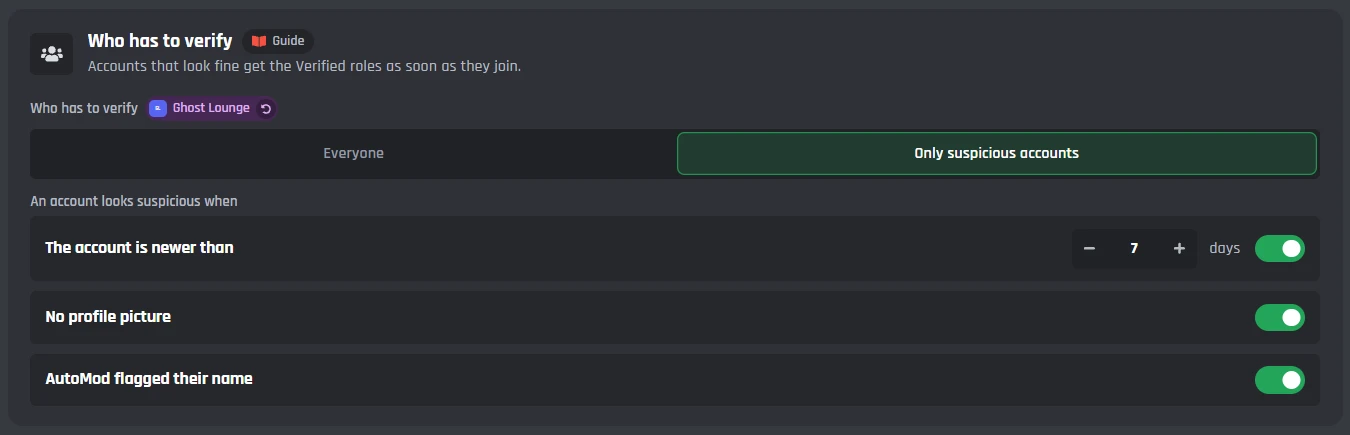
Checks run before anyone gets to the code or the questions. Brand new accounts and accounts with no picture are the ones most often made in bulk.
Who verifies
- Everyone
- Every new member presses Verify. It starts on this one.
- Only suspicious accounts
- Accounts that look fine get the Verified roles as soon as they join. Suspicious means newer than a number of days (7 to start with), no profile picture, or a name AutoMod flagged.
- Skip roles
- Members with one of these never verify, like bots you add by hand. Bots that join are always skipped.
Rules and accounts
- Wait for Discord's rules screening
- On to start with. Verification starts once they've accepted your rules in Discord.
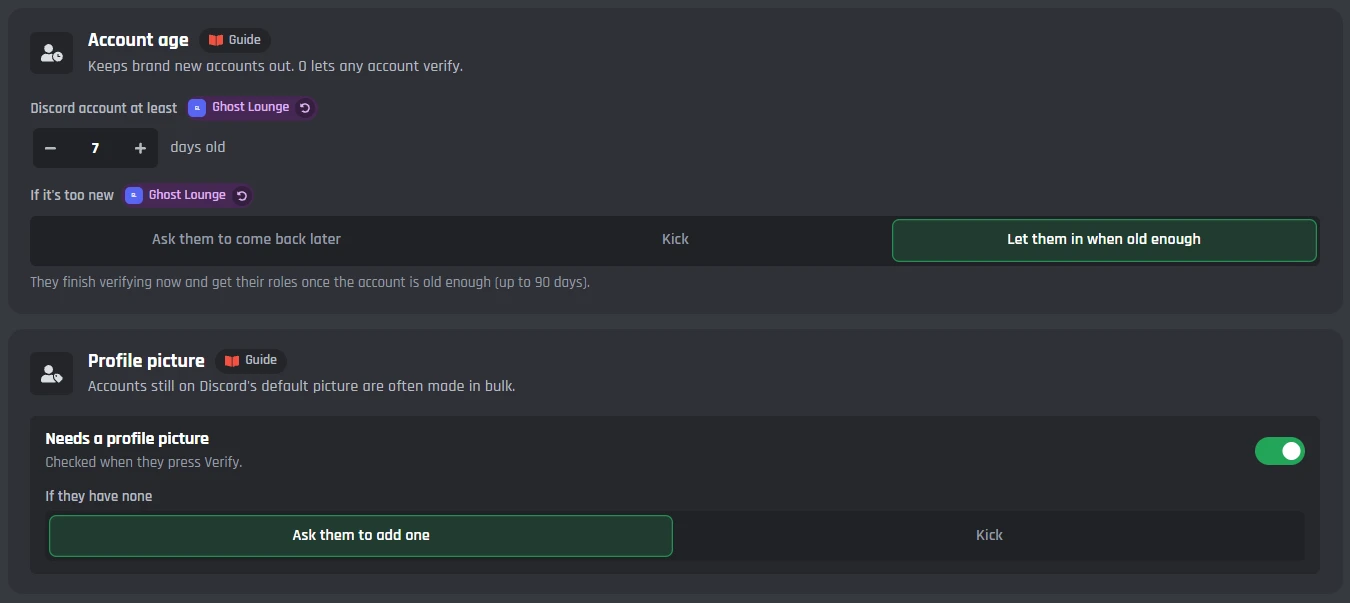
- Account age
- How many days old an account must be, up to 365. Too new: ask them to come back later, kick, or let them in by themselves once it's old enough.
- Profile picture
- Needs one, or not. None: ask them to add one, or kick.
Wrong tries and time
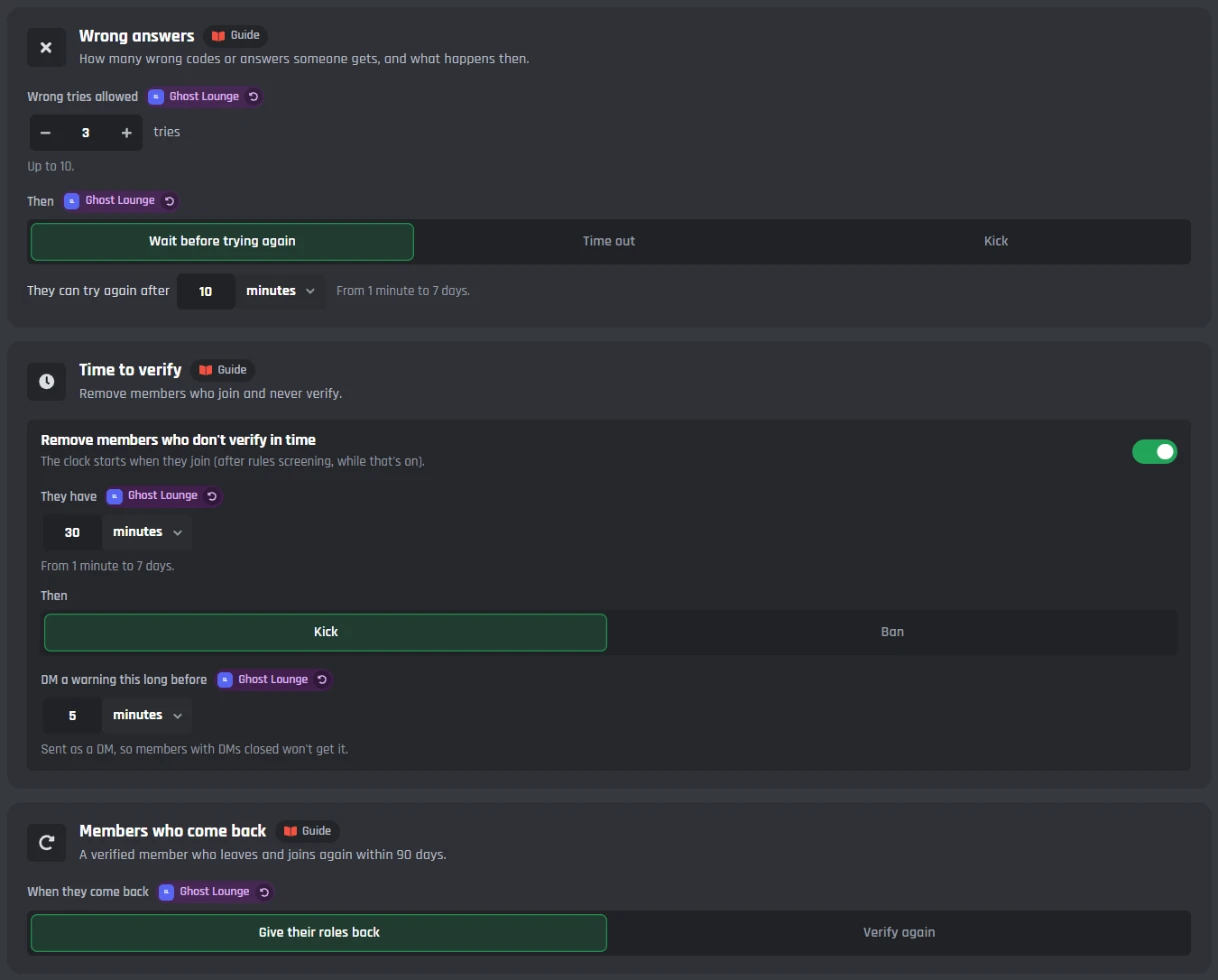
Decide how many wrong codes or answers someone gets, how long new members have to verify, and what happens when a verified member comes back.
Wrong answers
- Wrong tries allowed
- Up to 10, 3 to start with.
- Then
- Wait before trying again (10 minutes to start with), a Discord timeout, or a kick. Waits and timeouts are 1 minute to 7 days.
Time to verify
- Remove members who don't verify in time
- Off to start with. They have 1 minute to 7 days, 30 minutes to start with, then a kick or a ban.
- DM a warning
- A DM this long before the time runs out, saying where to verify.
Members who come back
- Give their roles back
- A verified member who leaves and joins again within 90 days gets the roles straight away. It starts on this one.
- Verify again
- They go through verification like anyone new.
Lock verification during a raid
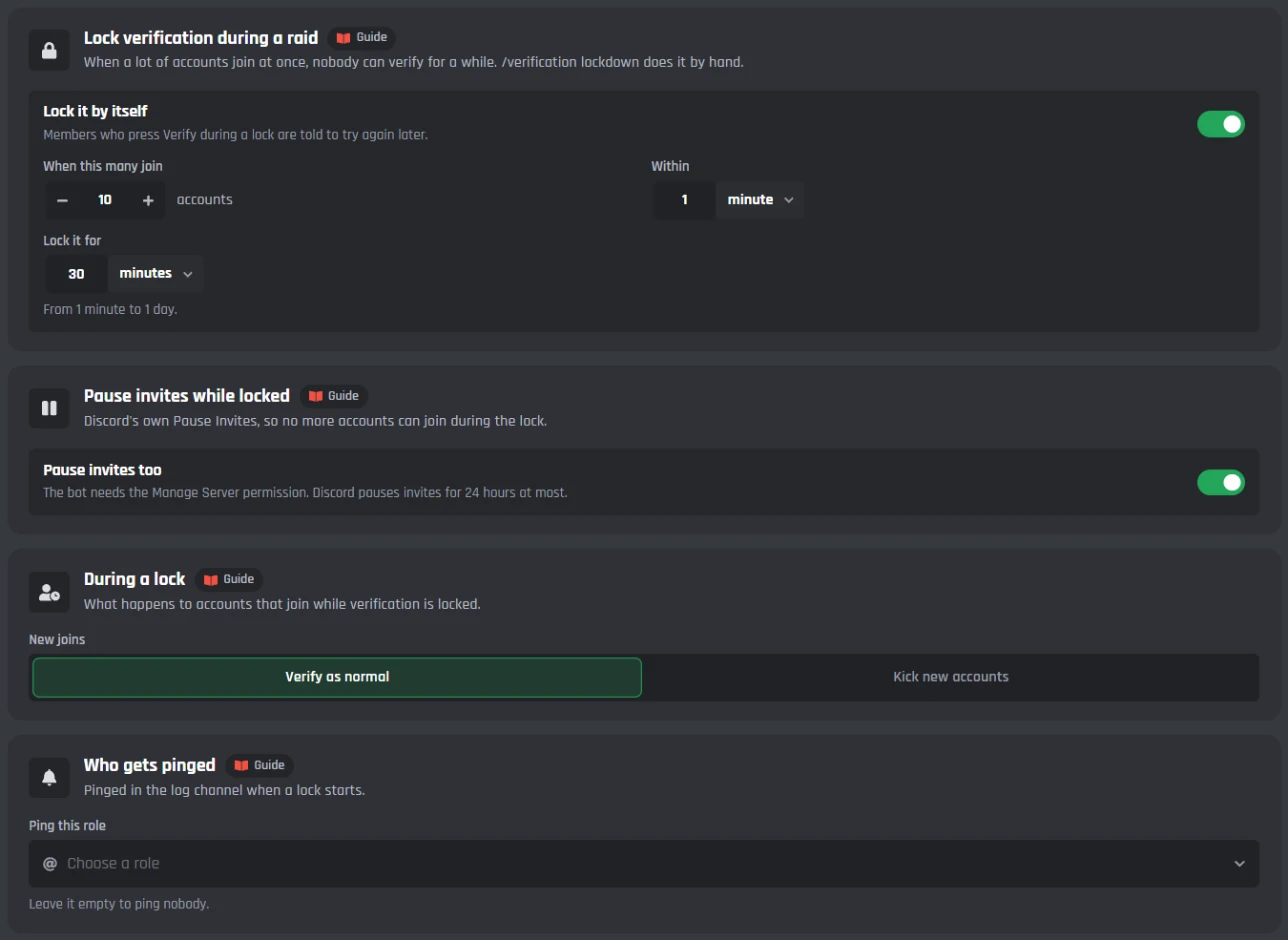
When a lot of accounts join at once, verification locks for a while, so a wave of bots can't get in. It opens again by itself, and staff can lock it by hand with /verification lockdown.
@ModeratorsGhost LoungeMade with BotGhost
The lock
- Lock it by itself
- Off to start with. When 2 to 100 accounts join within 10 seconds to 1 hour (10 within a minute to start with).
- Lock it for
- 1 minute to 24 hours, 30 minutes to start with. Anyone who presses Verify is told to try again later.
While it's locked
- Pause invites too
- Turns on Discord's own Pause Invites, so nobody else can join. It needs Manage Server.
- New joins
- Verify as normal once the lock ends, or kick accounts newer than a number of days.
- Ping this role
- Pinged in the log channel when a lock starts.
The log and your staff
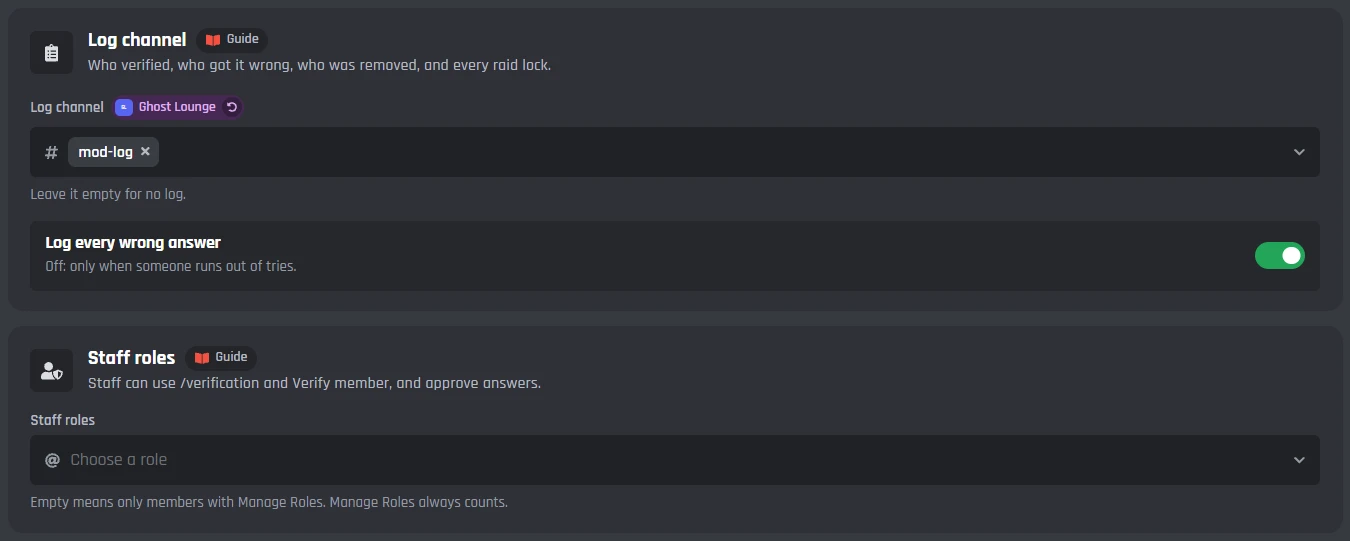
Every member who verifies, gets it wrong, or is removed is written to your log channel, with how they got in and how old their account is.
The log
- Log channel
- Who verified, who got it wrong, who was removed, and every raid lock. Leave it empty for no log.
- Log every wrong answer
- Off: a wrong answer is only logged when someone runs out of tries.
Staff
- Staff roles
- Can use /verification and Verify member, and approve answers. Members with Manage Roles always can.
Under the tabs: the commands and events
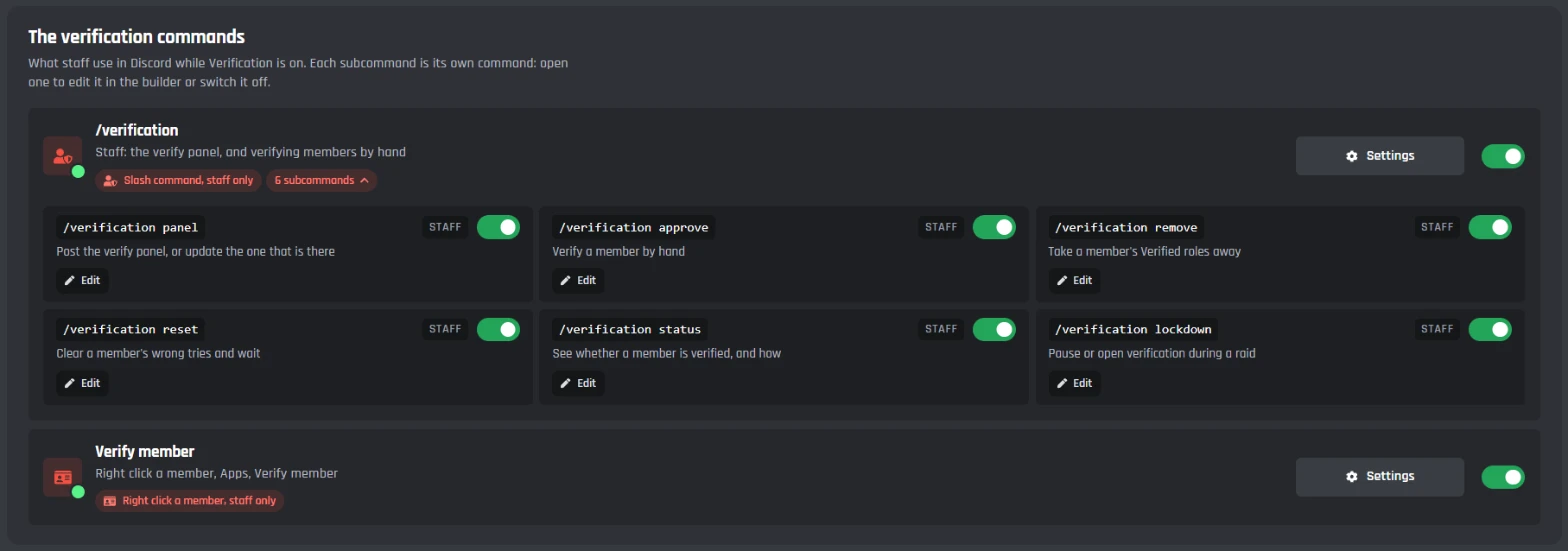
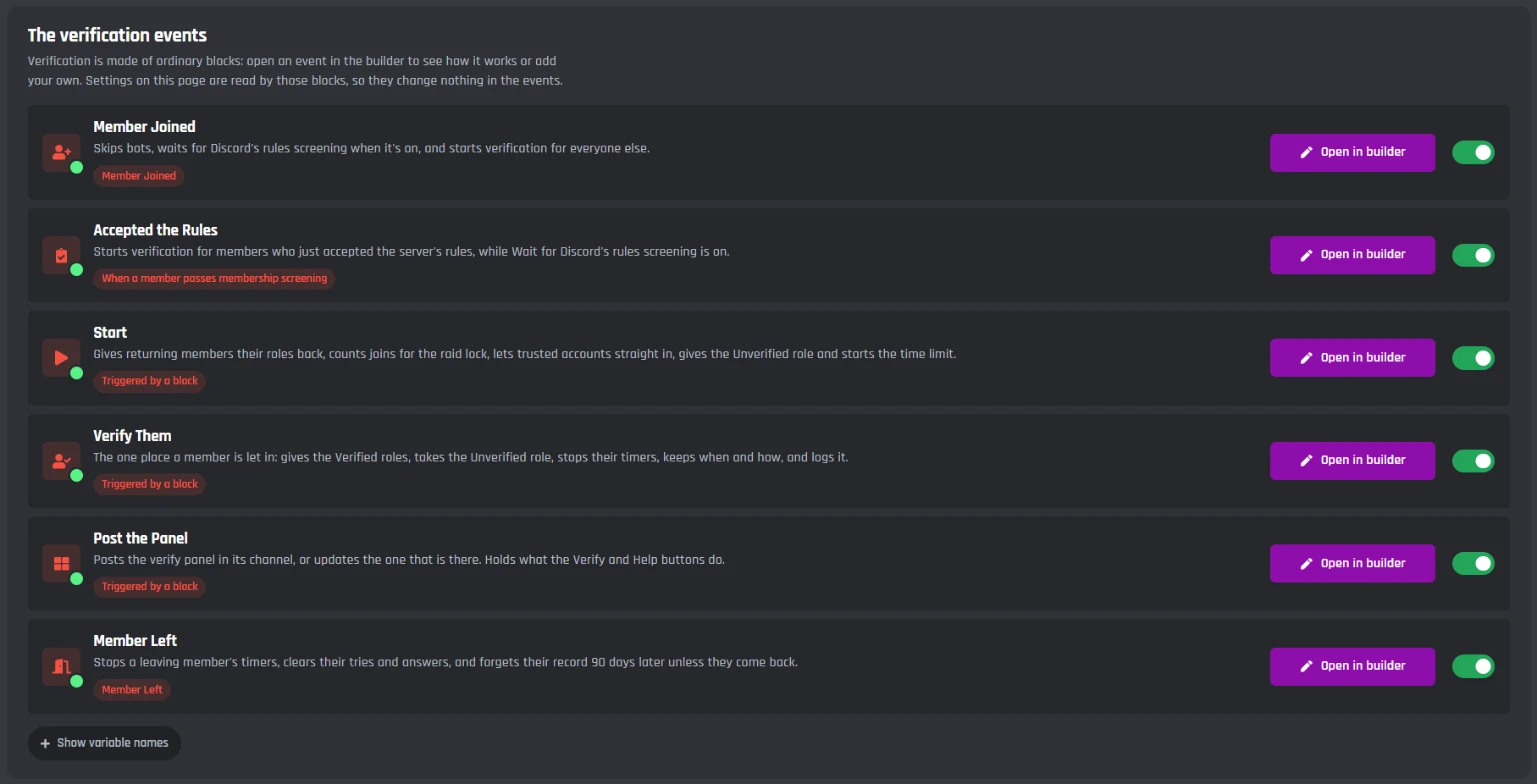
Verification adds /verification with six subcommands, a right click Verify member for staff, and its events. They are made of ordinary builder blocks, so you can open them in the builder and add your own.
Commands
- /verification panel
- Post the panel, or update the one that is there.
- /verification approve, remove, reset and status
- Verify a member by hand, take their roles away, clear their wrong tries, or see whether and how they verified.
- /verification lockdown
- Pause verification during a raid, or open it again.
- Verify member
- Right click a member, then Apps. For staff.
Events
- Member Joined and Accepted the Rules
- Start verification for new members, after Discord's rules screening when that's on.
- Start, Verify Them and Post the Panel
- Run with Trigger a Custom Event, from the panel's buttons, the commands and the page. Verify Them is the one place a member is let in.
- Member Left
- Stops a leaving member's timers, and forgets them 90 days later unless they come back.
Verification is made of ordinary builder blocks, and every message it sends can be changed with the Message Builder. Open its events in your own Discord bot events builder to see how it works.
Set up verification on Discord
Haven't got a bot in your server yet? Start with how to make a Discord bot, then come back here.
- 1Open Verification from Modules in your dashboard and press Enable. This adds /verification, the right click Verify member, and the events Verification needs.
- 2On the Verify tab, pick the role members get under Roles they get, and the channel under Where the panel goes. Your bot's role has to be above the Verified role.
- 3Press Save Changes, then Post the panel.
- 4In Discord, hide your other channels from @everyone and show them to the Verified role.
A free Discord verification bot
Every Verification setting works on the free plan, the captcha code included. There's nothing to unlock, only the limits below, which are the same on every bot.
Free
$0- A button, a captcha code, or questions checked by the bot or your staff
- Account age, profile picture and rules screening checks
- Raid locks with paused invites, and a time to verify
- A log channel, staff roles, and every message yours to change
- Verification's commands and events don't use up your 3 free commands and 3 free events
Messages on free bots end with a small Made with BotGhost line.
The limits
in each server- Code length
- 5 to 8 characters
- Questions
- Up to 5
- Wrong tries
- Up to 10
- Time to verify
- 1 minute to 7 days
- Raid lock
- 1 minute to 24 hours
- Code pictures
- 60 a minute per bot
Premium ($12.50 a month for one bot) takes the Made with BotGhost line off and adds unlimited commands, events, and servers. Free bots go offline after 2 days with no activity. Read about free hosting
The /verification commands
Your staff run verification from Discord with /verification. Each subcommand is its own command, so you can switch any of them off.
- /verification panel posts the panel, or updates the one that is there.
- /verification approve, remove, reset and status, to let a member in by hand, take it away, clear their tries, or check them.
- /verification lockdown pauses verification during a raid, and opens it again.
- Right click a member, then Apps, for Verify member.
Account 412 days old
Rules Accepted
Wrong tries 0
Answers with the staff No248112930465071104
Discord verification bot questions
Didn't find your question? Ask us in the BotGhost Discord, or read the Verification docs.
Yes. Every Verification setting is free on BotGhost: the captcha code, buttons, questions with staff review, account age and profile picture checks, raid locks, the time to verify, and the log. On free bots, each message the module sends ends with a small Made with BotGhost line; Premium takes it off.
Verification on the free planInvite your BotGhost bot to your server. In the dashboard, open Verification and press Enable. On the Verify tab, pick the Verified role and the panel channel, press Save Changes, then press Post the panel. Hide your other channels from @everyone and show them to the Verified role.
See the setup stepsA bot that makes new members type a code from a picture before they can chat, because spam bots can't read it. In Verification, members press Verify, get a picture with a new code only they can see, and type it back. Pick Type a code on the Verify tab.
See how members verifyYes. On the Raids tab, Lock it by itself locks verification when a lot of accounts join at once, like 10 within a minute. Nobody can verify during the lock, your staff are pinged, and Pause invites too turns on Discord's own Pause Invites. Staff can also lock it by hand with /verification lockdown.
See the Raids tabYes. Set Discord account at least on the Checks tab, up to 365 days. Accounts that are too new are told when they can verify, kicked, or held and let in by themselves once they're old enough.
See what happens in each caseYes. Pick Answer questions, then Staff approve. Each member's answers are posted in your review channel with Approve and Deny, and how old their account is. Only staff can press them. Deny can do nothing, kick or ban.
See staff reviewNothing, to start with: they just can't see the rest of your server. Turn on Remove members who don't verify in time on the Limits tab to kick or ban them after a time you pick, with a warning DM before it if you want one.
See the Limits tabYes. While Wait for Discord's rules screening is on (it starts on), verification starts once a member has accepted your rules in Discord. You can also show your rules in the form members type the code in, with a box they must tick.
Read the Verification docsOnly member IDs, their wrong tries, and when and how they verified. No IP addresses or device details. A member's record is forgotten 90 days after they leave, unless they come back.
Read the Verification docsThe new Verification page shows Move my settings. It moves your channel, role, panel, button, log channel, success message, tries and time limit across, and switches the old module off so the two never both kick. Then save and post the new panel.
Moving from the old VerificationKeep the bots out of your server
Switch on Verification, pick a role and a channel, and post the panel. The free plan doesn't need a card.
Set up Verification for free