Global Chat
Cross-post server messages across multiple text-channels!
.png)
This module requires a Premium Subscription to function.
The Global Chat module will allow users to connect multiple text channels, even in different servers!
Settings
Global Chat Settings
These are the settings that allow you to customize the Global Chat module, this will allow you to configure permissions, cooldowns and more.
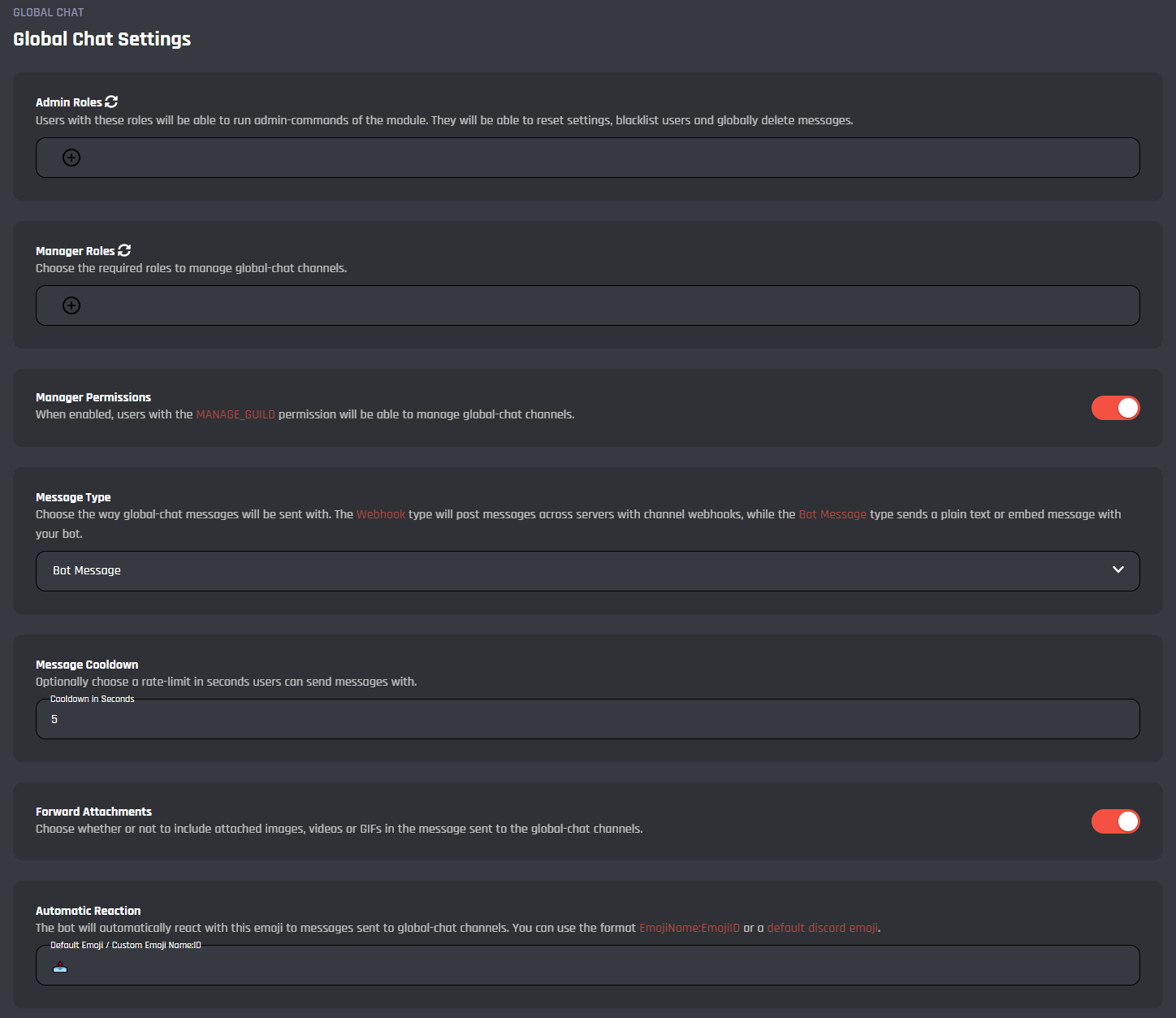
Admin Role
This selection will allow you to setup an admin role. Users with these roles will be able to run admin commands paired with the module. They will be able to reset settings, blacklist users and globally delete messages.
Manager Role
This selection will allow you to setup a manager role. Users with the roles selected will be able to manage global chat channels.
Manager Permissions
This setting will allow you to toggle the manager permission and when enabled, users with the manage guild permission can moderate and configure global chat channels.
Message Type
In this field you can change the type of message that is sent to the other channels, by default this is set to webhook.
Message Cooldown
This setting will allow you to choose a rate limit in seconds users can send messages with. There is a minimum of 5 seconds.
Forward Attachment
This toggle will allow you to enable whether or not to include attached images, videos, or GIFs in the message sent to the global chat channels.
Automatic Reaction
If you add an emoji to this setting, the bot will automatically react with this emoji to messages sent to global chat channels. You can use the format here or a default discord emoji. A default emoji is applied, and if made blank then this setting is disabled.
Message Settings
This section will allow you to customize the global chat messages. The settings are different depending on the type chosen from Message Type.
Choosing this type will make the message sent be in the form of a webhook.
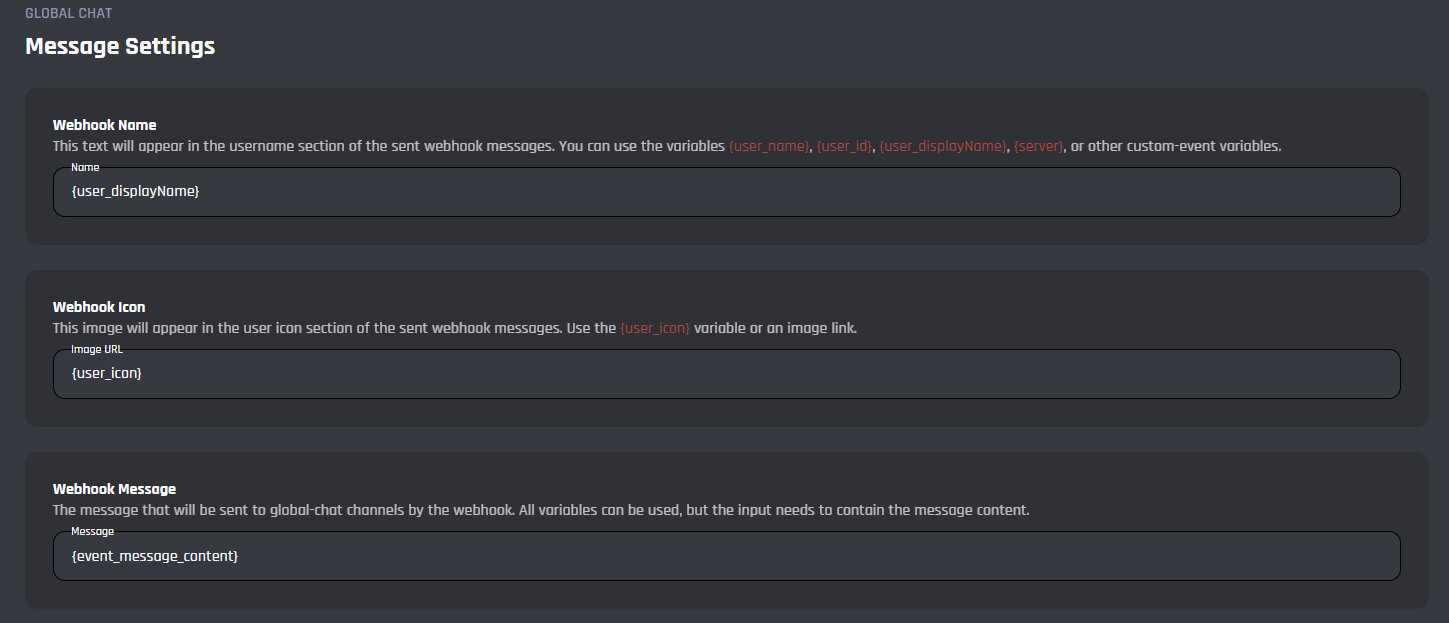
Webhook Name
This field configures the text that will appear in the username section of the webhook message. Variables can be used in this field.
Webhook Icon
This field configures an image that appears in the user icon section of the webhook message. You may use the {user_icon} variable / image link.
Webhook Message
In this field you can input the message that is sent to the global chat channels. All variables can be used.
Choosing this type will make the message be in the form of the bot's message.
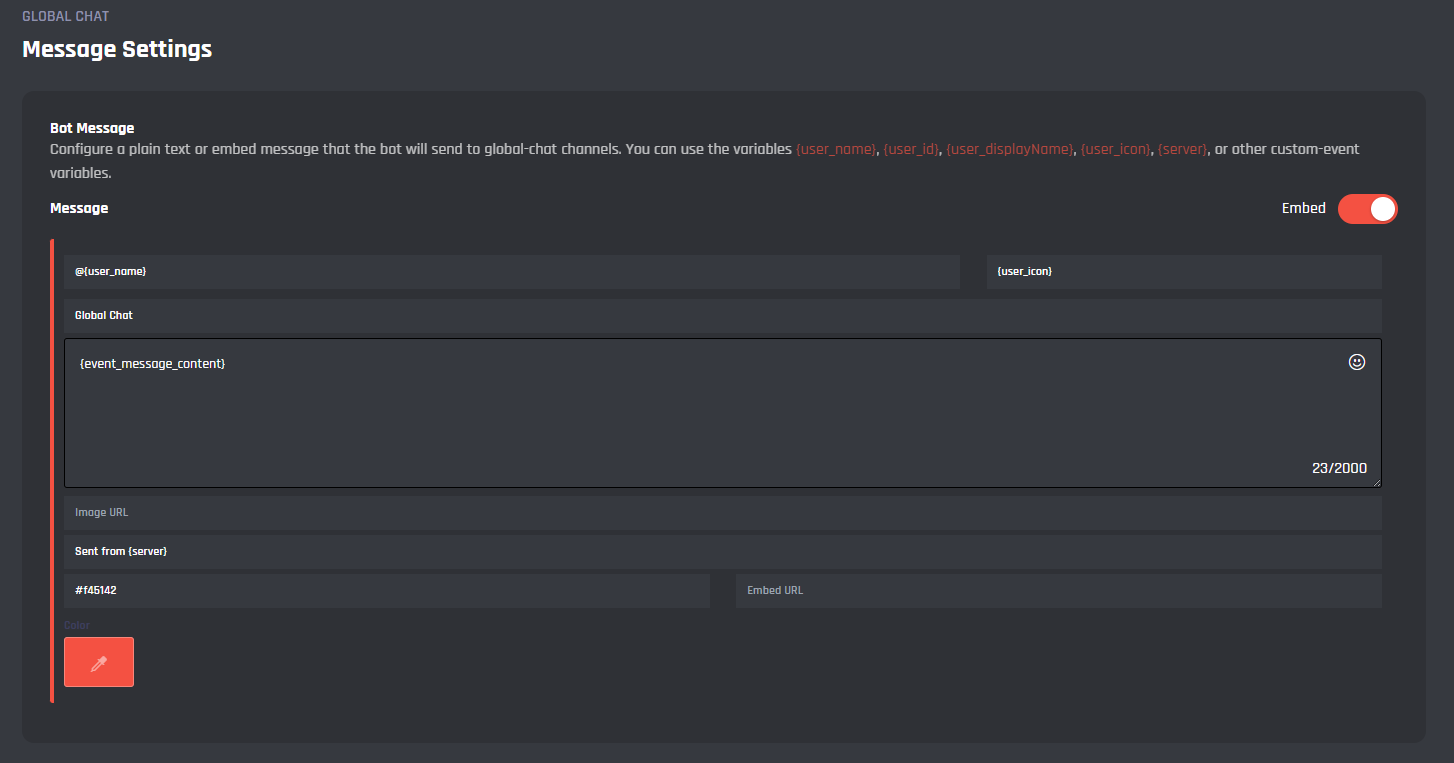
Message
In this field you can input the message that is sent to the global chat channels. All variables can be used.
Blacklist Settings
In this section, you can configure the blacklist settings such as blacklisted roles or blocked expressions.
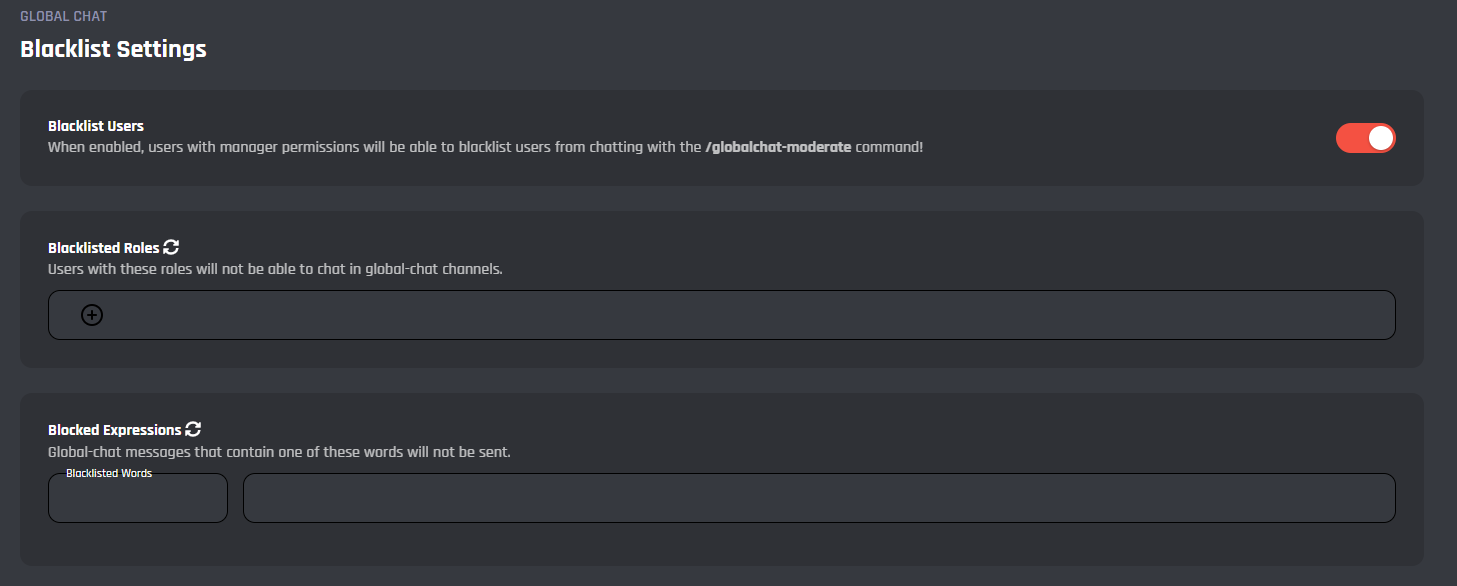
Blacklist Users
This toggle if enabled, allows you give permissions to users with the manager role to be able to blacklist users using the /globalchat-moderate command.
Blacklisted Roles
This selection will allow you to choose some roles to restrict the global chat from. Users that have one of these roles can't chat in global-chat channels.
Blocked Expressions
In this section you can set some keywords / phrases to block when using global chat. Any global-chat message that contains any of those blocked expressions won't be sent.
Commands
In this area, you can view and modify the commands of the Global Chat module. Below you may find some information on each command of the module.
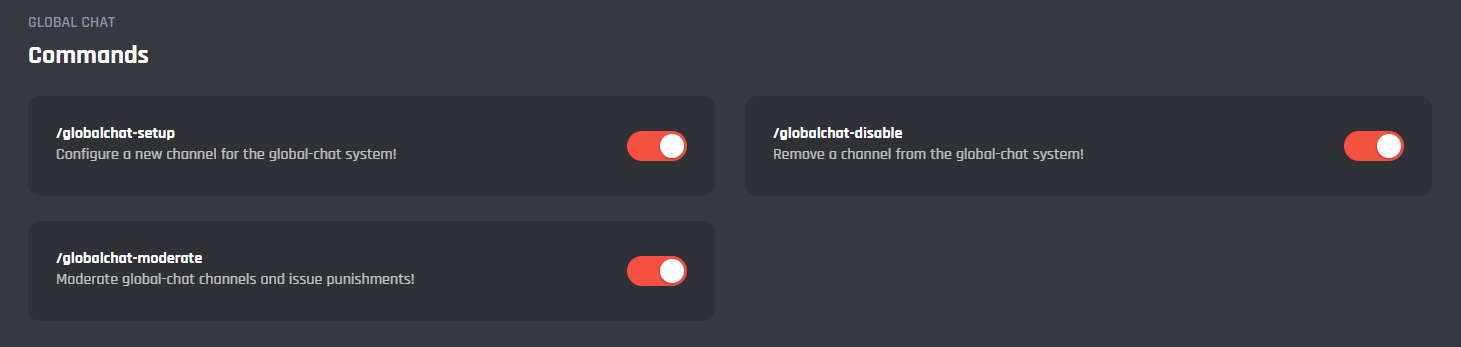
/globalchat-setup
This command will allow you set a global chat channel for the entire system to use.
/globalchat-disable
This command will disable a current global chat channel so that messages sent in this channel won't be global anymore.
/globalchat-moderate
With this command you can punish users and moderate global chat channels.
Events
In this area, you can view and modify the events of the Global Chat module. Below you may find some information on each event of the module.
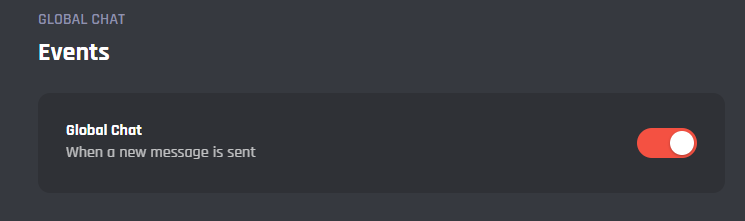
Global Chat
This event handles the main core functions of the module and connects the global chat channels across different servers to each other.
It's advised that you do not edit the commands and events unless you have a good understanding of BotGhost and its Command Builder. If you encounter any issues, you might want to reset the module for it to work again as intended.
Additionally, a copy of the edited commands / events will be created if you update the module.