
The command and event builder has been rebuilt from the ground up. Commands now lay themselves out as a tidy tree, almost every block's settings have been redesigned, there are two new message builders, and things that used to need a pile of conditions are now built in: paged messages, press limits, cooldowns, temporary roles and reminders.
Everything you've already built keeps working exactly as before, and every new feature can be switched off in Builder Settings.
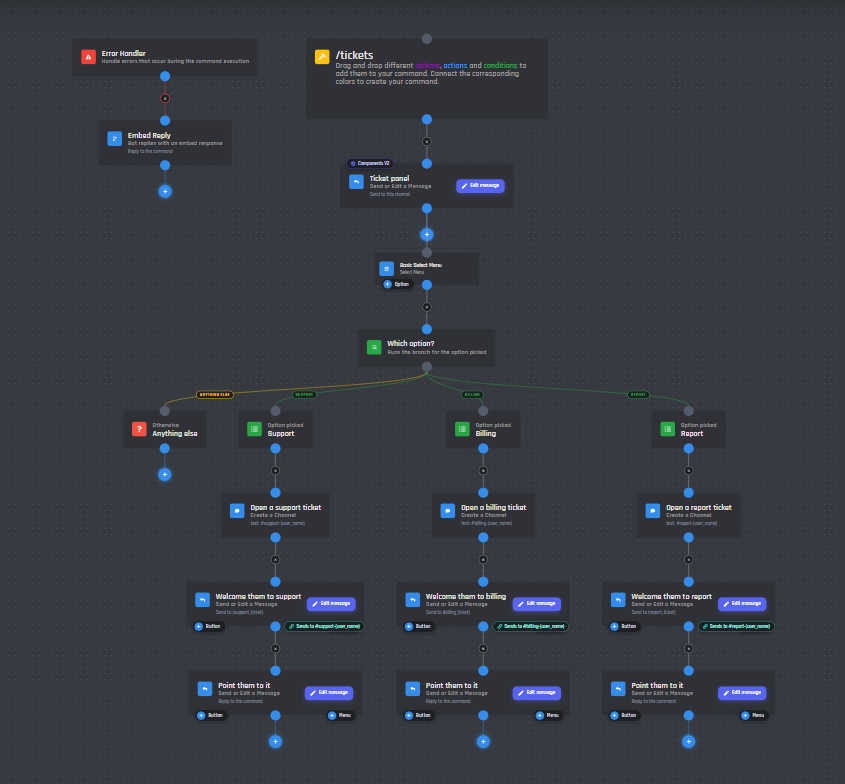
A tidy tree layout
Big commands used to end up as a tangle of blocks and crossing lines. The builder now lays your blocks out as a tree: every block sits straight under the block that leads to it, with its branches centred beneath it, so a command reads from top to bottom.
Commands are laid out like this when you open them, and whenever you press Organize blocks: the shuffle button in the canvas controls, or right-click anywhere on the canvas. Share codes open already organized.
- Tree or Graph: Tree puts every block under its parent. Graph is a layered layout for commands where lots of branches flow back into the same block.
- Spacing: Compact, Normal, Spacious, or your own gaps from 0 to 1000px.
- Branch order: blocks side by side can be ordered by when they were connected, by label or by block type.
- Fewer crossing lines: when you connect a block or add a button or menu, the blocks under it move to match the order of its points.
Every layout option is under Builder Settings > Layout.
Working with big commands
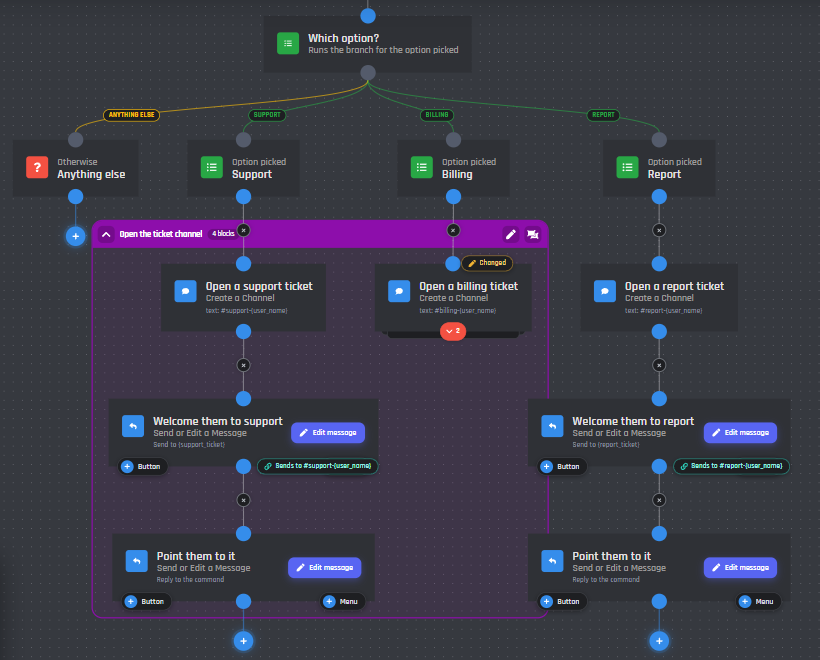
Commands with hundreds of blocks now open, scroll and zoom far more smoothly. Only what's on screen is drawn, and commands with more than 300 blocks switch to simpler lines to stay quick.
- Collapse: the button under a block folds away everything below it. A count shows how many blocks are hidden, so you can always open it again.
- Groups: select some blocks and press
Ctrl+Gto put them in a coloured frame with a name and description. Move them together, or fold the group into one small card. - Find a block:
Ctrl+Shift+Ffinds any block by its label, note or name and jumps to it, opening anything collapsed on the way. - Select several: hold Shift and drag, or use the select area button, then duplicate, group, save as a template or delete them in one go.
- Right-click a block to rename it, collapse it, jump to the block above, copy its ID, duplicate it or delete it.
- Highlight the path: the lines from the top of your command down to the selected block light up.
- Multi-tab editing: turn it on in Builder Settings to edit a different command in each browser tab.
Building faster
The + button and next steps
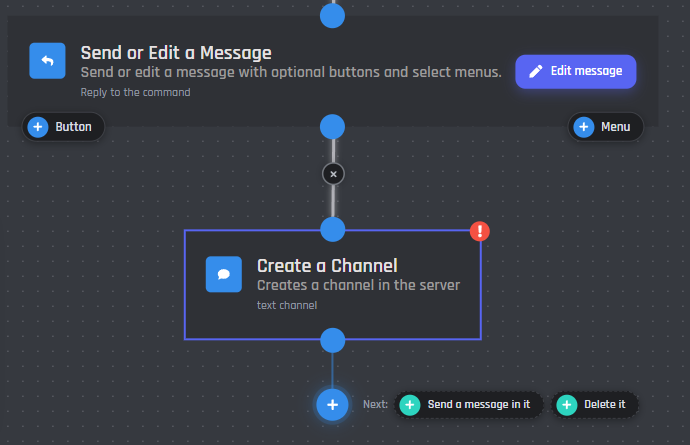
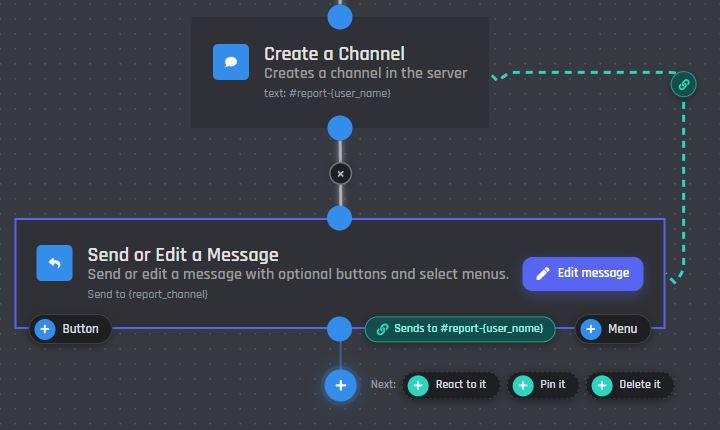
A round + sits under every block with nothing after it. Click it, search for the block you want, and it lands underneath, already connected. Select a block and next step chips suggest what usually comes next, like Send a message in it after Create a Channel. One click adds it, filled in and linked.
- Filled in for you: new blocks take what they need from the blocks above, like the variable a Run Equation should change. Only empty fields are filled.
- Drop anywhere on a block: let go of a line anywhere on a block to connect it, no more aiming for the small dot.
- Drag to empty space: drop a line on the canvas to pick a block from a searchable list.
- + Option and + Branch: add a menu option or a condition branch straight from the block.
- Rename on the canvas: double-click a block's title.
Linking blocks together
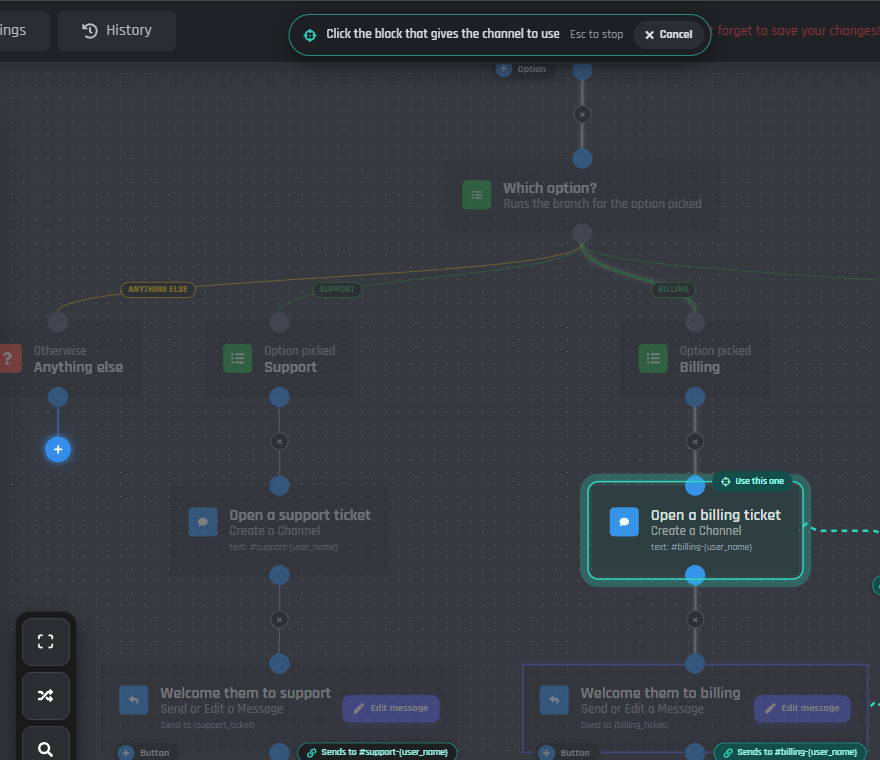
Blocks can now use what other blocks make, without copying IDs or variable names around. Create a channel, then send a message in it, edit it or set its permissions just by picking the block that made it.
Pickers for channels, roles, messages, members, emojis and scheduled events have a From a block tab that lists the ones made by blocks above. Prefer to click? Press Pick on the canvas and the blocks you can use light up.
- Link pills: a linked block says what it does, like Sends to #ticket-{user_name}. Hover it to light up the block it uses, and click it to jump there.
- Link lines: dashed lines between linked blocks, drawn around other blocks so they never run underneath them.
- Readable names: results get names like
{ticket_channel}instead ofnew_channel_2, and renaming one updates every block that uses it. - Safer deleting: deleting a block that other blocks use asks first and tells you which ones.
- Message pickers: Delete, Pin, React to and Edit a Message show a preview of each message to choose from.
A new command flow
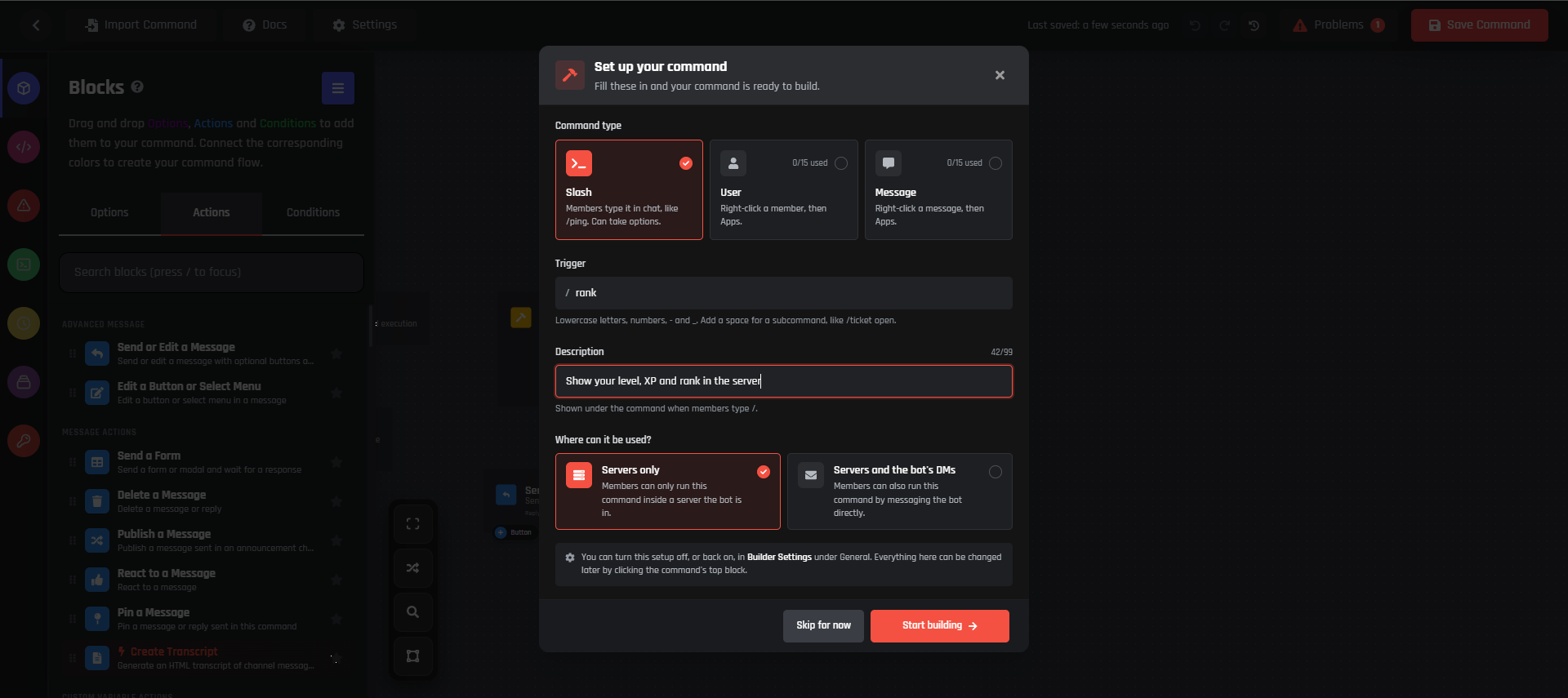
A new command first asks for its type, trigger, description and where it can be used, so it's ready to save the moment your blocks are in. It also comes with a reply already attached, so it answers straight away. Change it or delete it as you like.
- Nothing replies yet: a warning on commands that never reply, which Discord shows as thinking forever, with one click to Add a reply.
- Command settings rebuilt: type, trigger, description, who sees the replies, permissions and cooldown, all in the new look.
- Option blocks: every option's settings redone, with its variables ready to copy in one click.
- First command checklist: name it, add a reply, save it, then try it in Discord.
Saving, undo and problems
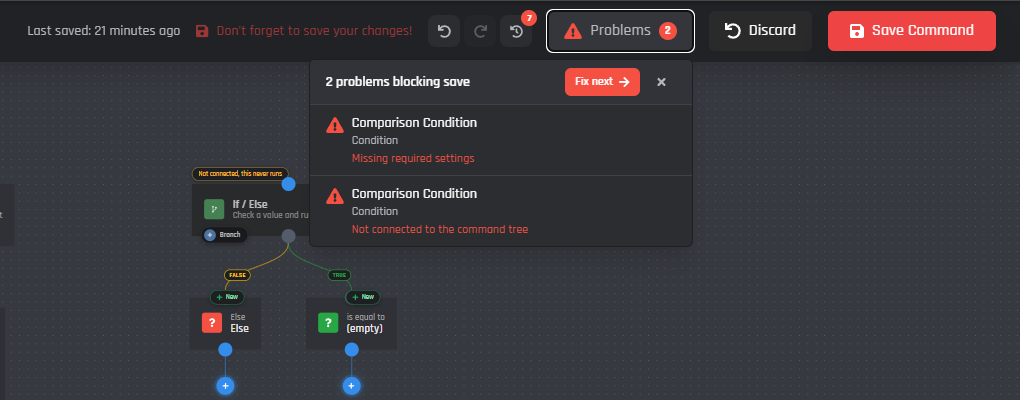
The Problems button in the top bar lists every block that would stop your command from saving. Click one to jump straight to it, or press Fix next to go through them in order. Blocks that clearly can't work, like an ID that isn't an ID, say why before you save, and block settings show what's still missing at the top.
- Undo history:
Ctrl+Zundoes any change andCtrl+Shift+ZorCtrl+Yredoes it, with a list of recent changes next to the undo button. - Changed and New tags: blocks you've edited or added since your last save are tagged, so you can check your work first.
- Discard: puts the command back to its last saved version in one click.
- Not connected: blocks that nothing leads to are faded and labelled, because they never run.
- Unsaved changes warning: the builder asks before you close the tab with unsaved work.
Redesigned block settings
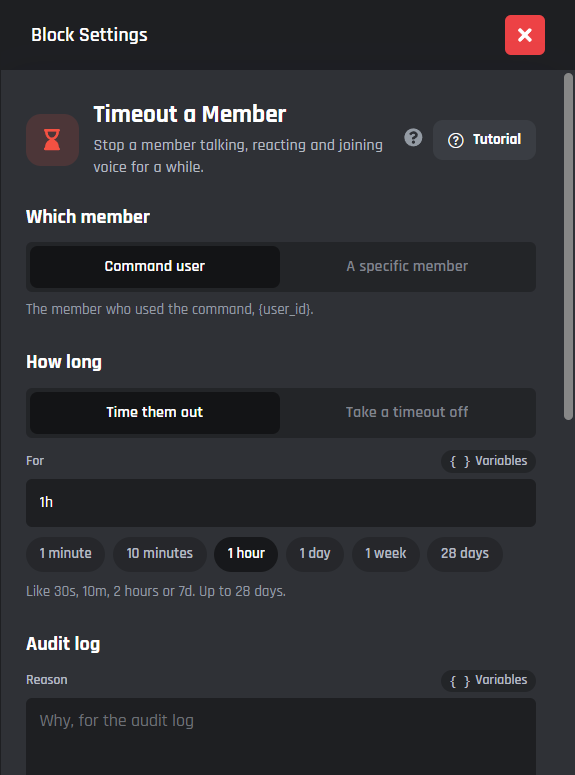
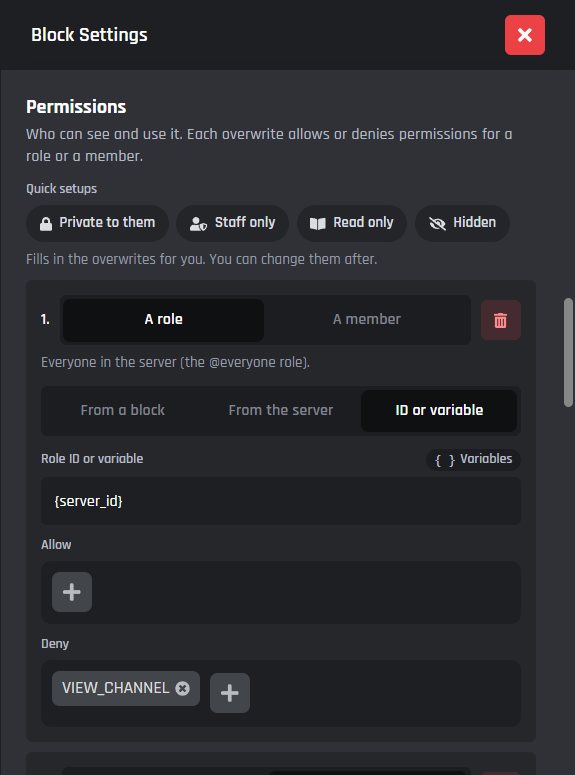
Almost every block's settings have been redone: shorter, clearer and much harder to get wrong. That covers messages, moderation, roles, channels, threads, voice, music, scheduled events, loops, variables, conditions, text and API requests.
Dropdowns have become choices you can see at a glance, and the options most people never touch are folded under Advanced. What still needs filling in shows at the top, and anything that can't work, like a timeout over 28 days or a word in a number field, is flagged before you save.
- Quick picks: ready-made timeout lengths, purge amounts, invite lengths, slowmode times, volumes and wait times.
- Which member: moderation blocks pick the command user, a member option or an ID in one step.
- Channels and roles: one-click permission setups (Private to them, Staff only, Read only and Hidden), searchable server lists and colour dots for roles.
- Manipulate some text: see the result as you type.
- Music: all 20 music blocks redone.
- On phones: settings open as a sheet you can drag to half or full height.
New options on more than 30 blocks
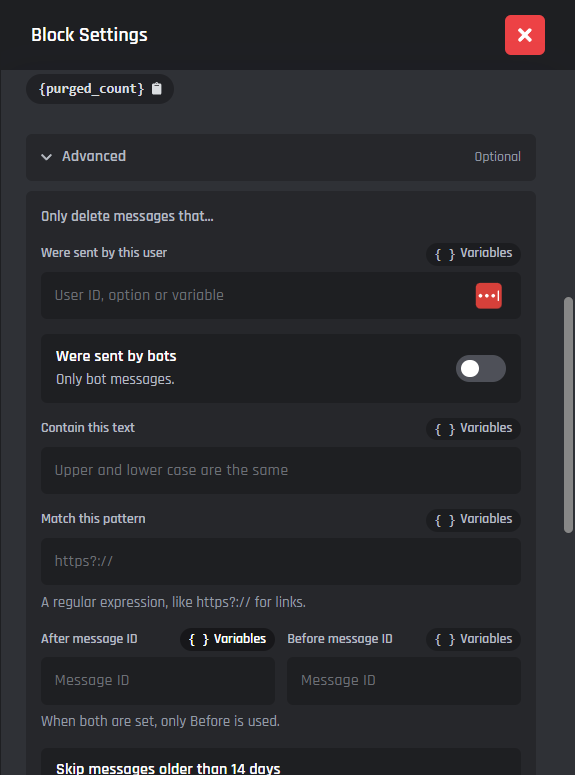
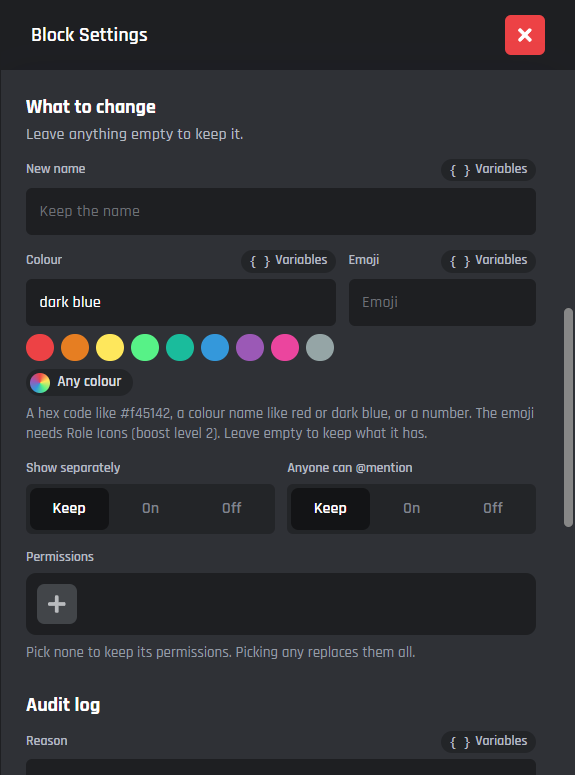
We went through the blocks you use most and added the options you've been asking for. Every one of them is optional, so the blocks you already have work exactly as before.
- Ban by user ID, even if they've left. Timeout can take one off, and Nickname can reset it.
- Purge: only one user, bots, some text or a pattern, before or after a message, up to 1,000 at once.
- Add Roles and Remove Roles: skip roles they already have. For all users: a pause, a member limit and counts.
- Create a Role and Edit a Role: emoji icons, colours by name like "dark blue", and Keep, On and Off switches.
- Audit log reasons on 8 blocks.
- Create a Channel and Edit a Channel: slowmode, user limit, bitrate, NSFW and thread defaults.
- Threads: forum posts with a first message and tags.
- Messages: delete after a delay, unpin, remove reactions, and publish a message a block sent.
- Set Variable: merge JSON into an object, or set it to a time. Run Equation: decimal places.
- Manipulate some text: title case, slug, pad, URL and Base64 encoding and more.
- Send an API Request: a timeout, up to 3 retries and authentication. Wait: milliseconds to hours.
- Music: your own pitch, speed and equalizer, queue at a position, and seek as
mm:ss.
Variables in fields
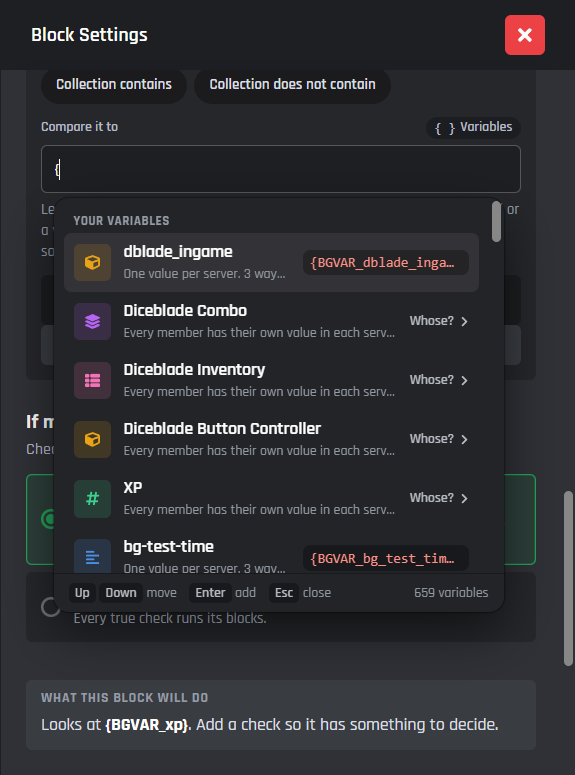
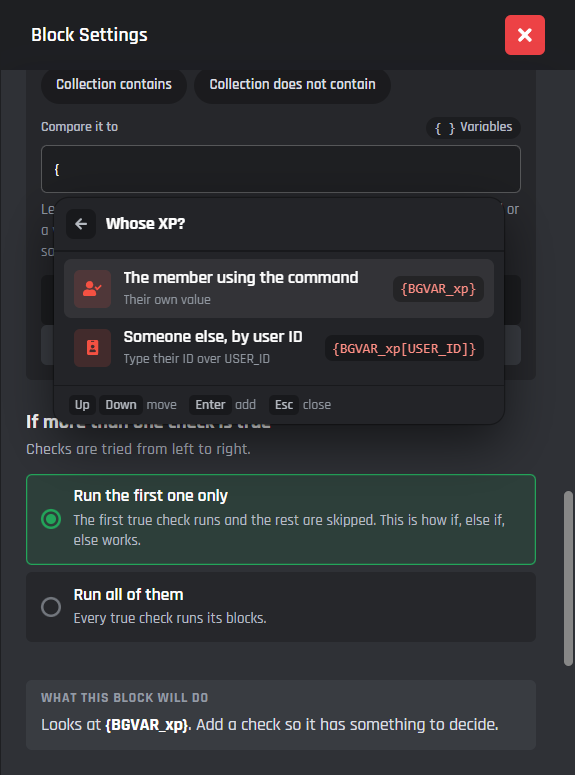
Every field that takes variables now says so, and helps you fill it in as you type. Type { and a list opens: your own variables first, then command options, values from blocks above and everything else. Member variables ask whose value to use, and the parts you need to fill in are selected for you, so you just type over them and press Tab.
- Values from blocks above: what an API request, form or loop gives back shows up in the list, ready to click.
- Wrong tags flagged: a variable that doesn't exist is marked under the field before you save.
- Variables button: sits next to every field that takes variables, with a character count against Discord's limits.
- Option variables: every option block shows its variable, like
{option_username}. Click it to copy. - Highlight Variables: turn it on in Builder Settings to tint variables as you type, each kind in its own colour.
Two new message builders
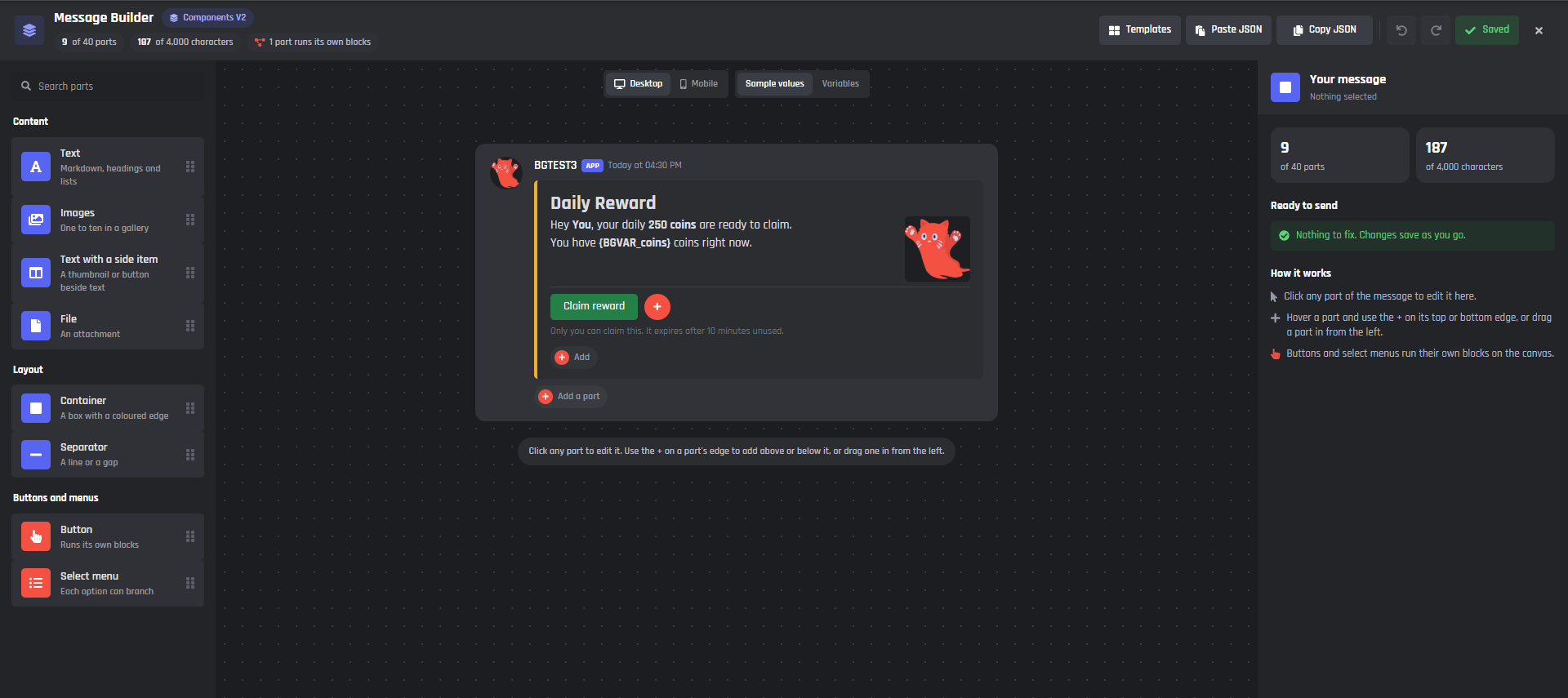
Both message builders have been rebuilt from scratch: the normal one for text and embeds, and a brand new one for Components V2 messages. Edit right on the message, start from a template, or bring a message in from another builder.
- Normal Message Builder: text and embeds on the left, a live preview on the right, and a compact embed editor.
- Components V2 Message Builder: click any part of the message to edit it, and add new parts with the + on each one.
- 28 templates in each builder, with a preview before you use one.
- Copy JSON and Paste JSON: bring messages in from Discohook and other builders, or copy yours out.
- Original buttons: when a Components V2 message edits another message, its buttons and select menus keep working, and you choose where they go.
- Send or Edit a Message: pick what to send and where it goes from clear choices, with a large preview. Edit message on the block opens the builder.
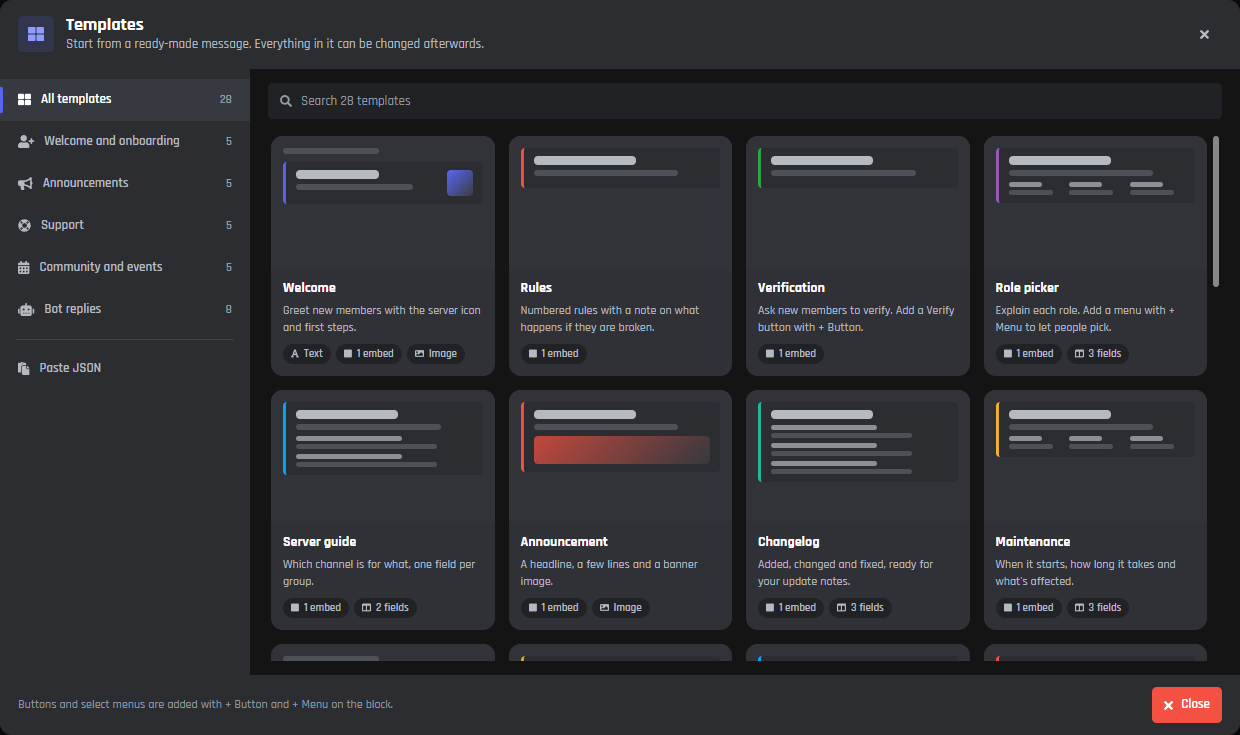
Prefer the old builders? Switch New Message Builder off in Builder Settings. Messages are saved the same way either way, so you can switch back and forth.
Go to Page: paged messages
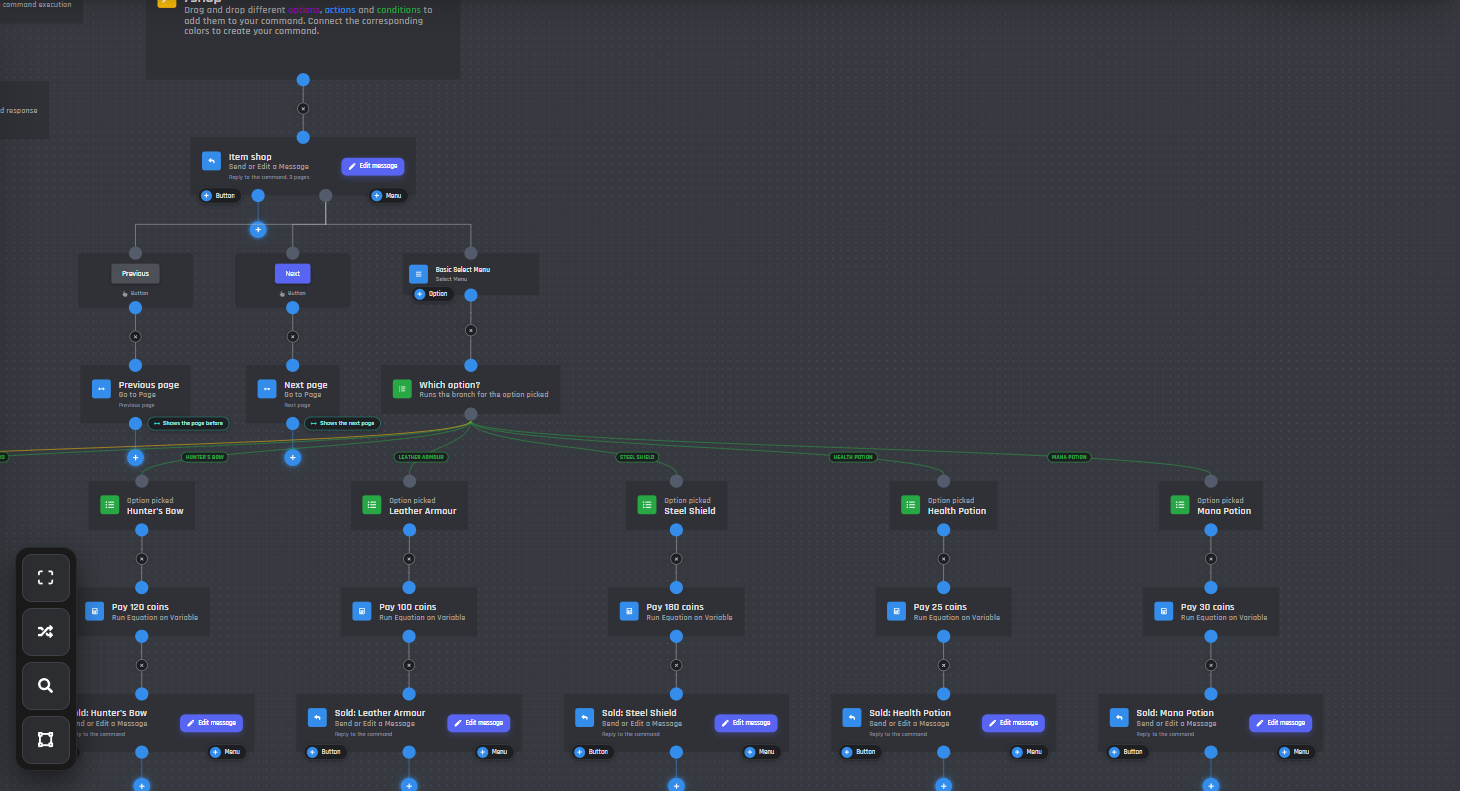
Paged messages are now built in. Write several pages for one message and let people flip through them with buttons, without building a condition for every page.
- Open Advanced in any Send or Edit a Message block and add your pages. It works for normal and Components V2 messages.
- Add a Next and a Previous button.
- Put a Go to Page block under each one. When someone presses it, the message changes in place.
You'll find Go to Page under Other Actions in the block list.
- Jump or skip: go straight to page 3, move several pages at a time, or loop back round to the start.
- Back to a menu: a Go to Page can show a different message too, like going back to a main menu.
{page}and{page_count}: show "Page 2 of 5" right on your message.- Blocks after it: run once the page has changed.
- On the canvas: every Go to Page says what it does, like Shows the next page.
Buttons and select menus
Who can press it
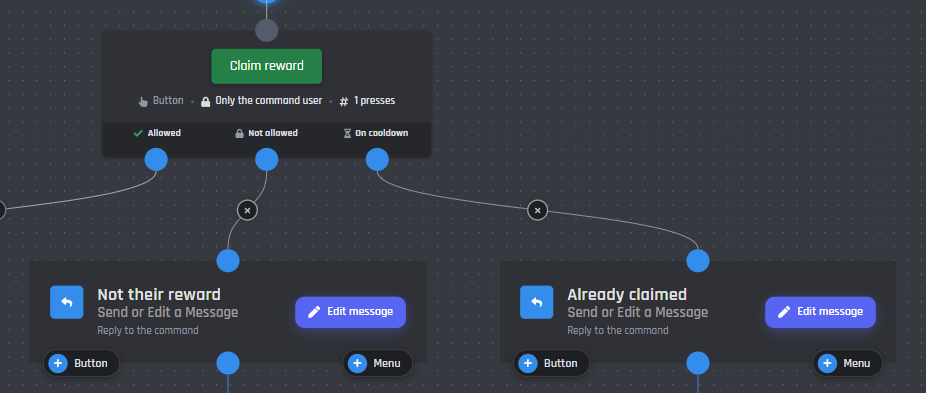
Buttons and select menus can now decide who can use them and how often. What used to take a handful of conditions is now a couple of choices in the button's settings.
Choose anyone, only the person who ran the command, members with certain roles, or chosen members by ID, mention or variable. Everyone else goes down the button's Not allowed point, where you can attach your own blocks or just write the message they get.
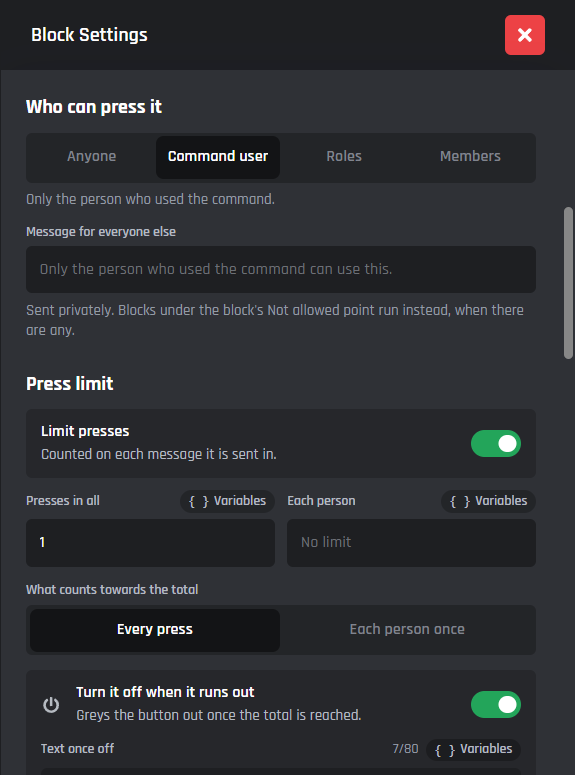
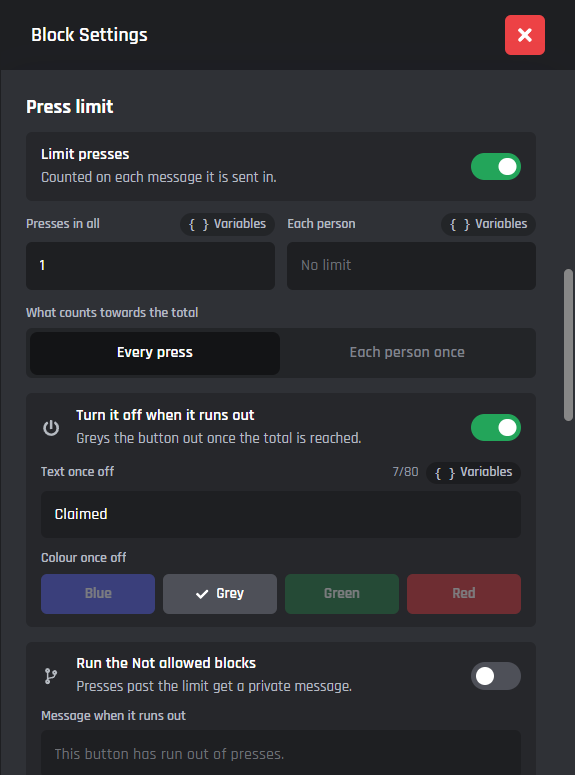
- Press limits: a total, a limit for each person, or numbers from variables. When it runs out, the button can turn itself off.
- Press variables:
{button_presses},{presses_left},{my_presses}and{my_presses_left}. Put{presses_left}in a button's label to show what's left. - Edit a Button or Select Menu: pick the message and click its real buttons to change them.
- Live preview: every button and select menu's settings show how it will look.
Cooldowns that do more
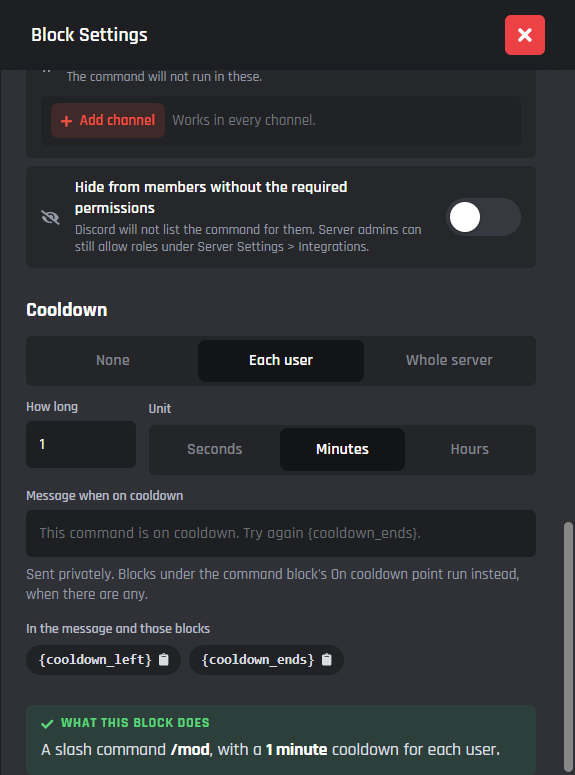
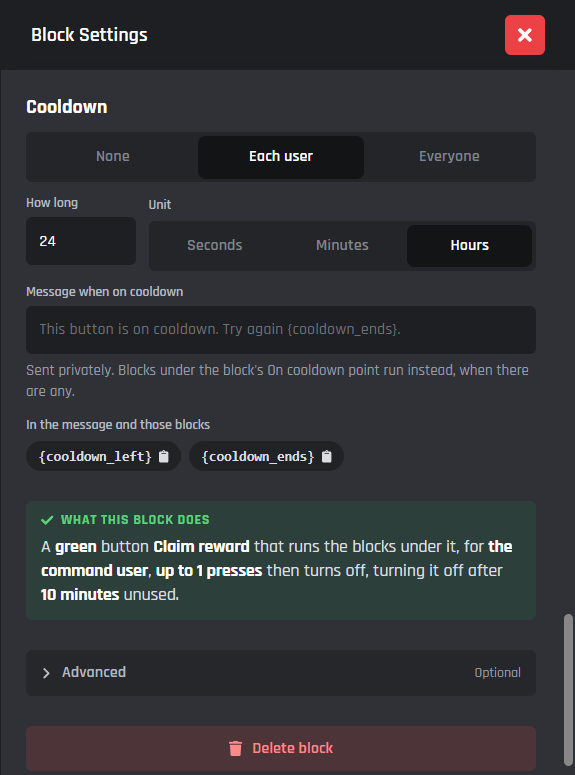
Every button has its own Cooldown section: none, each user or everyone, in seconds, minutes or hours. Commands get the same in their settings, for each user or the whole server. Anything with a cooldown gets an On cooldown point, so you can reply, log it, give a role or do anything else when someone is too early.
- Your own message: use
{cooldown_left}for the seconds left and{cooldown_ends}to show when it ends as a Discord time. - On cooldown point: attach any blocks you like instead of a message.
- Survives restarts: cooldowns of a minute or more keep going when your bot restarts.
A branch for every menu option
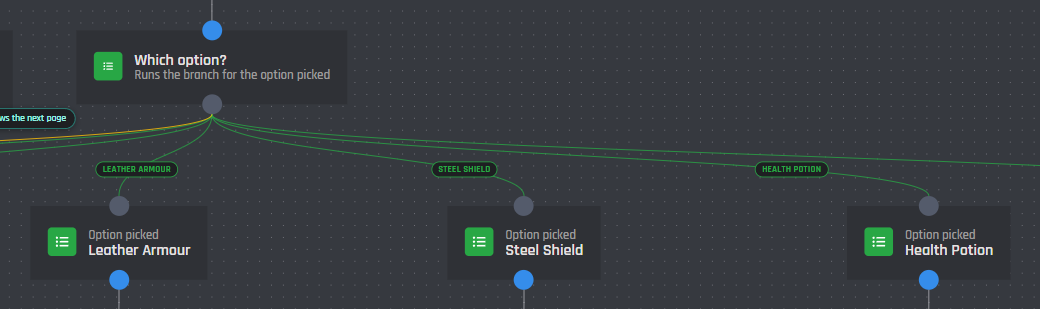
Each option in a select menu can now have its own blocks, with no conditions needed to find out which option someone picked. A new basic select menu comes with a Which option? block and a branch for every option. Connect blocks under an option and they run when it's picked; anything else runs Anything else. Add an option with + Option on the menu and its branch appears straight away.
- Role, channel, user and mentionable menus: give specific picks their own branch, like a staff role or a certain channel. Every other pick runs Any other.
- Use the pick later: the member, role or channel that was picked can be used by the blocks after it.
- Your choice: switch branches on or off for each menu, or for all new menus in Builder Settings. Menus you already have are left exactly as they were.
Conditions, time and events
If / Else
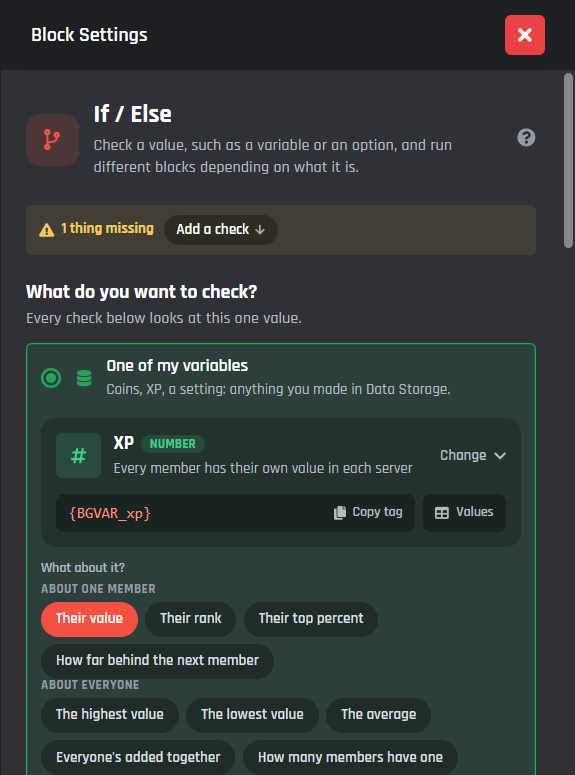
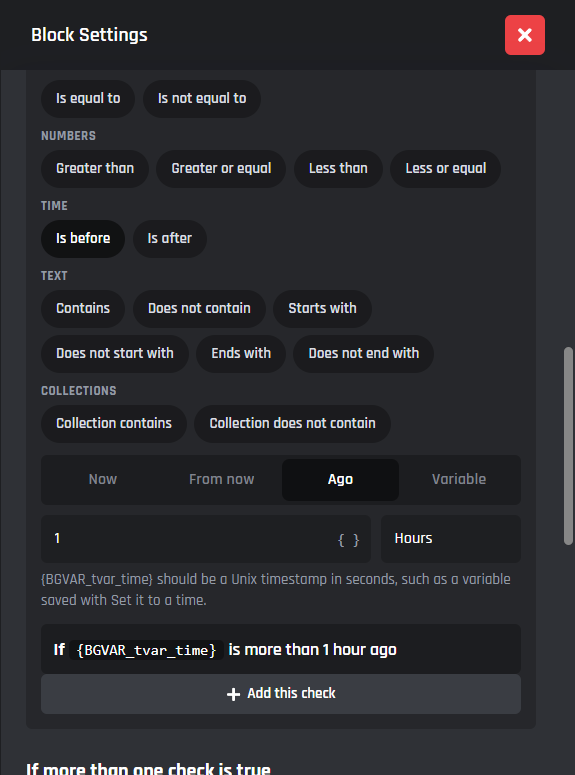
Conditions now read like sentences. In If / Else, pick what to check, like one of your variables or a command option, then add checks that read like "If {coins} is greater than 100". Every way of comparing is a button, and each check becomes its own branch on the canvas.
- Every condition redone: Chance, Role, Channel, User, Permissions, Premium, Options, Currency, Item and Custom Variable.
- + Branch: add a branch straight from the block. On a Chance Condition the chances are split evenly.
Time checks
Times are finally easy to check and change:
- Is before and Is after: compare a saved time with now, some time from now or some time ago, and read like "is more than 2 days ago".
- Set it to a time: Set Variable saves now, or any number of minutes, hours, days or weeks from now or ago.
- Add a length of time: Run Equation adds or takes away time, like 2 days, without working out the seconds.
Show a saved time in a message with <t:{BGVAR_yourvariable}:R>.
Events know what they carry
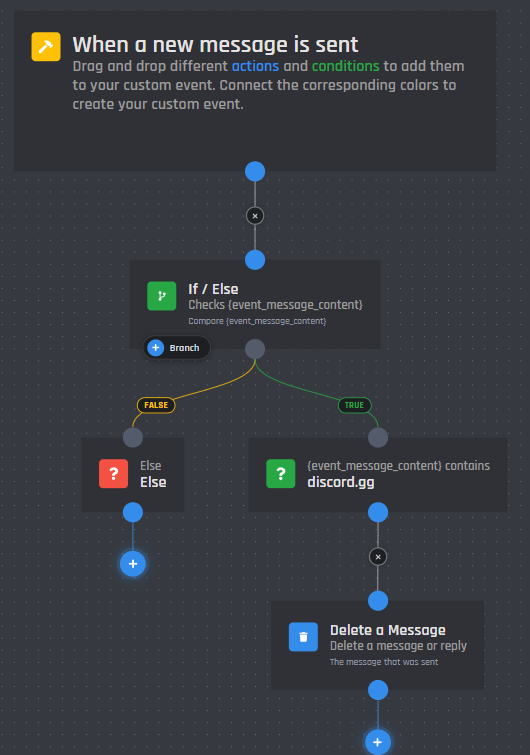
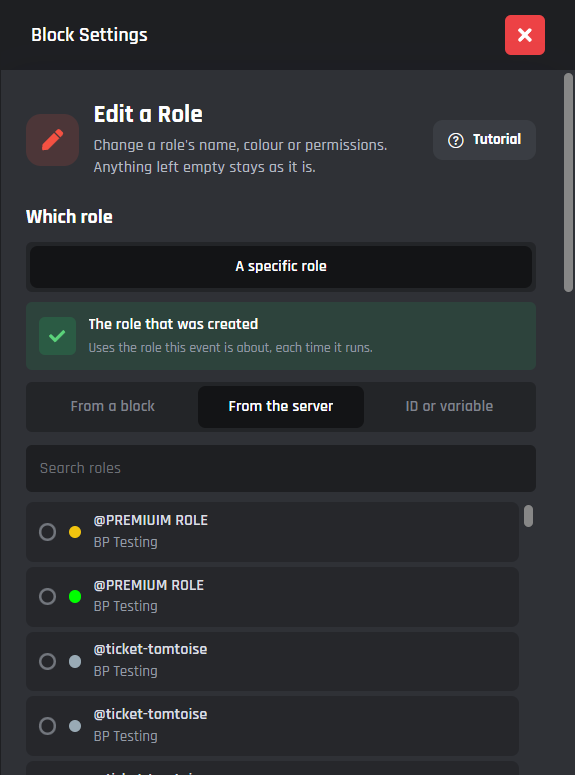
Blocks in events now know what the event is about. A message event has a message, a role event has a role, and blocks pick them for you and call them by what happened.
In a When a new message is sent event, a new Delete, Pin or React to a Message block is already set to the message that was sent. In a When a role is created event, Edit a Role and Delete a Role already use the role that was created. Pickers for roles, channels, members and messages offer the event's own one at the top.
- Named for what happened: blocks say things like the member who joined or the channel it was sent in.
- Deleted things: in events like When a message is deleted, the message is marked as already gone, so it isn't offered.
- If / Else in events: suggests the event's own values, like the text of the message that was sent.
Test API requests from the canvas
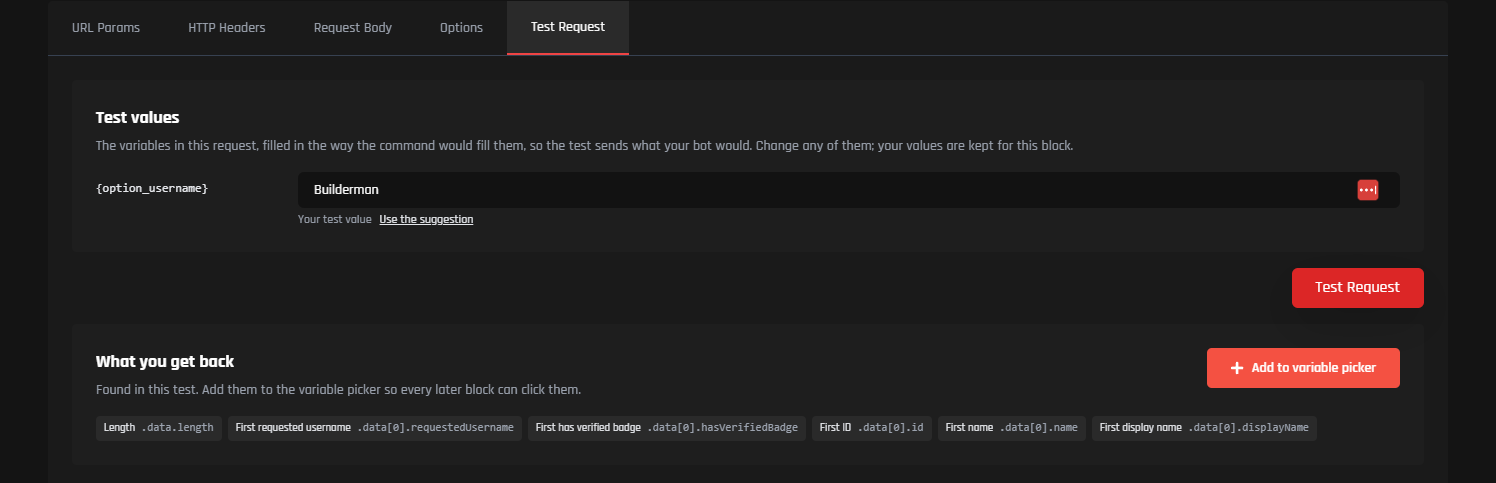
Every Send an API Request block now has a Test button right on the block, next to Edit request. It fills in the request's variables the way your command would: your own Discord ID, your bot's server and channel, values set by blocks above and results from requests you've already tested. Change anything you like, send it, and What you get back lists the parts of the reply as variables, ready to use.
- Remembered values: the test values you type are kept for next time.
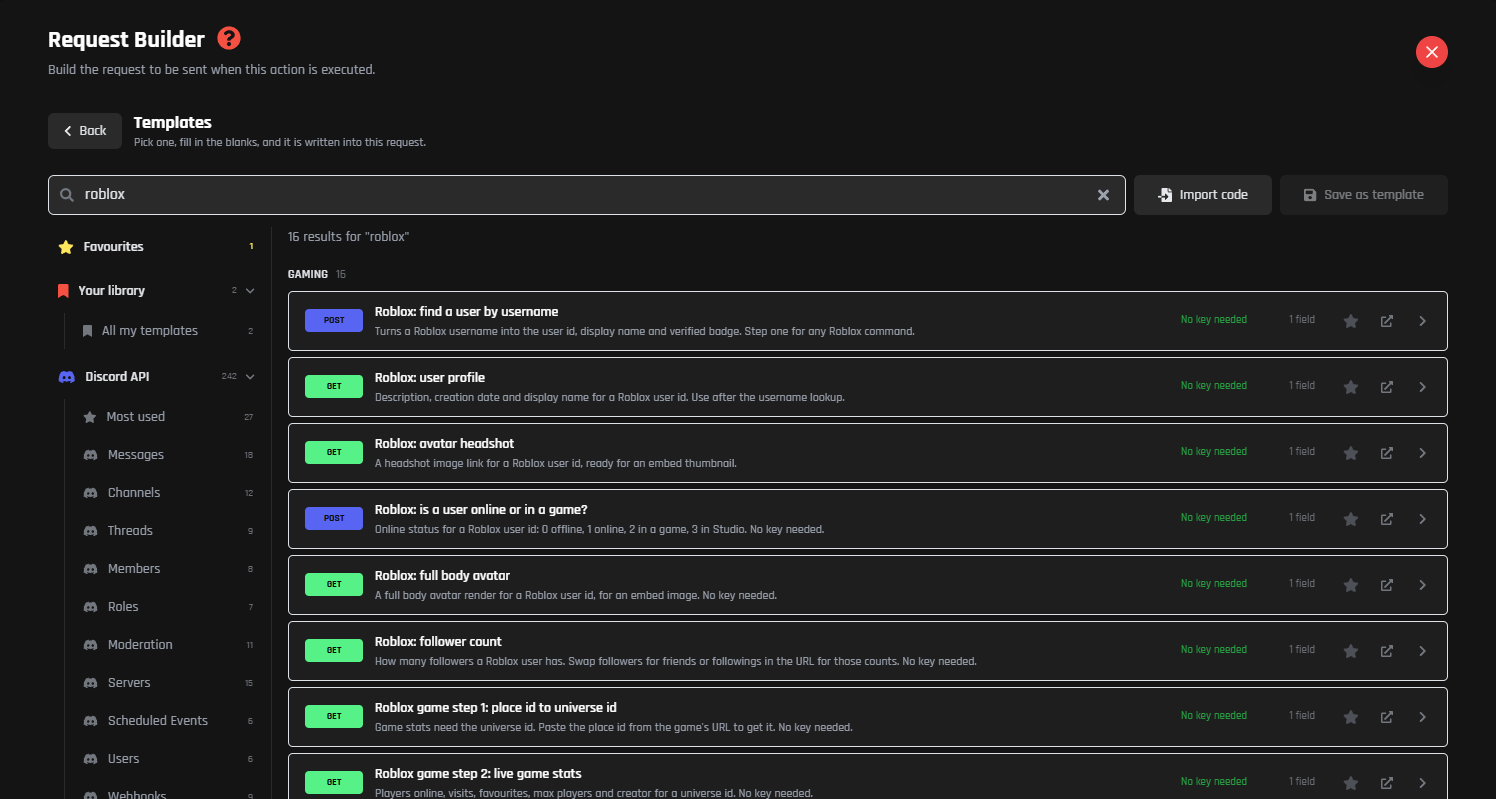
- Start from a template: the block's redesigned settings have a button that opens the API templates, like the ready-made Roblox requests below.
- More control: a timeout, up to 3 retries and authentication on every request.
Doing things later
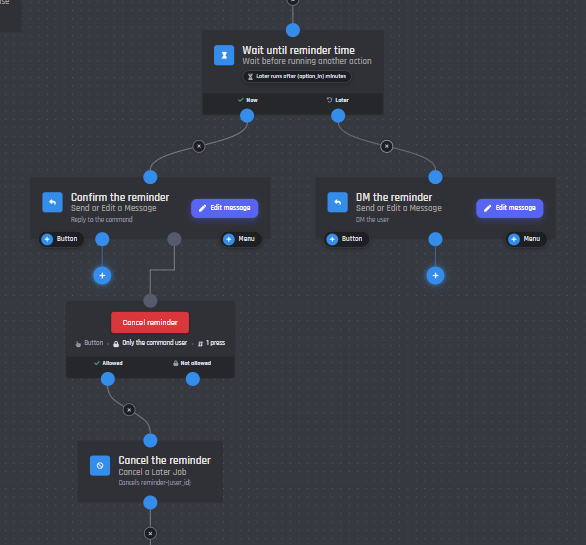
Blocks can now do things hours or days later, even if your bot restarts. Temporary roles, reminders and tickets that close themselves no longer need a Timed Event.
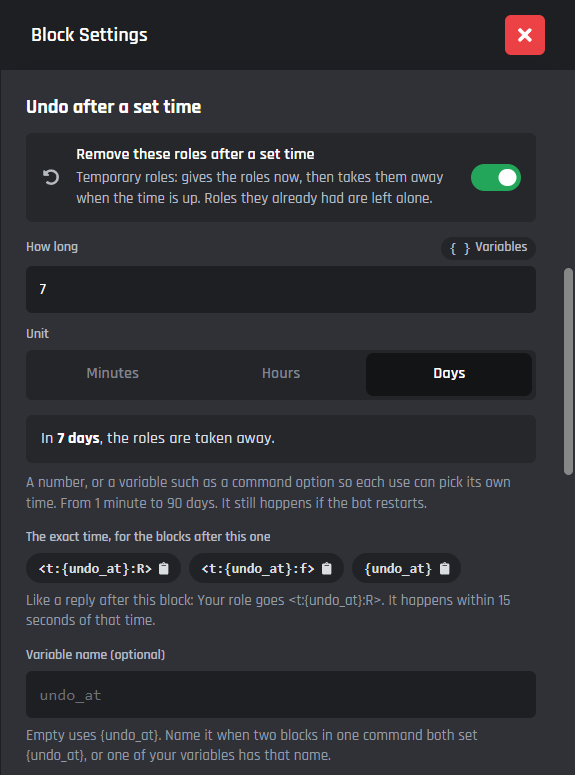
- Undo after a set time: 16 blocks can undo themselves after anything from 1 minute to 90 days. Take roles away again, unban, put the old nickname back, delete a channel, role, thread or message, unpin, remove reactions or reset a variable. Each gets an After point for blocks that run once it's undone.
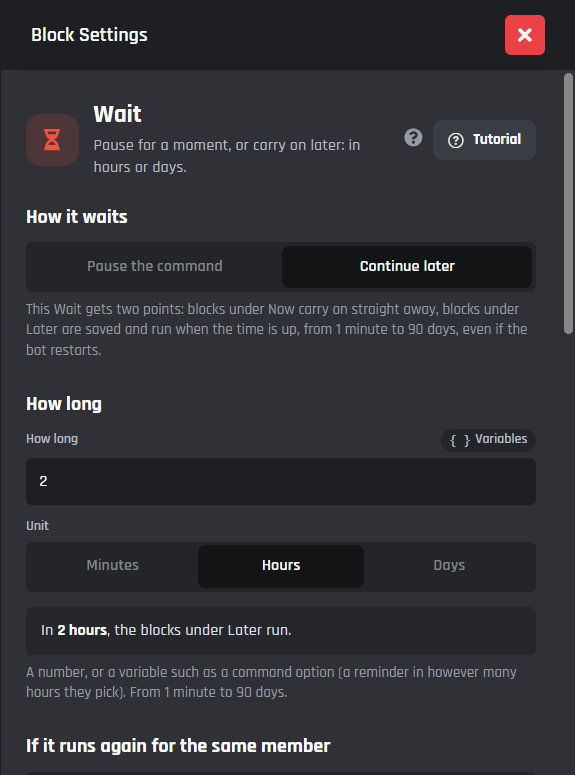
- Continue later: set a Wait to Continue later. Now carries on straight away, and Later runs when the time is up.
- Job IDs: name a later job, like
reminder-{user_id}, and stop it early with Cancel a Later Job. - Exact times:
{undo_at}and{later_at}hold the time, so<t:{undo_at}:R>shows "in 7 days". - Pick a Time: build Discord timestamps from the variable menu.
- Turn off after a time: buttons and menus grey out after a while or at a set time.
Everything else
- Block summaries: blocks show their settings in one line on the canvas, like "Wait 5 seconds", so a command reads without opening anything.
- Coloured lines: green for success and True, red for errors, purple for options and amber for False.
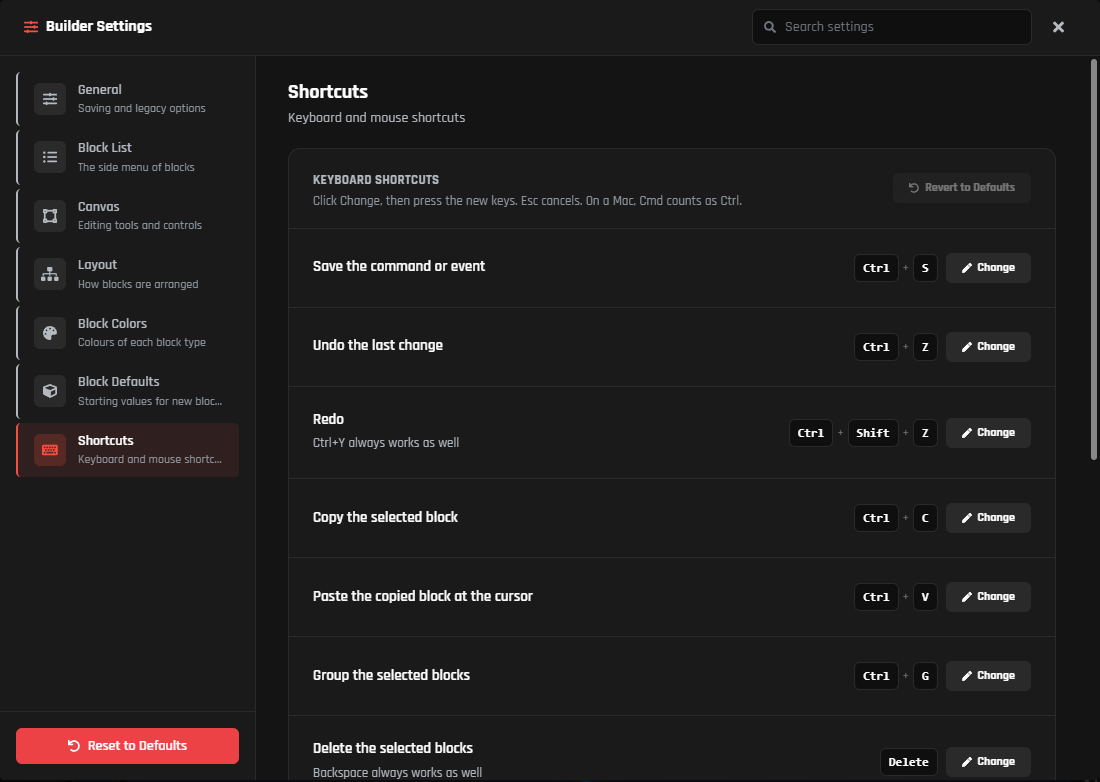
- Keyboard shortcuts: change any of them under Builder Settings > Shortcuts. Copy a block with
Ctrl+Cand paste it at your cursor withCtrl+V. - Favourites: star the blocks you use most and they sit at the top of the block list.
- Phones: settings open as a sheet, and the canvas buttons can be made bigger.
Good to know
- Everything you've already built keeps working exactly as before. Every new option on a block is optional.
- Every new feature can be switched off in Builder Settings, and Reset to Defaults puts every builder setting back to how it started.
- The builder tutorial is off for now while we update it. You can turn it back on in Builder Settings.
- Found a bug or have an idea? Every feature in this update has its own post in #update-feedback on our Discord server. Please post in the one for that feature, so we can fix things fast.
The full list of changes is below.
Full list of changes
- NewTree layout: commands and events lay themselves out as a tidy tree, with Tree and Graph styles, spacing and branch order under Builder Settings > Layout
- NewOrganize blocks in the canvas controls and when you right-click the canvas, and share codes open already organized
- NewCollapse under any block folds away everything below it, with a count of the hidden blocks
- NewGroups: put blocks in a named, coloured frame with
Ctrl+G, move them together or fold the group into one card - NewFind a block with
Ctrl+Shift+F, by label, note or name, opening anything collapsed on the way - NewSelect several blocks with Shift and drag, then duplicate, group, save as a template or delete them in one go
- NewCtrl + click (Cmd on a Mac) to add blocks to a selection or take them out, and on touch screens, tap more blocks once two or more are selected
- NewRight-click menu on blocks: rename, collapse, jump to the block above, copy its ID, duplicate or delete
- NewHighlight the path from the top of your command down to the selected block
- NewFaster big commands: only what's on screen is drawn, and commands with more than 300 blocks switch to simpler lines
- New+ button under the last block: click it to pick the next block and it is added and connected for you, or drag it to connect to a block you already have
- New+ button on lines (turn it on in Builder Settings): click it to put a new block between two connected blocks, already connected to both
- New+ Branch button on condition blocks to add a branch without opening the settings (on a Chance Condition the chances are split evenly)
- NewNext step chips that suggest what usually comes next, like Send a message in it after Create a Channel, added filled in and linked
- NewBlocks that fill themselves in from the blocks above; only empty fields are filled
- NewDrop a line anywhere on a block to connect it, or on empty canvas to pick a block from a searchable list
- NewRename on the canvas by double-clicking a block's title
- NewEdit buttons on blocks with a big editor (Send or Edit a Message, Send an API Request, Send a Form) that open it in one click
- NewFrom a block in channel and role pickers, so blocks like Edit a Channel, Add Roles or Send or Edit a Message can use the channel, thread or role a block above them makes, and the link stays when you rename it
- NewFrom a block for members, messages, emojis and scheduled events too, including a member, role or channel picked in a select menu or form, and it says what to connect when nothing above makes what is needed
- NewPick on the canvas: choose the block to use by clicking it on the canvas, with the usable blocks lit up
- NewLink pills on the canvas, like Edits #shop or Reacts to "Welcome", that light up the block they come from when you hover them, jump to it when you click, and turn amber when a link can no longer work
- NewLink lines: a dashed line between linked blocks for the block you hover or select, with Show Link Lines and Show Every Link Line in Builder Settings and an Unlink button in the picker
- NewRename everywhere: renaming a block's result offers to update every block that still uses the old name
- NewA warning before deleting a block that other blocks use, listing them
- NewMessage previews to pick from in Delete, Pin, React to and Edit a Message
- NewCommand Setup when you start a new command: pick its type, trigger, description and where it can be used first, so it is ready to save once your blocks are in
- NewA starter reply on brand new commands for new bots, so a new command answers the first time it is run
- NewNothing replies yet warning on commands where no block replies (Discord shows those as thinking forever), with one click to Add a reply
- NewA first command checklist and a Try it in Discord tip after the first save, for new bots
- NewEach command option block shows its variable, like
{option_user}, ready to copy with one click - NewA note when a block template leaves its options out, or uses options inside an event
- NewProblems list in the top bar with Fix next, and a save that can't go through takes you straight to the block that needs fixing
- NewUndo history with
Ctrl+Z,Ctrl+Shift+ZorCtrl+Yand a list of recent changes - NewChanged and New tags on blocks you've edited or added since your last save, so you can check your work before saving
- NewNot connected label on blocks that can never run
- NewUnsaved changes warning before you close the tab
- NewSave checks that stop a block saving when it can't work, like a timeout over 28 days, a purge pattern with a typo, words in Slowmode, an ID that isn't an ID, Add Roles with no roles, a button with no text or a web address that doesn't start with https://
- NewSave checks for a condition with no check or an empty one, a variable block with no member or channel to write to, a Number option choice that isn't a whole number, and a loop inside another loop, which never worked
- NewRedesigned settings on almost every block, with an Advanced section for the options most people never touch and what's missing shown at the top
- NewWhich member picker on the moderation blocks: the member who used it, a user option from your command, or an ID
- NewQuick picks for timeout lengths, invite lengths and uses, purge amounts, ban message history and slowmode, plus colour dots with an Any colour picker for role colours
- NewQuick setups for channel permissions in Create and Edit a Channel: Private to them, Staff only, Read only and Hidden
- NewYour forum's real tags as click to add chips in Add and Remove Tags, Create a Thread and forum posts
- NewSearchable lists of every channel in Delete a Channel (voice channels and categories too) and every role in Delete a Role, plus Keep / On / Off choices in Edit a Role
- NewLive preview in Manipulate some text that shows the result for typed in text, with its operations grouped into Change, Cut, Check and Encode
- NewQuick picks on the Wait block, and decimals like 0.5 now work whatever unit is picked, with older waits showing how long they really wait
- NewQuick picks on Set Volume, and checks that catch a broken Seek time, an out of range equalizer band or a queue range that runs backwards
- NewAn amber missing bar in the Send or Edit a Message settings that shows what still needs filling in and jumps you straight to it
- NewA list of every check on a condition that opens it in one click, and a searchable list of the server's roles and channels when adding a check
- NewVariable name fields so the variables from Pages, Continue later, Undo after a set time, Cancel a Later Job, Delete Variable and Purge Messages can have your own names
- NewSettings sheet on phones that you can drag to half or full height
- NewA drag handle on part settings in the new Message Builder on phones and smaller screens: pull it down to see the whole message, or tap to shrink it to its title
- NewNew options on more than 30 blocks, all optional, across moderation, roles, channels, threads, messages, variables, text, API requests and music
- NewReset the value after a set time on Set Variable, so values like daily rewards and one-time codes reset on their own
- NewMerge a JSON object on Set Variable, to set several keys of an object variable at once
- NewType { for variables in every block setting that takes variables: a list of your variables, options and built-ins opens as you type, member variables ask whose value to use, and parts to fill in are selected for you
- NewValues from blocks above in the variable list, like what an API request, form or loop gives back
- NewWrong variable tags flagged under the field before you save
- New{ } Variables button and a live character count on block settings fields, so it's clear where variables work and how much room you have
- NewComponents V2 Message Builder: click any part of the message to edit it, add parts with the + on each part, and start from 28 templates
- NewCopy JSON and Paste JSON in both message builders, so you can bring in messages from Discohook, Dweeb and other builders
- NewOriginal buttons for Components V2 messages that edit another message: place the old buttons and select menus where they should go, see the real ones, and they keep working after the edit
- NewPick buttons in Original buttons, and an Original button as the side item beside text, so buttons from the message being edited can go in different spots
- NewWhere it sits on Components V2 parts, to move them in and out of containers without dragging
- NewGo to Page block (under Other Actions) for pagination: Next, Previous and page buttons that change the message in place, jump straight to a page or skip several, plus Back buttons to another message
- NewPages on Send or Edit a Message under Advanced, for normal and Components V2 messages, with
{page}and{page_count}so a message can say "Page 2 of 5" - NewA pill on each Go to Page block saying what it does, like Shows the next page, a Pages section on the message it turns, and Builder Settings switches for the pill, its line and the block
- NewWho can press it on buttons and select menus: anyone, only the command user, members with certain roles (searched across your bot's servers) or chosen members by ID, mention or variable; anyone else gets a private message
- NewNot allowed point on buttons and select menus with Who can press it set, so you can attach your own blocks for everyone who is not allowed
- NewPress limit on buttons and Use limit on select menus: a total or a limit for each person, numbers from variables, a switch to turn it off when it runs out, and
{presses_left}to show what is left - New
{button_presses},{my_presses}and{my_presses_left}variables alongside{presses_left} - NewOn cooldown point on buttons and commands with a cooldown, for your own blocks or your own cooldown message with
{cooldown_left}and{cooldown_ends} - NewOption branches on basic select menus: each option gets its own branch of blocks under the menu, so you no longer need a condition to tell options apart, plus a + Option button on the block
- NewBranches for specific picks on role, channel, user and mentionable select menus: choose the picks that get their own blocks, and every other pick runs an Any other branch
- NewIs before and Is after checks in If / Else for times, like more than 2 days ago or in the past, shown in plain words on the canvas
- NewSet it to a time on Set Variable: now, or any number of minutes, hours, days or weeks from now or ago, with numbers or variables
- NewAdd or take away a length of time on Run Equation on Variable, like 2 days, without working out the seconds yourself
- NewBlocks in events now know what the event carries: its message, role, channel and member are named for what happened (like "the message that was sent"), and new Delete, Pin, React and role blocks pick them for you
- NewTest button right on Send an API Request blocks: it sends the request with its variables filled in the way your command would, keeps your test values for next time and lists What you get back
- NewUndo after a set time on 16 blocks, from 1 minute to 90 days, for temporary roles, temporary bans, nicknames that change back, channels or messages that delete themselves and more
- NewA second point on blocks with Undo after a set time, named for what happens (like After removal or After unban), whose blocks run when the time is up, with
{undo_worked}and a tag like Roles removed after 7 days - NewContinue later on the Wait block: blocks under Now carry on straight away and blocks under Later run when the time is up, from 1 minute to 90 days, even if the bot restarts
- NewCancel a Later Job block, and a Job ID on Continue later waits and Undo after a set time, to stop them before they happen
- New
{undo_at}and{later_at}variables, so the blocks after one can say exactly when it happens, like Your role goes in 7 days - NewPick a Time in the variable menu: pick now, a time from now or ago, or a date, choose how Discord shows it (in 2 hours, a full date or just the time), preview it and insert it
- NewTurn off after a time on buttons and select menus: grey out the button, the menu or the whole message once nobody has used it for a while, or a set time after it is sent (1 minute to 7 days), with Text once off and Colour once off for buttons
- NewBlock summaries: blocks show their settings in one line on the canvas
- NewColoured lines: green for success and True, red for errors, purple for options and amber for False
- NewYour own keyboard shortcuts under Builder Settings > Shortcuts, and copy and paste blocks at your cursor
- NewFavourite blocks at the top of the block list
- NewBigger canvas buttons option for phones
- NewHighlight Variables in Builder Settings (off by default): variables in block settings are tinted as you type, and ones that don't exist get a red underline, in colours you can change
- NewMulti-tab Editing in Builder Settings, to have a different command or event open in each browser tab
- NewHelper Text Animation in Builder Settings: keep the helper text on blocks fading, fade it a few times then stop, give it a soft glow or keep it steady
- NewOpen More Settings by Default in Builder Settings, to open every block's extra settings straight away
- NewNew Message Builder switch in Builder Settings to go back to the old message builders
- NewSettings to bring back the Save, Undo and Redo popups, turn off the + Option button and choose whether a failed save jumps to the problem
- NewEvery new feature can be switched off in Builder Settings, with Reset to Defaults
- ImprovedThe normal Message Builder, redesigned: text and embeds on the left, the preview on the right, a compact embed editor with one line fields, and 28 templates
- ImprovedSend or Edit a Message settings, redesigned: pick what to send and where it goes from clear choices, with a large preview that opens the message builder and rarely used options under Advanced
- ImprovedButton and select menu settings in the new compact look, with a live preview and the button Cooldown in its own section in seconds, minutes or hours
- ImprovedThe button block on the canvas: a bigger button, who can press it underneath, and labelled Allowed and Not allowed points
- ImprovedIf / Else checks now read like sentences, with every way of comparing as a button and each check its own branch on the canvas
- ImprovedSettings for the condition blocks and each of their checks, redesigned: If / Else, Chance, Role, Channel, User, Permissions, Premium Check, Options, Currency, Item and Custom Variable
- ImprovedThe command settings panel and every command option, redesigned in the new compact look, with each option's variables ready to copy in one click
- ImprovedSet Variable, Run Equation on Variable and Delete Variable, redesigned in the compact style without the numbered steps
- ImprovedSettings for all 20 Music blocks, redesigned, with the server choice tucked under Advanced
- ImprovedSettings for the server blocks, redesigned: Kick, Ban, Unban, Timeout, Change a Member's Nickname, Purge Messages, Create Server Invite and Leave Server
- ImprovedSettings for the role blocks, redesigned: Add Roles, Remove Roles, Add and Remove Roles for All Users, and Create, Edit and Delete a Role
- ImprovedSettings for Create a Channel, Edit a Channel and Delete a Channel, redesigned
- ImprovedSettings for Create, Edit and Delete a Thread and Add and Remove Tags, redesigned, with the thread's result variables ready to click and copy
- ImprovedSettings for the voice blocks, redesigned (Join and Leave a Voice Channel, Voice Kick, Voice Move, Mute or Unmute and Deafen or Undeafen a Member), with a one click fix when an option isn't written like
{option_name} - ImprovedSettings for the message blocks, redesigned: Delete, Pin, Publish and React to a Message, Send a Form and Create Transcript
- ImprovedA clearer Which message choice on Delete, Pin and React to a Message and in Edit a message: pick a block's message from a list with a preview, the message that started it, or any message by its ID
- ImprovedEdit a Button or Select Menu settings, redesigned: pick the message from a list, click the real buttons and menus to change them, and set each one with simple choices instead of typing true or false
- ImprovedSettings for Run a Loop and Stop a Loop, redesigned: pick how many times or which list, see what runs where and copy the loop variables, with a note when Stop a Loop isn't inside a loop
- ImprovedSettings for Send an API Request and Execute an IFTTT Trigger, redesigned: shorter, with what comes back from the request listed to copy and a Start from a template button
- ImprovedSettings for the Scheduled Event blocks, redesigned, with checks that catch a start time in the past, an end before the start and a cover image that isn't a link
- ImprovedSettings for Manipulate some text, Create an Emoji and Delete an Emoji, redesigned
- ImprovedSettings for Wait, Send an error log message, Set a unique variable, Change the Bot's Status, Start, Stop and Restart the Bot, and Note, redesigned
- ImprovedThe bottom of every block's settings: Label, Success and error paths and Helper text are now short rows, with Duplicate and Delete side by side
- ImprovedThe reaction picker in React to a Message: picked reactions show as chips you can remove, server emojis show their picture and name, and Add a reaction opens an emoji picker you can add several from
- ImprovedA tidier Components V2 settings panel: a colour picker, simple Off / On and Small / Large choices, and an image list for galleries
- ImprovedSave, undo and redo buttons with status animations: Save shows Saving, Saved!, Try again or Fix problems in the button instead of a popup
- ImprovedLines going back up to an earlier block in big trees now go round the side and come in from above, dashed so the main flow reads first
- ImprovedStep lines in big trees now turn at their own height instead of sharing one line, so you can follow each one
- ImprovedCondition branches now curve out to each branch instead of running on top of each other
- ImprovedNew buttons and select menus added from a message block now land under their own handle and to the right, so their lines no longer cross
- ImprovedCommand user (or Event member in events) instead of Who used it across the builder
- ImprovedAutomatic names for linked results, like
{shop_channel}and{helpers_role}instead of new_channel_2 - ImprovedBuilder Settings tidied, with new Linking blocks and Fill-in helpers groups
- ImprovedThe builder's Tutorial button and welcome tour are hidden while they are updated; bring them back with Builder Tutorial in Builder Settings
- Improved+ Button, + Menu, + Option and collapse buttons on blocks in a cleaner rounded look, with a matching remove connection button on lines
- ImprovedThe Components V2 label on message blocks is now a small tag that no longer covers the block
- ImprovedHelper notes on blocks now use icons instead of emoji
- ImprovedIf / Else in events suggests the event's own variables, like the message's text
- ImprovedThe rounding switch in Run Equation, now called Round the result, so it matches the Decimal places field under it
- ImprovedA clearer error from Create an Emoji when its image isn't a working image link
- ImprovedA warning on the ER:LC run a server command API template about ER:LC refusing requests from changing IP addresses
- FixedEvent Error Handlers often not running, so their errors went to the Error Logs instead
- FixedA command's Error Handler only working the first time the command ran after the bot started
- FixedButton and command cooldowns resetting whenever the bot restarted
- FixedThe builder lagging and freezing while big commands load, especially ones with lots of buttons and menus
- FixedEdit a Button or Select Menu sometimes undoing a Send or Edit a Message block above it on busy bots, which put old buttons back and turned disabled buttons on again
- FixedKeep the buttons and menus on a Components V2 edit keeping the whole old message instead of showing the new one
- FixedComponents V2 messages failing with Unknown Message when a later block edits a hidden reply that was already edited once with Edit a message sent by another action
- FixedRun the first one only in condition blocks sometimes running a later branch instead of the first true one
- FixedA 0% chance in the Chance Condition still running now and then
- FixedKick, Ban and Timeout doing nothing, with no error, when the member picked in an option has left the server
- FixedEmbed Reply errors not reaching your Error Handler or Error Logs
- FixedThe Voice Server Updated event never running
- Fixed
{Member[ID]}and user variables showing the old nickname or timeout right after the bot changed it - FixedPlay Previous Track always saying there was no history
- FixedSet Track Position / Seek not moving the song
- Fixed
{music_loop_mode_text}always saying Off - FixedOpening an old Add Roles or Remove Roles block changing which member gets the roles
- FixedA second Delete Variable or Purge Messages in one command showing the first count
- FixedManipulate some text not accepting a single space, like splitting by a space
- FixedOlder condition blocks showing the wrong run first or run all choice and branch setting
- FixedItem Condition checks after the first one saving as "at most" instead of "at least"
- FixedPublish a Message doing nothing when it was set to publish a message another block sent; you can now pick that message like in Delete and Pin
- FixedEdit a Thread not being able to stop members adding people; Who can add people now has Keep, Members and Moderators only
- FixedChange a Member's Nickname not filling in the member from a form or user option above it like Kick and Ban do
- FixedEdit a Role ignoring colour names like Red, and short codes like #f45 stopping Create a Role from making the role
- FixedCopied Delete, Pin and React to a Message blocks still acting on the original message instead of the copy
- FixedEdit a Button or Select Menu blocks sometimes not saving until you changed something else
- FixedThe Users picked to start with setting not working on user and role select menus in Edit a Button or Select Menu
- FixedWhat you get back after testing an API request skipping the fields inside a list, like the user found by a Roblox lookup
- FixedThe request preview in API templates showing the body on a light grey bar that was hard to read
- FixedA Components V2 message losing the line to its button when success and error paths were turned on
- FixedCommands that could not be saved after deleting a select menu
- FixedImported commands and events opening messy and away from the command block; they're now organized and centered like any other command
- FixedThe builder losing track of the open command after deleting a command or event above it in the builder's Commands list
- FixedA line dropped onto a block with two points underneath not joining the point nearest where you let go
- FixedBlocks sometimes not opening on a quick click, and the double outline around a selected block
- FixedThe Label field on If / Else showing Comparison Condition, and its reset button renaming the block to that
- FixedIf / Else in events offering An option of this command, which events do not have
- FixedThe top bar on phones and tablets hiding Save behind other buttons
- FixedTemplates not being addable on phones; tap or click one to add it
- FixedBlock Settings on phones sometimes getting pushed up so the close button and the top were out of reach; there is also a close button next to Duplicate and Delete at the bottom now
- FixedSmall overlaps in the Components V2 builder, and the block list running off narrow screens
- FixedThe delete button and the top bar overlapping other parts of the builder on phones
