Pages
Every page your bot's website can have, how to fill each one in, and when it shows to visitors.
The Pages tab in BotPanel > Website lists every page your website can have. You switch pages on or off there and press Edit to fill one in. The preview beside the settings opens the page you are editing, so you see each change as you make it.
The Pages tab is part of the full website, which needs Premium with BotPanel Plus. A one page site has no Pages tab: its words are on the Design tab (see Your website).
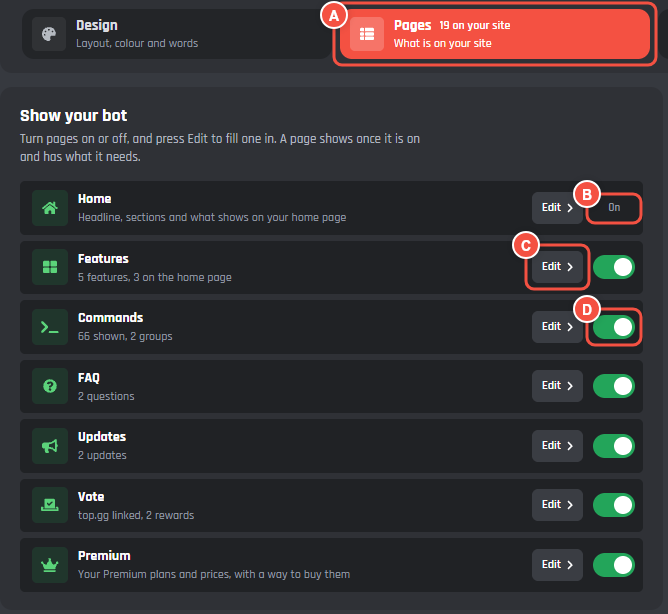
BotPanel > Website > Pages
- A The Pages tab says how many pages are on your site now, Home included.
- B Home has no switch. Every site has a home page, so it says On.
- C Edit opens that page's settings. Pressing the page's name does the same.
- D The switch puts the page on your site or takes it off.
A page that is on but empty says what it still needs, like Not set up yet. Add a question to show it.
When a page shows
A page shows to visitors once it is switched on and has what it needs. Until then it stays off your site and out of the menu, so nobody lands on an empty page. The line under each page in the list tells you where it stands:
- What is on it now, like 4 features, 2 on the home page or 28 shown, 3 hidden, 4 groups.
- Not set up yet, with the one thing it needs.
- Something to fix, in red, when a field on that page stops you saving.
The icon beside each page is green while the page is on your site and grey while it is off or not set up.
| Page | What it needs before it shows |
|---|---|
| Home | Nothing. It is always on. |
| Features | A feature |
| Commands | At least one slash command that you have not hidden |
| FAQ | A question |
| Updates | A published update |
| Vote | Your bot's top.gg page |
| Premium | A plan on sale. Selling opens later, so this page does not show yet. |
| Docs | A guide with a title and some text |
| Status | Nothing. It shows as soon as it is on. |
| Support | Your support server's invite |
| About | Your story, a person, or a milestone |
| Terms and Privacy | Your terms of service or your privacy policy |
The For servers pages also need sign in with Discord, which you set up on the Dashboard tab.
The groups
The tab puts the pages in three groups.
Show your bot: what your bot is and what it does.
- Home: your headline, the buttons under it, and the sections down the page.
- Features: a card for each feature, and a page for each one you write more about.
- Commands: fills itself in from your slash commands.
- FAQ: questions and answers, shown on the home page.
- Updates: what is new in your bot, newest first.
- Vote: sends people to vote for your bot on top.gg.
- Premium: your Premium plans and the Compare plans table.
Help: answers for people already using your bot.
- Docs: guides you write, each with its own page.
- Status: whether your bot is online right now.
- Support: sends people to your support server.
- About: your story, your team, and how you got here.
- Terms and Privacy: your terms of service and privacy policy.
For servers: pages that people sign in to use. These are the Server dashboard, Contact, Ideas, Ban appeals, Leaderboards, Discover servers, Music, and My account. See Server dashboard and Inbox. Edit on the Server dashboard row opens the Dashboard tab.
Under the groups, the Menu card shows whether your menu is automatic or your own. Its Edit opens the Navigation tab. The Page builder card under it is coming soon.
Editing a page

Website > Pages > Support, opened with Edit
- A Pages takes you back to the list. When you came from another page (Home's Add or edit features opens Features), the button has that page's name and takes you back to it.
- B The page's name and where it stands: On your site, Turned off, or what it still needs, like Not set up yet. Add your support server's invite to show it.
- C The page's switch, the same one as in the list.
The preview beside the settings opens at this page. While visitors cannot see it yet, the preview shows it anyway with a note saying why: This page is turned off, so visitors cannot see it. or Not on your live site yet. It shows once it has something in it.
Most pages start with a Top of the page card: the page's title and the line under it. Leave both empty to keep the words shown in grey, which use your bot's name.
Saving
Changes on every page wait for the bar at the foot of the page. Press Save to put them on your live site, or Undo all to go back to what is saved. If a field is marked in red, the bar says Fix the fields marked in red to save. and Show me opens the page with the problem.
Turning a page off never deletes what you wrote on it. Switch it back on and it returns as it was.