Home
The headline, the buttons under it, what sits beside it, and the sections down your home page.
The home page is the first thing visitors see: your headline, an Add to Discord button, and sections down the page that show what your bot does. Open it with Edit on the Home row of the Pages tab. Every site has a home page, so it has no switch.
The home page of the full website needs Premium with BotPanel Plus. How each part looks depends on the design you pick on the Design tab.
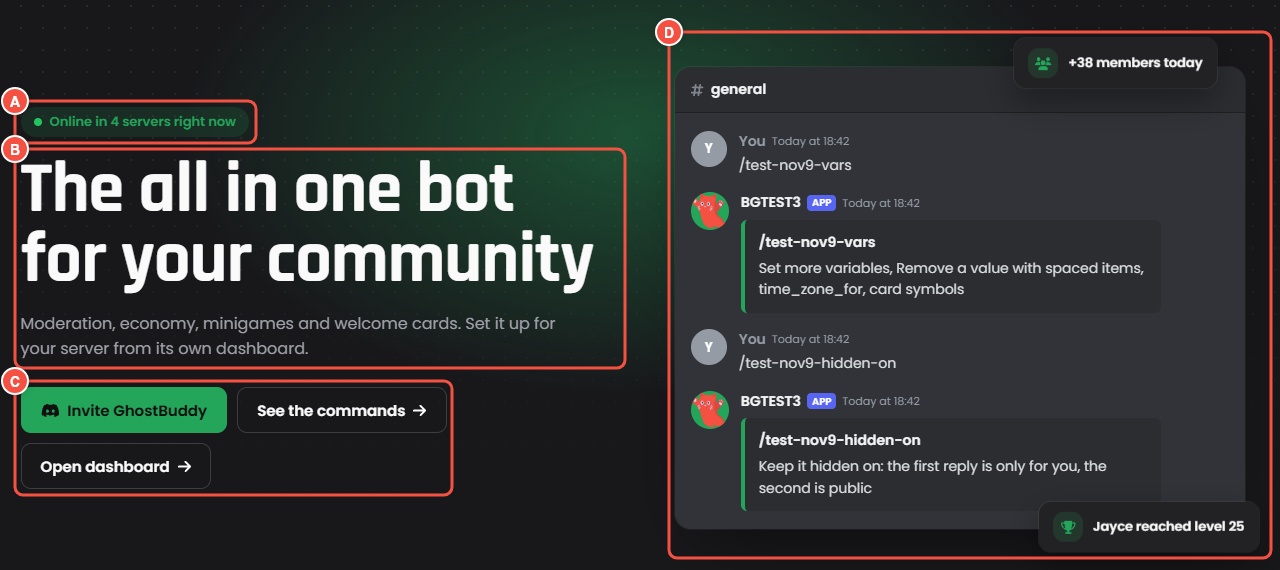
The top of the home page, as visitors see it
- A The online badge: whether your bot is online, and how many servers it is in.
- B Your headline and the line under it.
- C The buttons under the headline. The main one is in your colour.
- D What sits beside the headline: here, your commands in a chat, with two floating notes around it.
The rating line and the top.gg badge show under the buttons once they are set up (see Rating and badges).
Top of the page
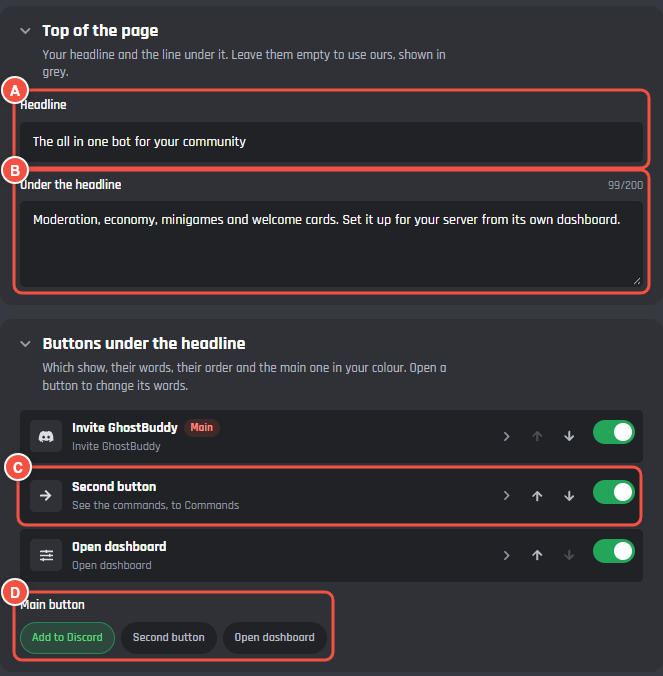
Pages > Home
- A Headline: up to 80 characters. Empty shows Meet and your bot's name.
- B Under the headline: one line about your bot, up to 200 characters. Empty shows a line with your bot's name in it.
- C A button row. Open it to change the words on the button, use the arrows to change the order, and use the switch to show or hide it.
- D Main button: pick which button is drawn in your colour.
Buttons under the headline
There are three buttons, in the order you set:
- Add to Discord opens your bot's invite. You can change its words, up to 30 characters.
- Second button goes where you pick in Goes to: Support server, Commands, Features, Docs, Vote, or Updates. It stays off while Goes to is None. A button that points at a page that is off or empty does not show.
- Open dashboard opens your server dashboard. It stays off until the server dashboard works, and its row says what it needs.
Reset appears once you change the buttons, and puts back the usual ones after a second press.
Beside the headline
Show picks what sits next to your headline:
- Your commands in a chat: someone using your first two picked commands, with each command's description as the reply. Pick the commands in the Popular commands section.
- Your first highlight's example: the Discord preview or photo of your first highlighted feature.
- Your own picture: upload a PNG, JPG, WebP or GIF up to 4 MB, or paste an https link. Add a few words in What it shows for people who cannot see it. Until you add one, the chat shows.
- Nothing, words only.
Rating and badges
- Online badge: above the headline, on to start with.
- Rating: a star line under the buttons. Press Change to set the rating, the number of reviews, and Where the reviews are. Leave the rating empty to hide it. A top.gg rating has to come from top.gg itself: pick Automatic, which needs your bot's top.gg token in Settings. A typed rating that says top.gg is hidden.
- top.gg badge: beside the rating, a link to your top.gg page with your vote count. It stays off until you connect top.gg in BotPanel > Votes and the first vote arrives. See Votes.
Floating notes
Up to 4 small cards around what is beside the headline, like "+38 members today". Each has an icon, up to 40 characters, and a corner. Automatic takes the next free corner. Notes do not show while Show is set to Nothing, words only.
Sections
Everything under the top of the page is a section. You pick which ones show and in what order. A section with nothing in it stays hidden.
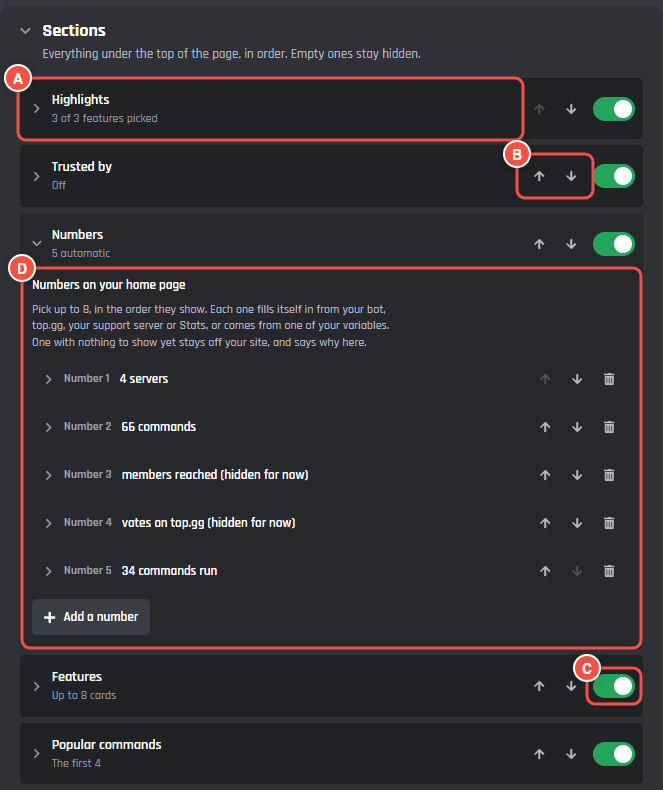
Pages > Home > Sections
- A A section. Press its name to open its settings under it. The preview scrolls to that section.
- B The arrows move it up or down the page.
- C The switch shows or hides it.
- D An open section's settings: here, the numbers on your home page.
Sections with their own heading have Heading and Under the heading fields. Leave them empty to use the words in grey.
| Section | What it shows |
|---|---|
| Highlights | Big rows for up to 3 features, each with its headline, its ticked points, and its Discord example or photo. No heading unless you write one. |
| Trusted by | Your biggest servers that chose to show on your home page. |
| Numbers | Up to 8 numbers, in the order you pick. |
| Features | Your feature cards: 4, 8 or 12 of them, with a See all features button. |
| Popular commands | 4 or 8 commands, and a link to all of them. |
| Testimonials | Up to 6 quotes about your bot. |
| FAQ | Your questions and answers. |
| Add to Discord | A closing box with the Add to Discord button. |
Highlights
Pick up to 3 features in Features with a big row. Beside each big row shows what sits next to each one, with Change to pick a Discord preview or a photo. Add or edit features opens the Features page. Highlights follow the Features page: turn Features off and the rows go too. See Features.
Trusted by
Turn on Servers that chose to show and pick How many to show: 4, 6 or 8. Only real servers show here, with their own picture and member count. Every server starts hidden: someone with Manage Server turns on Show this server on the home page on their own server dashboard, under On the website. A server that turns it off, or removes your bot, drops off within 30 minutes. With none, the strip stays hidden.
Numbers
Each number comes from one of three places:
- Automatic: a number BotPanel keeps up to date.
- From a variable: one of your bot's global text or number variables, the ones with a single value for the whole bot. Visitors see the value, never the variable.
- Type it yourself: a number and words you type.
What it counts is the words beside the number. Automatic numbers fill these in for you. Under each number, the editor shows what it says right now, or why it is hidden for now. A number with nothing to show stays off your site instead of showing 0.
| Automatic number | Where it comes from |
|---|---|
| Servers | How many servers your bot is in |
| Members reached | Members across every server your bot is in |
| Commands | How many commands your site lists |
| Online now | Online or offline right now |
| Commands run | Commands run in the last 30 days, from Stats |
| Uptime | Your bot's uptime over the last 90 days, from Stats |
| People reached | Different people who used your bot since Stats began counting |
| top.gg votes this month, top.gg votes all time | Your votes on top.gg |
| top.gg rating, top.gg reviews | Your reviews on top.gg |
| Support server | Members in your support server, from its invite |
The top.gg numbers need your bot's top.gg token in Settings. The numbers from Stats can only be added by the bot's owner, not by a collaborator.
Features
How many cards: 4, 8 or 12. See all features button links to the Features page.
Popular commands
How many: 4 or 8. Which commands: pick up to 8, in the order you pick them. With none picked, the first ones show. The chat beside the headline uses your first two.
Testimonials
Each testimonial has What they said (up to 200 characters), Name (up to 32), and Who they are (up to 60, like "Owner of a server").
FAQ
Shows the questions from the FAQ page. Add or edit questions opens it. See FAQ.
Add to Discord
A Heading and Under the heading for the closing box. Support server button puts Join the support server beside Add to Discord, once your invite is on the Support page.