FAQ and Docs
Questions and answers on your home page, and guides that each get their own page in your docs.
FAQ answers what people ask most, near the end of your home page. Docs holds longer guides, each on its own page, with a menu, a search, and a list of what is on the page.
Both are full website pages, so they need Premium with BotPanel Plus.
FAQ
The FAQ has no page of its own: your questions show in the FAQ section of your home page, under the heading "Questions and answers". It shows once you add a question. Visitors press a question to open its answer.
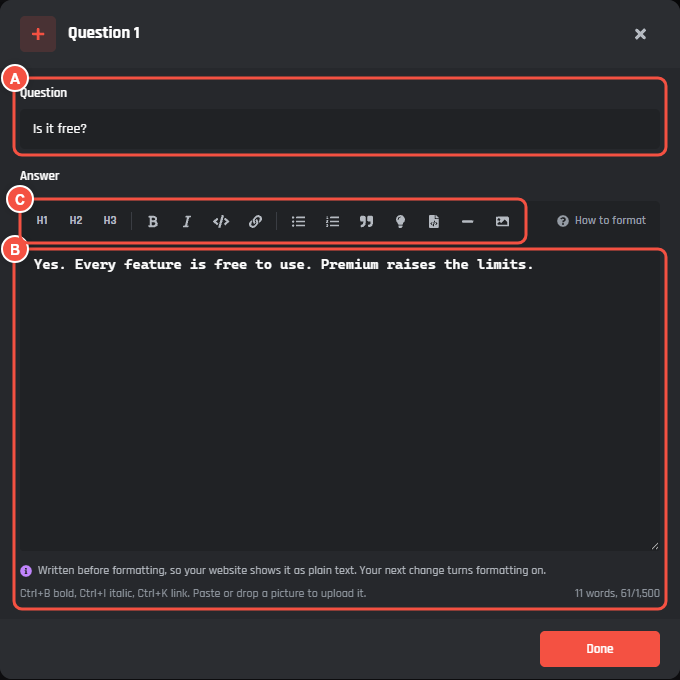
Pages > FAQ, with a question open
- A Question: up to 150 characters.
- B Answer: up to 1,500 characters.
- C The formatting buttons: headings, bold, italic, code, links, lists, a quote, a tip box, a code block, a divider, and a picture. An answer can have up to 2 pictures.
You can have up to 15 questions. Each needs a question and an answer. To change the section's heading, or move it up or down the home page, open the FAQ section on the Home page (see Home).
Docs
Docs shows once you write a guide with a title and some text. Each guide is a page at /docs/ and words from its title, like /docs/adding-the-bot, so you can share a link straight to it. /docs opens your first guide.
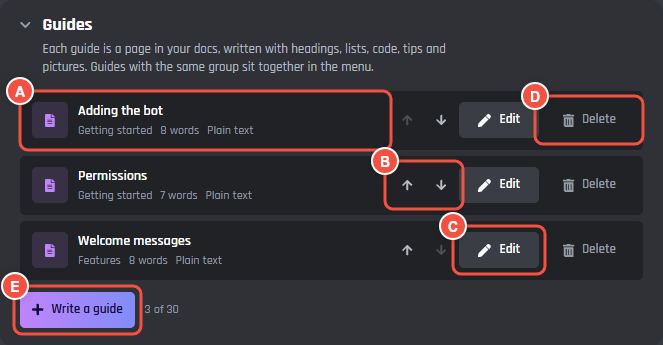
Pages > Docs
- A A guide: its title, its group in the menu, and how many words it has. Plain text marks a guide written before formatting came in. Your website shows it as plain text until you next change it.
- B The arrows change the order. Guides show in the menu in this order, grouped by their group.
- C Edit opens the guide.
- D Delete asks Confirm? first. Press it again within 3 seconds to delete the guide.
- E Write a guide starts a new one. Beside it is how many guides you have, out of 30.
Writing a guide
A guide opens in its own editor over the whole page, with your website beside it, open at that guide. On a phone, Write and Preview switch between the two.
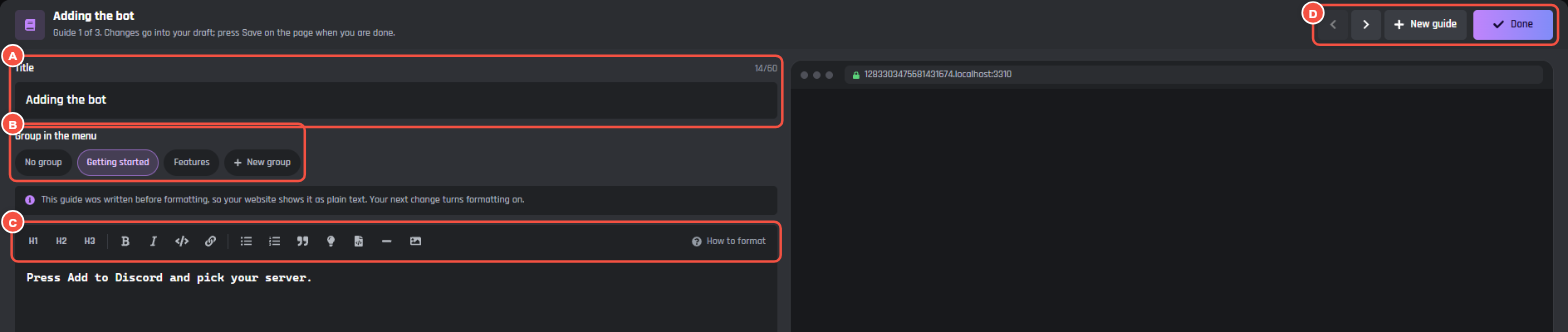
Writing a guide
- A Title: up to 60 characters. It also makes the guide's address.
- B Group in the menu: No group, a group another guide uses, or New group to name one.
- C The formatting buttons. How to format, at the end of the row, lists what each mark does.
- D The arrows open the previous or next guide, New guide starts another, and Done (or Escape) closes the editor.
On the right is your website, open at this guide, showing each change as you type.
Changes go into your draft as you type. Press Save on the page when you are done. A new guide you close without writing anything is removed.
What a guide can have
- Headings in three sizes. A guide with three or more headings gets an On this page list beside it.
- Bold, italic,
code, and links. Only https links work. - Bullet and numbered lists, quotes, code blocks, and dividers.
- Tip boxes: start a quote with
[!TIP],[!NOTE], or[!WARNING]. - Pictures, each on a line of its own. Picture adds one, or paste or drop a picture into the text to upload it.
HTML tags like <div> are taken out when you save.
Limits
| What | Limit |
|---|---|
| Guides | 30 |
| Title | 60 characters |
| Group name | 30 characters |
| One guide | 20,000 characters and 30 pictures |
| All guides together | 120,000 characters and 150 pictures |
What visitors see
The menu on the left lists your guides under their groups, with a search above it that looks through titles and text. On a phone the menu folds into one button. Each guide ends with a link to the next one, and with Still stuck? Ask in the support server once your support invite is on the Support page.
Title and Under the title in Top of the page add a heading above your docs. Leave them empty and each guide opens with its own title.