Sign in with Discord
Set up Sign in with Discord for your bot's server dashboard, step by step.
Server admins sign in to your dashboard through your bot's own Discord app, so Discord's sign in page shows your bot's name and picture, not BotGhost's. You make two changes in the Discord Developer Portal, once, then try it.
Before you start
You need:
- Premium on the bot.
- Your bot's token working in BotGhost. BotGhost reads your app's redirects with it to check step 1.
- The Discord account that owns the bot's application, to open it in the Discord Developer Portal.
- If you're a collaborator: the Manage BotPanel and Manage secrets permissions.
Open the setup
Go to BotPanel > Website, open the Dashboard tab, and find Sign in with Discord at the top. Until it is set up it says "Not set up yet. Server admins can't sign in until it is." Press Set up sign in.
A window opens with three steps. The step to do now is open; press any step's title to open or close it.
- 1
Add your website to the app's redirects
Discord only sends people back to addresses listed in your app. The step shows yours:
https://signin.botghost.app/callback/YOUR_BOT_IDIf your website has its own domain, the step shows a second address,
https://your-domain/auth/callback. Add both.- Press Copy beside the address.
- Press Open Developer Portal. Your bot's app opens on its OAuth2 page in a new tab.
- Under Redirects, press Add Redirect and paste the address.
- Press Save Changes at the bottom of the portal page.
- Back in BotGhost, press Check again.
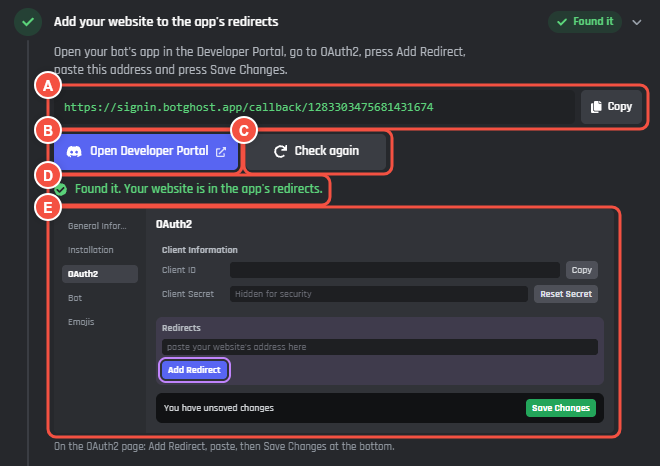
Step 1, once the check finds the redirect
- A Your redirect address, with Copy.
- B Open Developer Portal opens your app's OAuth2 page.
- C Check again asks Discord now. While this step is open, it also checks by itself every 10 seconds for 2 minutes, and again when you come back to the tab.
- D What the check found.
- E A drawing of the OAuth2 page, with Add Redirect picked out.
When the address is there, the step turns green with Found it and "Found it. Your website is in the app's redirects."
If the check finds an address that is close but not the same, it says Close, but it does not match exactly, shows what you added, and says what is different:
It says Fix It has a space at the start or the end. Take out the space. It starts with http://. It needs https://. Use https://.It ends with a /. Take that off. Take off the last /.Some letters are in a different case. Paste it again exactly. It has extra text on the end (a ? or a #). Take off everything after the address. The website is right, but the part after it is not. Copy it again with Copy. It is a different website address. Use your own address, shown on that line. Edit the redirect in the portal so it matches, press Save Changes, then Check again.
If the check can't run at all:
It says What to do Your bot token is not working, so the redirects cannot be read. Update the token in your bot's Settings, then check again. This bot's Discord app has a different id from the bot. Sign in can't work for this bot yet. Ask BotGhost support. Discord asked us to slow down. Wait. It checks again by itself. Discord did not answer. Check again in a moment. Checked a lot just now. Wait a minute, then check again. - 2
Paste the client secret
- On the same OAuth2 page, under Client Secret, press Reset Secret and confirm.
- Copy the new secret. Discord shows it only once.
- Paste it into the box in step 2 and press Check and save.
BotGhost asks Discord whether the secret works before it keeps it. When it does, the button says It works and the step says "That secret works. It is saved, encrypted, and never shown again."
Reset Secret stops anything else that used the old secret, like another dashboard or tool on the same app. Paste the new secret into each of them.
The client secret is not your bot token. If you paste a bot token, the box empties at once and the token is never sent anywhere. If you shared your token somewhere else by mistake, reset it on the portal's Bot page and update it in BotGhost.
If it won't save:
It says What to do That looks like your bot token, not the client secret. Copy the secret from the OAuth2 page, under Client Secret. That is the Client ID. Press Reset Secret and copy the secret, not the ID above it. That is the Public Key from General Information. The secret is on the OAuth2 page. That does not look like a client secret. Copy it again from the OAuth2 page. Discord says this secret is wrong. Copy it again, or press Reset Secret and copy the new one. Could not reach Discord to check it. Try again in a moment. Too many tries. Wait a minute, then try again. - 3
Try signing in
Press Try signing in. Your website's server list opens in a new tab. Sign in the way a server admin would: Discord's page should show your bot's name and picture, then you land on Pick a server.
Your website must be live, with the server dashboard switched on. Until it is live, the step says "Your website is not live yet. Put it live first, then try it."
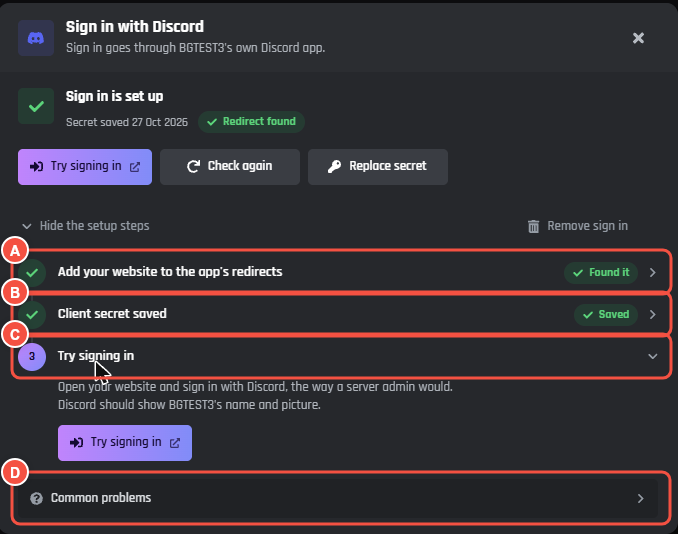
Website > Dashboard > Manage sign in
- A Step 1, the redirect, with Found it once the check finds it.
- B Step 2, the client secret, with Saved once it checks out.
- C Step 3, Try signing in.
- D Common problems, covered below.
Once it is set up
The card on the Dashboard tab says "Sign in is set up. Server admins can sign in with Discord." and its button becomes Manage sign in. The window now starts with a summary, and the steps stay folded under Show the setup steps.
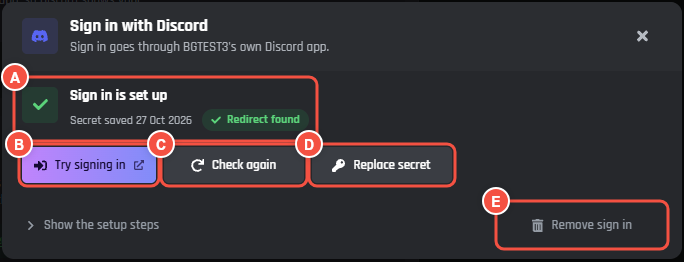
Website > Dashboard > Manage sign in
- A Sign in is set up, when the secret was saved, and the redirect: Redirect found, Redirect not exact, Redirect missing or Could not check.
- B Try signing in opens your website's server list.
- C Check again reads your app's redirects now.
- D Replace secret takes a new client secret.
- E Remove sign in turns sign in off.
If someone later removes or edits the redirect in the portal, the headline changes to "Sign in is set up, but the redirect is missing" (or "does not match"). Press Fix it to open the steps on step 1. The Server dashboard card says so too.
Replace the secret
Press Replace secret, paste the new secret from the OAuth2 page, and press Check and replace. The old secret keeps working until the new one checks out. Do this whenever anyone presses Reset Secret in the portal, or sign in stops working.
Remove sign in
Press Remove sign in, then press again on Sign everyone out?. The secret is deleted and every server admin is signed out at once. Nobody can sign in until you set it up again. You can remove sign in even after the bot's Premium has ended.
Common problems
Discord says the redirect is invalid
The address in your app's redirects must match the one in step 1 exactly: https, no / at the end, the same letters. Copy it with Copy, paste it in the portal, and press Save Changes there.
Discord says the secret is wrong
Discord shows a secret only once, right after Reset Secret. Press Reset Secret again, copy the new secret with Discord's copy button, and paste it in step 2.
I pasted my bot token
The bot token is on the portal's Bot page and is not the client secret. The setup refuses a token and never sends it anywhere. If you shared your token somewhere else, reset it on the Bot page and update it in BotGhost.
Sign in stopped working after it was set up
Someone pressed Reset Secret in the portal, maybe for another tool. The old secret stops working at once. Paste the new one with Replace secret.
Nothing happens when I try signing in
Your website has to be live, with the server dashboard switched on. People also need to manage a server your bot is in, or be let in another way (see Who gets in).
A server admin can't see their server after signing in
The server list comes from when they signed in. If they joined the server, got Manage Server, or got a role that lets them in after that, they press Sign in again at the foot of Pick a server.