Who gets in
Choose who can open your bot's server dashboard, in every server or in one server only.
Who can open server dashboards is the last card on BotPanel > Website > Dashboard. It needs Premium. It has its own Save bar, separate from the rest of the website, with Discard and Save.
Two words the card uses:
- Admins change everything on their server's dashboard, including who else gets in.
- Settings only means they change the settings, but not who gets in.
Pick how your bot is used
Two cards at the top of the card set the mode:
- Many servers: "A public bot. Each server's admins set it up." Every server your bot is in can open its dashboard.
- Just my server: "A private bot. One server, the people you pick." Only the server you pick opens. Everyone else sees This bot is private.
Switching modes keeps every server's settings and the picks you made in both modes, so you can switch back. The Save button says Switch mode, and asks you to Press again.
Many servers
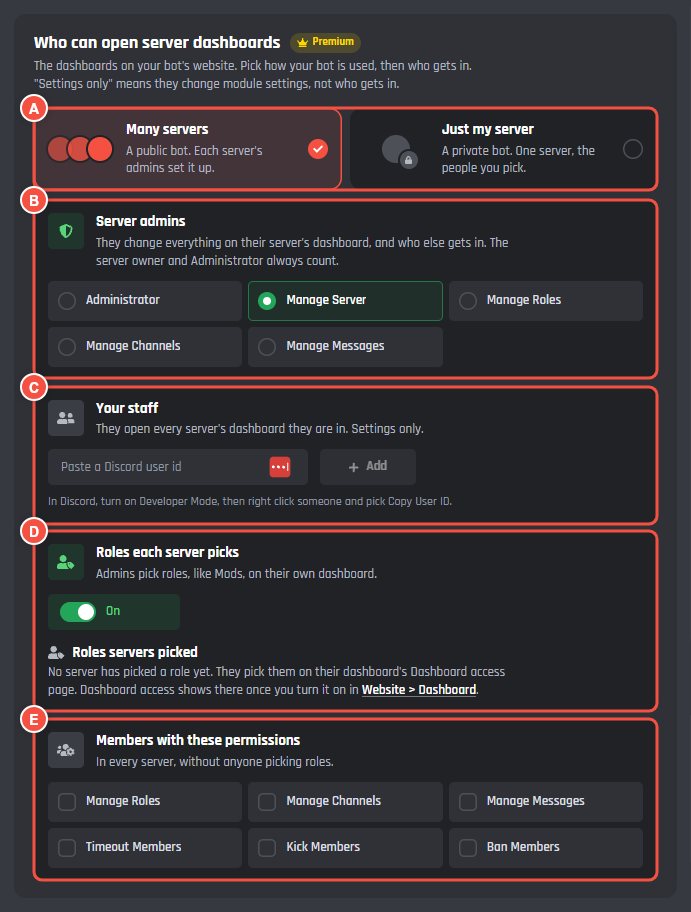
Website > Dashboard > Who can open server dashboards
- A The mode cards, with Many servers picked.
- B Server admins: which permission counts as admin.
- C Your staff: people you let in by their Discord ID.
- D Roles each server picks: lets each server's admins pick roles of their own.
- E Members with these permissions: permissions that get in, in every server.
Server admins
Pick the permission that makes someone an admin: Administrator, Manage Server (to start with), Manage Roles, Manage Channels or Manage Messages. The server owner and anyone with Administrator always count.
- Picking Administrator leaves out people who only have Manage Server.
- Picking Manage Roles, Manage Channels or Manage Messages adds the people with that permission to the people with Manage Server. The card warns you, because they also decide who else gets in.
On Premium, only an admin can open the dashboard in a new server and give it one of your 3 places. Until an admin has, anyone else sees "Someone with Manage Server needs to open this dashboard first."
Your staff
People you let in by their Discord ID. They open the dashboard of every server they are in, settings only. Up to 50 people.
Paste an ID and press Add. The person shows with their Discord name and picture. To copy an ID in Discord, turn on Developer Mode, then right click someone and pick Copy User ID.
- "That is not a Discord user id": an ID is a long number, not a name.
- "No Discord account has that id": check the ID.
- "Added. Discord did not answer, so the name shows after you save": the ID is on the list and works.
Roles each server picks
Switch it On to let each server's admins pick roles, like Mods, on their own dashboard. People with a picked role get in, settings only. Each server picks up to 10 roles on its Dashboard access page (below).
Under the switch, Roles servers picked lists every server that picked roles, with who picked each role and when. Clear takes one role off that server's list, and Clear all takes all of them. Both ask you to press again. The server's change log shows it was the bot owner.
Turning the switch off stops the picked roles from working once you save. Each server keeps its picks, and they work again if you turn it back on.
Members with these permissions
Tick any of Manage Roles, Manage Channels, Manage Messages, Timeout Members, Kick Members and Ban Members. Anyone with one of them, in any server your bot is in, can open that server's dashboard, settings only, without anyone picking roles.
Just my server
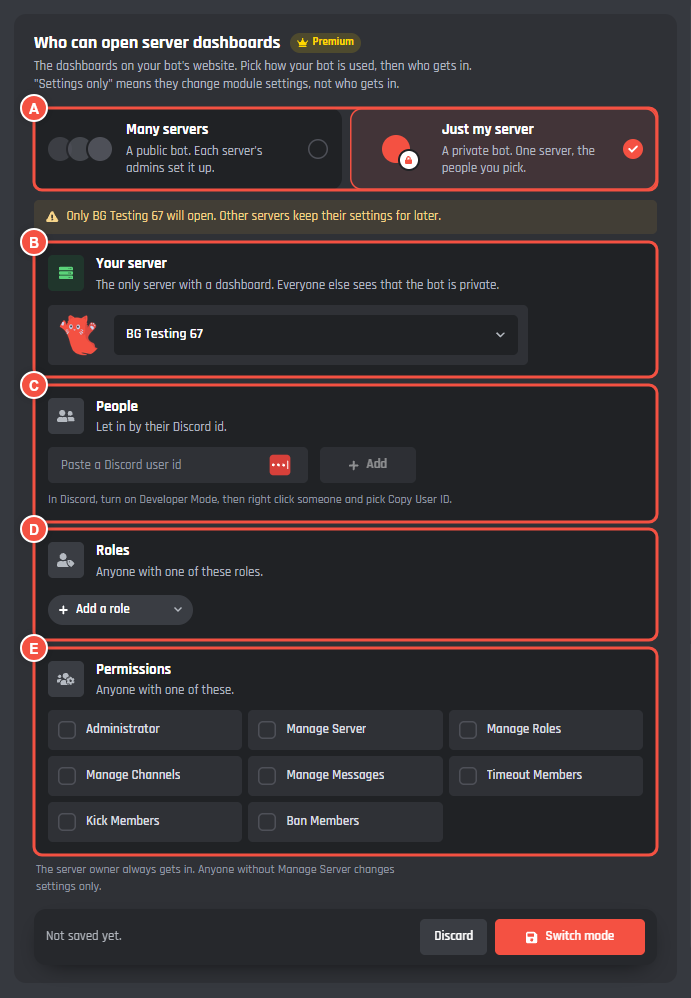
Website > Dashboard > Who can open server dashboards
- A The mode cards, with Just my server picked.
- B Your server: the one server with a dashboard.
- C People: let in by Discord ID, up to 50.
- D Roles: anyone with one of these roles in your server, up to 25. It shows once you pick the server.
- E Permissions: anyone with one of these.
Pick the server from the servers your bot is in. If your bot is in one server, it is picked for you. Until a server is picked, the Save bar says "Pick your server to save."
Only the people your rules let in can open it: the server owner always, then anyone on People, with one of the Roles, or with one of the Permissions. The permissions are Administrator, Manage Server, Manage Roles, Manage Channels, Manage Messages, Timeout Members, Kick Members and Ban Members. The first time you pick Just my server, Manage Server is ticked for you. Untick it and people with only Manage Server can't get in.
Anyone let in who also has Manage Server is an admin. Everyone else changes settings only.
Just my server takes none of your 3 places on Premium.
What server admins see
Each server's admins pick their roles on the Dashboard access page of their server's dashboard. The page shows only when:
- Roles each server picks is on (Many servers),
- the person has Manage Server (or your admin permission) in that server, and
- Dashboard access is on under More pages in the Server group in How it looks. New websites start with it off.
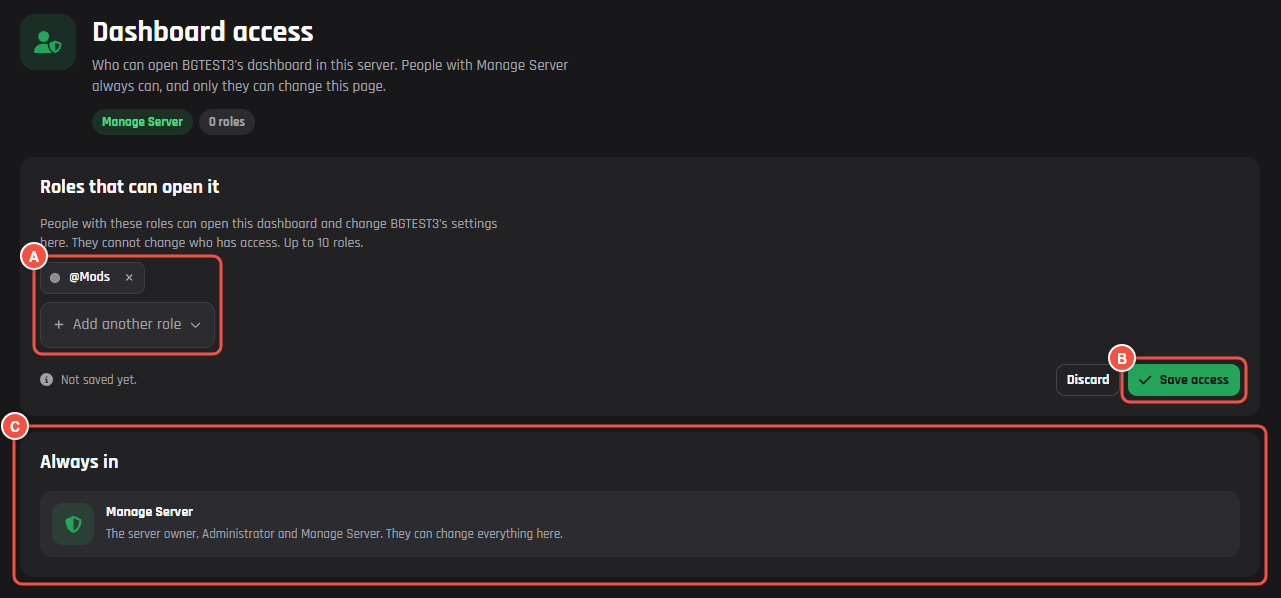
On your website: a server's Dashboard access page
- A Roles that can open it: up to 10 of the server's roles.
- B Save access saves them, and they can open it at once. Discard beside it drops the change.
- C Always in: Manage Server (the server owner, Administrator and Manage Server), and each permission you let in from Members with these permissions.
Changes to who has access show on the server's change log, but can't be undone from it. They are changed on this page.
On Pick a server, people let in another way see why: "Your role: @Mods", "YourBot's owner let you in", or "Your permissions let you in".