Ban appeals
Banned members ask a server's staff to unban them on your website. Each server turns appeals on for itself, and its own staff decide.
The Ban appeals page on your website lets someone banned from a server that uses your bot ask that server's staff to unban them. Each server turns appeals on for itself, and its staff read and decide them on your website. Accepting an appeal lifts the ban through your bot.
Ban appeals come with BotPanel Plus and need sign in set up. See Plans and Sign in.
An appeal is between the banned member and that server's staff. You set the form and the rules for every server, and you see how many appeals each server has, never what anyone wrote. If you're staff in a server yourself, you read its appeals on your website like the rest of its staff.
Before you start
The page opens once your website is live on the full website layout, sign in is set up in Website > Dashboard, and Ban appeals is on in Website > Pages. Until then, the Ban appeals tab in your Inbox shows a yellow note with a button to fix what's missing.
For a server's staff to reach their appeals from their server dashboard, turn the Ban appeals page on in Website > Dashboard too.
How an appeal works
- 1
Staff turn appeals on
Someone with Manage Server or Ban Members in a server opens Ban appeals in that server's dashboard on your website. They switch on Take ban appeals and press Save.
List this server on the Ban appeals page puts the server in the list on your website. With it off, only people who have the server's appeal link find the form. The link is under Your appeal link, with a Copy button, for the server's ban message or rules.
- 2
A banned member appeals
They sign in with Discord on your website and pick the server under Which server banned you?, or open the server's appeal link. Your bot checks with Discord that they are banned there. Then they fill in the form and press Send appeal.
- 3
Staff decide
Staff open the appeal and press Accept and unban or Decline, then press again to confirm. Accepting lifts the ban through your bot, with the staff member's name in the server's audit log. A decline can carry a reason, and the member sees it.
- 4
The member hears back
The member sees the decision on the Ban appeals page. Your bot also tries to DM them, but a banned member often shares no server with your bot, so the page is where they always find it.
Your bot needs the Ban Members permission in a server to lift bans there.
What staff see
The staff page lives at /appeals/review/ followed by the server's ID. In the server dashboard's menu, Ban appeals shows how many appeals are waiting. Your website checks with Discord on every visit, so people without Manage Server or Ban Members in that server can't open it.
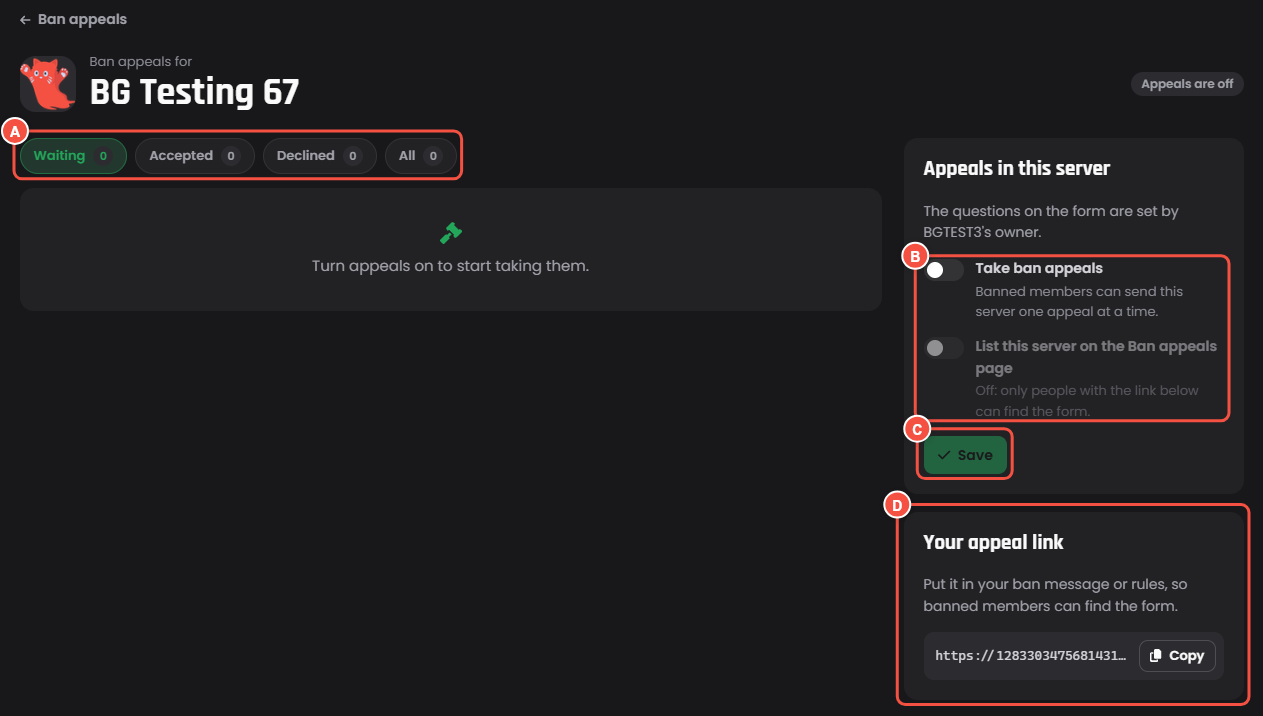
A server's staff page on your website, before appeals are turned on
- A Waiting, Accepted, Declined and All, each with how many appeals.
- B Take ban appeals, and List this server on the Ban appeals page, which stays greyed until appeals are on.
- C Save keeps both switches.
- D Your appeal link, with Copy.
What the member sees
The Ban appeals page lists the servers that take appeals and chose to be listed, the member's own appeals with where each one is, and Servers you review for anyone who is staff somewhere.
- Waiting for staff: sent, not decided yet.
- Accepted: the ban is lifted.
- Declined: with the staff's reason, or "They did not give a reason."
If the bot finds they aren't banned, the form says there's nothing to appeal. If they must wait before appealing again, it says the date they can.
Rules and limits
| Limit | |
|---|---|
| Open appeals | One per person per server |
| Appeal again after a decline | After 30 days, unless you change it |
| Appeals from one person | 3 a day |
| Appeals to one server | 20 an hour, and 300 waiting at once |
| Appeals to your bot | 60 an hour, 300 a day |
| The first answer on the usual form | 10 to 2,000 characters |
BotGhost deletes decided appeals after a year.
Your side
Open BotPanel > Inbox and pick the Ban appeals tab.
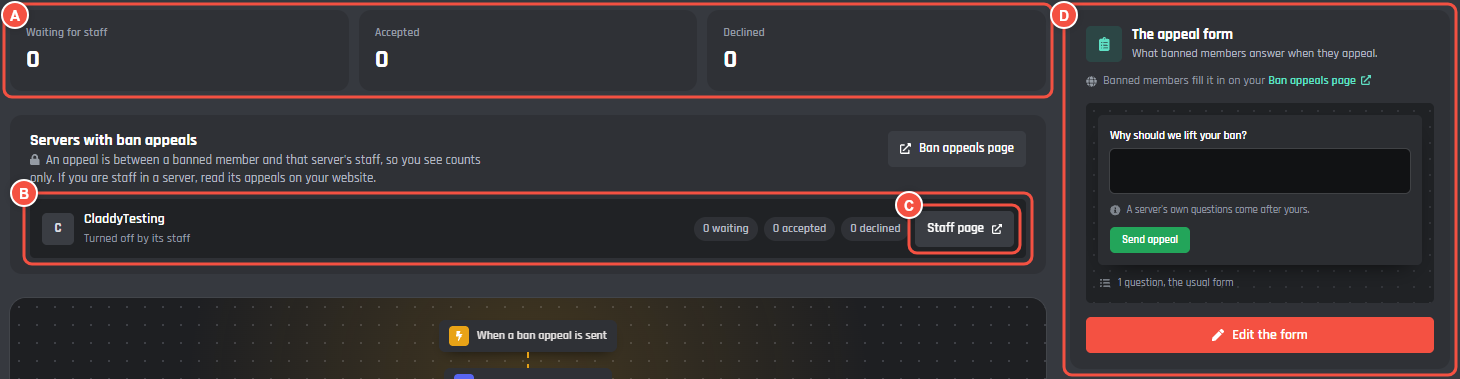
BotPanel > Inbox > Ban appeals
- A The totals: Waiting for staff, Accepted and Declined.
- B A server under Servers with ban appeals: "Taking appeals, listed on your page", "Taking appeals by its own link only", or "Turned off by its staff", with its counts.
- C Staff page opens that server's staff page on your website. It only works for its staff.
- D The appeal form card. Edit the form opens the form builder (see The form).
Every server's form asks the questions you build. A server's staff can't change them.
Ban appeals page settings
The page's settings are in Website > Pages > Ban appeals. They save with the rest of your website when you press Save on the bar at the bottom.
| Setting | What it does |
|---|---|
| Words on the page | The page's title and intro. Leave them empty to keep the page's own words. |
| Message after sending | What the member reads once they send an appeal, up to 300 characters. |
| The appeal form | The questions every server's form asks. It starts with "Why should we lift your ban?" |
| Appeal again after a decline | On: once the wait below is over. Off: one appeal each, and a decline is final. |
| Wait after a decline | 0 to 365 days. 0 lets them appeal again right away. It starts at 30. |
| Wait between any two appeals | 0 to 90 days between appeals to the same server, whatever the last answer was. 0 means no wait. |
The events
Two events run for appeals, and both run in the appeal's own server. Press Events and variables on the Post appeals in each server's staff channel card at the bottom of the Ban appeals tab, then Build.
- When a ban appeal is sent runs when a member sends a server an appeal.
- When a ban appeal is decided runs when its staff accept or decline one.
Every server has its own staff channel, so add a setting in the Module Maker that lets each server pick its channel, and post there.
| Variable | What it holds | Sent | Decided |
|---|---|---|---|
{botpanel.appeal_user} |
Who appealed, as a mention | Yes | Yes |
{botpanel.appeal_user_id} |
Their Discord ID | Yes | Yes |
{botpanel.appeal_user_name} |
Their Discord name | Yes | Yes |
{botpanel.appeal_server_name} |
The server's name | Yes | Yes |
{botpanel.appeal_server_id} |
The server's ID | Yes | |
{botpanel.appeal_text} |
Why they should be unbanned, in their words | Yes | Yes |
{botpanel.appeal_answers} |
The other questions with their answers | Yes | |
{botpanel.appeal_ban_reason} |
The reason on the ban, or empty | Yes | |
{botpanel.appeal_link} |
The link for staff to read and decide it | Yes | Yes |
{botpanel.appeal_decision} |
Accepted or Declined | Yes | |
{botpanel.appeal_reason} |
The reason staff gave for declining, or empty | Yes | |
{botpanel.appeal_staff} |
Who decided, as a mention | Yes | |
{botpanel.appeal_staff_name} |
Who decided, by name | Yes | |
{botpanel.answers} |
Every answer from the form, one per line | Yes | |
{botpanel.answer.KEY} |
One answer, with the question's name from the form in place of KEY | Yes |
Try this in a Send or Edit a Message block in the decided event:
{botpanel.appeal_staff} marked {botpanel.appeal_user_name}'s appeal as {botpanel.appeal_decision}.
When Fabian accepts allmy2's appeal, the staff channel gets "@Fabian marked allmy2's appeal as Accepted."