Inbox
Ideas, bug reports and questions people send from your website's Contact page, in one place where you reply, tag and close them.
People who use your bot sign in on its website with Discord and send your team an idea, a bug report or a question from the Contact page. Each one starts a conversation in BotPanel > Inbox. You reply there, and they read your answer on the website. Your bot also DMs them a link unless they turned that off.
The Inbox comes with BotPanel Plus and needs sign in set up. See Plans and Sign in.
The bot's owner can open the Inbox, and so can collaborators with the Manage BotPanel permission. Conversations hold other people's words, so collaborators without it can't read them.
Before you start
The Contact page takes messages once all of these are true:
- Your website is live and uses the full website layout. See Your website.
- Sign in with Discord is set up in Website > Dashboard.
- The Contact page is on in Website > Pages.
If one is missing, the Inbox shows a yellow note saying which, with a button that takes you to the fix: Go live, Change the layout, Set up sign in or Turn the page on.
What people see on your website
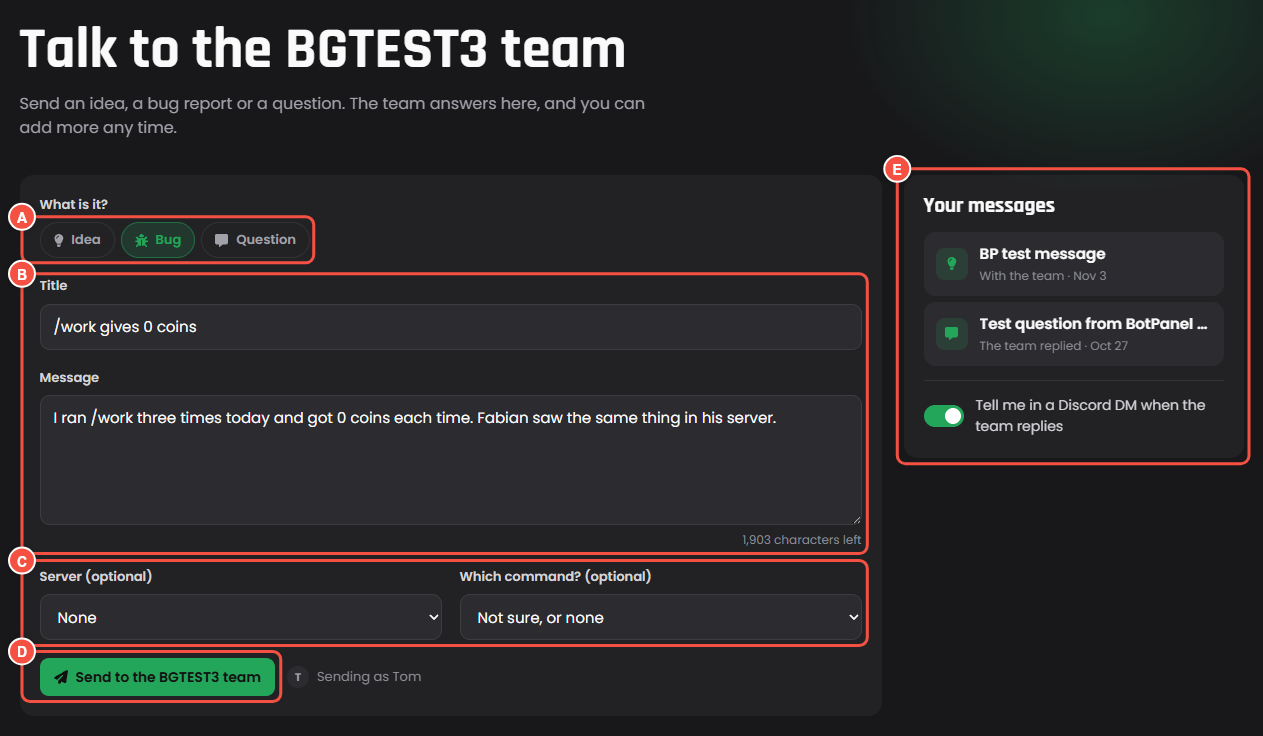
The Contact page on your website, signed in
- A What is it?: Idea, Bug or Question.
- B Title and Message, with how many characters are left.
- C Server (optional), and for a bug, Which command? (optional).
- D Send to the YourBot team, with the name it sends as beside it.
- E Your messages: their conversations and where each stands, like "The team replied", with the Tell me in a Discord DM when the team replies switch.
Visitors who aren't signed in see Sign in to send a message and a Sign in with Discord button. Your team sees their Discord name and picture, never their password.
Opening a conversation shows every message in it. They can keep adding to it with Add to this until you close it. On a closed one they see "The team closed this conversation" and can send a new message instead.
Server admins have a second way in. In their server's dashboard on your website, Send feedback opens the Contact page with their server already picked. Only people with Manage Server see it, and it shows once you turn it on in Website > Dashboard.
Limits
| Limit | |
|---|---|
| New messages from one person | 3 an hour, 10 a day, and 5 open at once |
| Messages in a row before your team answers | 5 |
| New messages to your bot | 60 an hour, 300 a day, and 2,000 open at once |
| Title | 3 to 100 characters |
| Message | Up to 2,000 characters |
| Messages in one conversation | 50 |
| Pictures (from an Image upload question) | 4 MB each, 10 a day from one person |
Contact page settings
In Website > Pages > Contact you set the Page title and the Intro under the title, and two switches, both on to start:
- Ask which server it is about shows the server picker.
- Point ideas to the Ideas page shows the Ideas board link when someone picks Idea.
Read and reply
Open BotPanel > Inbox. The Messages tab opens first, with new messages at the top.
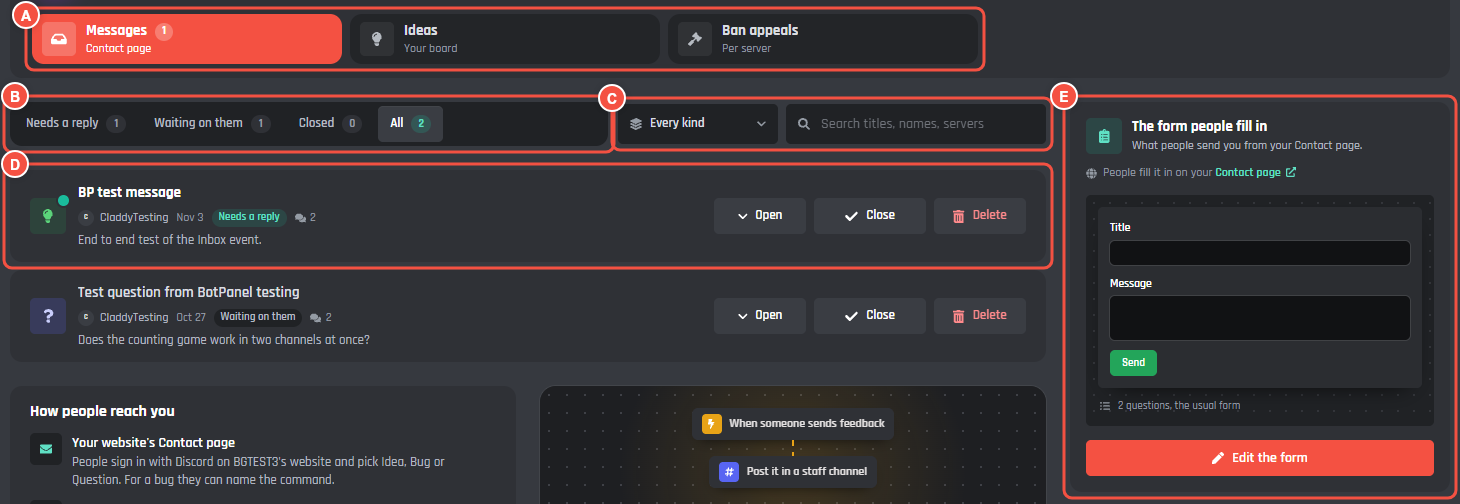
BotPanel > Inbox, Messages tab
- A The tabs: Messages (from the Contact page), Ideas and Ban appeals. Messages shows how many are unread.
- B Show: Needs a reply, Waiting on them, Closed or All, each with its count.
- C Kind (Ideas, Bugs or Questions), Tag once you have tags, and a search box for titles, names and servers.
- D A conversation: its kind, title, sender, server, when, status and tags. Open shows it in place, Close or Reopen moves it, and Delete asks you to press again.
- E The form people fill in: a small drawing of your Contact form. Edit the form opens the form builder.
Each conversation is in one of three places:
- Needs a reply: a new message, or one they added to.
- Waiting on them: you replied.
- Closed: you closed it. BotGhost deletes closed conversations after a year. Replying to a closed one opens it again.
Inside a conversation
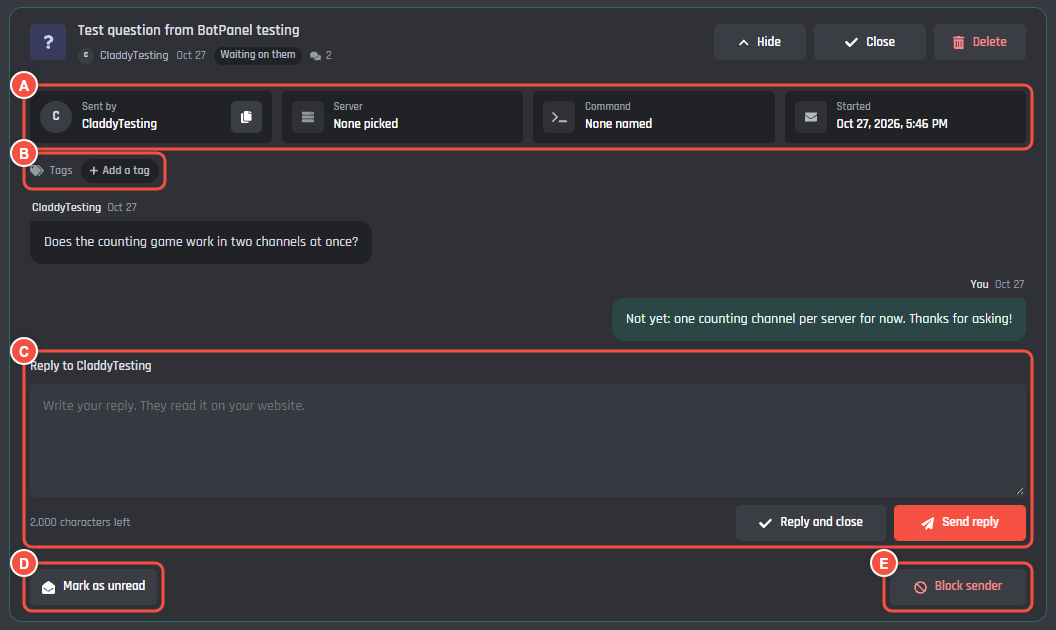
One conversation, opened
- A Sent by, Server, Command and Started. The copy button next to their name copies their Discord ID.
- B Tags. Add a tag opens your tags. Type to find one, or type a new name and make it there.
- C The reply box. Send reply answers and moves it to Waiting on them. Reply and close answers and closes it. Replies can be 2,000 characters.
- D Mark as unread puts the unread dot back.
- E Block sender stops them sending you anything. Press it again to confirm. Unblock lets them back.
After a reply, a line under the box says what happened with the DM:
- They get a DM from your bot with a link to the conversation.
- They turned DMs off, so they read your reply on the website.
- A DM already went out for this conversation in the last 10 minutes, so there's no second one.
- Your bot is offline, so no DM went out.
A conversation holds 50 messages. At 50, close it: they can send a new one.
Tags
You can have up to 20 tags, and put up to 10 on one conversation. A tag has a name of up to 24 characters and one of eight colours. Each tag's menu in the picker renames it, changes its colour or deletes it. Deleting a tag takes it off every conversation.
Blocking
A blocked person can't send messages, post ideas or comment on ideas. Messages and Ideas share one blocked list of up to 500 people, so blocking someone in either place blocks them in both.
The form
Edit the form on the form card opens the form builder, full screen. The same builder makes the forms for Ideas and Ban appeals.
- Drag blocks from the left onto the form, or click one to add it under the block you picked. Click a block on the form to change it on the right.
- The blocks are Heading, Text, Short answer, Long answer, Choice, Yes or no, Number and Image upload (one picture, up to 4 MB).
- A form holds up to 20 blocks, 12 questions and 3 image uploads.
- One short answer is the title (This is the title). Your Inbox lists it as the message's title, and messages always need one.
- Each question has a Name in your events, under Advanced. Your events read its answer as
{botpanel.answer.KEY}, with that name in place of KEY. - Preview shows the page on your real website with the new form.
- Start from the usual form puts back the Title and Message form.
- Save the form saves it straight away. You don't need the Save bar.
Pictures people add show as thumbnails in the conversation.
The event: When someone sends feedback
Your bot runs When someone sends feedback for each new message, and again when someone adds to a conversation. Use it to post new messages in a staff channel.
Press Events and variables on the Post new messages in your server card, then Build to open a new event in the builder. A message doesn't come from a server, so the builder asks which server the event runs in.
| Variable | What it holds |
|---|---|
{botpanel.inbox_kind} |
Idea, Bug report or Question |
{botpanel.inbox_title} |
The title |
{botpanel.inbox_message} |
What they wrote, up to 1,000 characters |
{botpanel.inbox_user} |
Who sent it, as a mention |
{botpanel.inbox_user_id} |
Their Discord ID |
{botpanel.inbox_user_name} |
Their Discord name |
{botpanel.inbox_server_name} |
The server they picked, or empty |
{botpanel.inbox_server_id} |
That server's ID, or empty |
{botpanel.inbox_command} |
The command a bug report is about, or empty |
{botpanel.inbox_new} |
true for a new message, false when they added to one |
{botpanel.inbox_link} |
A link to the conversation in your Inbox |
{botpanel.answers} |
Every answer from the form, one per line |
{botpanel.answer.KEY} |
One answer, with the question's name from the form in place of KEY |
Try this in a Send or Edit a Message block:
New {botpanel.inbox_kind} from {botpanel.inbox_user}: {botpanel.inbox_title}
{botpanel.inbox_message}
{botpanel.inbox_link}
When Dax reports a bug in /work, your staff channel gets "New Bug report from @Dax: /work gives 0 coins", what he wrote, and a link that opens the conversation in your Inbox.