BotPanel Actions
Five blocks that answer inbox messages, ideas, and ban appeals, publish updates, and read their details from your commands and events.
The BotPanel blocks work with your bot's BotPanel website from any command or event. Reply to a message from your Contact page, move an idea to Planned, answer a ban appeal, or publish an update, all without opening the dashboard.
The BotPanel blocks need Premium, and while the BotPanel open beta runs, every Premium bot can use them. On a bot without Premium, the builder warns "BotPanel blocks need Premium" and the block always fails.
You find them in the BotPanel section of the block list, under Actions. To hide that section, turn off BotPanel Blocks in Builder Settings, under New blocks. Blocks you already placed keep working.
| Block | What it does |
|---|---|
| Reply to an Inbox Message | Answers a message sent from your website's Contact page, as your team. |
| Set an Idea's Status | Changes an idea's status on your Ideas board, with an optional note. |
| Answer a Ban Appeal | Accepts or declines a ban appeal. Accepting unbans them. |
| Publish an Update | Posts an update on your website, and can send it to the servers that follow your updates. |
| Get BotPanel Details | Reads an inbox message, idea, ban appeal or update into variables for the blocks after it. |
The ID of what you change
Each block works on one item, picked by its ID: 12 letters and numbers, like 3f9a2c1b7d4e. The BotPanel events give you the ID of the item that started them:
| Event | ID variable |
|---|---|
| When someone sends feedback | {botpanel.inbox_id} |
| When someone posts an idea, When an idea's status changes | {botpanel.idea_id} |
| When a ban appeal is sent, When a ban appeal is decided | {botpanel.appeal_id} |
| When you publish an update | {botpanel.update_id} |
A BotPanel block you add inside one of these events starts with the right ID filled in. In a command, take the ID from an option or a variable, or from {botpanel_found.id} after a Get BotPanel Details block.
In a command, anyone who can use the command can run these blocks. Put a permission or role check before them.
When a block can't do its job, like "No idea with that id.", the reason goes to your bot's error log and the block takes its error path. See Enable Success/Error Handles.
Reply to an Inbox Message
Answers a conversation in BotPanel > Inbox, as your team. They read your reply on your website, and your bot DMs them the way a reply from the Inbox does.
- Message id: the conversation, like
{botpanel.inbox_id}. - Reply: up to 2,000 characters. Variables work.
- After the reply: Keep it open or Close it, or a variable that gives
trueorfalse.
| Variable | What it holds |
|---|---|
{botpanel_reply.dm} |
sent, off (they turned DMs off) or soon (a DM already went out for this conversation in the last 10 minutes) |
{botpanel_reply.status} |
waiting, or closed |
Set an Idea's Status
Changes an idea's status on your Ideas board, the same as the status menu in BotPanel > Inbox > Ideas. Your When an idea's status changes events run.
- Idea id: the idea, like
{botpanel.idea_id}. - Status: Open, Planned, In progress, Done or Declined. Pick Variable to read it from an option or a variable that gives one of those words.
- Note (optional): up to 300 characters. It shows under the idea on your website. Leave it empty to keep the note the idea has.
| Variable | What it holds |
|---|---|
{botpanel_idea.status} |
The idea's status now |
{botpanel_idea.previous_status} |
Its status before |
Answer a Ban Appeal
Accepts or declines a ban appeal, the same as a server's staff on your website. The member gets a DM with the answer, and your When a ban appeal is decided events run.
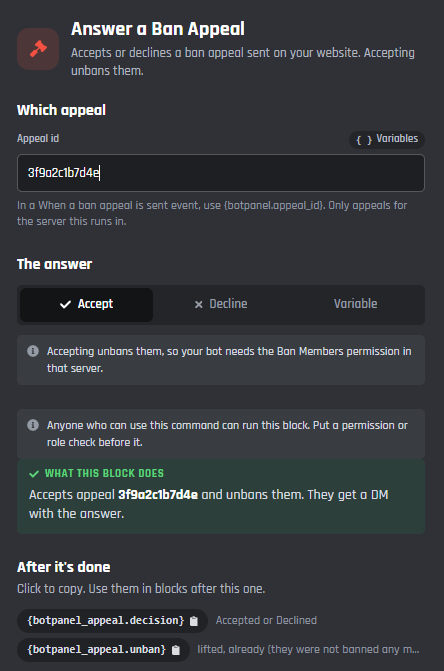
The Answer a Ban Appeal block
- Appeal id: the appeal, like
{botpanel.appeal_id}. The block only answers appeals for the server it runs in. - Answer: Accept or Decline. Pick Variable for an option or a variable that gives
acceptordecline. - Reason (optional): up to 500 characters. The member sees it when the appeal is declined.
Accepting unbans them, so your bot needs the Ban Members permission in that server. Without it, the appeal goes back to waiting and the block takes its error path.
| Variable | What it holds |
|---|---|
{botpanel_appeal.decision} |
Accepted or Declined |
{botpanel_appeal.unban} |
lifted, already (they were not banned any more), or empty for a decline |
Publish an Update
Posts an update on your website's Updates page, the same as Publish in BotPanel > Updates.
- Title: up to 100 characters.
- Summary (optional): up to 300 characters.
- Text (optional): up to 8,000 characters, for the update's own page. Headings, lists and bold work.
- Where it goes: Website, or Website and servers, or a variable that gives
trueorfalse. Servers that follow your updates get it in the channel, thread or forum they picked.
You can publish 10 updates an hour, and send 3 of them to servers.
| Variable | What it holds |
|---|---|
{botpanel_update.id} |
The update's ID |
{botpanel_update.link} |
The link to it on your website |
Get BotPanel Details
Reads one item into {botpanel_found} variables for the blocks after it.
- What to get: Inbox message, Idea, Ban appeal or Update.
- Its id: like
{botpanel.idea_id}in its events, or an ID from an option or a variable. A ban appeal is only read in the server it belongs to.
| Variable | Inbox message | Idea | Ban appeal | Update |
|---|---|---|---|---|
{botpanel_found.id} |
Its ID | Its ID | Its ID | Its ID |
{botpanel_found.title} |
Its title | Its title | Its title | |
{botpanel_found.text} |
What they wrote | What they wrote | What they wrote | Its short summary |
{botpanel_found.status} |
Open, Waiting or Closed | Open, Planned, In progress, Done or Declined | Waiting, Accepted or Declined | Published or Draft |
{botpanel_found.link} |
A link to it in your Inbox | The idea on your website | The staff page for it | Its page on your website |
{botpanel_found.user}, .user_id, .user_name |
Who sent it: a mention, their Discord ID, their name | Who posted it | Who appealed | |
{botpanel_found.server_name}, .server_id |
The server they picked | The appeal's server | ||
{botpanel_found.kind} |
Idea, Bug report or Question | |||
{botpanel_found.command} |
The command a bug report names | |||
{botpanel_found.count} |
How many messages | |||
{botpanel_found.last_from} |
sender or team: who wrote last |
|||
{botpanel_found.note} |
Your note on it | |||
{botpanel_found.votes}, .comments |
How many votes and comments | |||
{botpanel_found.hidden} |
true when hidden from the board |
|||
{botpanel_found.reason} |
The reason given when declined |
Example
Let your staff close a bug report from Discord. Make a /fixed command with a text option called id, and a Role condition so only your staff role can go on. Then add a Reply to an Inbox Message block with the message id {option_id}, After the reply set to Close it, and this reply:
Thanks for the report. This is fixed in today's update.
Post new messages in a staff channel with {botpanel.inbox_id} in them (see Inbox). When Fabian runs /fixed with the ID from Dax's bug report, Dax reads the reply on your website, gets a DM unless he turned them off, and the conversation moves to Closed.