Updates
Write what's new in your bot once. It goes on your website's Updates page and into the servers that follow your updates.
BotPanel > Updates is your bot's changelog. You write a post once, and it shows on your website's Updates page with a page of its own. You can also send it to every server that follows your updates, where your bot posts it in the channel they picked.
Updates come with BotPanel Plus. See Plans. Visitors read your posts without signing in.
The owner and collaborators can read your posts. Writing, publishing, sending and deleting need the Manage BotPanel permission.
Write an update
Press Write an update. The editor opens in a window.
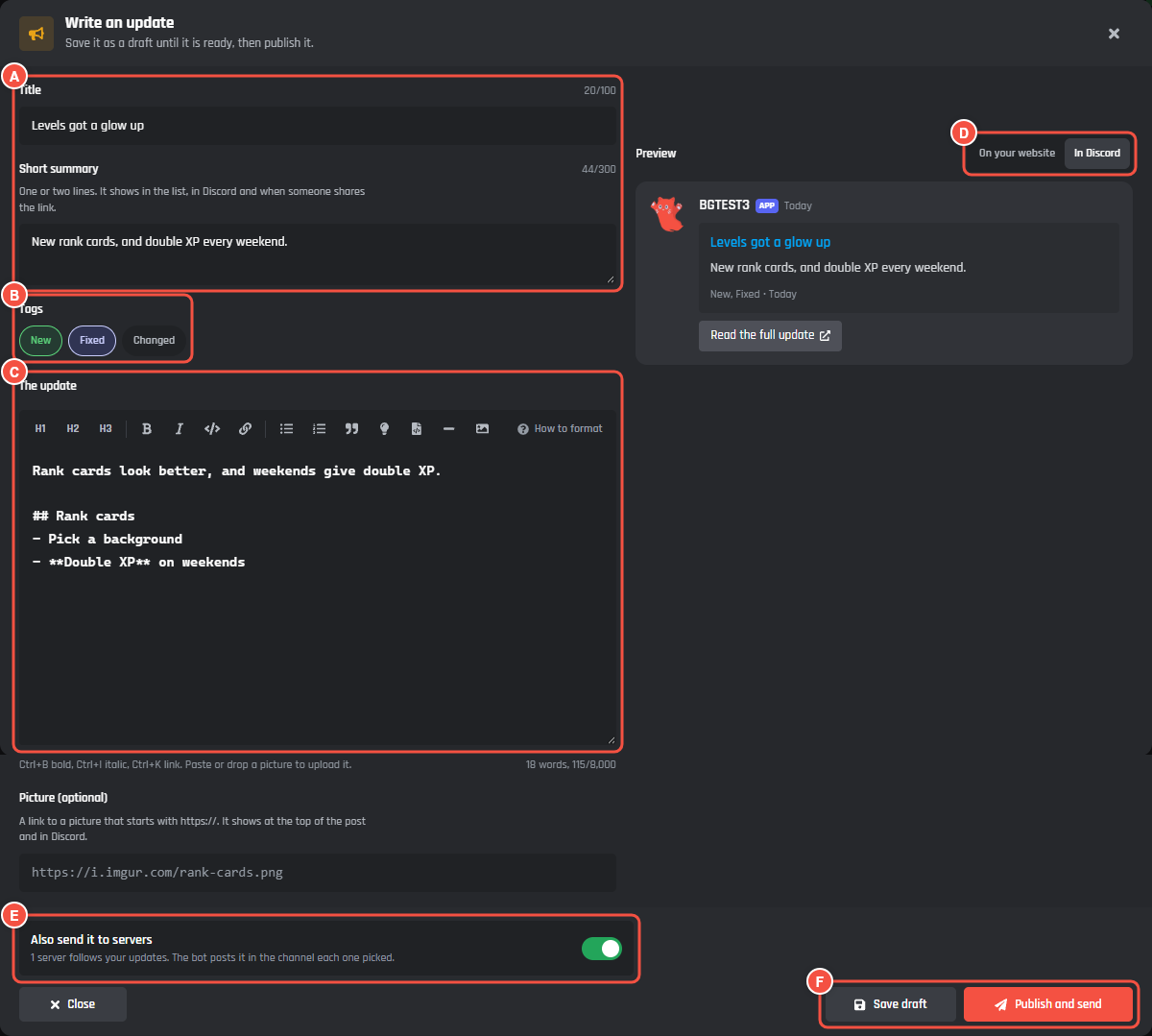
Writing an update
- A Title and Short summary.
- B Tags: New, Fixed and Changed. Pick any of them.
- C The update: the post itself, with headings, lists, bold, italic, code and links.
- D Preview: On your website or In Discord, the way a server's channel shows it.
- E Also send it to servers.
- F Save draft or Publish and send.
| Field | Limit |
|---|---|
| Title | Up to 100 characters |
| Short summary | Up to 300 characters. It shows in the list, in Discord and when someone shares the link. |
| The update | Up to 8,000 characters. Paste or drop a picture into it to upload it into the post. |
| Picture (optional) | A link that starts with https://. It shows at the top of the post and in Discord. |
Save draft keeps it in Drafts until it's ready. Publish puts it on your website. With Also send it to servers on, the button reads Publish and send, and the post goes to your following servers too.
The switch is greyed out when no server follows your updates yet, or when you've sent 3 updates in the last hour. Publish now and send it later from the list.
To change a published post, open it and press Save changes. Changes show on your website. Servers keep the copy they got.
Close asks you to press again if you have changes you haven't saved.
Your posts
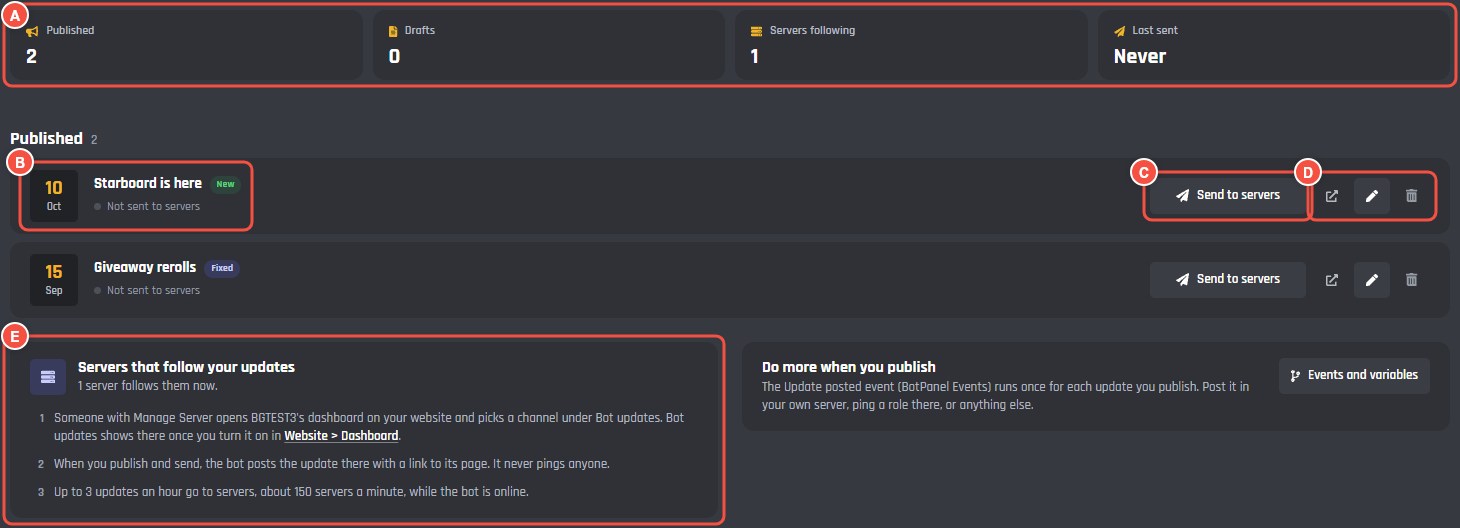
BotPanel > Updates
- A Published, Drafts, Servers following and Last sent.
- B A published post with its tags and where sending is, like "Not sent to servers", "Sending: 50 of 120 servers" or "Sent to 120 servers".
- C Send to servers sends a published post that hasn't gone out yet.
- D The icons at the end of the row: Open on your website, Edit, and Delete, which asks you to press again.
- E Servers that follow your updates: how many follow, and how they start.
Collaborators without Manage BotPanel see Read in place of Edit.
Each post goes to servers once. Sending can stop with a reason on its row:
- Stopped: the bot was offline for a day
- Stopped: BotPanel Plus ended
- No servers followed it then
| Limit | |
|---|---|
| Publishing | 10 updates an hour |
| Sending to servers | 3 updates an hour |
| Sending speed | About 150 servers a minute, while your bot is online |
| Posts | 200. Delete an old one to write another. |
If your website isn't live, uses a one page layout, or has the Updates page off, a yellow note at the top says so, with Open Website.
Servers that follow your updates
A server follows your updates when someone with Manage Server opens Bot updates in its server dashboard on your website and picks a text or announcement channel. Do not post updates here stops them. The Bot updates page shows in server dashboards once you turn it on in Website > Dashboard.
Your bot posts each update in that channel once, with its title, summary, picture and a link to read it on your website. It never pings anyone.
The Updates page on your website
The Updates page lists your published posts, newest first, under "What's new in" and your bot's name. Each post has its own page that people can share, with a Copy link button. The page loads 20 posts at a time, and Older updates loads more.
The page shows once you have a published post and Updates is on in Website > Pages.
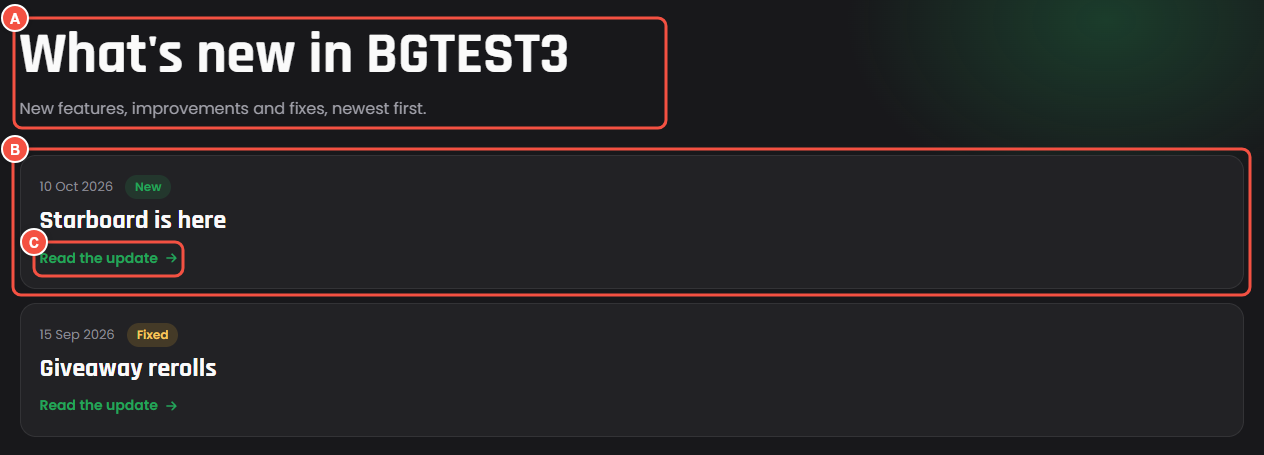
The Updates page on your website
- A The page title and intro. Change them in Website > Pages > Updates.
- B A post with its date, tags and title, plus its summary and picture when it has them.
- C Read the update opens the post's own page.
On an Ideas board, a Done idea you link to a post shows Shipped in with the post's title.
The event: When you publish an update
When you publish an update runs once for each update you publish. Use it to post the update in your own server or ping a role there. Press Events and variables on the Do more when you publish card, then Build. An update isn't in a server, so the builder asks which server the event runs in.
| Variable | What it holds |
|---|---|
{botpanel.update_title} |
The update's title |
{botpanel.update_summary} |
Its short summary |
{botpanel.update_link} |
The link to its page on your website |
{botpanel.update_tags} |
Its tags, like New, Fixed |
{botpanel.update_image} |
Its picture's link, or empty |
{botpanel.update_servers} |
How many servers it's being sent to |
Try this in a Send or Edit a Message block:
**{botpanel.update_title}**
{botpanel.update_summary}
{botpanel.update_link}