How it looks
Pick the server dashboard's layout, its pages and their names, its home page, fonts and colours.
How it looks is on BotPanel > Website > Dashboard, under the Server dashboard card. Every server sees the same look. The preview beside the tab redraws as you change things, and server admins see the new look once you press Save on the website's Save bar at the bottom of the page. Undo all there throws away every change since the last save. While the server dashboard is switched off, these cards are greyed out.
Reset to usual at the top puts every part back to how it starts. It asks Reset the look? first.
Layout
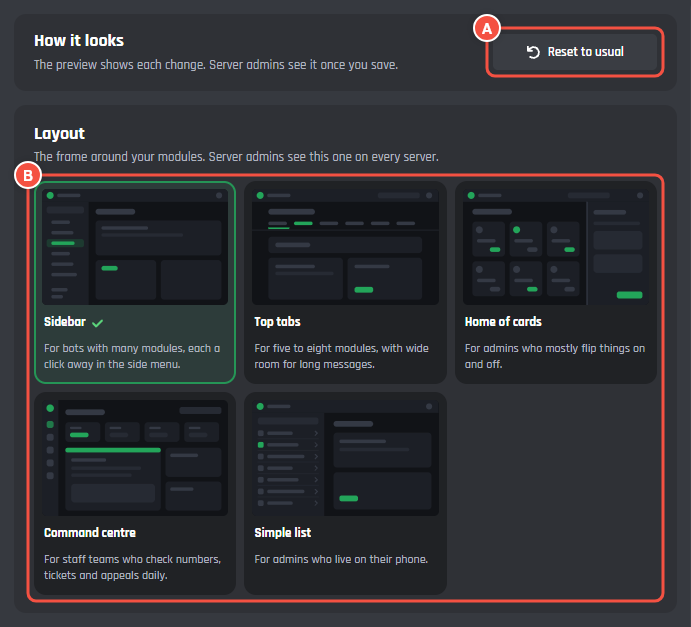
Website > Dashboard > How it looks
- A Reset to usual.
- B The five layouts. The picked one has a tick.
| Layout | Best for |
|---|---|
| Sidebar (to start with) | Bots with many modules, each a click away in the side menu |
| Top tabs | Five to eight modules, with wide room for long messages |
| Home of cards | Admins who mostly flip things on and off. A module opens in a drawer over the cards. |
| Command centre | Staff teams who check numbers, tickets and appeals daily |
| Simple list | Admins who use their phone |
With Command centre, pick a Pinned module: the one shown big on its home. Pick the module servers use most, or leave None: the first module.
Overview design
How the Overview page looks, when it is on and the layout isn't Command centre (which draws its own home):
- List (to start with): the server's name with how many modules are on, off and have settings to fill in, then a card for each module with its setup bar, then recent changes. Appeals waiting for review show too.
- Hub: a welcome banner with the server's numbers, then module cards with their switches.
- Tiles: every module as a big tile to switch on or open, with a search box.
- Setup board: how far setup has got, what is left to do, and quick switches.
Pages
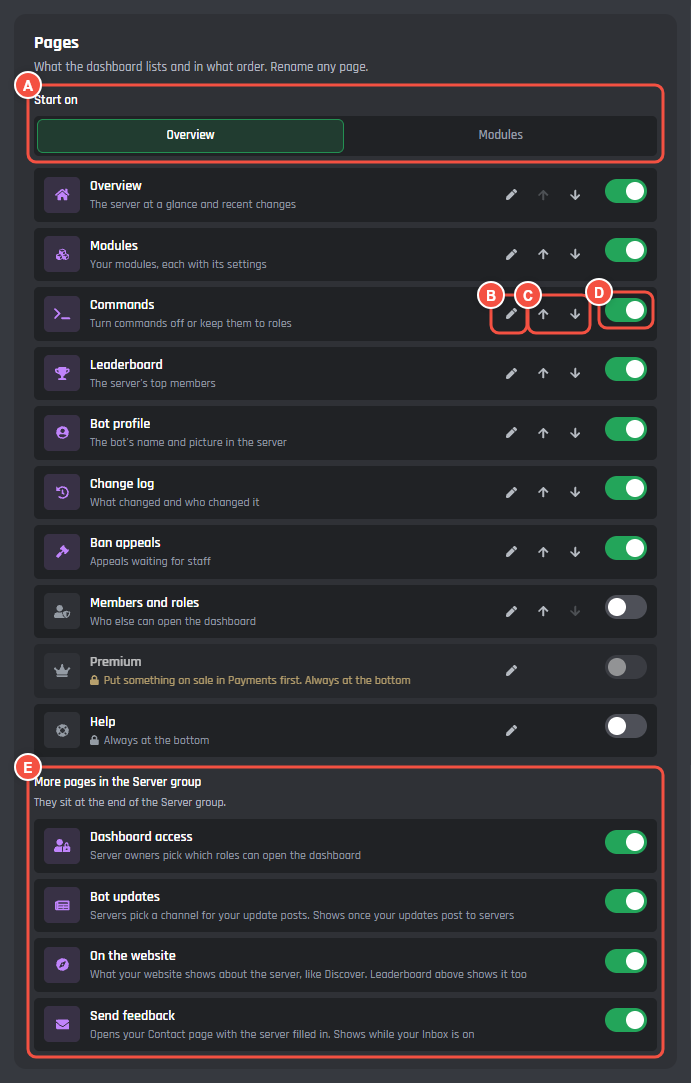
Website > Dashboard > How it looks > Pages
- A Start on: the page the dashboard opens on, Overview or Modules.
- B The pencil renames a page.
- C The arrows move a page up or down.
- D The switch shows or hides a page.
- E More pages in the Server group.
The pages, in the order they start:
| Page | What it has |
|---|---|
| Overview | The server at a glance and recent changes |
| Modules | Your modules, each with its settings |
| Commands | Turning commands off or keeping them to roles. See Commands per server. |
| Ban appeals | Appeals waiting for staff |
| Leaderboard | The server's top members |
| Members and roles | Who else can open the dashboard |
| Bot profile | The bot's name and picture in the server. See Bot profile and Music. |
| Change log | What changed and who changed it. See Servers and the change log. |
| Premium | The server's Premium |
| Help | Guides and your support server |
Premium and Help always sit at the bottom. Overview or Modules always stays on, whichever is the start page. A name is up to 24 characters, without < or >; empty uses the usual name, and Usual name puts it back.
New websites start with Leaderboard, Change log and Ban appeals off. Turn on Change log so admins can see what changed and use Undo.
A page that can't show yet is greyed, with the reason:
| It says | What to do |
|---|---|
| Needs BotPanel Plus | Ban appeals, Leaderboard, Premium and Bot profile come with BotPanel Plus. See Plans. |
| Needs the full website layout | Switch your website from one page to the full website. |
| Turned off in your website's Pages | Turn the page on in Pages. |
| Turn on Commands control in Modules first | See Commands per server. |
| Add a leaderboard in Pages first | Add one in Pages. |
| Put something on sale in Payments first | Sell a Server Premium tier in BotPanel > Payments. |
Without BotPanel Plus, Overview shows "Numbers from Stats need BotPanel Plus".
More pages in the Server group
These sit at the end of the Server group in the dashboard's menu, each with a switch:
- Dashboard access: server owners pick which roles can open the dashboard. See Who gets in.
- Bot updates: servers pick a channel for your update posts. Shows once your updates post to servers.
- On the website: what your website shows about the server, like Discover, and its Music panel. The Leaderboard page shows it too.
- Send feedback: opens your Contact page with the server filled in. Shows while your Inbox is on.
New websites start with these off.
Find a setting
A search box that jumps to any setting by its name. Ctrl K opens it. On to start with.
Fonts
Leave the dashboard on your website's fonts, or pick a heading font and a body font from Google Fonts. Your website's font stays as the backup.
Colours
- Accent: the colour of buttons, switches and the page you're on. Same as your site (to start with), one of the swatches, or Pick any colour.
- Background: Same as your site, Dark, Darker or Light.
A sample under the card shows a Save button, a page name and a switch in your colours. If the accent is hard to see on the background, the card says so and suggests a darker or lighter one.
What server admins see
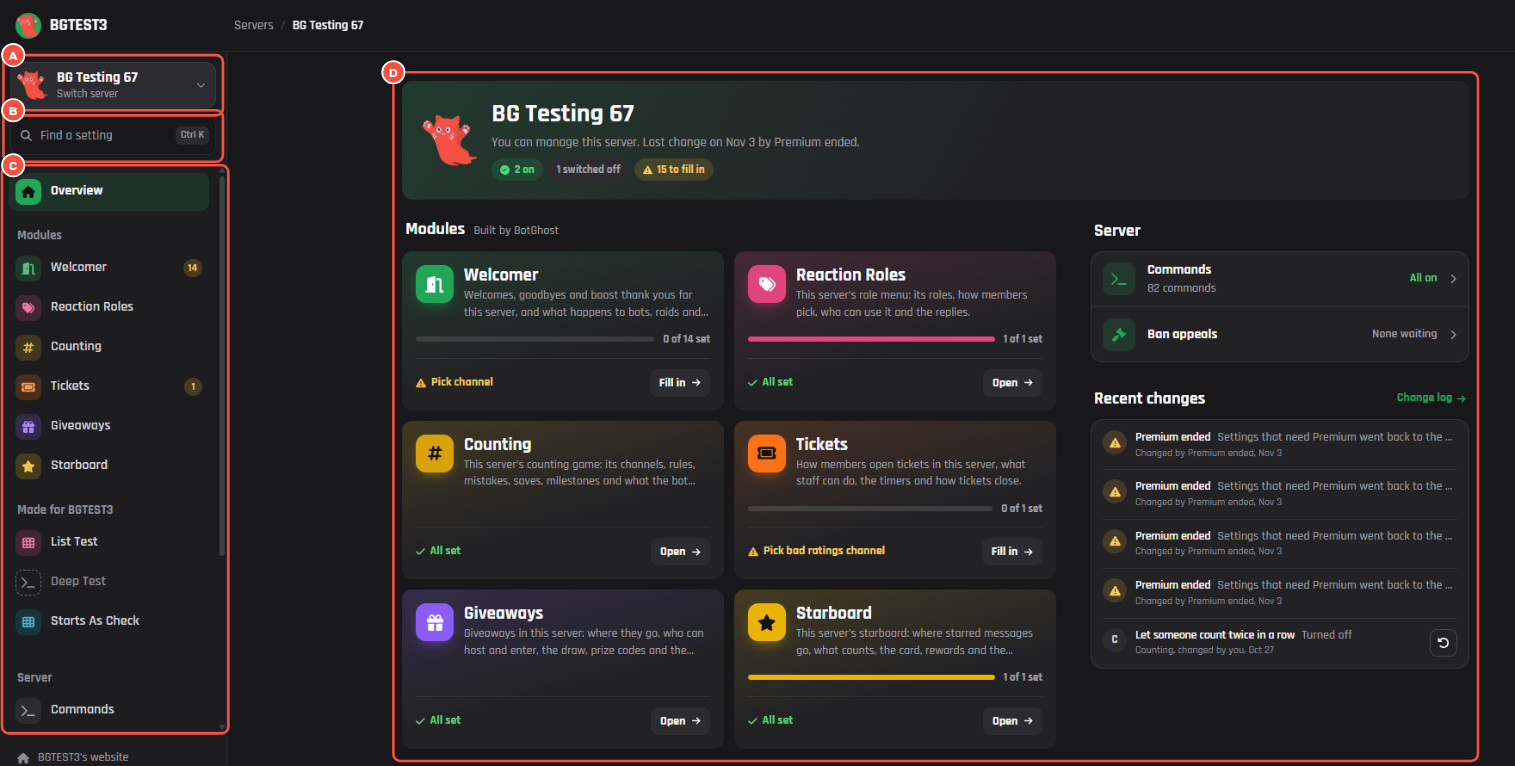
On your website: a server's dashboard, Sidebar layout
- A The server switcher: the server they are in, and their other servers with your bot.
- B Find a setting.
- C The menu, with your pages and module groups in your order and with your names.
- D The Overview: the server's name with how many modules are on and left to fill in, the module cards, Server and Recent changes.
Admins can also switch the dashboard between light and dark for themselves. See Using a bot's server dashboard for the rest of what they see.