Using a bot's server dashboard
A walkthrough for people who run a Discord server and use a bot's dashboard to change its settings.
This page is for the people who run a Discord server and change a bot's settings on its website. Bot owners can link their members here.
A bot's server dashboard changes how the bot works in your server only. Other servers never see your settings, and you never see theirs. The bot uses a change as soon as you save it.
Sign in
Open the bot's website and press Dashboard, then Sign in with Discord. You sign in on Discord's own site, and Discord shows the bot's name and picture. The bot only learns your name, your avatar and which servers you're in. It never sees your password.
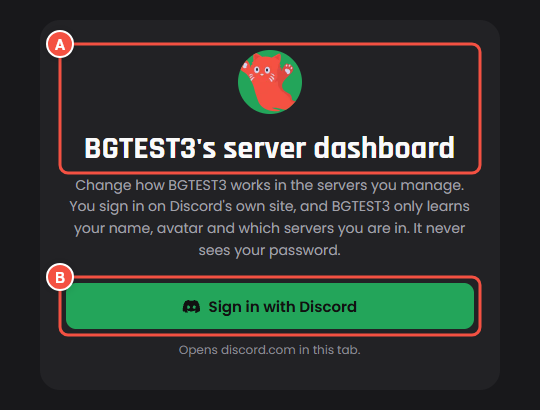
The bot's website: sign in
- A The bot's picture and name: "YourBot's server dashboard".
- B Sign in with Discord opens discord.com in the same tab.
If the page says The dashboard is not open, the bot's owner hasn't opened it yet.
Pick a server
After signing in you land on Pick a server.
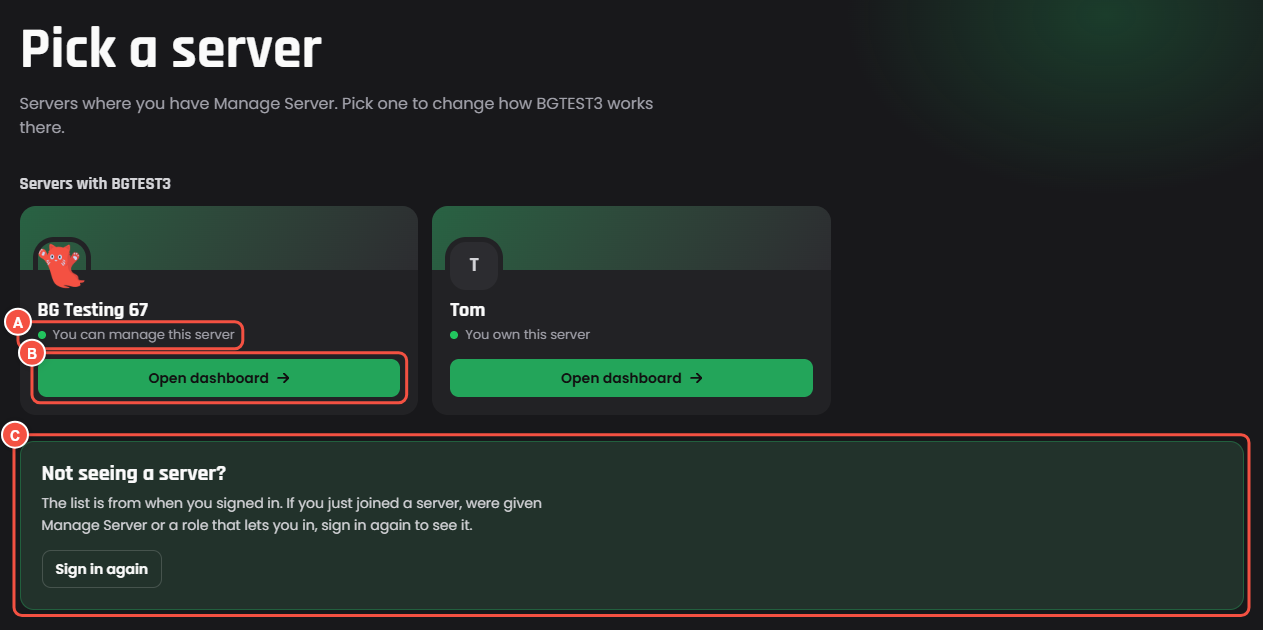
The bot's website: Pick a server
- A Each card under Servers with the bot says why you can open it: "You own this server", "You can manage this server", "Your role: @Mods", or that the bot's owner let you in.
- B Open dashboard.
- C Not seeing a server? with Sign in again.
Servers you manage where the bot isn't yet show under YourBot is not in these yet, with Add YourBot to invite it.
You see the servers where you have Manage Server, plus any server where the bot's owner, or that server's admins, let you in another way. The list is from when you signed in: if you just joined a server, or just got Manage Server or a role that lets you in, press Sign in again.
If a server won't open, the page says why:
| It says | Why |
|---|---|
| This bot is private | The bot works in one server only, and its owner picks who can change it. |
| You cannot change this server | You need Manage Server there, or a role that lets you in. |
| Not set up in this server yet | Someone with Manage Server needs to open the dashboard there first. |
| This dashboard is full | The dashboard works in a set number of servers, and they're all taken. The bot's owner can free a place. |
| YourBot has left this server | Press Add YourBot again to invite it back. |
| The dashboard is closed | The bot's owner hasn't set it up yet, or turned it off. |
Find your way
The menu lists the bot's pages: Overview, the bot's pages of settings under Modules, and others the bot's owner turned on, like Commands or Change log. The bot's owner picks the layout and names, so the menu may look different from bot to bot.
- The server at the top of the menu switches to your other servers with the bot.
- Find a setting, or Ctrl K, jumps to any setting by its name.
- Your name opens a menu with Your servers, the bot's website, and Sign out.
- Overview shows what needs you (settings still to fill in) and the latest changes.
Change settings
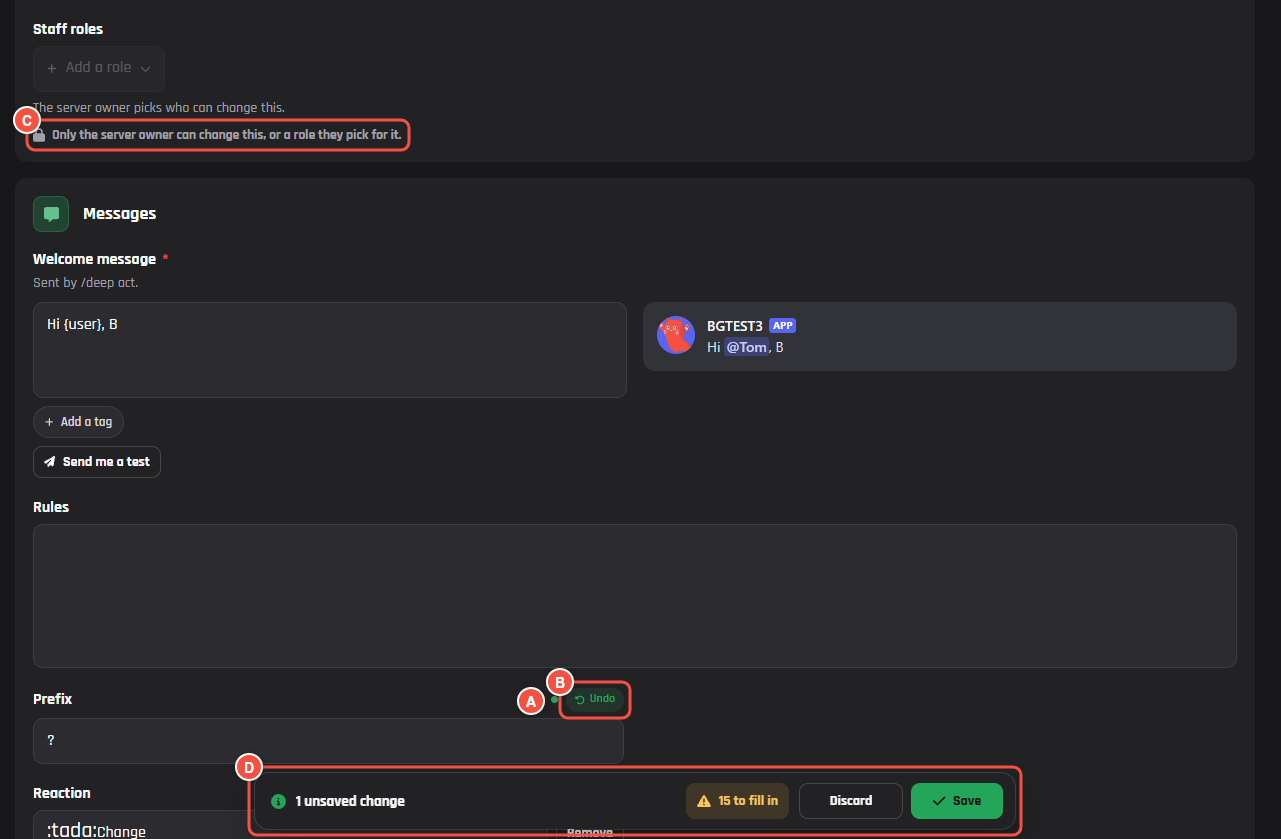
The bot's website: a page of settings
- A A changed setting has a dot until you save.
- B Undo beside a changed setting puts back its saved value.
- C A locked setting, with the reason under it, like "Only the server owner can change this, or a role they pick for it."
- D The save bar: how many changes are waiting, how many settings are left to fill in, Discard and Save.
Changes wait in the save bar until you press Save (or Ctrl S). Then it says "Saved. The bot uses it straight away." Discard throws your changes away, and Bring them back restores them for 10 seconds after. Switching to another server drops changes you haven't saved.
A setting marked with a star must be filled in, and the save bar shows how many are left with to fill in. If a save fails, Show me goes to the setting it was about.
A setting's ... menu has:
- Reset to default, back to the bot's starting value.
- Its recent changes, with who made them.
- Copy to my other servers: the same value, saved straight away in the servers you pick. Their other settings stay as they are.
Message settings have Send me a test, which sends the message to your DMs. Pinging everyone or a role in a message needs Mention @everyone in your server.
Locked settings
- "Only the server owner can change this."
- "Only the server owner and @role can change this." The server owner picks that role under the setting. Until they do, it says "Only the server owner can change this, or a role they pick for it."
- "Needs YourBot's Premium in this server." Some settings come with the bot's own Premium.
Presets
Some pages start with Start from a preset: ready made settings from the bot's owner. Press Changes 3 settings to see each value it would change, then Apply. Nothing is saved until you press Save, and you can change anything first.
Commands
If the bot's owner lets you, the Commands page turns the bot's commands off in your server, or keeps them to some roles or channels. Press a command's who and where to pick Who can use it and Where (Every channel, Only these or All except these). People with Manage Server can use a command whatever the roles; channel rules apply to everyone.
The change log and Undo
The Change log page, when the bot has it, shows who changed what in your server and when. On some bots, Undo on a change puts that setting back the way it was; press it again on Undo it? to confirm. Each page also has its recent changes at the foot.
Let others in
If the bot allows it, people with Manage Server see a Dashboard access page. Pick up to 10 roles under Roles that can open it and press Save access. People with those roles can change the bot's settings here, but not who has access.
What you can't see
- Other servers' dashboards, and anything about them.
- The bot owner's own dashboard and settings.
- Settings the bot's owner didn't put on the dashboard. The bot uses the owner's value for those.
- The value of a setting only the server owner can see. The change log says "Only the server owner can see this setting".
- If you were let in by a role, a permission or your Discord ID rather than Manage Server: who has access, the bot's profile, Bot updates, On the website, and the server's Premium.