Applications
Members apply to a server's staff on your website, for a staff role, a partnership or anything you set up. Each server turns applications on for itself, and its own staff decide.
The Applications page on your website lets members apply to the staff of a server that uses your bot, for things like Staff or Partner. Each server turns applications on for itself, and its staff accept or turn them down on your website. Two events tell your bot, so your own blocks can give a role to the people staff accept or post new applications in a staff channel. Nothing happens in Discord without them.
Applications come with BotPanel Plus and need sign in set up. See Plans and Sign in.
Before you start
The page opens once your website is live on the full website layout, sign in is set up in Website > Dashboard, and Applications is on in Website > Pages with at least one thing to apply for. It starts off on every website.
For a server's staff to reach their applications from their server dashboard, turn the Applications page on in Website > Dashboard too.
Set it up
Open Website > Pages and press Edit on Applications.
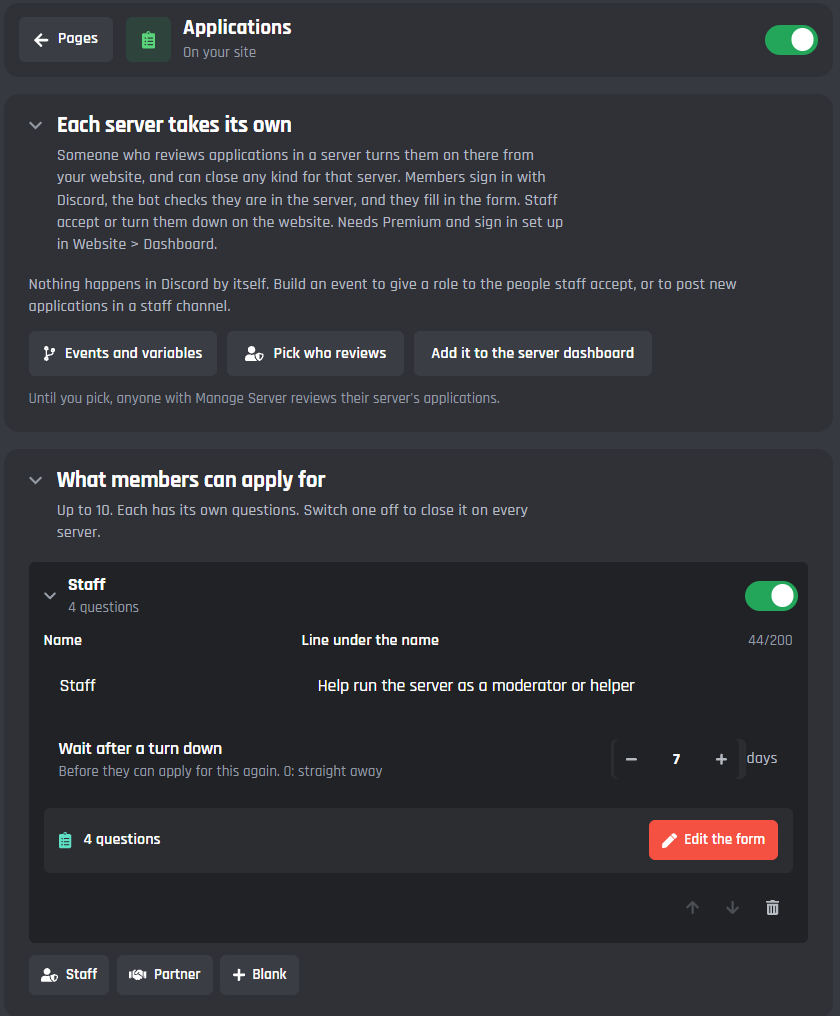
Website > Pages > Applications
Each server takes its own has three buttons:
- Events and variables: the two events, with an example for each. See The events.
- Pick who reviews: opens Who reviews applications. Until you pick, anyone with Manage Server reviews their server's applications.
- Add it to the server dashboard: opens the dashboard's page list, where you turn the Applications page on.
What members can apply for
Add up to 10. Start from Staff or Partner, which come with their own questions, or Blank. You can change every question. Each one opens in place:
- Name: up to 40 characters, like
Staff. Two can't have the same name. - Line under the name: up to 200 characters, like "Help run the server as a moderator or helper".
- Wait after a turn down: how long someone waits before applying for this again, 0 to 365 days. It starts at 7, and 0 lets them apply again straight away.
- Edit the form: opens the form builder with this application's questions. Up to 12 questions. Applications can't ask for a picture yet.
- The switch closes it on every server. The arrows change the order, and the bin removes it.
The Staff form asks why they want to join the staff team, how old they are, which time zone they're in, and whether they've been staff before. The Partner form asks for the server's name, an invite link, how many members it has, and why you should partner.
Words on the page
Leave a field empty to keep the page's own words, shown in grey.
| Setting | Limit |
|---|---|
| Page title | 80 characters |
| Intro | 1,500 characters |
| Message after sending | 300 characters. Empty shows "Sent. The staff will read it and decide. Come back to this page to see their answer." |
The settings save with the rest of your website when you press Save on the bar at the bottom.
How an application works
- 1
Staff turn applications on
Someone who reviews applications in a server opens its staff page on your website, from Applications in the server dashboard or at
/apply/review/followed by the server's ID. They switch on Take applications and save.- List this server on the Applications page puts the server in the list on your website. Off, only people with the server's link can find it. The link is under Your application link, to post in the server.
- Under What members can apply for here, staff can close any of your applications for their own server.
- 2
A member applies
They sign in with Discord on your website, pick the server under Which server are you applying to? (or open its link), and pick what they're applying for. Your bot checks with Discord that they're in that server. Then they fill in the form and press Send application.
- 3
Staff decide
Staff open the application and press Accept or Turn down, then press again to confirm. They can add a reason when they turn one down, and the member sees it. Accepting only gives a role if your bot is set up to do that.
- 4
The member hears back
The member sees the answer on the Applications page, under Your applications.
What the member sees
The Applications page lists the servers that take applications and chose to be listed, the member's own applications with where each one is, and Servers you review for anyone who reviews somewhere.
- Waiting for staff: sent, not decided yet. Withdraw it takes it back.
- Accepted.
- Turned down: with the staff's reason, or "They did not give a reason."
A member can have one application waiting for each thing in each server. If they aren't in the server, the form asks them to join first. After a turn down, it says the date they can apply for that again.
What staff see
The staff page shows the applications sent to their server, filtered by Waiting, Accepted, Turned down or All, and by what they applied for. Your website checks with Discord on every visit, so only that server's reviewers can open it: its owner, and people with Manage Server unless you pick others in Who reviews applications.
With Just my servers, only your servers take applications.
Rules and limits
| Limit | |
|---|---|
| Waiting applications | One per member, server and thing they apply for |
| From one member | 2 a minute, 5 a day, and 5 waiting at once |
| To one server | 30 an hour, 200 a day, and 500 waiting at once |
| To your bot | 600 an hour and 5,000 a day |
| A reason for turning one down | 500 characters |
An application nobody decides is deleted after 90 days. Decided applications are deleted after a year, and withdrawn ones after 7 days.
The events
Both events run in the application's own server. Press Events and variables on the Applications page settings, then build them.
- When an application is sent runs when a member sends a server an application.
- When an application is decided runs when its staff accept or turn one down.
| Variable | What it holds | Sent | Decided |
|---|---|---|---|
{botpanel.application_user} |
Who applied, as a mention | Yes | Yes |
{botpanel.application_user_id} |
Their Discord ID | Yes | Yes |
{botpanel.application_user_name} |
Their Discord name | Yes | Yes |
{botpanel.application_kind} |
What they applied for, like Staff | Yes | Yes |
{botpanel.application_kind_id} |
The ID of what they applied for, which stays the same if you rename it | Yes | Yes |
{botpanel.application_server_name} |
The server's name | Yes | Yes |
{botpanel.application_server_id} |
The server's ID | Yes | |
{botpanel.application_link} |
The link for staff to read it | Yes | Yes |
{botpanel.application_id} |
The application's ID | Yes | Yes |
{botpanel.application_decision} |
Accepted or Turned down | Yes | |
{botpanel.application_reason} |
The reason staff gave for turning it down, or empty | Yes | |
{botpanel.application_staff} |
Who decided, as a mention | Yes | |
{botpanel.application_staff_name} |
Who decided, by name | Yes | |
{botpanel.answers} |
Every answer from the form, one per line | Yes | Yes |
{botpanel.answer.KEY} |
One answer, with the question's key from the form in place of KEY | Yes | Yes |
To give a role to the people staff accept, add an If / Else block to the decided event that checks {botpanel.application_decision} is equal to Accepted, then an Add Roles block under it. With several things to apply for, check {botpanel.application_kind} as well, so each gives the right role.
Try this in a Send or Edit a Message block in the decided event:
{botpanel.application_user}, your {botpanel.application_kind} application was {botpanel.application_decision}.
When Fabian accepts Dax's Staff application, the message says "@Dax, your Staff application was Accepted."