If / Else
Check a value and run different blocks depending on what it is.
The If / Else block looks at one value, such as a variable or an option, and tries your checks against it. Each check is a branch on the canvas, and the blocks under a branch run when its check is true. The Else branch runs when no check is true.
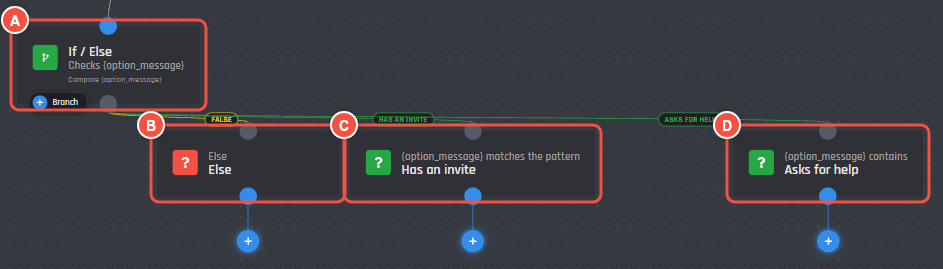
An If / Else block with two checks
- A The If / Else block, showing the value it checks.
- B Else comes with every new block.
- C A check with the label Has an invite.
- D A check with the label Asks for help.
Older guides call this same block the Comparison Condition, and its value the Base Value.
Set up your first If / Else
- 1
Add the block
Open the Conditions tab in the builder's Blocks list, drag If / Else onto the canvas, and connect it to the block before it. Its settings open on the right.
- 2
Pick what to check
Under What do you want to check?, choose a variable, an option, or something else. See What you can check.
- 3
Add a check
Under Add your first check, pick how to compare, type what to compare it to, and press Add this check. A new branch appears on the canvas.
Repeat this for each outcome you want to handle.
- 4
Add blocks under the branches
Connect blocks under each check and under Else. Leave a branch empty if nothing should happen there.
- 5
Save and try it
Save your command or event, then run it in Discord.
What you can check
Every check on the block looks at this one value. The bot works it out once each time the block runs, so {random[1,6]} gives every check the same number.
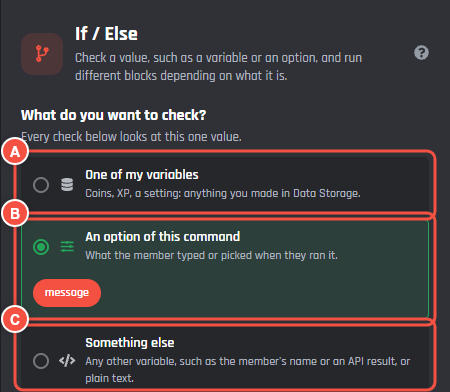
- A One of my variables: pick one of your custom variables. If it belongs to members or channels, you also pick whose value to check: whoever ran the command, a user or channel option, or an ID.
- B An option of this command: what the member typed or picked. Events have no options, so this choice doesn't show in events.
- C Something else: any other variable, such as
{user_name}or an API result, or plain text.
Some variables also ask which part you want to check:
- A member's number: their value, rank, top percent, or how far they are behind the next member. You can also check values about everyone, such as the highest, the average, or who is in 1st place.
- A collection: how many values it has, whether it's empty, whether it has a value, one value from it, or its sum, highest, or lowest number.
- A list of objects: how many items it has or match, whether it has an item, a key from one item, or a key added up across every item.
- An object: which property to read.
To start new blocks with a value already filled in, set Default Value to Check in Builder Settings.
How to compare
Pick one of these for each check. Default Condition Type in Builder Settings decides which one is picked at the start.
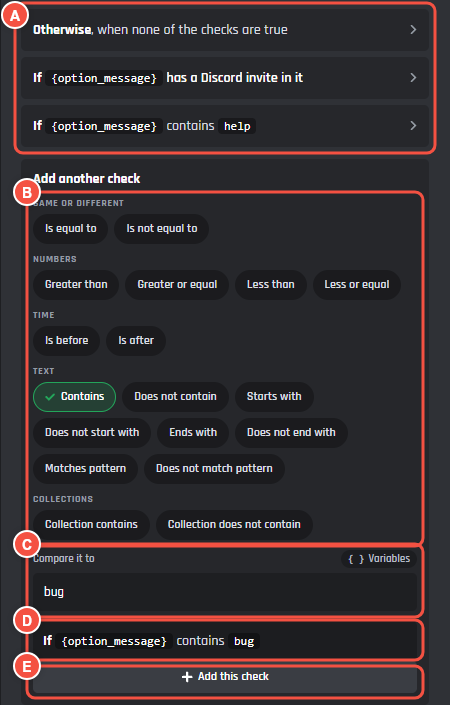
- A The branches on this block. Press one to open its settings.
- B How to compare.
- C What to compare it to.
- D The check, written as a sentence.
- E Add this check adds the branch.
| Group | Way to compare | True when |
|---|---|---|
| Same or different | Is equal to | The value is the same as what you typed. |
| Same or different | Is not equal to | The value is different from what you typed. |
| Numbers | Greater than | The value is higher. |
| Numbers | Greater or equal | The value is higher or the same. |
| Numbers | Less than | The value is lower. |
| Numbers | Less or equal | The value is lower or the same. |
| Time | Is before | The value is a time before the one you pick. |
| Time | Is after | The value is a time after the one you pick. |
| Text | Contains | The text is somewhere in the value. |
| Text | Does not contain | The text is nowhere in the value. |
| Text | Starts with | The value begins with the text. |
| Text | Does not start with | The value begins with something else. |
| Text | Ends with | The value finishes with the text. |
| Text | Does not end with | The value finishes with something else. |
| Text | Matches pattern | The value fits the pattern. |
| Text | Does not match pattern | The value doesn't fit the pattern. |
| Collections | Collection contains | One item in the collection is exactly what you typed. |
| Collections | Collection does not contain | No item in the collection is exactly what you typed. |
How the bot reads values
- The Numbers checks compare as numbers only when both sides are numbers. Otherwise the bot compares them as text, so
9counts as higher than10a. Use the Number pattern first if a value might not be a number. - The Text and Collections checks are all false when the value is empty, including Does not contain. An empty value goes to Else unless another check is true.
- Collection contains reads the value as items with commas between them, with or without square brackets around them. A space counts as part of an item, so
Tom, Fabianhas no item that is exactlyFabian.
What to compare it to
Type text, a number, an option, or any variable. Press Variables beside the field to pick one.
Is equal to and Is not equal to can stay empty. An empty field matches blank values, such as an option the member skipped or a variable with nothing in it. The bot treats an empty value, {null}, and the word null as the same thing here. Every other way to compare needs something in the field.
Change a check after adding it
Press a check on the canvas or in the Your checks list to open its settings.
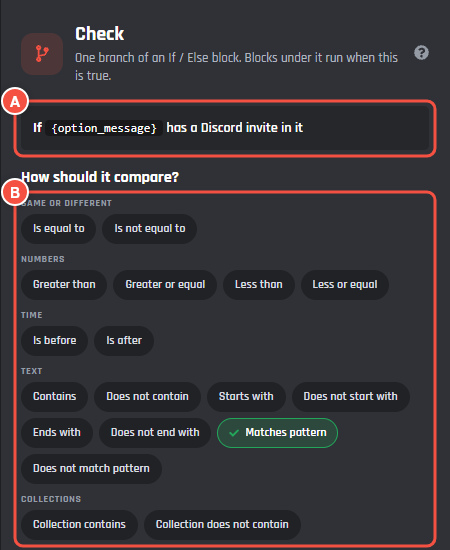
- A The check as a sentence. It updates as you change the check.
- B How this check compares.
Further down are the value or pattern, Ignore capitals, and the label. To change the value being checked, open the If / Else block above the check.
Matches pattern
Matches pattern and Does not match pattern check the shape of a value with a regular expression.
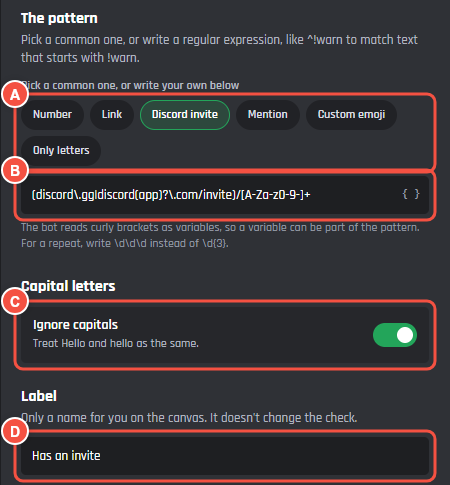
- A The common patterns. Press one to use it.
- B The pattern field, for writing your own.
- C Ignore capitals.
- D The check's label.
| Common pattern | Matches pattern is true when the value | Does not match pattern is true when the value |
|---|---|---|
| Number | is a number | is not a number |
| Link | has a link in it | has no link in it |
| Discord invite | has a Discord invite in it | has no Discord invite in it |
| Mention | mentions someone | mentions nobody |
| Custom emoji | has a custom emoji in it | has no custom emoji in it |
| Only letters | is only letters | is not only letters |
To write your own, use a JavaScript regular expression of up to 500 characters. A pattern can match any part of the value, so add ^ and $ to check the whole thing. For example, ^!warn matches text that starts with !warn.
The bot reads curly brackets as variables. You can put a variable in a pattern, but write \d\d\d instead of \d{3}. The builder tells you when it can't read a pattern, except for patterns with curly brackets, which only get checked when the block runs.
If the bot can't read a pattern or it takes too long to run, neither Matches pattern nor Does not match pattern counts as true. Else runs unless another check is true.
Time checks
Is before and Is after compare a saved time with another time. The value you check has to be a Unix timestamp in seconds, such as a variable saved with Set it to a time in the Set Variable block.
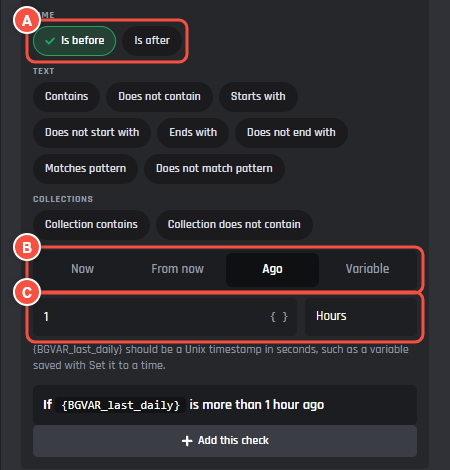
- A Is before and Is after.
- B The time to compare with: Now, From now, Ago, or Variable for another saved time.
- C For From now and Ago, how long. The amount is a number or one variable, and the unit runs from seconds to weeks.
| Check | Compared with | The sentence on the check |
|---|---|---|
| Is before | Now | is in the past |
| Is after | Now | is in the future |
| Is before | 1 hour ago | is more than 1 hour ago |
| Is after | 1 hour ago | is within the last 1 hour |
| Is before | 1 hour from now | is before 1 hour from now |
| Is after | 1 hour from now | is more than 1 hour from now |
To hide these two, turn off Time Helpers in Builder Settings.
Check more than one thing
A check can need more than one thing to be true. Open the check and press Add a check under And also. Each row has its own value to check, how to compare, what to compare it to, and Ignore capitals. You can add up to 10.
The blocks under the check only run when the check and every And also row are true. If any row is false, the bot treats the whole check as false and moves on to the next check, or to Else.
For example, a check that {BGVAR_coins} is greater than 100, with an And also row that {user_name} is equal to Tom, only runs when Tom runs it with more than 100 coins.
Ignore capitals
Ignore capitals is in a check's settings, and each check has its own. It starts off, so Hello and hello count as different. Turn it on to treat them as the same.
Branch labels
A label names a check on the canvas, so Has an invite can stand in for a long pattern. Open the check and type up to 60 characters under Label.
The label replaces the compared value in the branch's title and on the line leading to it. The line above the title still shows what's being checked. The bot never reads a label, so it can't change what runs. Else has no settings, so it has no label.
If more than one check is true
The bot tries checks from left to right. You choose what happens when several are true.
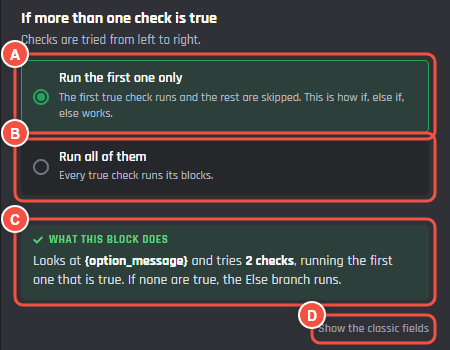
- A Run the first one only: the first true check runs and the rest are skipped. New blocks start with this.
- B Run all of them: every true check runs its blocks.
- C A summary of what the block does.
- D Show the classic fields swaps the steps for the block's older fields. The classic view has no label field.
When no check is true
Else runs when no check on the block is true. It has nothing to set up. Leave it with no blocks if nothing should happen.