Make a module
Build a page of settings server admins can change, from blocks, and link the commands that read them.
The Module Maker builds a module: a page of settings on the server dashboard. Each block you put on the page is a setting, every server sets its own value, and your commands read each server's value with a variable tag.
Open it from BotPanel > Modules with Make a new module, or Edit on any module. It opens in a window over the Modules page. Building and saving need Premium; without it you can look around.
The Module Maker
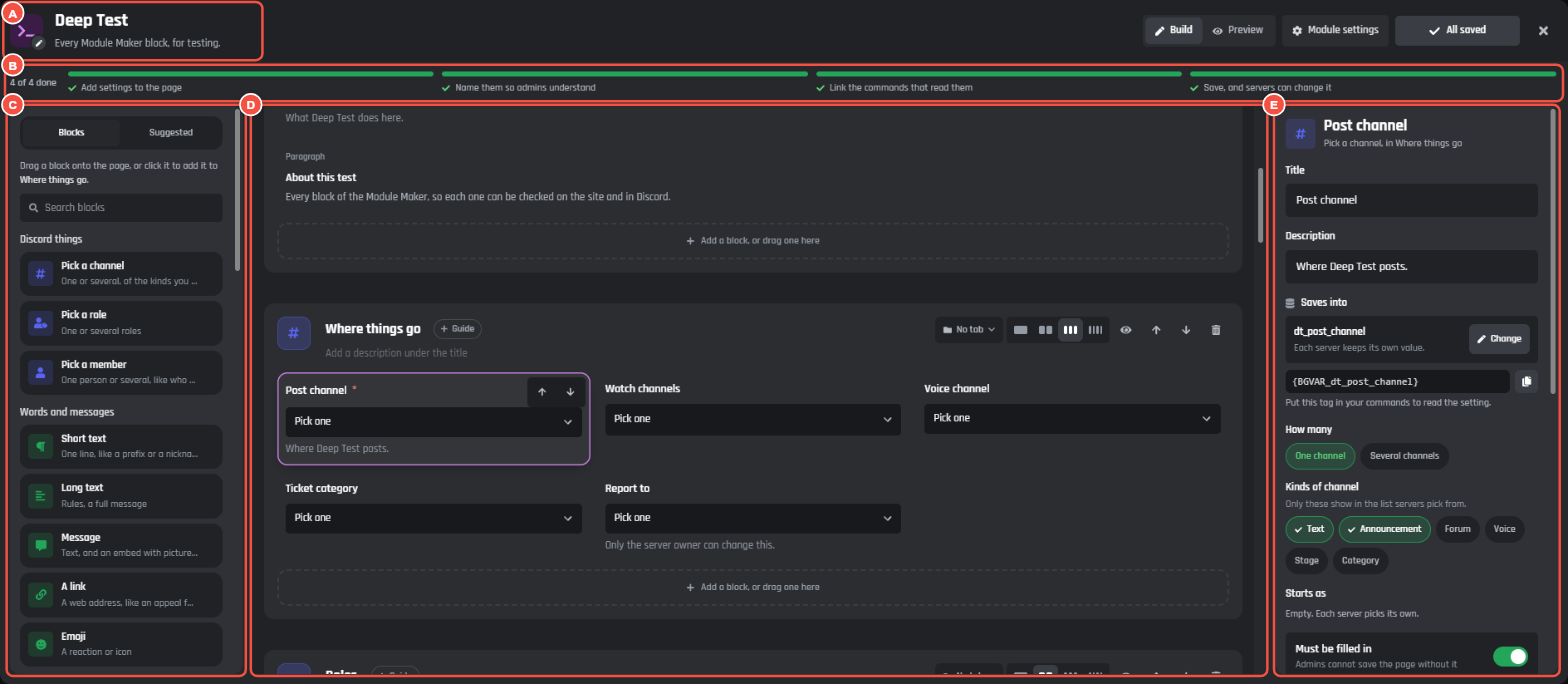
BotPanel > Modules > Make a new module
- A The module's icon, name (up to 40 characters) and one line about it (up to 160).
- B The four steps, ticked as you do them, with how many are done.
- C Blocks and Suggested: what you can add.
- D The module's page, the way server admins see it, in sections.
- E The setting you picked, with everything about it.
Along the top are Build and Preview, Module settings, Save module, and the close button. On a phone, the three columns become tabs: Blocks, Page, Setting and Preview.
The four steps:
- Add settings to the page.
- Name them so admins understand. A setting still called by its block's name ("Pick a channel") counts as not named, and the step says how many are left.
- Link the commands that read them. Optional: a module can be settings only.
- Save, and servers can change it.
Press a step to go to where it is done.
Add settings
Drag a block onto the page, or click it to add it to the section you're in. On a phone, tap Add a block in a section, then pick one.
| Group | Blocks |
|---|---|
| Discord things | Pick a channel (one or several, of the kinds you pick), Pick a role, Pick a member |
| Words and messages | Short text, Long text, Message (text, and an embed with pictures if you want one), A link, Emoji |
| Lists | List of words (like banned words), List of items, A table (rows with your columns), List of cards (each card has its own settings, like level rewards) |
| Choices | On or off switch, Choose one, Choose with buttons (two to five), Tick several, Time zone, Language |
| Numbers and time | Number, Slider, How long (a cooldown or a mute length), Time of day, A date |
| Looks | Colour, Image link, Image upload (each server uploads its own picture) |
| Layout | Container, Heading, Paragraph, Tip box, Divider, Link button, Show a picture |
Layout blocks show something to admins and save nothing.
Suggested lists the variables your module's commands already use. Add one and it becomes a setting each server can change, with the right block picked for you. Add all adds every one. Add commands to the module first (see below).
A module holds up to 350 settings in up to 60 sections.
Sections and tabs
Each section is a card on the page, with a title, an optional line under it, and its own icon and colour. From a section you can set its columns, preview it on the website, move it, or remove it. Add a section adds another.
A section's Guide adds a Guide pill beside its title on the dashboard. It opens a popup with your text and one link starting with https://.
Put sections on tabs to split a long page. Tabs show on the page once there are two.
Name and set up each setting
Click a setting on the page to open it on the right.
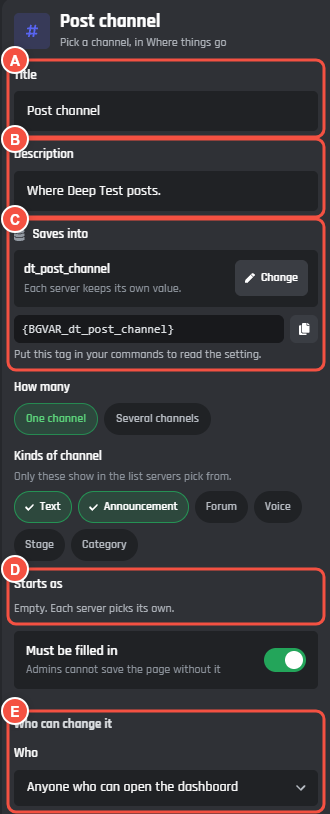
The Module Maker, a setting picked
- A Title: what admins see, up to 40 characters. Say what it does, like "Welcome channel".
- B Description: an optional hint under it, up to 120 characters.
- C Saves into: the variable each server's value goes into, with its tag.
- D Starts as: what every server has until it changes it.
- E Who can change it.
Where it saves
Press Saves into to pick where each server's value goes:
- A new variable, named after the setting and made when you save.
- One your commands already use: one of your per-server variables.
Each server keeps its own value. Put the tag, like {BGVAR_welcome_channel}, in your commands to read it. A table or a list of cards saves into a Collection of objects. Collaborators need Manage stored data for the Module Maker to make variables.
The same window turns a setting into another block. Its name, hint and rules stay; what it starts as is cleared.
The rest of a setting
- Choices, for Choose one, Choose with buttons and Tick several. Shows as sets them as a dropdown, a bar, buttons, cards or a list.
- Kinds of channel and How many they pick, for channels, roles and members.
- Placeholder and Most characters, for boxes people type in.
- Lowest and Highest, or Shortest and Longest for How long.
- Must be filled in: admins can't save the page without it.
- Variables server admins can use, for settings with words.
- Needs Premium: servers below the tier you pick see it locked. It needs a Server Premium tier on sale in BotPanel > Payments.
Who can change it has three answers:
- Anyone who can open the dashboard (to start with).
- Only the server owner.
- The server owner and a role they pick. Each server's owner picks the role on their dashboard; until they do, only the server owner can change it.
Under On the page:
- Turns the module on and off, on an On or off switch: admins see it next to the module in the menu and on Overview.
- Width and which container it sits in.
- Hide it under "More settings", for things most servers never touch.
- Show when: hide it until other settings have the values you pick, like "Show this when Welcome messages is on". Admins see it appear as soon as the rules match.
At the bottom: Move up, Move down, Move to another section, Duplicate and Take it off.
Link commands
Press Module settings and open Commands. Server admins see these commands and events at the bottom of the module's page.
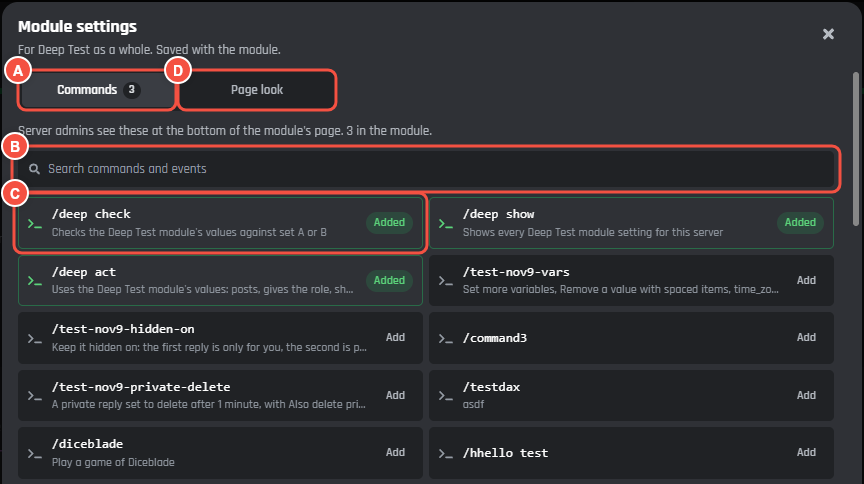
The Module Maker > Module settings
- A The Commands tab, with how many are in the module.
- B Search commands and events.
- C A command or event. Press it to add it; it then says Added. Press again to take it out.
- D Page look.
Linking a command doesn't change it. To make it read a setting, use the setting's tag in the command. Once commands are linked, Suggested finds the per-server variables they use.
Page look sets:
- The page's header: Simple, BotGhost, Cover or Compact.
- Number the sections: 1, 2, 3 beside each section, for settings done in order.
- Group in the website's menu: the group the module is listed under. See Menu Groups.
Preview and save
Preview shows the module's page on your real website, at desktop or phone size, with the picked setting still on the right.
Press Save module. Your bot doesn't restart: servers can change the new settings at once. If your bot is offline, it gets them when it starts. If something needs fixing, the Module Maker says so and marks it in red.
Closing with changes that aren't saved asks first.