Modules
Choose what server admins can change on the dashboard, from BotGhost's own modules and modules you make.
A module is a page of settings on the server dashboard. Server admins change those settings for their own server, and your bot reads each server's own values. You manage them in BotPanel > Modules, which needs Premium.
The page has, from the top:
- New Module: Make a new module, with What server admins see beside it.
- BotGhost Modules: Welcomer, Tickets, Counting and Reaction Roles.
- Your Modules: the modules you made.
- Menu Groups: the headings modules sit under in the dashboard's menu.
- Let servers manage your commands. See Commands per server.
A bot can have up to 20 modules on its dashboard, BotGhost's included.
BotGhost Modules
Each BotGhost module you switch on for your bot goes on your website by itself, with every server keeping its own settings. The chip at the top says how many of the four are on your website.
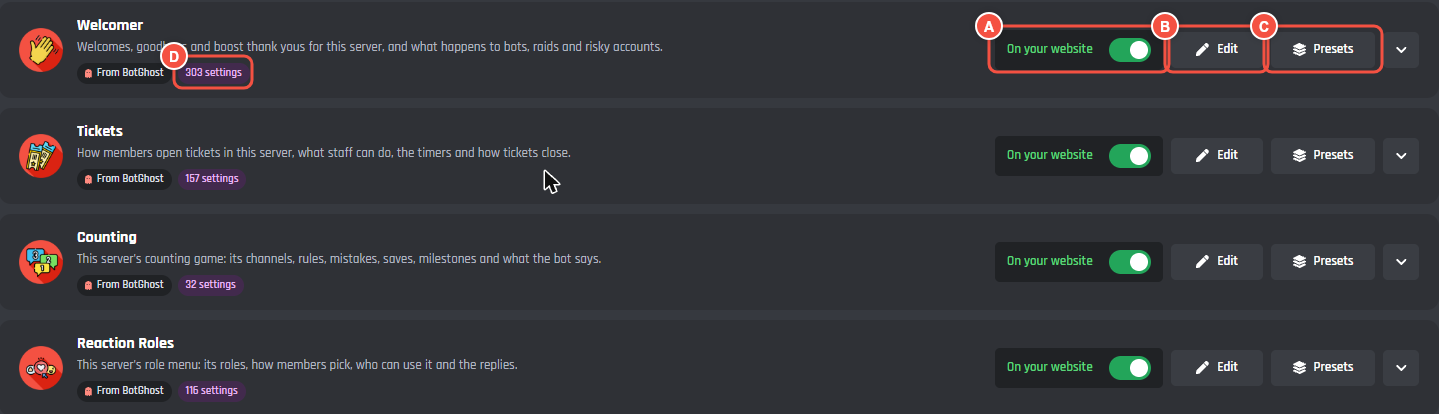
BotPanel > Modules
- A On your website puts the module on the dashboard. Switch it off here and it stays off, even though the module is still on for your bot.
- B Edit opens the module in the Module Maker, where you can rename and reorder its settings or add your own.
- C Presets opens its presets.
- D How many settings the module has.
A module that isn't on for your bot yet says "Switch Welcomer on for this bot first, then it can go on your website", with a button to open its page.
Which settings server admins see
The arrow at the end of a row opens What server admins see: every setting the module has, with a switch each.
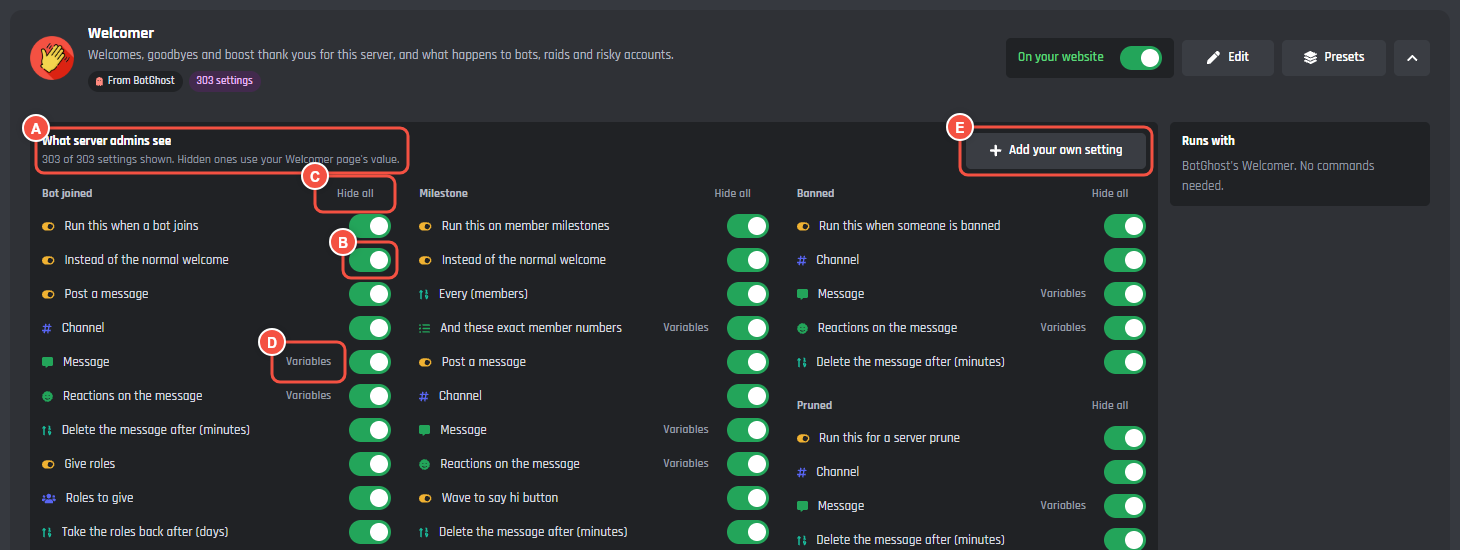
BotPanel > Modules, a BotGhost module opened
- A How many of the module's settings are shown.
- B A setting's switch. Each one saves at once.
- C Show all or Hide all for a whole section.
- D Variables, on settings people type words into.
- E Add your own setting opens the Module Maker.
A hidden setting leaves the dashboard, and your bot uses the value from the module's own page in BotGhost for every server. Settings you added in the Module Maker show Yours and are changed there.
Variables lists the variables server admins may type into that setting, like {user}. The bot fills them in; any other variable an admin types gets an error naming it. Change the list and the button says Variables (yours).
Runs with beside the settings says the module runs on BotGhost's own module, with no commands needed.
Your Modules
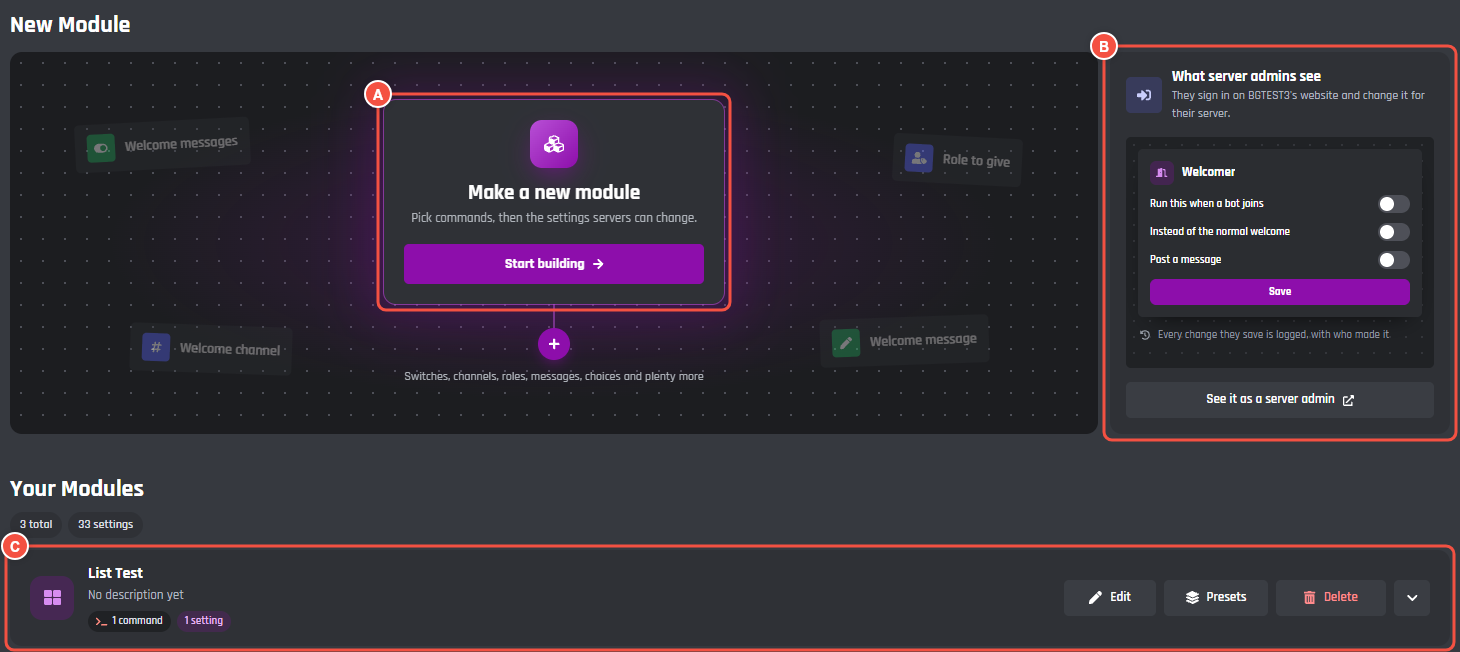
BotPanel > Modules
- A Make a new module: Start building opens the Module Maker on an empty module.
- B What server admins see: your first module, drawn the way the dashboard shows it, with See it as a server admin (or Set up sign in while sign in isn't set up).
- C A module's row, with Edit, Presets and Delete.
Each row shows the module's commands, events, settings and presets. The arrow opens its settings, by section, and the commands and events it Runs with. Delete asks Confirm? first. With more than three modules, a search box finds one by name.
If two modules have the same name, the row says so: admins see both in the menu.
Menu Groups
The headings your modules sit under in the dashboard's menu and on Overview, in this order. New group makes one and picks the modules in it. Rename a group or move it up or down from its row. A group shows in the menu while it has a module.
To move one module to another group, open it in the Module Maker, then Module settings > Page look > Group in the website's menu.
What server admins see
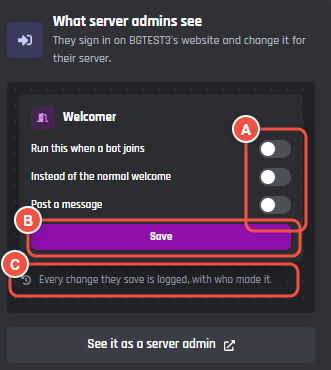
The preview on BotPanel > Modules
- A Only the settings you chose, with the names you gave them.
- B Nothing reaches your bot until they press Save.
- C Every change is logged with who made it. See Servers and the change log.
Collaborators need the Manage BotPanel permission to change modules.