Support and legal
The Support page that sends people to your support server, and your Terms of Service and Privacy Policy, which BotPanel can write for you.
Support sends people to your Discord support server. Terms and Privacy holds your terms of service and privacy policy, each on its own page. Discord asks bots for both, and Write them for me writes them from a few answers.
Both are full website pages, so they need Premium with BotPanel Plus.
Support
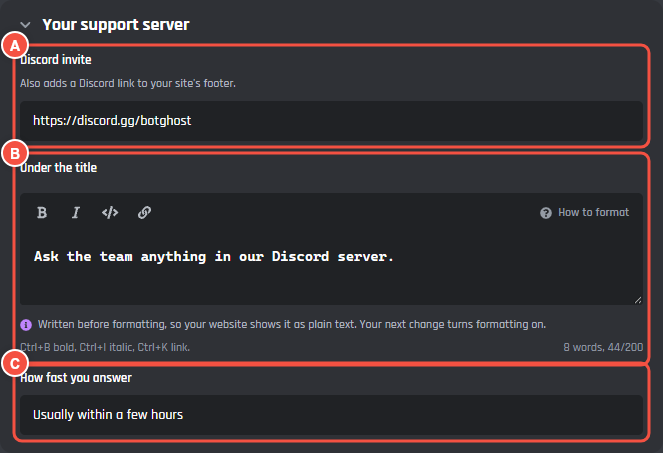
Support shows once you add your support server's invite. The page has a title, a line about your server, how fast you answer, and a Join the server button.
Pages > Support
- A Discord invite: a link like
discord.gg/botghostordiscord.com/invite/botghost.https://is added for you. - B Under the title: one line about your server, up to 200 characters, with bold, italic, code, and links. Empty says "Ask the team anything in their Discord server." with your bot's name.
- C How fast you answer: up to 80 characters, like "Usually within a few hours". It shows beside a clock under the line.
Use an invite that never runs out, so the link keeps working.
Where else the invite shows
Once your invite is saved, other parts of the site use it too:
- A Discord link in your site's footer.
- The Support server choice for the second button under your headline, and the Support server button in the home page's closing box.
- The Support server number on the home page, which shows how many members your server has.
- Still stuck? Ask in the support server at the end of each guide in your docs.
- A line on your Terms and Privacy pages that sends questions to your support server.
- The Status page's offline message, which points people to your server.
Terms and Privacy
Terms and Privacy shows once you write either text. Your terms are at /terms and your privacy policy at /privacy. Each shows only when it has text, with a Legal menu on the left to move between them.
Put both addresses in your app's Terms of Service URL and Privacy Policy URL in the Discord Developer Portal. For example, https://1283303475681431674.botghost.app/terms.
Write them for me
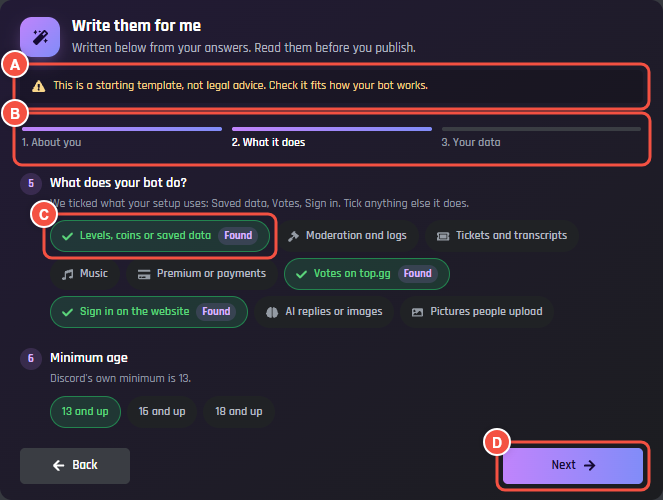
Write them for me asks nine quick questions in three steps and writes both texts from your answers. Press Start to begin. Once it has written them, the button says Change answers instead.
Pages > Terms and Privacy > Write them for me
- A "This is a starting template, not legal advice. Check it fits how your bot works."
- B The three steps: About you, What it does, and Your data. Press one to go to it. A step with an answer to fix turns amber.
- C Found marks what was ticked from your bot's setup. Untick anything your bot does not do.
- D Next goes to the next step. On the last step it is Write both pages.
| Step | Questions |
|---|---|
| About you | Your bot's name. Who runs it: Just me or A team, with your name or team name if you want it shown. How people reach you: your support server, filled in from the Support page, or an email, at least one. Whose law applies, with a country or state if you want it. |
| What it does | What your bot does: saved data like levels or coins, moderation and logs, tickets and transcripts, music, Premium or payments, votes on top.gg, sign in on the website, AI replies or images, and pictures people upload. Each one adds its own part to the texts. The minimum age: 13 and up, 16 and up, or 18 and up. With Premium or payments ticked, a Refunds question is added. |
| Your data | How long you keep saved data. How people ask you to delete their data: Support server, Email, or A bot command, which you then pick from your commands. When both pages take effect, which becomes their Last updated date. |
Write both pages puts both texts into the fields below and takes you to them. Read them before you save. If either field has text the generator did not write, the button asks Replace your edited text? first: press it again within 3 seconds to replace it.
Afterwards, the card lists Check these lines: the parts of the texts to read closely for your bot. Change answers opens the questions again. Your answers are kept in this browser for next time.
Editing the texts
Pages > Terms and Privacy > Terms of Service
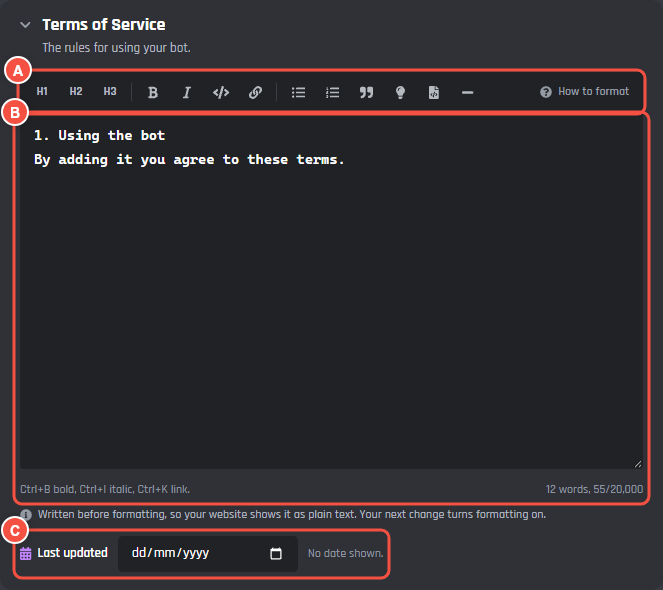
- A The formatting buttons, the same as in your docs. These texts cannot have pictures.
- B The text, up to 20,000 characters.
- C Last updated: the date under the title on your site. Changing the text moves it to today. Pick another date if you want. With no date, it says No date shown.
Write the sections as big headings (# at the start of a line). With 4 or more, your site adds an On this page list beside the text.
Refund Policy is listed under Coming later. It arrives when selling your own Premium opens.