Commands
A page that lists your bot's slash commands, with a search, groups, and how to use each one.
The Commands page lists your bot's slash commands with what each one does. It fills itself in from the commands you make in the command builder, so a new command appears on your site after you save it in the builder. You choose which to hide, put them in groups, and add how to use each one.
The Commands page is a full website page, so it needs Premium with BotPanel Plus. It shows once your site lists at least one command.
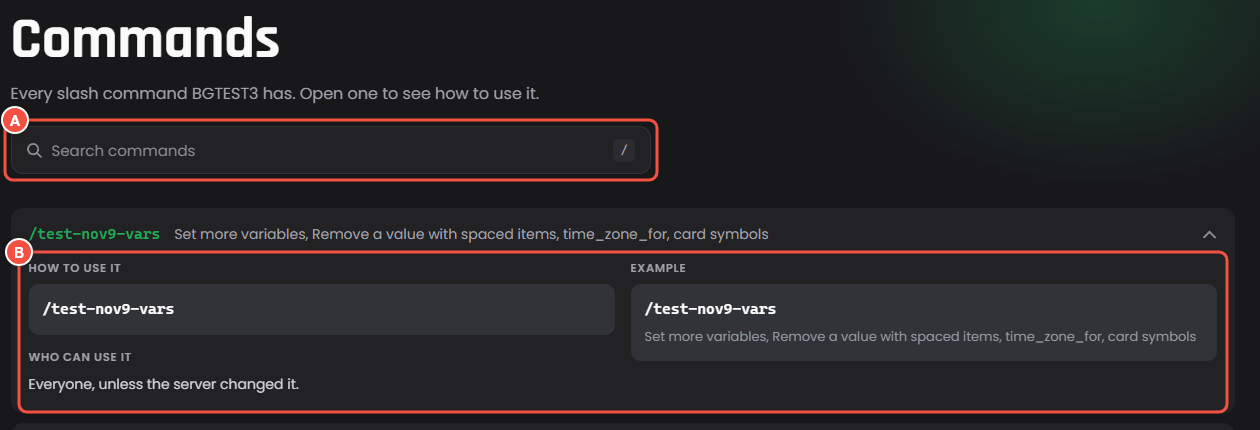
The Commands page, as visitors see it
- A The search looks through command names and descriptions.
- B A command, opened: How to use it shows the command with its options, and Example shows your example with what happens.
Under the search, group chips filter the list, with how many commands are in each. They show once one of your groups has a command in it.
Which commands it lists
- Every slash command that is switched on in the builder.
- Not commands that are switched off, and not the right click commands for users and messages.
- Up to 200 commands.
The description under each command is the one you gave it in the command builder. Change it there.
Your commands
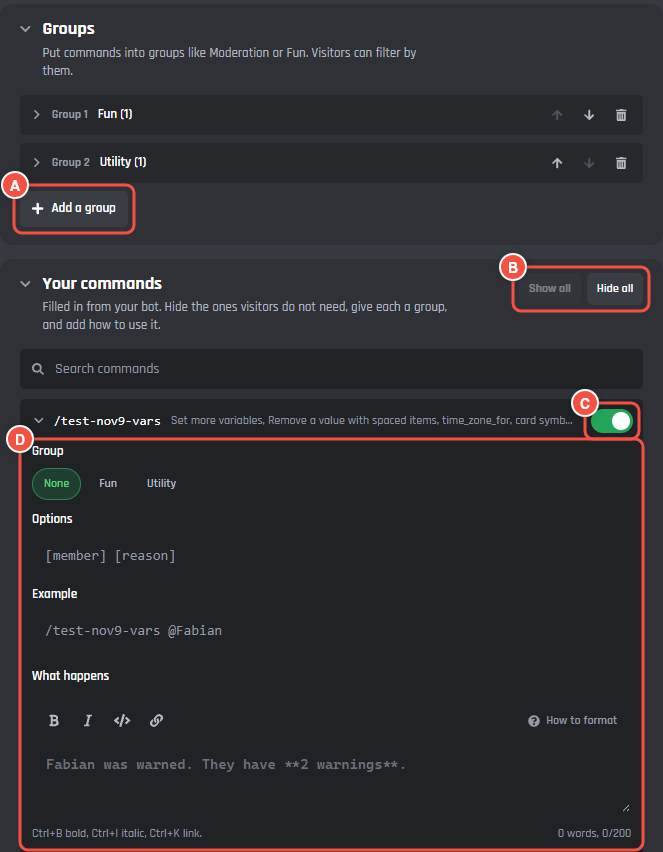
Pages > Commands
- A Add a group makes a group of your own.
- B Show all and Hide all change every command at once.
- C Each command's switch shows it on your site or hides it. A hidden command is crossed out here.
- D Press a command to open it: its group, Options, Example, and What happens.
When your command builder has groups, Copy my groups also shows in the Groups card. It turns the builder's groups into the website's groups in one press.
With more than 8 commands, a search box helps you find one.
How to use each command
Open a command to fill these in. All of them are optional.
- Group: which group it is in. It shows once you have a group.
- Options: what to type after the command, like
[member] [reason]. Up to 60 characters. On your site it shows beside the command's name. - Example: a full example, like
/warn @Fabian. Up to 100 characters. Empty uses the command and its options. - What happens: the result, like "Fabian was warned. They have 2 warnings." Up to 200 characters, with bold, italic, code, and links. Empty uses the command's description.
Visitors also see Who can use it, which says "Everyone, unless the server changed it."
Groups
Groups like Moderation or Fun let visitors filter the list. You can have up to 8, each with a name of up to 24 characters, and each command is in one group at most.
Use your command builder groups appears when your command builder has groups. Copy my groups makes a website group for each builder group that holds a slash command, with each command in its group. It is a copy: changes in the builder later do not move across, and the strip says what copying again would change. When you already have groups, it asks first: Replace your groups? Press it again to replace them. Names longer than 24 characters are shortened, and only the first 8 groups are copied. When the two match, it says Same as your command builder.
To make a group by hand, press Add a group, name it, then open each command and pick the group.
The top of the page
Title and Under the title are the words at the top. Empty, they say Commands and "Every slash command your bot has. Open one to see how to use it.", with your bot's name.
Good to know
- Settings for a command you delete in the builder are cleared the next time you change this page.
- A command you hide also leaves the Popular commands section on the home page.
- The Commands number on the home page counts the commands your site lists, so hidden ones are left out.