Welcomer
Welcome new members, say goodbye when they leave, and thank people who boost.
The Welcomer makes your bot greet new members. It can also say goodbye when someone leaves and thank people who boost your server.
Start with a simple welcome message. Everything after that is optional.
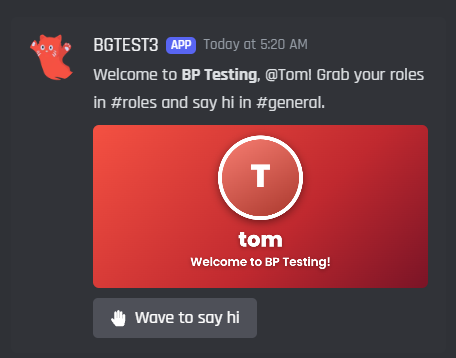
What your members will see
Before you start
You need:
- Your bot in your Discord server. See Invite Your Bot if it isn't yet.
- A channel for the welcomes, like
#welcome.
Set up your first welcome
- 1
Turn on the Welcomer
Open Welcomer in your bot's dashboard and press Enable at the top right.

- A Enable turns the Welcomer on for your bot.
- 2
Pick a channel
Under Where should your message be sent?, pick the channel for your welcomes.

- A The channel the welcome is posted in.
- 3
Write your message
Under What should your message say?, type your welcome. The Preview on the right shows how it will look in Discord.
Put
{user}where you want to mention the new member, and{server}for your server's name. For example:Welcome to {server}, {user}! Grab your roles in #roles and say hi in #general.
Posts as:
Welcome to BotGhost, @Tom! Grab your roles in #roles and say hi in #general.
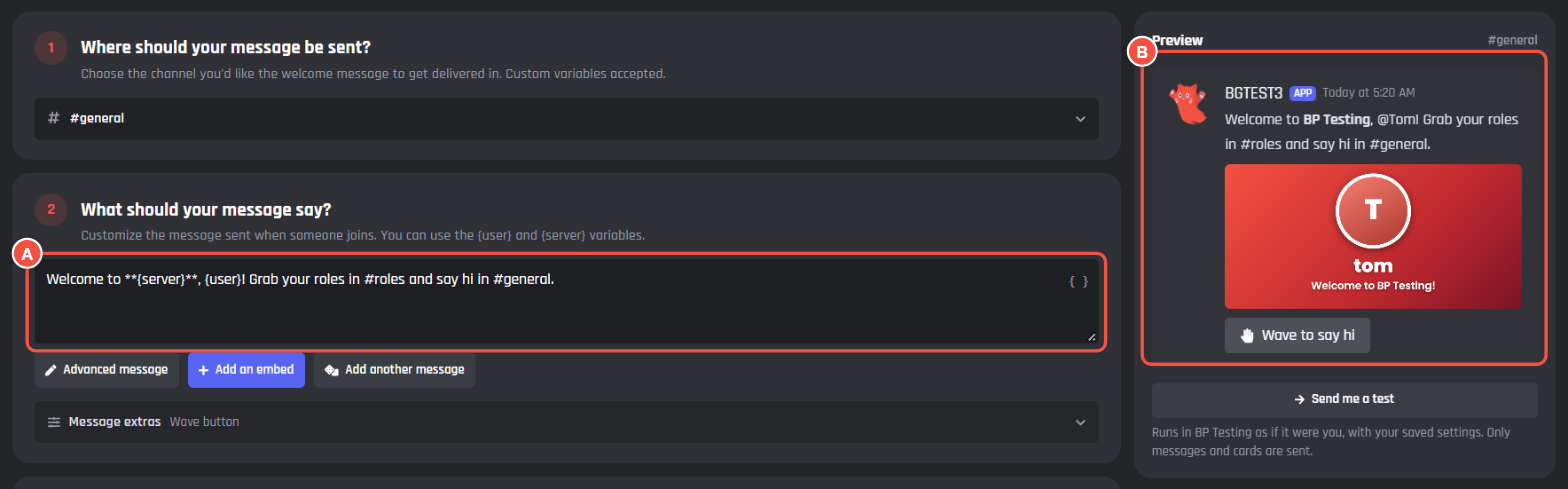
- A The message box. Type
{to see everything you can add. - B The preview, updated as you type.
- A The message box. Type
- 4
Save
A bar pops up at the bottom of the page. Press Save Changes.

- A Save Changes sends your settings to your bot.
- 5
Test it
Press Send me a test under the preview. The bot posts the welcome as if you just joined.
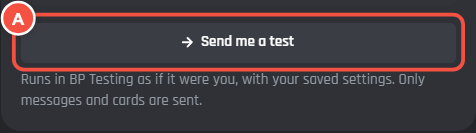
- A Send me a test runs the welcome for you.
The test uses your saved settings, so always save first. It only sends messages and cards, so nobody gets roles from a test.
That's it. Your bot now welcomes everyone who joins.
Say goodbye and thank boosters
The tabs at the top of the page work the same way. Open Leaves to set up a goodbye message, or Boosts to thank people who boost.

- A Joins, Leaves and Boosts. Each one has its own messages and actions.
- B Stats shows who came and went.
- C How it works gives you a one minute tour.
Do more when someone joins
Under Anything else?, turn on more things for every new member:
- Add a card: a picture with their name and avatar. See Add a welcome card.
- Send them a DM: a private message, sent straight away.
- Give roles: roles they get when they join. See Give new members a role.
Press More options for even more.
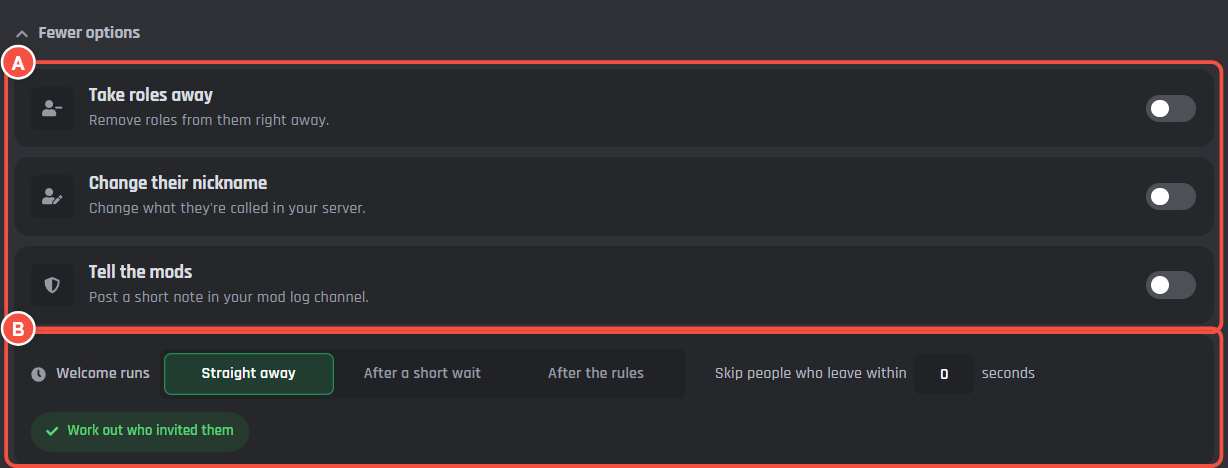
- A Take roles away, change their nickname, or post a note for your mods.
- B Welcome runs: straight away, after a short wait, or after they accept the rules. You can also skip people who leave within a few seconds.
Give new members a role
- Under Anything else?, turn on Give roles.
- Press Add a role and pick the role.
- Choose When: Straight away, or After the rules if your server makes people accept rules first.
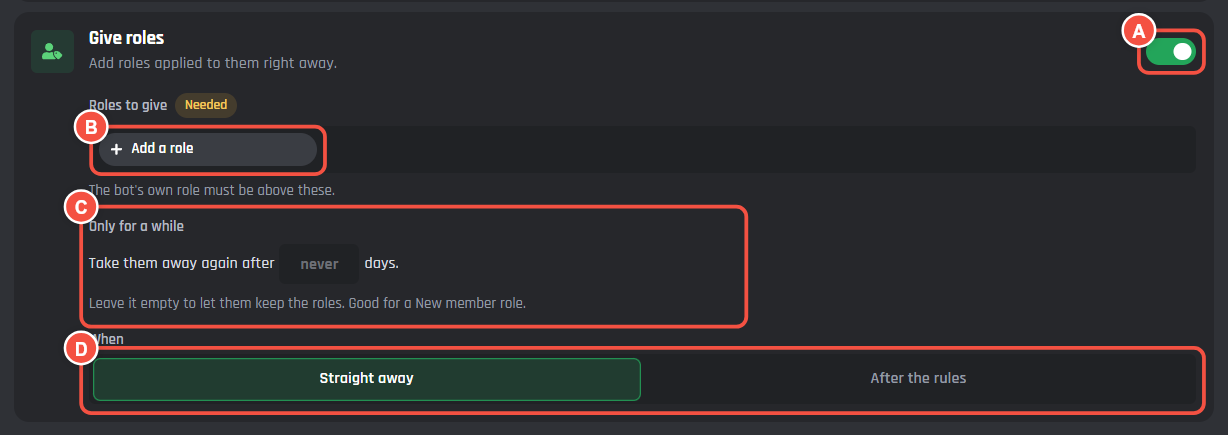
- A Turns roles on.
- B The roles to give.
- C Only for a while: take the roles away again after some days. Leave it empty to let them keep the roles.
- D When they get the roles.
Your bot can only give roles that are below its own role. If it can't give a role, open Server Settings > Roles in Discord and drag your bot's role higher.
Add a welcome card
A welcome card is a picture with the new member's name and avatar on it.
- Under Anything else?, turn on Add a card.
- Pick Where it goes: in the welcome message, as its own post, by DM, or both.
- Press Templates to pick a design, or Open Card Studio to make your own.
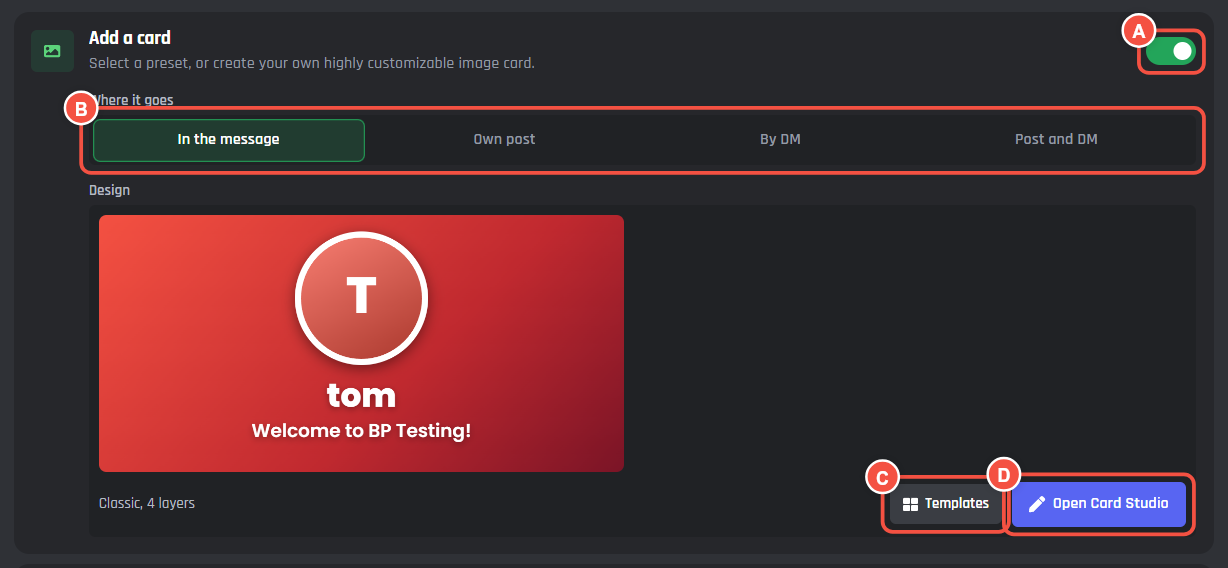
- A Turns the card on.
- B Where the card goes.
- C Templates: ready made designs.
- D Open Card Studio: change anything on the card.
Cards in the Welcomer are free. To learn Card Studio, see Card Studio.
Make it personal with variables
Variables are tags the bot swaps for real information when it posts. {user} becomes a mention of the new member. {server} becomes your server's name.
Type { in any message box to see them all. Here are a few the Welcomer adds:
| Variable | Becomes |
|---|---|
{member_number_ordinal} |
Their member number, like 1,204th |
{times_joined} |
How many times they've joined your server |
{account_age_days} |
How old their Discord account is, in days |
{inviter_name} |
Who invited them |
{time_in_server} |
How long they were in your server (Leaves tab) |
{left_by_mention} |
Who kicked or banned them (Leaves tab) |
{leave_reason} |
Why they were kicked or banned (Leaves tab) |
Treat some people differently
So far, everyone gets the same welcome. Special Welcomes & Actions let you change that.
Think of your welcome as the normal rule. A special path is a "but if" rule:
- But if they've been here before, say "Welcome back".
- But if their account is one day old, give them a quarantine role.
- But if they're your 1,000th member, celebrate.
The paths are sorted into groups. Open a group to see its paths, and turn on the ones you want.
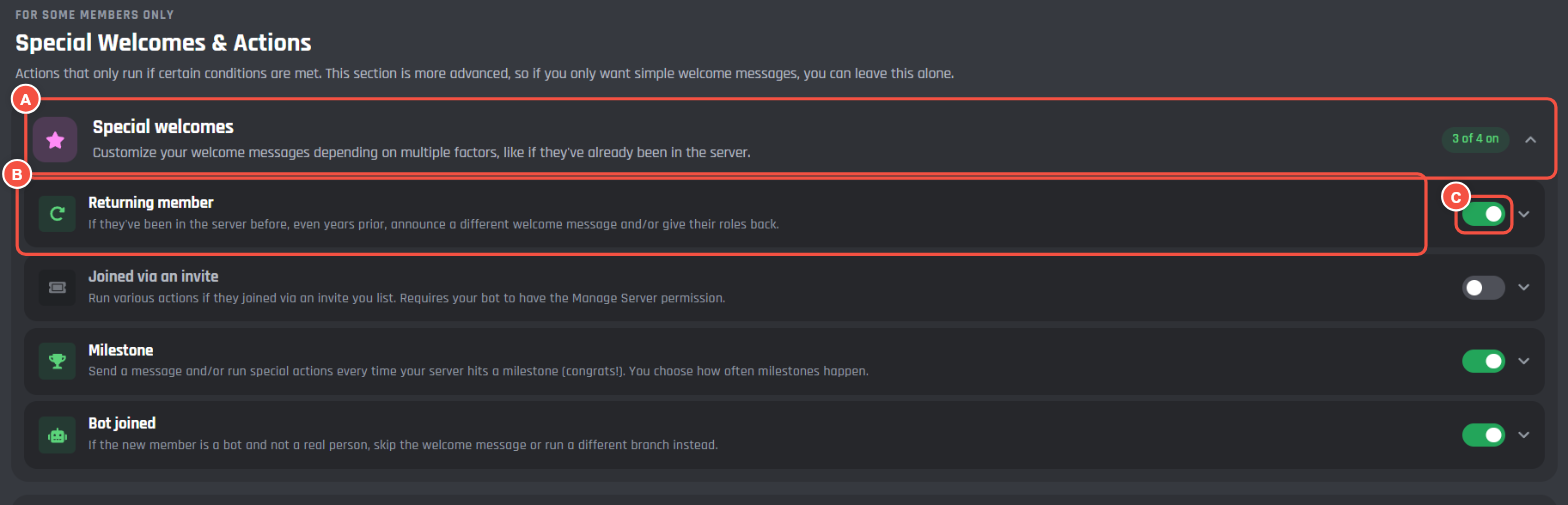
- A A group of paths. Open it to see them.
- B A path, with what it's for.
- C Turns the path on.
Open a path to set it up. It works just like your normal welcome.
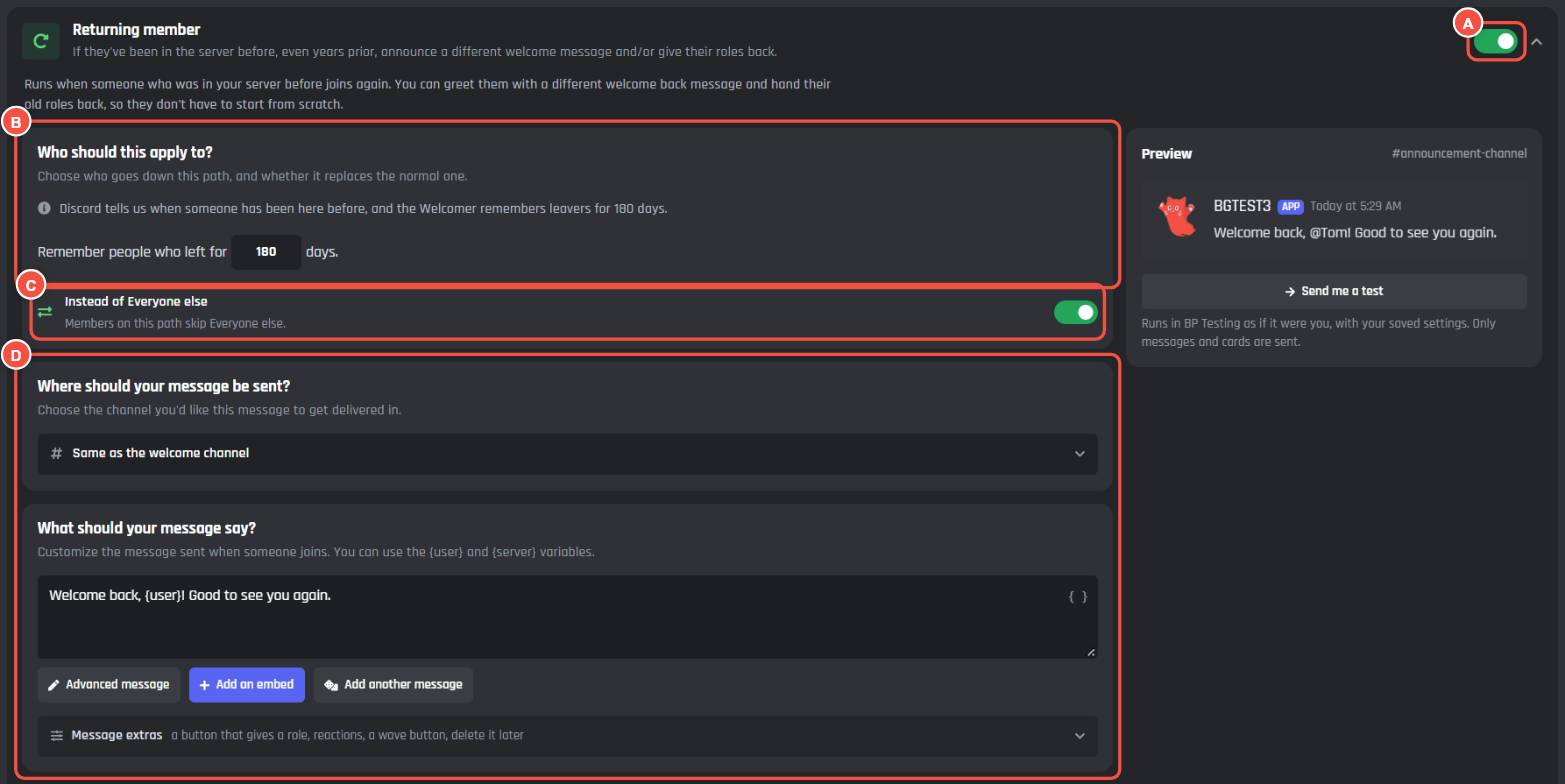
- A Turns the path on.
- B Who should this apply to? Who goes down this path.
- C Instead of Everyone else: on means they get this instead of the normal welcome. Off means they get both.
- D What happens on this path: the channel, the message and anything else.
Not sure how paths fit together? Press How it works at the top of the Welcomer page for a one minute tour.
Here's every path. You set the numbers yourself, like how many days count as "a while".
| Path | Runs when |
|---|---|
| Everyone else | Anyone joins. This is your normal welcome. |
| Returning member | They've been in your server before. |
| Joined via an invite | They used an invite you list. |
| Milestone | You reach a member milestone, like your 1,000th. |
| Bot joined | A bot is added to your server. |
| Lots at once | Lots of people join within seconds, like a raid. |
| Suspicious account | Their account is brand new, or their name looks like spam. |
| Join and leave spam | They keep joining and leaving. |
| Accepted the rules | They accept your server's rules. |
| First message | They send their first message. |
| Stayed a while | They're still here a few days later. |
| Didn't accept the rules | They still haven't accepted the rules after a few hours. |
| Path | Runs when |
|---|---|
| Left on their own | Anyone leaves. This is your normal goodbye. |
| Kicked | A moderator kicked them. |
| Banned | A moderator banned them. |
| Pruned | A server prune removed them. |
| Bot removed | A bot was removed from your server. |
| Left quickly | They left soon after joining. |
| Left while in trouble | They were timed out, or had a role you pick. |
| Long timer left | They had been in your server for a long time. |
| Path | Runs when |
|---|---|
| First boost | They boost for the first time. This is your normal thank you. |
| Boosted again | They add another boost. |
| Stopped boosting | Their boost ends. |
Free and Premium
| Free | Premium | |
|---|---|---|
| Welcome, goodbye and boost messages | Yes | Yes |
| Welcome cards, DMs and roles | Yes | Yes |
| Special paths | 2 per tab | All 23 |
| Different versions of a message, picked at random | No | Up to 10 |
| Different settings for each server | No | Yes |
| Change the Welcomer in the builder | View only | Yes |
Moving from the old Welcomer
If you used the old Welcomer, the new page shows a Move my settings button. It copies your old settings across, turns the new Welcomer on and turns the old one off. Your old settings stay saved.
Advanced: change it in the builder
Each tab is an event in the builder: Member Joined, Member Left and Member Boosted. Find them under Manage the events directly at the bottom of the Welcomer page.

- A Open takes you to the event in the builder.
Every path is a branch in the event. Add your own blocks under any path.
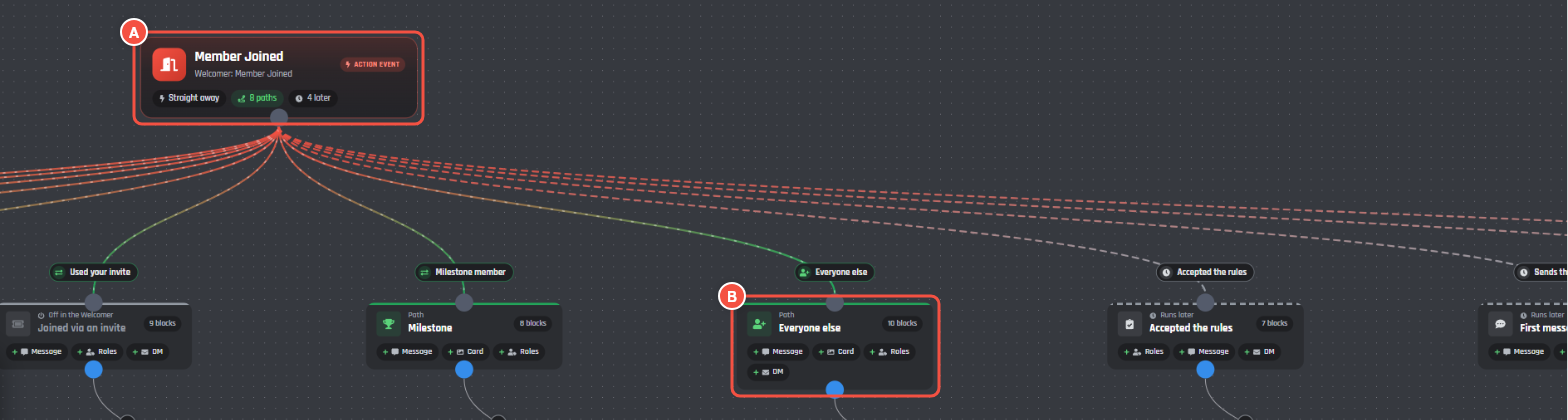
- A The event. It runs when someone joins.
- B A path. The blocks under it are what that path does.
Changing the events needs Premium. Free bots can open them to look.
Something not working?
My welcome isn't posting
- Check the Welcomer is enabled and you pressed Save Changes.
- Look for an amber mark on the path. It means something is missing, like a channel.
- Make sure your bot can View Channel and Send Messages in that channel.
Kicks and bans show up as normal leaves
Your bot needs the View Audit Log permission to see who kicked or banned someone.
Joined via an invite never runs
Your bot needs the Manage Server permission to see which invite was used.
Accepted the rules never runs
Your server needs rules screening or onboarding turned on in Discord.
Still stuck? Ask in our support server.