Stats
How your bot is used. Commands run, where they fail, the servers it joins and leaves, its busiest times, and how long it stays online.
BotPanel > Stats shows how your bot is used: which commands run, which fail, which servers use it, and when. Your bot counts its own slash command runs, so the page fills in without any setup.
Stats needs BotPanel Plus, and only the bot's owner can open it. A collaborator sees a note saying the stats belong to the owner, with a button to Error Logs. Without it, the page shows what Stats does. It never shows made up numbers.
BotPanel is in an open beta. While it runs, a bot with Premium gets Stats without BotPanel Plus. See Plans.
When numbers show up
Your bot starts counting once it has Plus. Nothing from before that is filled in, and the line under the header says Counting since that day.
- Your bot sends its counts once a minute, and the page says "Numbers update every few minutes". A command you run in Discord shows up within a few minutes.
- A bot that has just got Plus starts counting within 10 minutes.
- Time online fills in a few minutes after the bot next comes online.
- Stats keeps each day for 400 days.
Until the first run, Overview says No runs counted yet. The other tabs still open, because votes, website visits and dashboard changes can come in before anyone runs a command.
The tabs and the period
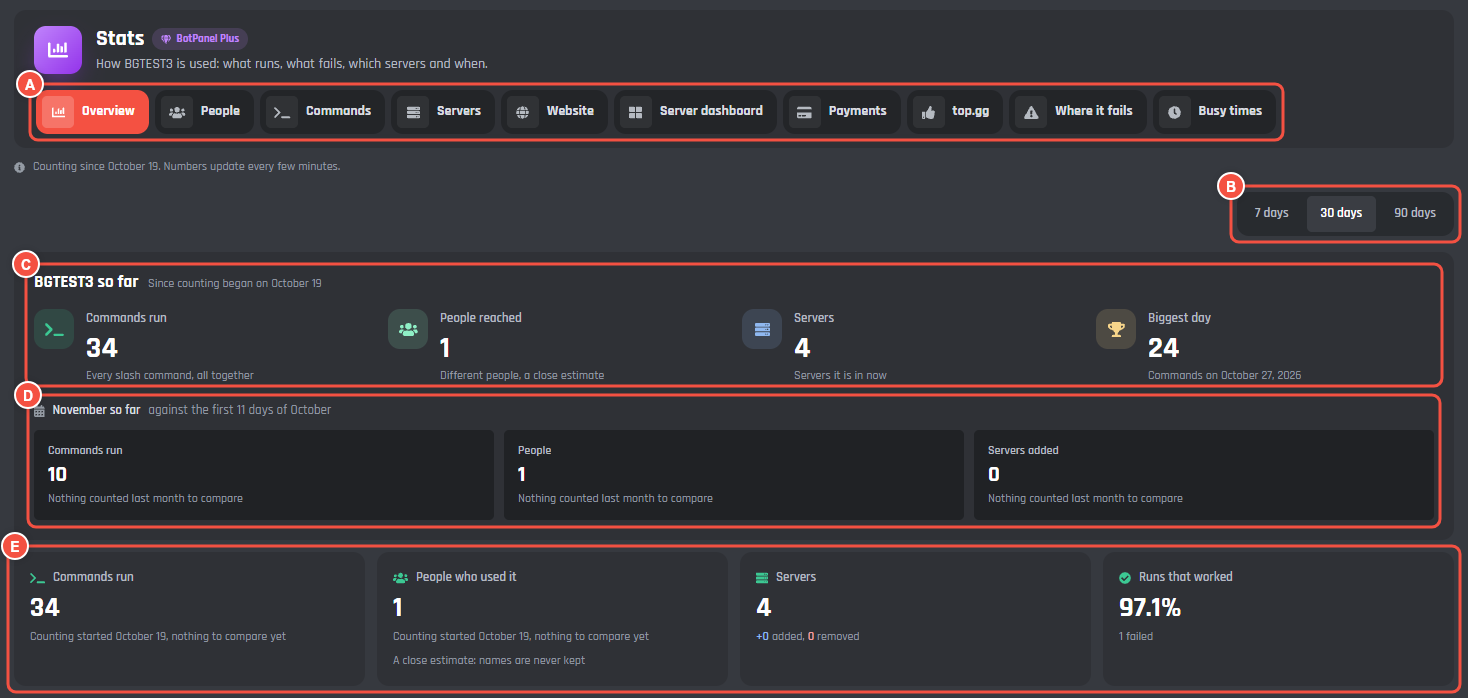
BotPanel > Stats > Overview
- A The tabs. Each one is covered below.
- B The period: 7 days, 30 days or 90 days. It changes every chart and table on every tab. The arrows next to a number compare it with the same number of days before.
- C Your bot's records since counting began, headed with its name (BGTEST3 so far in the picture): Commands run, People reached, Servers, and the Biggest day.
- D This month so far against the same days of last month, for Commands run, People, and Servers added.
- E The period's tiles: Commands run, People who used it, Servers (with how many were added and removed), and Runs that worked as a share of every run.
Overview
Under the tiles, Overview has:
- Time online: the share of the period the bot was online, and a bar for each day. Point at a bar, or tap it, to see that day's numbers.
- Commands run: runs per day, split into Worked and Failed. Table shows the same numbers as a table, newest day first.
- Top commands: the five commands run most. All commands opens the Commands tab.
- Servers added and removed: servers the bot joined and left each day.
- What failed most: the three failures seen most. Where it fails opens that tab.
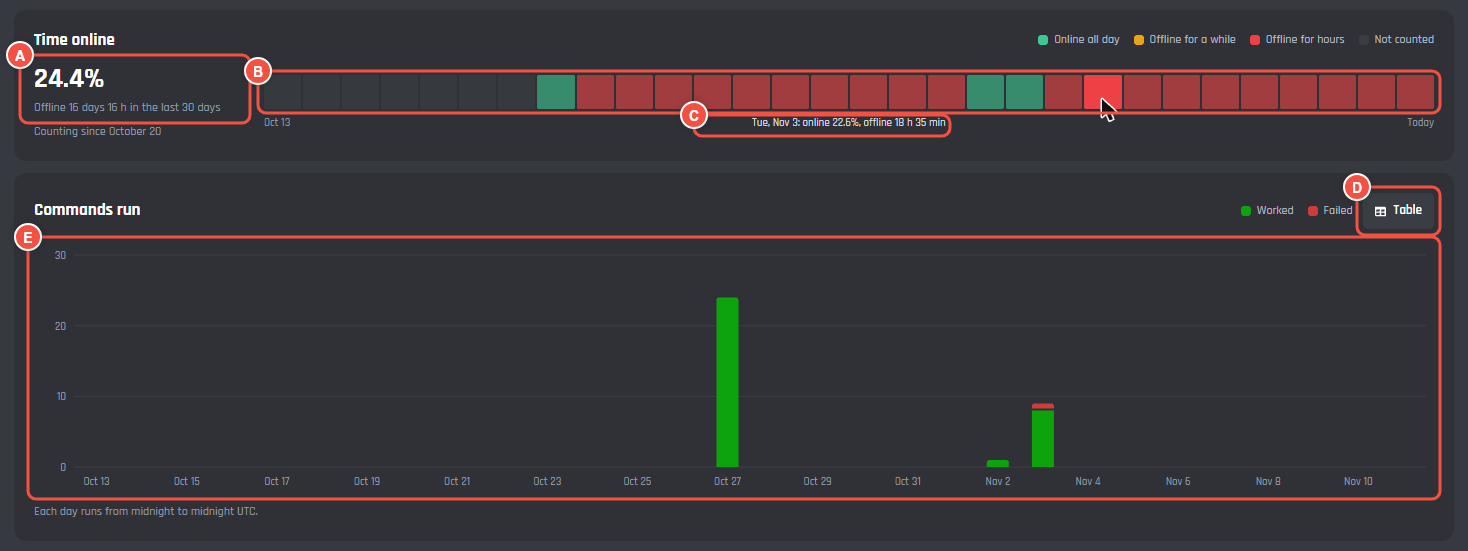
Time online and Commands run, on Overview
- A The share of the period the bot was online, and how long it was offline.
- B One bar per day. Green is Online all day (99% or more), amber is Offline for a while, red is Offline for hours (under 95%), and grey is Not counted.
- C The day you point at, with its exact online share and the time offline.
- D Table swaps the chart for a table of runs, worked and failed per day.
- E Each day's runs, green for worked and red for failed. Point at a day for its numbers.
People
How many different people ran a command:
- People who used it in the period.
- New people, who used the bot for the first time since counting began.
- Came back, who had used it before, as a number and a share.
- People reached, everyone since counting began.
People per day splits each day into New and Seen before. These are close estimates: your bot never keeps names or ids, only a small summary of who it has seen.
Commands
Every command lists each command run in the period, with:
- Runs, with a bar to compare commands.
- Change against the period before. A command with no runs before says New.
- Worked, as a share of its runs.
- Failed, as a count.
- Average time a run took.
Press a column's heading to sort by it, and use Search commands to find one.
Servers
- Servers over the last 30 days (or 7 or 90): how many servers the bot was in each day, and the change over the period with how many were added and removed.
- Servers added and removed: the same joins and leaves day by day.
- Busiest servers: the 10 servers that ran the most commands, with their Members, Runs, and when they Last used a command.
Website
Visits to your bot's website:
- Pages opened, Visitors (each browser counted once a day), Sign ins by server admins and members, and the Top source.
- Pages opened per day. Point at a day for its visitors and sign ins.
- Top pages and Where visitors came from, such as Google, Discord or top.gg.
No addresses or names are kept, only counts. If your website is off, the tab says so and counts nothing new.
Server dashboard
How servers use your server dashboard:
- Servers using it in the period, New servers that opened it for the first time, Changes saved (and how many were put back with Undo), and Servers in all.
- Changes per day. Point at a day for how many servers made changes and how many opened the dashboard for the first time.
- Most changed settings, with the module each belongs to and how many servers changed it.
- Busiest servers, by changes saved.
This tab reads the change log, which keeps 90 days.
Payments
This tab shows Premium sold through BotPanel Payments: Premium servers and members, plans started and ended, and money in per day. Payments is coming soon, so the tab has nothing to show yet.
top.gg
Your bot's votes on top.gg, from two places:
- Votes counts every vote top.gg sends: Votes and Voters in the period, Votes per day (weekend votes count double on top.gg and show in a darker pink), Top voters, and Streaks. A streak grows when someone votes again within 36 hours. Only you see the top voters.
- Your top.gg token, pasted into Settings, adds This month on top.gg, all time votes, and your Rating on top.gg.
The tab tells you which of the two is missing and has a button to set it up.
Where it fails
How many runs failed in the period, and the failures seen most. Each one shows the reason, the command and block it happened in, how many people it hit, when it was last seen, and how many times it has happened in all. Open Error Logs takes you to Error Logs in your dashboard, which says what to change for each one.
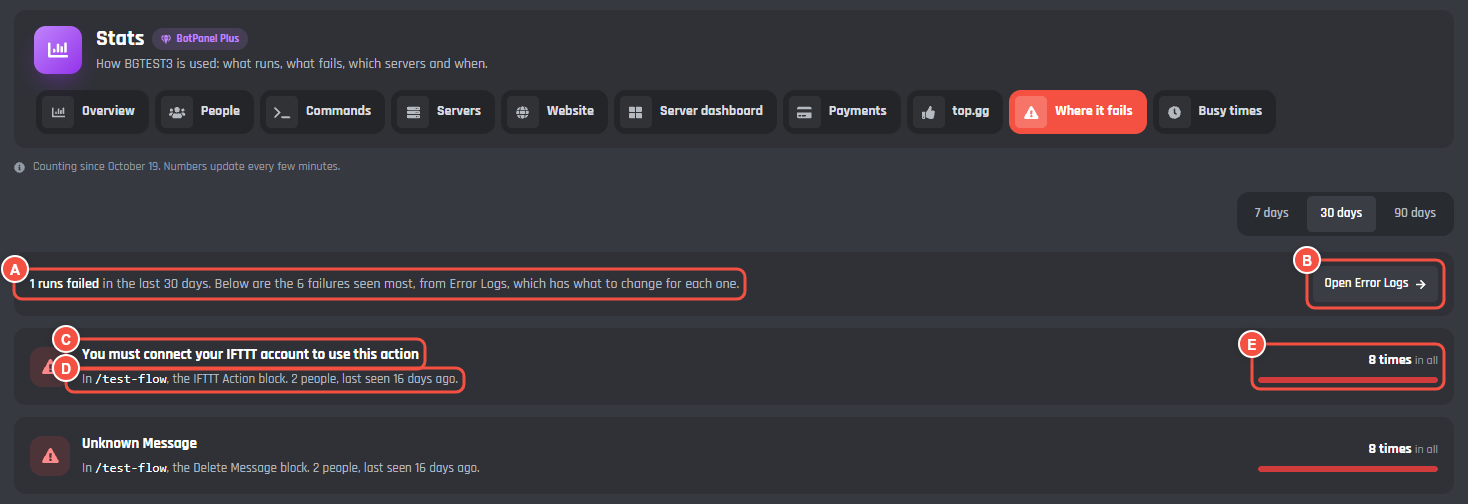
BotPanel > Stats > Where it fails
- A How many runs failed in the period.
- B Open Error Logs, with the fix for each failure.
- C The failure's reason.
- D The command and block it happened in, how many people it hit, and when it was last seen.
- E How many times it has happened since Error Logs first saw it.
Busy times
A grid of the days of the week against the hours of the day, in your own time zone, with every day of the period added together. Darker squares are quieter and brighter squares busier. The line under it names your busiest hour, and pointing at a square says how busy that hour is against the busiest one.
What counts
- Runs are slash command runs. Right click commands count toward the totals but are not listed by name.
- Each day lists the first 100 commands and the first 100 servers by name. Runs past that still count, and a line under the table says how many there were.
- A run failed when one of its blocks failed and nothing you built dealt with it, or when the run crashed.
- Time online counts the minutes your bot is connected to Discord.
- Charts use whole days from midnight to midnight UTC. Busy times and Time online use your own time zone.
Show stats on your website
Two numbers from Stats can go on your website's Status page, under Numbers:
- Commands run in the last 30 days.
- Time online over the last 90 days, with a bar for each day.
Both are off until you turn them on, and only the bot's owner can switch them. They need BotPanel Plus and the full website, and the site updates them every 10 minutes.