Templates and layouts
Start from a template made for your kind of bot, and pick a one page layout or the full website.
Both are at the top of BotPanel > Website > Design. A template fills in the whole site for you; the layout decides whether your bot has one page or a full website.
Templates
A template is a ready made site for one kind of bot. It uses your bot's name, its real commands and its real numbers, so the preview shows your own bot, not sample text.
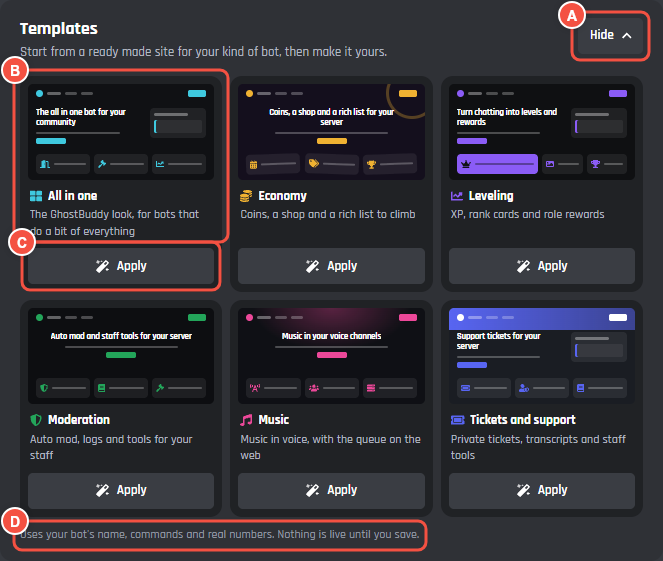
Website > Design > Templates
- A Browse opens the gallery and Hide closes it. It's open before your site's first save, and closed after that.
- B A template: a small drawing of the site it makes, its name and what it's for. The one your site still matches says In use.
- C Apply puts the template in your draft. Without BotPanel Plus the button says Use as one page.
- D The note under the gallery. After you apply a template it says the template is in your draft.
| Template | Made for | Design and colour | One page layout |
|---|---|---|---|
| All in one | Bots that do a bit of everything | Simple, cyan | App card |
| Economy | Coins, a shop and a rich list | Arcade, amber | Live chat |
| Leveling | XP, rank cards and role rewards | Bento, violet | App card |
| Moderation | Auto mod, logs and staff tools | Console, green | Command deck |
| Music | Music in voice, with the queue on the web | Showcase, pink | Link page |
| Tickets and support | Private tickets, transcripts and staff tools | Community, blurple | Live chat |
Every template is dark, and all but All in one pick their own fonts.
What applying one does
Applying only changes your draft. Check the preview, then press Save, or press Undo all to go back to your last save. Undo all also throws away any other changes you hadn't saved.
Once your site has been saved, or you've changed something, Apply asks first: the button says Press again and a note says what changes and what stays. Press it again within 6 seconds to apply.
A template replaces:
- the layout, design, colour, fonts, headline and the line under it
- the features, the FAQ and the home page
- the menu
It also groups your commands and picks four popular ones, unless you already made your own groups or picks, and adds a Getting started guide to Docs if you have no guides yet.
It keeps your support invite, top.gg link, legal pages, About page, updates, guides, Sign in with Discord, domain, payments and modules. Notes you typed to float beside the headline are removed, since a template draws its own home page.
Without BotPanel Plus, a template is applied as its one page layout from the table above. The rest of it (features, FAQ, home page, menu) is saved too, ready for when your bot has the full website.
Layout
The Layout card decides how much site your bot has. You can switch any time, and nothing you filled in is lost: a page you built for the full website waits while you're on a one page layout.
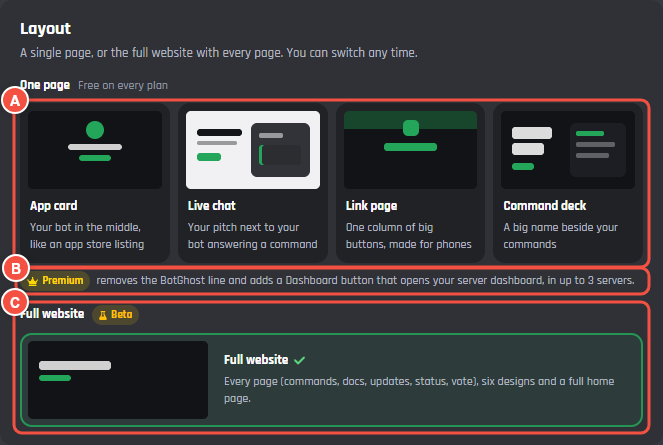
Website > Design > Layout
- A The four one page layouts, free on every plan.
- B What Premium adds to a one page site: no BotGhost line, and a Dashboard button that opens your server dashboard, in up to 3 servers.
- C The Full website, with its plan chip. It reads Plus, or Beta while the beta runs.
The one page layouts
Each one is a single page built from your bot's name, picture, commands and server count, with an Add to Discord button.
| Layout | What it looks like |
|---|---|
| App card | Your bot in the middle, like an app store listing |
| Live chat | Your pitch next to your bot answering a command |
| Link page | One column of big buttons, made for phones |
| Command deck | A big name beside your commands |
The page ends with a footer. On Free it has a line linking to BotGhost; Premium removes it.
The full website
The full website has a home page and every other page a bot needs: commands, features, docs, updates, status, vote, FAQ, about, terms, and the pages for servers. It comes in six designs (see Design) and gets the Pages and Navigation tabs.
The full website needs BotPanel Plus.
Without Plus you can still pick it, and any of the six designs, to see it with your bot in the preview. The card says Looking only, with Get BotPanel Plus and See it with your bot under it. You can't save while you're looking: pick a one page layout to save.
If Plus ends on a bot with a live full website, visitors see it as a one page site in the App card layout. Your full website is kept and comes back when Plus does. To change how the one page site looks, pick and save another one page layout.
What each plan allows
| Free | Premium | Premium with BotPanel Plus | |
|---|---|---|---|
| One page layouts | Yes | Yes | Yes |
| BotGhost line in the footer | Shown | Hidden | Hidden |
| Dashboard button on a one page site | No | Yes, once Sign in with Discord is set up | Yes, once Sign in with Discord is set up |
| Full website and the six designs | Look only | Look only | Yes |
Words on a one page site
A one page layout has two more cards on the Design tab, for the words on the page. Leave a field empty to use ours.
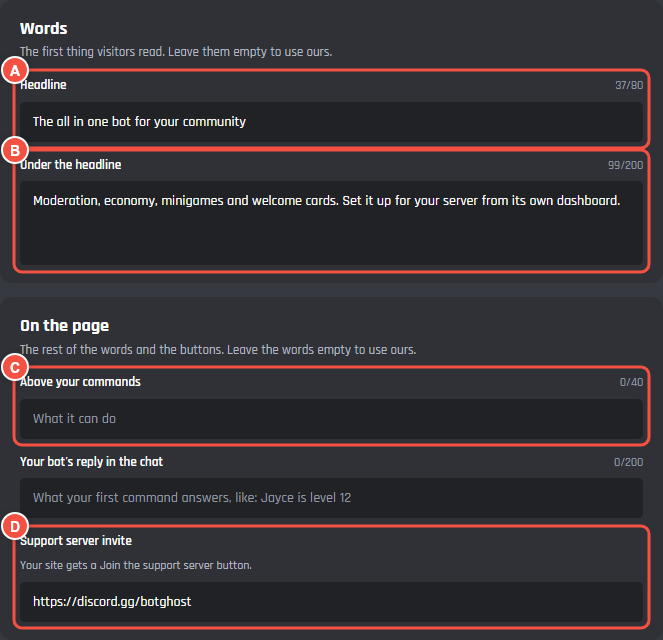
Website > Design, on a one page layout
- A Headline: up to 80 characters. Empty, it's "Meet" and your bot's name.
- B Under the headline: up to 200 characters, on one line.
- C Above your commands: the heading over your commands, up to 40 characters.
- D Support server invite: adds a Join the support server button. Use a Discord invite, like
discord.gg/botghost.
Two layouts have one more field:
- Live chat: Your bot's reply in the chat, up to 200 characters. It's what your bot answers in the chat beside your pitch, like "Jayce is level 12".
- Link page: top.gg page, which adds a Vote on top.gg button. Use your bot's top.gg link, like
top.gg/bot/1331245032568524861.
On the full website, these words are on the Pages tab instead. See Pages.