Reaction Roles
Let members pick their own roles with buttons, a dropdown or reactions.
Reaction Roles lets members pick their own roles from a menu your bot posts: colours, pings, pronouns, games, regions or a verify button. Members press a button, pick from a dropdown or react with an emoji, and the bot gives or takes the role. Reaction Roles is free for every bot.
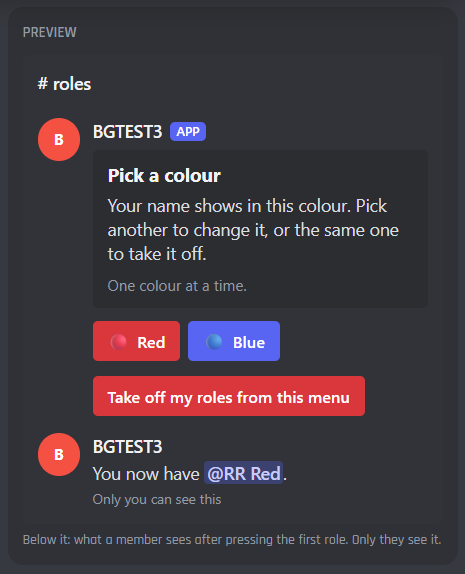
What your members will see
Before you start
You need:
- Your bot in your Discord server. See Invite Your Bot if it isn't yet.
- The roles members can pick, made in Server Settings > Roles.
- Your bot's own role above every role it gives, with Manage Roles turned on. A bot can only give roles below its own.
- A channel for the menu, like
#roles, where your bot has View Channel and Send Messages. Menus that use reactions also need Add Reactions, and Manage Messages to take a member's reaction off again.
Set up your first menu
- 1
Turn on Reaction Roles
Open Reaction Roles in your bot's dashboard and press Enable at the top right.

- A Enable turns Reaction Roles on. It adds the
/reactionrolescommand and the events it needs to your bot. - B The server you're setting up. A menu's roles and channel belong to one server, so pick the server first. The page remembers the one you picked last.
- C Reset to Default puts this server's settings back to how a new Reaction Roles starts.
- D Docs opens this page.
- A Enable turns Reaction Roles on. It adds the
- 2
Start from a template
Press Start from a template in the strip under the header, and pick the template closest to what you want.
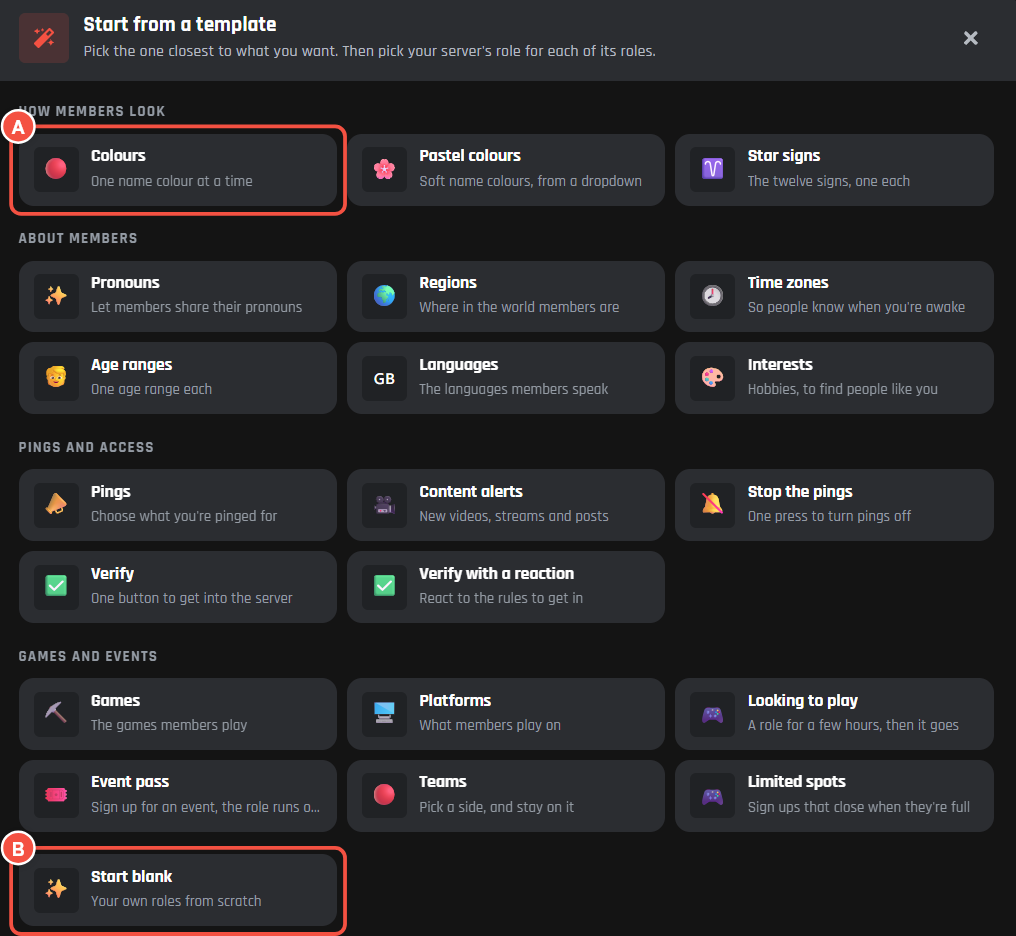
- A A template, like Colours. There are templates for colours, pronouns, regions, time zones, pings, verify buttons, games, event passes, teams and more.
- B Start blank to make your own from scratch.
The next window asks for the channel the menu goes in, and your server's role for each of the template's roles. You can leave some for later. Use this template fills in the menu you have open.
- 3
Check the roles
On the Roles tab, check each role and its button. See Roles members can pick below.
- 4
Save
A bar pops up at the bottom of the page. Press Save Changes.

- 5
Post the menu
On the Look and post tab, press Post it. Your bot posts the menu in its channel, and members can use it straight away. You can also run
/reactionroles postin your server and pick the menu.
- A What to do next. Once everything is done, it says the menu is ready to post.
- B Start from a template.
- C The steps, ticked off as you do them. Press one to go to it.
Changed a menu after posting it? Save, then post it again. The copy already in the channel is updated where it is.
Your role menus
A menu is one message members pick their roles from. Each server can have up to 10.

- A The menu you're editing, with how members pick, how many roles it has and its channel. Press another menu to edit it.
- B Add a menu for another message, like pings next to your colours.
- C The switch turns the open menu on or off. A menu that's off doesn't give or take roles.
The tabs
Everything about the open menu is on four tabs. The preview on the right shows what members see in Discord.

- A Roles: how members pick, the roles and what picking one does.
- B Look and post: the channel, the message and posting it.
- C Who can use it: roles members need, new accounts, levels, waits and a closing time.
- D Messages: every message the bot sends. These are shared by every menu.
How members pick

- A Members pick with:
- Buttons: a button for each role. Members get a private reply saying what changed.
- Dropdown: one dropdown with every role in it, good for long lists. Members get a private reply.
- Reactions: members react with an emoji. A message can have up to 20 reactions.
You can change it any time. Post the menu again after.
With Reactions, two more switches show:
- Tell members in a DM: reactions can't reply, so the bot sends a DM saying what changed, or why it didn't. Members who turned off DMs from the server don't get one.
- Take the member's reaction off again: when they can't have the role, and after a menu that only gives, only takes or picks once changes it. The bot needs Manage Messages in the channel.
Roles members can pick
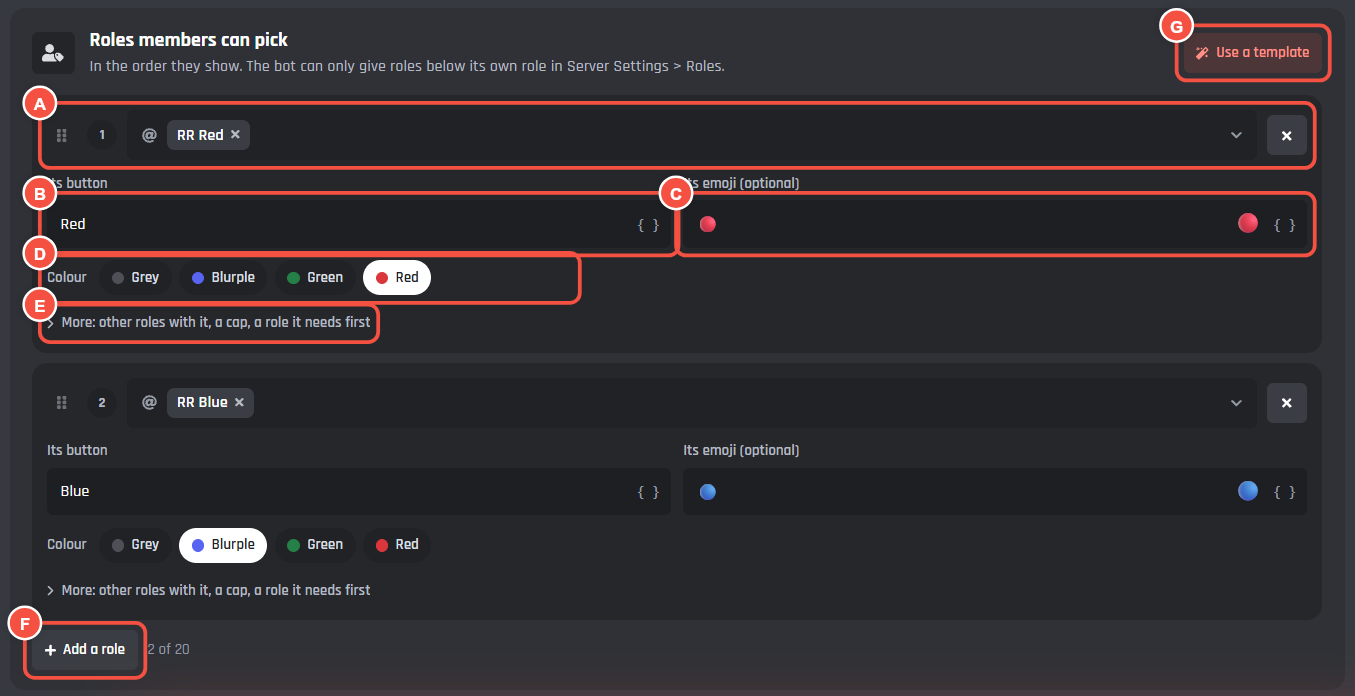
- A The role this row gives. Drag the grip on the left to change the order. The page warns you when a role is above your bot's own, was deleted, or is given by an integration.
- B Its button: the words on the button. On a dropdown it's Its option, and on reactions it's the role's name for the log and replies.
- C Its emoji. On reactions this is the reaction members use, and every role needs its own.
- D Colour: Grey, Blurple, Green or Red, for buttons. A dropdown has A line under it instead.
- E More: other roles that come with this one, a cap and a role it needs first.
- F Add a role. A menu can have up to 20.
- G Use a template.
More for each role
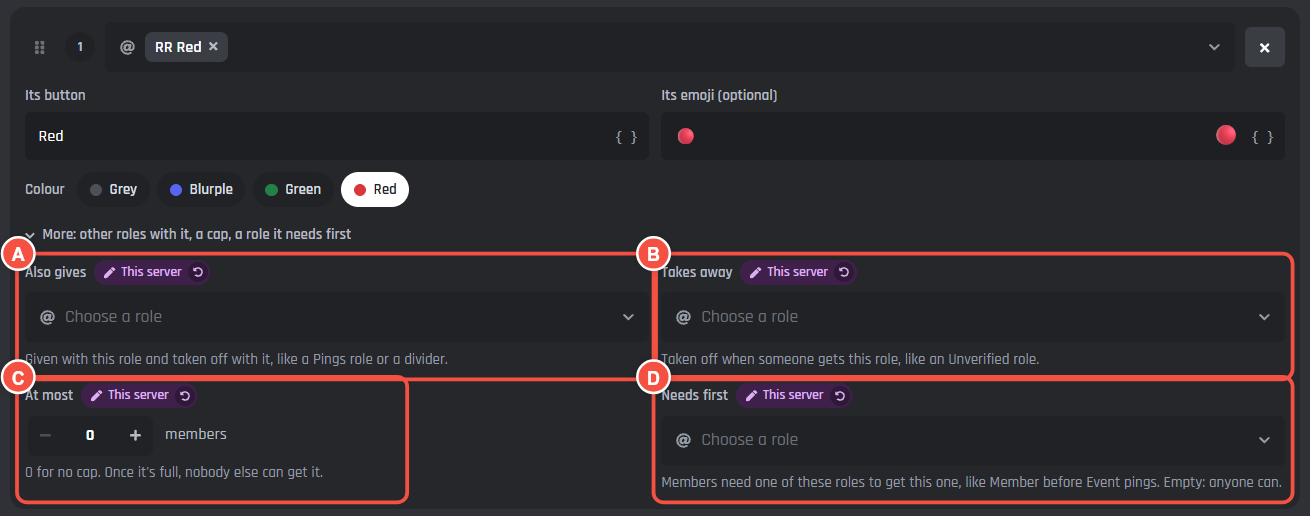
- A Also gives: roles given with this one and taken off with it, like a Pings role or a divider.
- B Takes away: roles taken off when someone gets this one, like an Unverified role.
- C At most: how many members can have this role, 0 for no cap. Once it's full, nobody else can get it.
- D Needs first: members need one of these roles to get this one, like Member before Event pings.
What picking a role does
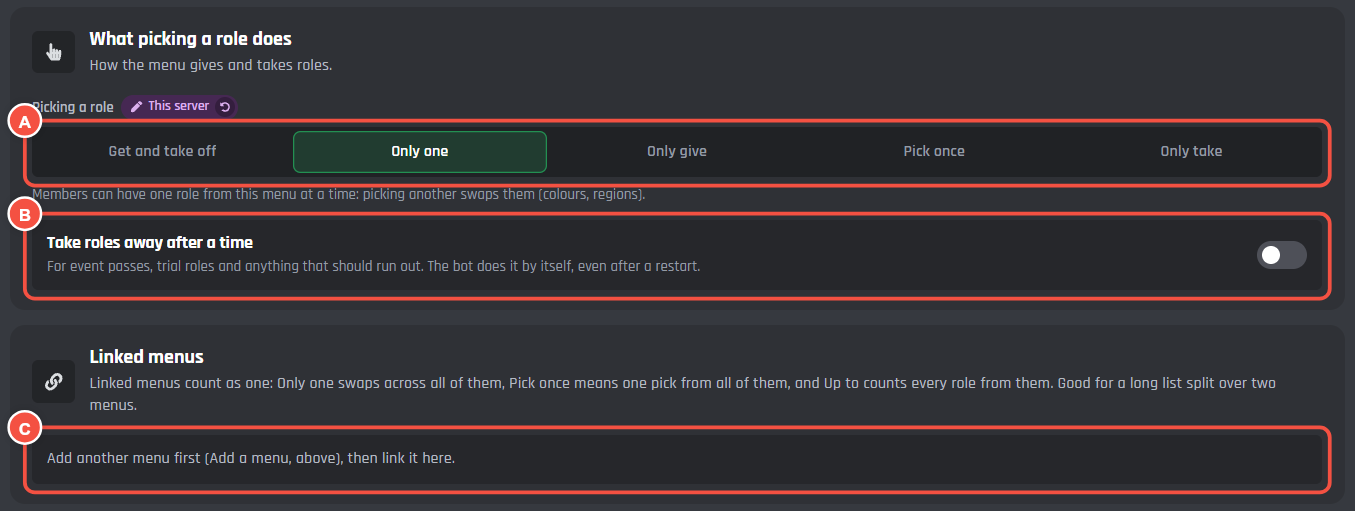
- A Picking a role:
- Get and take off: pick a role to get it, pick it again to take it off. Members can have as many as they like.
- Only one: one role from this menu at a time. Picking another swaps them, good for colours and regions.
- Only give: the role stays, like a verify button. Taking a reaction off leaves it too.
- Pick once: one role from this menu, for good: teams, houses, factions.
- Only take (under More ways): picking takes the role away.
- B Take roles away after a time: for event passes and trial roles. The bot takes the role off by itself after the hours you set, up to 90 days, even after a restart.
- C Linked menus: tick other menus to make them count as one. Only one swaps across all of them, Pick once means one pick from all of them, and Up to counts every role from them. Good for a long list split over two menus.
On Get and take off and Only give, Each member can have up to limits how many roles from the menu each member keeps (0 for no limit).
On a dropdown with Get and take off, Pick several at once lets members tick several roles in one go. It works on a menu that isn't linked, with no role that has a cap or needs another first.
Look and post
Post it
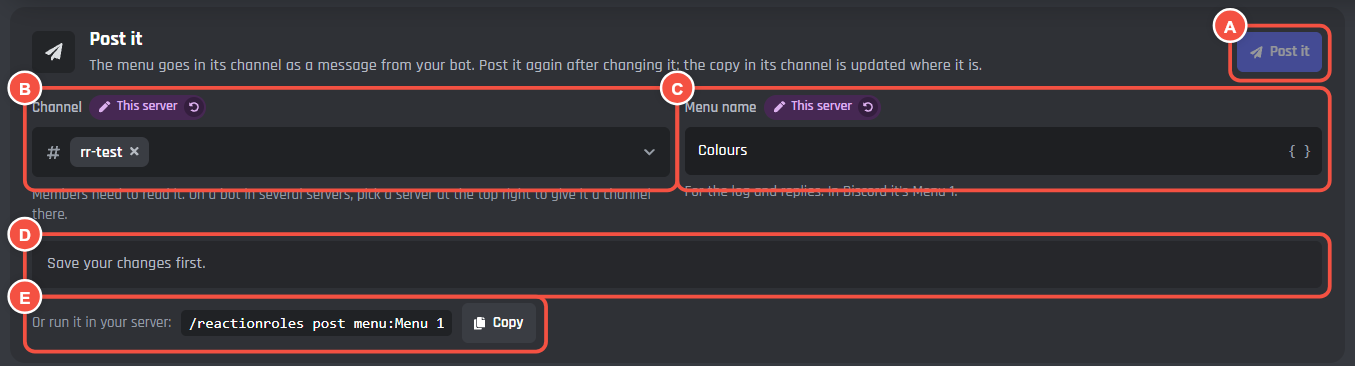
- A Post it asks your bot to post the menu in the server you picked at the top. Save your changes first.
- B Channel: where the menu goes. Members need to be able to read it.
- C Menu name: for the log and the bot's replies. In Discord the command calls it Menu 1, Menu 2 and so on.
- D What's left to do, or how the post went.
- E The command to post it from Discord instead, with Copy.
The menu's message
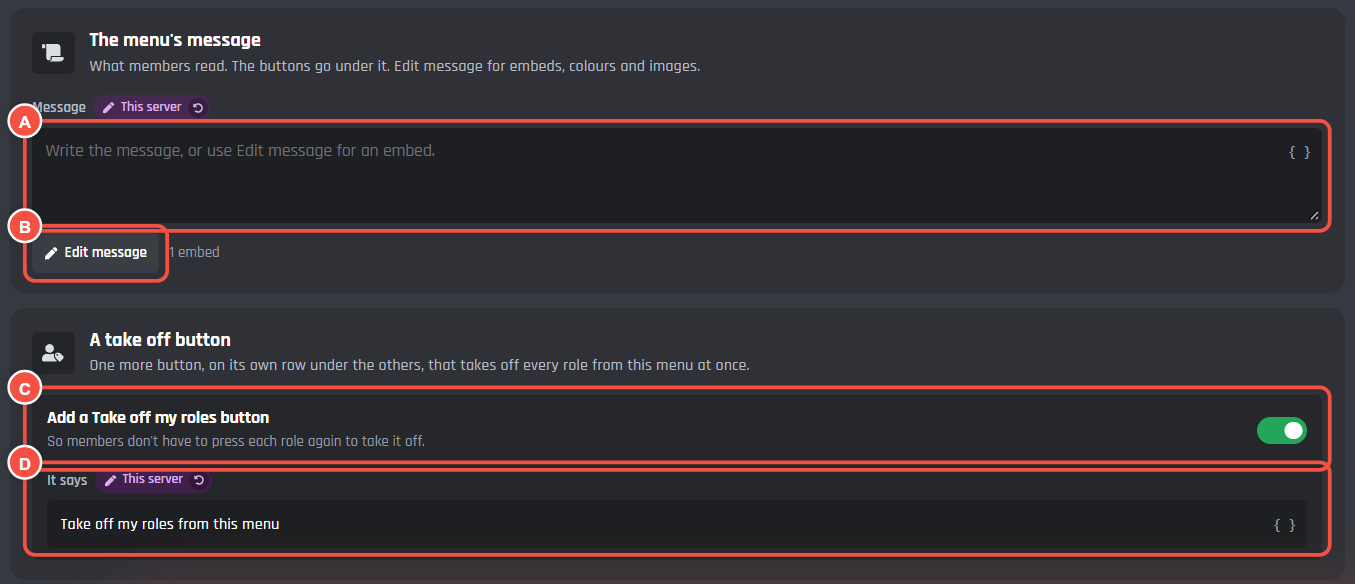
- A Message: what members read above the buttons, dropdown or reactions.
- B Edit message for embeds, colours and images.
- C Add a Take off my roles button (buttons on Get and take off and Only one): one more button that takes off every role from this menu at once.
- D It says: the words on that button.
A dropdown has The dropdown card instead: the words it shows before someone picks, and its last option, which takes off every role from the menu.
New menus start with a Components V2 message: a box in your colour with a heading, your text and a small line under it. The buttons or the dropdown go inside the box. Each text part has its own box on the card, and Edit message adds pictures, separators and more boxes.
A menu made before then keeps its classic message. Press Use Components V2 under it to switch, or Use the classic message again to go back before you leave the page. Discord can't turn a posted classic message into a V2 one, so posting it again removes the old message and posts the new one.
Who can use it
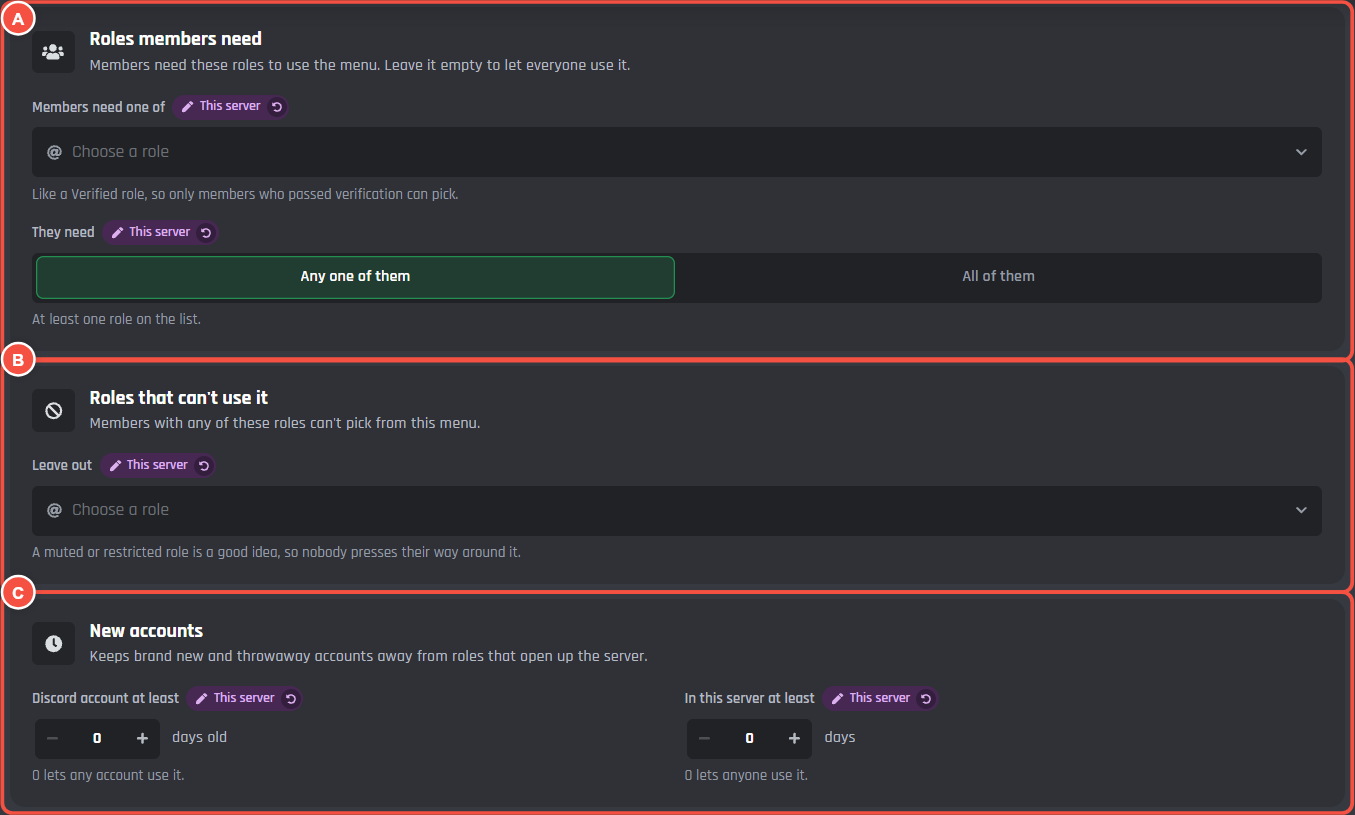
- A Roles members need: only members with one of these roles (or all of them, with All of them) can use the menu, like a Verified role. Leave it empty to let everyone use it.
- B Roles that can't use it: members with any of these roles can't pick, like a muted role.
- C New accounts: how old a member's Discord account must be, and how long they must have been in the server, in days. 0 lets anyone use it.
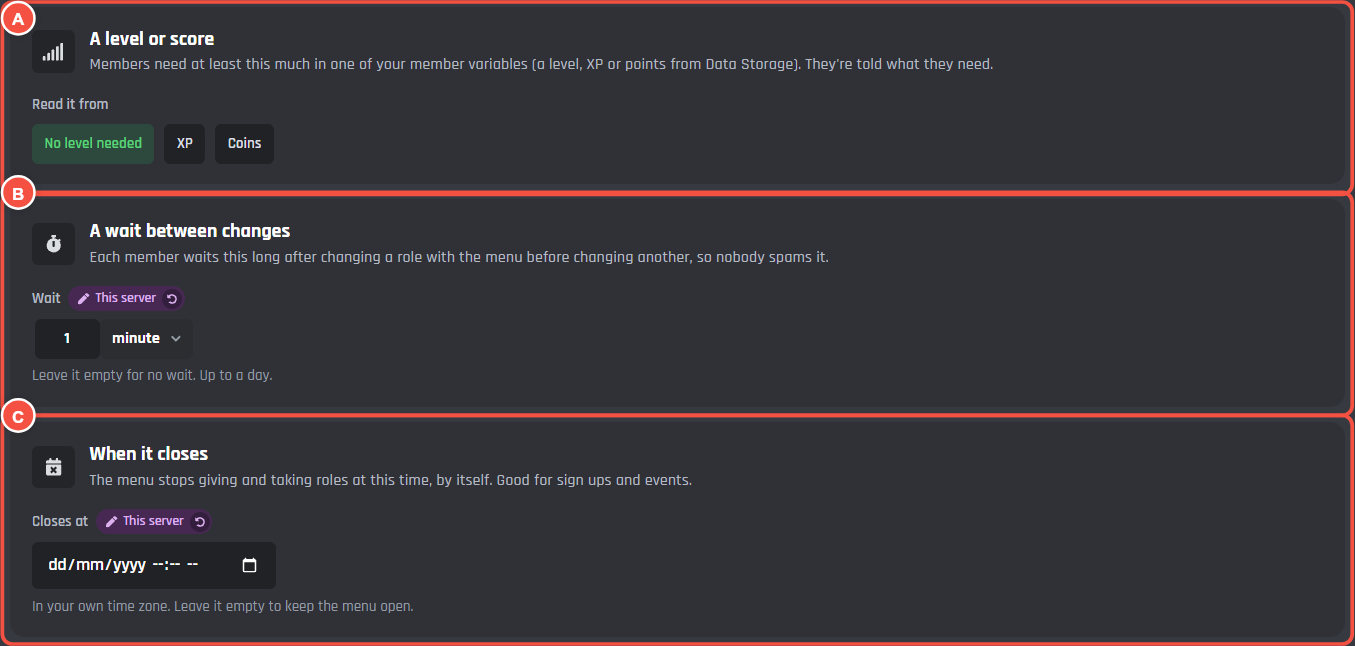
- A A level or score: pick one of your member variables from Data Storage, like XP, and how much members need. They're told what they need.
- B A wait between changes: each member waits this long after changing a role before changing another, up to a day. Leave it empty for no wait.
- C When it closes: the menu stops giving and taking roles at this time, in your own time zone. Good for sign ups and events.
Messages
Each message the bot sends has its own card. The messages are shared by every menu.
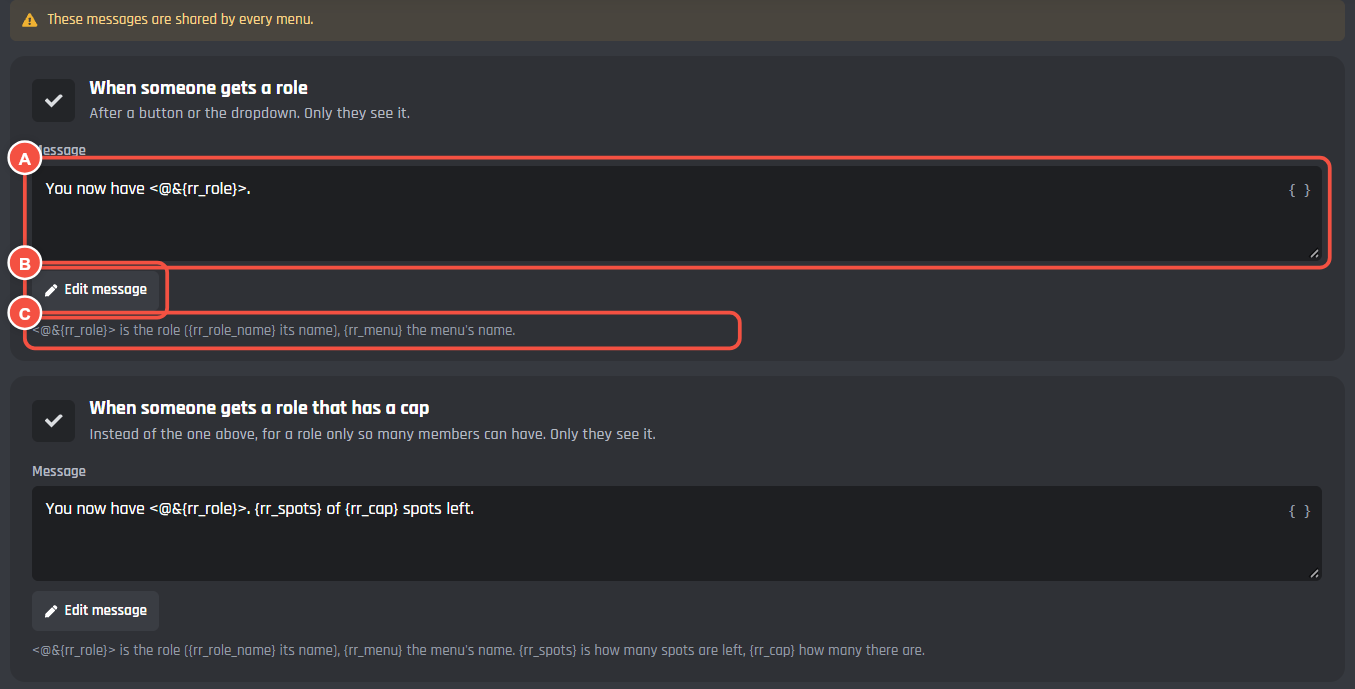
- A The message. Change the words, or use Edit message for embeds.
- B Edit message opens the full message builder.
- C The variables this message can use.
The messages, and when each is sent:
| Message | When it's sent |
|---|---|
| When someone gets a role, or takes one off | A private reply after a button or the dropdown |
| When someone gets a role that has a cap | Instead of the one above, with {rr_spots} spots left of {rr_cap} |
| When someone picks several roles at once | After the pick several dropdown, with {rr_changes} saying what changed |
| When someone already has the role, or doesn't have it to take | On menus that only give or only take |
| When someone can't use the menu | Their role can't use it, they don't have the roles it needs, a role needs another first, their account is too new, their level is too low, they have as many as they can, a role is full, they have to wait, or the menu is off or closed |
| When the bot can't give or take the role | Usually the role is above the bot's own. {error_reason} is what Discord said |
| When a role was deleted in Discord | Someone picked a role that no longer exists |
| When someone takes off all their roles at once | After the take off button or the dropdown's last option |
| DM when someone gets or takes off a role by reacting | On reactions menus with Tell members in a DM |
| Log lines | In the Log channel, for every role given or taken, and when the bot can't change one. Leave the log channel empty for no log |
| Staff replies | After /reactionroles post and /reactionroles attach |
<@&{rr_role}> is the role, {rr_role_name} its name and {rr_menu} the menu's name. Role mentions don't show in DMs, so the DM messages use the role's name.
Commands
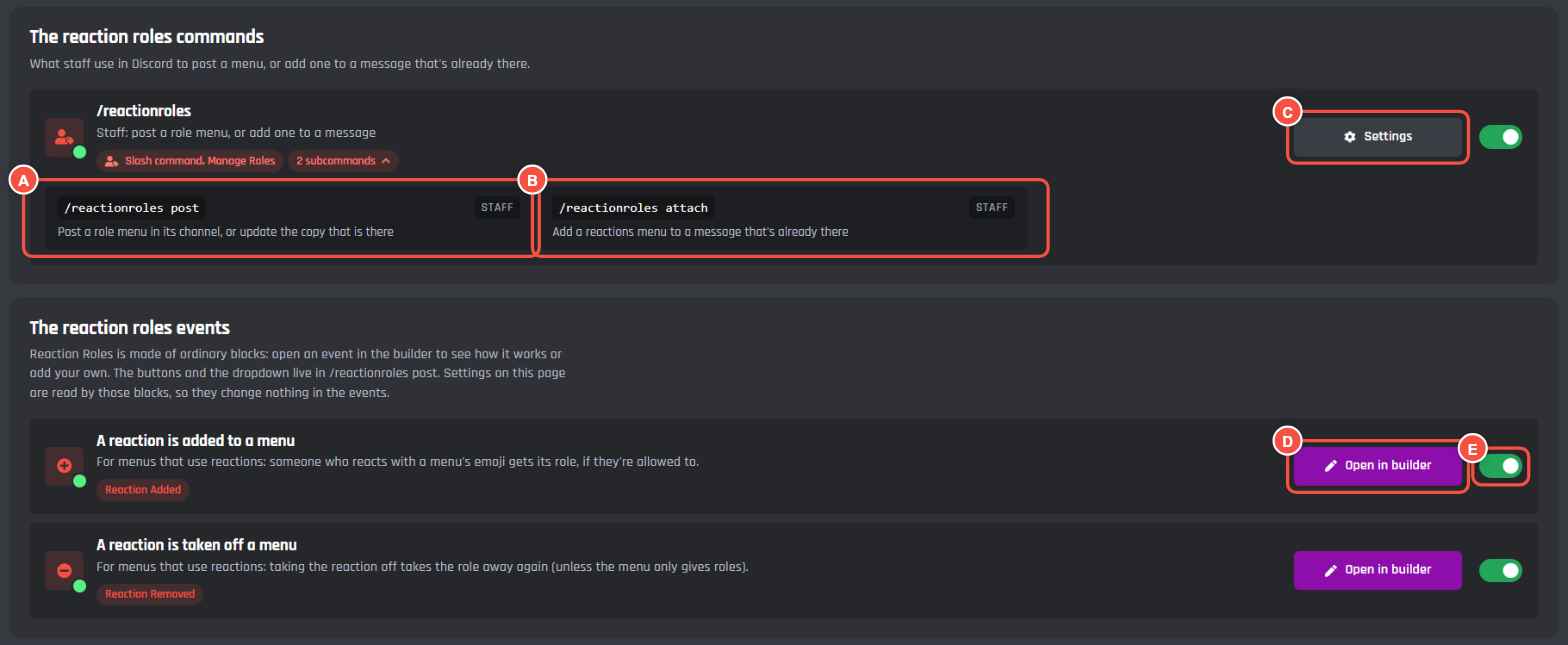
/reactionroles is for staff with Manage Roles:
- A
/reactionroles post: post a menu in its channel, or update the copy that's there. - B
/reactionroles attach: add a reactions menu to a message that's already there, like your rules. Right click the message, press Copy Message Link and paste the link. Buttons and dropdowns can only go on the bot's own messages. - C Settings opens the command, where you can change it or switch it off.
Events
Reaction Roles is made of normal builder blocks. Menus with buttons and a dropdown work through /reactionroles post, and menus with reactions use two events:
- A reaction is added to a menu gives the role when someone reacts with a menu's emoji, if they're allowed to.
- A reaction is taken off a menu takes the role away again, unless the menu only gives roles.
- D Open in builder opens the event in the Command Builder, to see how it works or add your own blocks.
- E The switch turns the event on or off.
The settings on this page are read by the blocks, so changing a setting never changes the events or the command. If you change one and want the original back, use its reset on the Reaction Roles page.
Good to know
- Reaction Roles is free for every bot.
- Each server has its own menus. Pick the server at the top of the page before you set one up. A purple This server tag shows next to each setting the server has set for itself.
- Show variable names at the top of the page shows the variable behind each setting, if you want to use them in your own commands.
- After an update to Reaction Roles, the page shows an Update button. Post menus with buttons or a dropdown again afterwards.
Members don't get the role
- Check your bot's role is above the role in Server Settings > Roles, and has Manage Roles. The log line and the bot's reply say what Discord said.
- On a reactions menu, check each role has its own emoji, and that the bot is online.
- Check Who can use it: a needed role, a new account limit, a level, a wait or a closing time can stop a member. The bot tells them why.
The old Reaction Roles
The old Reaction Roles keeps working. If your bot uses it, you'll find it as Reaction Roles (old) in your modules, and the new page shows Move them here: each message becomes a reactions menu on the same message, with the same roles, and the old module is switched off so they don't both answer.