# Create a channel

<figure><img src="https://1937909199-files.gitbook.io/~/files/v0/b/gitbook-x-prod.appspot.com/o/spaces%2F-Lm_hW5MApY3J0lRhi0M%2Fuploads%2FFKRS4fwUPDRKPT9XQJNn%2Fimage_2024-05-30_163146288.png?alt=media&#x26;token=c5490b2e-9cce-4eb2-a609-9d41c4f46930" alt=""><figcaption></figcaption></figure>

The Create a channel action when triggered creates a channel of any type within a Discord server. It can be referenced in any action or condition throughout your bot's commands and events. All variables and options can be used in the content of all fields within the block.

## Variable

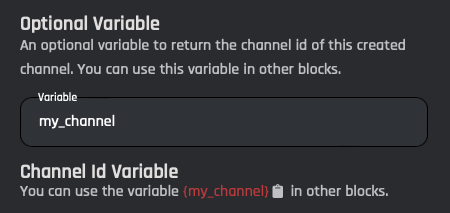
The create a channel block also comes with an optional [variable](https://botghost.com/docs/custom-commands-and-events/variables) that can be used in later actions or saved in custom variables. This variable can be set at the top of the block's settings menu. Here is an example of how it can be used.

<table><thead><tr><th width="445">Variable</th><th>Usage</th></tr></thead><tbody><tr><td><code>{my_channel}</code></td><td>This variable will return the ID of the channel.</td></tr><tr><td><code>&#x3C;#{my_channel}></code></td><td>This variable will return the channel mention.</td></tr></tbody></table>

<figure><img src="https://1937909199-files.gitbook.io/~/files/v0/b/gitbook-x-prod.appspot.com/o/spaces%2F-Lm_hW5MApY3J0lRhi0M%2Fuploads%2FzUtJM97KPFMIV4JiseuB%2FScreenshot%202026-01-08%20at%203.51.20%20PM.png?alt=media&#x26;token=c6633e26-480e-41cc-b537-02315042ff0f" alt=""><figcaption></figcaption></figure>

## Name

The name of the channel is what's displayed in the channel list, the top of the channel, and any references of the channel.

{% hint style="info" %}
Name is not compatible with markdown.
{% endhint %}

<figure><img src="https://1937909199-files.gitbook.io/~/files/v0/b/gitbook-x-prod.appspot.com/o/spaces%2F-Lm_hW5MApY3J0lRhi0M%2Fuploads%2FaGHTadgZfnQ6YxTO7KXU%2Fimage.png?alt=media&#x26;token=7b472f0e-6e9b-4419-910d-cd7b8a12640a" alt=""><figcaption></figcaption></figure>

## Type

The type of channel defines its function and appearance. You can select from a dropdown that will display the available channel types. Below you can find detailed information about each channel type and how it can be used.

<figure><img src="https://1937909199-files.gitbook.io/~/files/v0/b/gitbook-x-prod.appspot.com/o/spaces%2F-Lm_hW5MApY3J0lRhi0M%2Fuploads%2Fz2VVl4NrNQuAHCpSA5q6%2Fimage.png?alt=media&#x26;token=b982d0ff-c4c2-44d2-8fae-b0c81b6b27a8" alt=""><figcaption></figcaption></figure>

{% tabs %}
{% tab title="Text Channel" %}
A text channel is a basic channel for Discord users to have text conversations with other server members.
<figure><img src="https://1937909199-files.gitbook.io/~/files/v0/b/gitbook-x-prod.appspot.com/o/spaces%2F-Lm_hW5MApY3J0lRhi0M%2Fuploads%2FxorQnGGtXOawnSavx7KG%2Fimage_2024-06-02_150259754.png?alt=media&#x26;token=9feebe0f-fb7b-4784-95ab-e7703be8376c" alt=""><figcaption></figcaption></figure>

### NSFW

This is an optional toggle to choose whether or not to allow NSFW content within the channel. If chosen, the channel will be age restricted to 18+.

<figure><img src="https://1937909199-files.gitbook.io/~/files/v0/b/gitbook-x-prod.appspot.com/o/spaces%2F-Lm_hW5MApY3J0lRhi0M%2Fuploads%2FqDxUtUXI4n2OXlLQ38lh%2Fimage.png?alt=media&#x26;token=1d889370-d494-4d56-bc92-435984bef89b" alt=""><figcaption></figcaption></figure>

### Slowmode

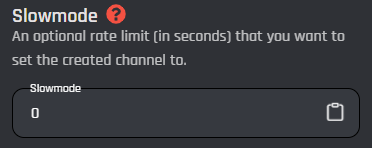
This is an optional field, also known as rate limit per user, it allows you to set a slow mode in the created channel for each user unless the user has been bypassed. This field only accepts integers, and [variables](https://botghost.com/docs/custom-commands-and-events/variables) can be used.

<figure><img src="https://1937909199-files.gitbook.io/~/files/v0/b/gitbook-x-prod.appspot.com/o/spaces%2F-Lm_hW5MApY3J0lRhi0M%2Fuploads%2F9ic7RxolJGaMrHA8kcdY%2Fimage_2024-06-02_150535987.png?alt=media&#x26;token=525addba-421a-408c-bcbd-f635977566ff" alt=""><figcaption></figcaption></figure>
{% endtab %}

{% tab title="Voice Channel" %}
A voice channel is a interactive channel based of listening and speaking to other users.

<figure><img src="https://1937909199-files.gitbook.io/~/files/v0/b/gitbook-x-prod.appspot.com/o/spaces%2F-Lm_hW5MApY3J0lRhi0M%2Fuploads%2F96AiDI6zxtUKa9iTNzuR%2Fimage.png?alt=media&#x26;token=a181ebdc-f2ff-4f82-b567-aca517d6c391" alt=""><figcaption></figcaption></figure>

### User limit

This field represents an optional user limit targeting voice channels only. With a limit in place, only a certain amount of users can be in the voice channel. This field accepts integers only and [variables](https://botghost.com/docs/custom-commands-and-events/variables) can be used.

<figure><img src="https://1937909199-files.gitbook.io/~/files/v0/b/gitbook-x-prod.appspot.com/o/spaces%2F-Lm_hW5MApY3J0lRhi0M%2Fuploads%2FoHNM7aXYTA0U95mD8hUS%2Fimage.png?alt=media&#x26;token=14910e35-a862-431f-847e-ad71d9c1ca9c" alt=""><figcaption></figcaption></figure>
{% endtab %}

{% tab title="Category Channel" %}
The Category Channel is a Category that will be made when this type is selected. Categories can have multiple channels under them and sync permissions as well.&#x20;

<figure><img src="https://1937909199-files.gitbook.io/~/files/v0/b/gitbook-x-prod.appspot.com/o/spaces%2F-Lm_hW5MApY3J0lRhi0M%2Fuploads%2Ffm5bgvtqlIiJWBtDjSvn%2Fimage.png?alt=media&#x26;token=48667095-82bc-40f5-b704-986ab76c84de" alt=""><figcaption></figcaption></figure>
{% endtab %}

{% tab title="News Channel" %}
A News Channel is a announcement channel that can you publish messages from to followed servers.

<figure><img src="https://1937909199-files.gitbook.io/~/files/v0/b/gitbook-x-prod.appspot.com/o/spaces%2F-Lm_hW5MApY3J0lRhi0M%2Fuploads%2FdkBSvpIAYPizrz5FYXzl%2Fimage.png?alt=media&#x26;token=24b834ef-1960-4367-aa4e-afc6e976dbb2" alt=""><figcaption></figcaption></figure>
{% endtab %}
{% endtabs %}

## Topic

This optional field modifies the topic of the channel. It may be left blank to leave the topic blank. [Variables](https://botghost.com/docs/custom-commands-and-events/variables) can be used.

<figure><img src="https://1937909199-files.gitbook.io/~/files/v0/b/gitbook-x-prod.appspot.com/o/spaces%2F-Lm_hW5MApY3J0lRhi0M%2Fuploads%2FwrRD7cBw4CkdN6F36URv%2Fimage.png?alt=media&#x26;token=cbb37f31-9d3b-4edc-bca9-ed2f09ddc32a" alt=""><figcaption></figcaption></figure>

## Category

Here you can set the ID of the category the channel you're creating is in. You can do this by pasting an ID directly from Discord (learn how [here](https://support.discord.com/hc/en-us/articles/206346498-Where-can-I-find-my-User-Server-Message-ID)) or using a variable that returns a category ID. These can be easily added through the variable selector by clicking the **Clipboard** button. You can also leave this field empty to create the channel above all categories.

<figure><img src="https://1937909199-files.gitbook.io/~/files/v0/b/gitbook-x-prod.appspot.com/o/spaces%2F-Lm_hW5MApY3J0lRhi0M%2Fuploads%2FELOK3lcBYn0GKr7S4npX%2Fimage.png?alt=media&#x26;token=02b9f559-bdd8-4566-b558-cfc068abfa86" alt=""><figcaption></figcaption></figure>

## Optional Server ID

This field is an optional server ID to create the channel in. Leave blank to create the channel in the server the command was triggered in or who clicked a [button](https://botghost.com/docs/custom-commands-and-events/actions/legacy-reply-actions/send-a-message-with-attached-buttons/buttons) / [menu option](https://botghost.com/docs/custom-commands-and-events/actions/legacy-reply-actions/send-a-message-with-a-select-menu/menu-option). [Variables ](https://botghost.com/docs/custom-commands-and-events/variables)can be used in this field and it must be a plain server ID that is returned.

<figure><img src="https://1937909199-files.gitbook.io/~/files/v0/b/gitbook-x-prod.appspot.com/o/spaces%2F-Lm_hW5MApY3J0lRhi0M%2Fuploads%2FvRzaaTcS5P8e7enQfcUk%2Fimage.png?alt=media&#x26;token=90f593de-dd04-418b-a347-c4f73b3d458d" alt=""><figcaption></figcaption></figure>

## Permissions

Click the "+" to attach one or more permissions to the channel the bot is creating. Leave this field blank to have default permissions. Visit this [link](https://discord.com/developers/docs/topics/permissions#permissions-bitwise-permission-flags) to learn more about permissions. Clicking the button below will allow you to add permissions to the channel.

<figure><img src="https://1937909199-files.gitbook.io/~/files/v0/b/gitbook-x-prod.appspot.com/o/spaces%2F-Lm_hW5MApY3J0lRhi0M%2Fuploads%2FjJOecYFY8xyHt4EWeJYX%2Fimage.png?alt=media&#x26;token=365e7195-3f5d-48c4-a902-ffc258af45ed" alt=""><figcaption></figcaption></figure>

<figure><img src="https://1937909199-files.gitbook.io/~/files/v0/b/gitbook-x-prod.appspot.com/o/spaces%2F-Lm_hW5MApY3J0lRhi0M%2Fuploads%2FJC7OWo8kTSxUOshhmBLg%2Fimage.png?alt=media&#x26;token=672e22bc-7630-40ed-8cc5-63d843514636" alt=""><figcaption></figcaption></figure>

<figure><img src="https://1937909199-files.gitbook.io/~/files/v0/b/gitbook-x-prod.appspot.com/o/spaces%2F-Lm_hW5MApY3J0lRhi0M%2Fuploads%2FFIUsqe9JhpjBRCCB4c0W%2Fimage.png?alt=media&#x26;token=4c49b201-b1bb-4bf3-9c4e-c8bc676c4a0c" alt=""><figcaption></figcaption></figure>

{% tabs %}
{% tab title="Role" %}
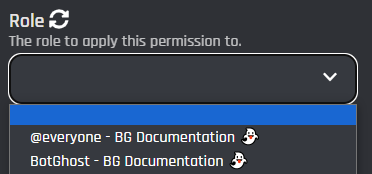
Selecting this dropdown type will make this permission based off a role. Once selected a new field will appear for you to be able to choose which role from your server to base the permissions off of.  You are also able to select [role options](https://botghost.com/docs/custom-commands-and-events/options/role-option) from this dropdown.

<figure><img src="https://1937909199-files.gitbook.io/~/files/v0/b/gitbook-x-prod.appspot.com/o/spaces%2F-Lm_hW5MApY3J0lRhi0M%2Fuploads%2F0nhJZHeM8gbWAZpvkeMc%2Fimage_2024-05-30_171710259.png?alt=media&#x26;token=6cd6ab58-553b-4126-be27-c74713c77ce3" alt=""><figcaption></figcaption></figure>

If your role isn't showing, it was most likely recently added. Click the refresh icon to refresh the list of roles to find the role you want.
{% endtab %}

{% tab title="User" %}
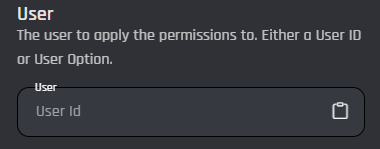
Clicking on the User type will make the bot base the permissions off of a user.

### User

In this field you can input a plain user ID or a [variable](https://botghost.com/docs/custom-commands-and-events/variables) that returns one. [User options](https://botghost.com/docs/custom-commands-and-events/options/user-option) can also be used.

<figure><img src="https://1937909199-files.gitbook.io/~/files/v0/b/gitbook-x-prod.appspot.com/o/spaces%2F-Lm_hW5MApY3J0lRhi0M%2Fuploads%2FtNZiJHacAtZtoxsrBrGA%2Fimage_2024-05-30_172021750.png?alt=media&#x26;token=491d9767-6fac-4e16-b2fa-f30eac9287ff" alt=""><figcaption></figcaption></figure>
{% endtab %}
{% endtabs %}

## Enable Success/Error Handles

Enable Success / Error Handles to detect success and errors inside of the action block. This allows you to run different actions if something goes wrong with your action. Inside of the handle, there are 2 different paths which are used to detect the outcome of the action. The green path on the bottom left side of the block indicates success, while the red path on the bottom right side of the block indicates error. You may attach action blocks to each side of the handle to get the outcome of your action block.

<figure><img src="https://1937909199-files.gitbook.io/~/files/v0/b/gitbook-x-prod.appspot.com/o/spaces%2F-Lm_hW5MApY3J0lRhi0M%2Fuploads%2FfEZAijxwiWs3yk4C3iLK%2Fimage.png?alt=media&#x26;token=52ffafb0-0e8c-4980-a111-0999d8451789" alt=""><figcaption></figcaption></figure>

The Success/Error Handles feature includes 3 different error variables you can use to get information on why the action block encountered an error. Check them out [here](https://botghost.com/docs/variables#error-variables).

<figure><img src="https://1937909199-files.gitbook.io/~/files/v0/b/gitbook-x-prod.appspot.com/o/spaces%2F-Lm_hW5MApY3J0lRhi0M%2Fuploads%2FgBCbX0HtGmaNhGXARsoA%2Fimage.png?alt=media&#x26;token=57dbe5f3-6efc-47af-9022-5196739573c3" alt=""><figcaption></figcaption></figure>