# Menu Option

{% hint style="danger" %}
While the Send a Message with a select menu action block is still available for use in all commands and events, it is considered old and has been replaced by the [send-or-edit-a-message](https://botghost.com/docs/custom-commands-and-events/actions/message-actions/send-or-edit-a-message "mention") action block. We advise you to use the [send-or-edit-a-message](https://botghost.com/docs/custom-commands-and-events/actions/message-actions/send-or-edit-a-message "mention") block instead, which offers more functionalities and possibilities for your message.
{% endhint %}

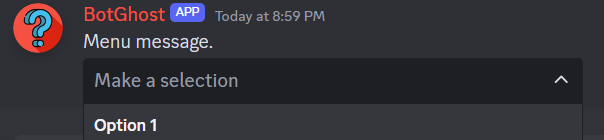
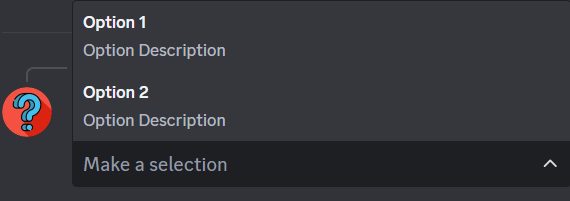
Menu Options are similar to buttons. They can be clicked to preform the corresponding actions. However unlike buttons, a menu option comes from a drop down of a menu itself.

## Label

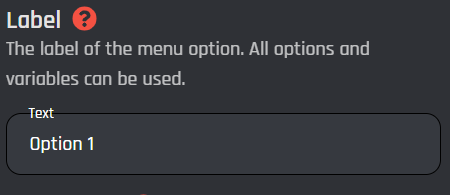
A label is similar to a button text, meaning this field sets the name of the menu option.
<figure><img src="https://1937909199-files.gitbook.io/~/files/v0/b/gitbook-x-prod.appspot.com/o/spaces%2F-Lm_hW5MApY3J0lRhi0M%2Fuploads%2FCHR66PNuagqzsokpV44T%2Fimage_2024-05-13_210251214.png?alt=media&#x26;token=19c1cc80-9fde-4fed-b02d-efaa277ba7d7" alt=""><figcaption></figcaption></figure>

<figure><img src="https://1937909199-files.gitbook.io/~/files/v0/b/gitbook-x-prod.appspot.com/o/spaces%2F-Lm_hW5MApY3J0lRhi0M%2Fuploads%2FpHhYRuxRQbnIff6DpcQo%2Fimage_2024-05-13_210012234.png?alt=media&#x26;token=c7028bcc-7f8e-4c66-bb2b-17f2bbdd19ab" alt=""><figcaption></figcaption></figure>

## Description

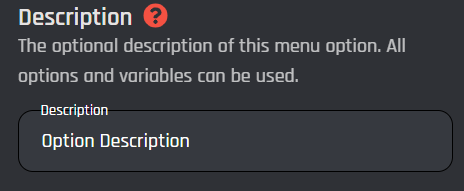
This field is an optional description of the menu option that accepts text and variables.
<figure><img src="https://1937909199-files.gitbook.io/~/files/v0/b/gitbook-x-prod.appspot.com/o/spaces%2F-Lm_hW5MApY3J0lRhi0M%2Fuploads%2F1FXkpejPtU5dJN72usiX%2Fimage_2024-05-13_210312597.png?alt=media&#x26;token=9af31288-2f0a-434c-bbc2-7a083c6d3822" alt=""><figcaption></figcaption></figure>

<figure><img src="https://1937909199-files.gitbook.io/~/files/v0/b/gitbook-x-prod.appspot.com/o/spaces%2F-Lm_hW5MApY3J0lRhi0M%2Fuploads%2FSbq21F8NIPxNxgrFcSRE%2Fimage_2024-05-13_210223019.png?alt=media&#x26;token=c52eeb59-8441-4141-baa1-973eff826763" alt=""><figcaption></figcaption></figure>

## Emoji ID

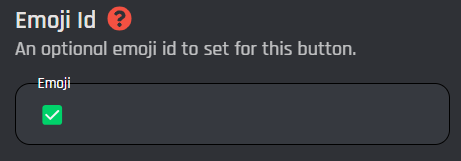
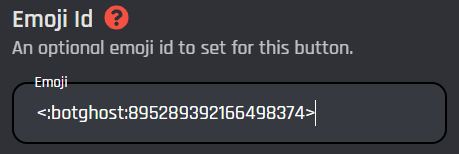
You can specify a custom emoji id or default emoji to add to the emoji along with the normal button text. To do this you need to use the backwards slash then input your emoji. It will return the emoji id if it's a custom or if it's default just copy the emoji and paste it into the field.
<figure><img src="https://1937909199-files.gitbook.io/~/files/v0/b/gitbook-x-prod.appspot.com/o/spaces%2F-Lm_hW5MApY3J0lRhi0M%2Fuploads%2FdyWaqKnbnpUBjw1fAR0C%2Fimage_2024-05-13_210506589.png?alt=media&#x26;token=ab881e55-e60b-4f21-9373-7ee4a42613db" alt=""><figcaption></figcaption></figure>

<figure><img src="https://1937909199-files.gitbook.io/~/files/v0/b/gitbook-x-prod.appspot.com/o/spaces%2F-Lm_hW5MApY3J0lRhi0M%2Fuploads%2FsEHzDyzc0tGyxVGh4pI8%2Fimage_2024-05-13_210526564.png?alt=media&#x26;token=9aa9644d-dc9a-44cb-8362-318fce113a3c" alt=""><figcaption></figcaption></figure>

<figure><img src="https://1937909199-files.gitbook.io/~/files/v0/b/gitbook-x-prod.appspot.com/o/spaces%2F-Lm_hW5MApY3J0lRhi0M%2Fuploads%2FtjUwALR8IILg0KUCbOwC%2Fimage_2024-05-13_210637858.png?alt=media&#x26;token=36350825-6312-48f7-89c4-6a81e822c4e1" alt=""><figcaption></figcaption></figure>