# User Option

<figure><img src="https://1937909199-files.gitbook.io/~/files/v0/b/gitbook-x-prod.appspot.com/o/spaces%2F-Lm_hW5MApY3J0lRhi0M%2Fuploads%2FvTwyYYn7aU3W7Fq7xq7g%2Fimage_2024-06-07_184134753.png?alt=media&#x26;token=753f22a2-86d7-40fa-bb4c-d842af558528" alt=""><figcaption></figcaption></figure>

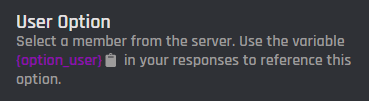
The user option block allows for any user to be selected from the server and used later in the commands actions. User IDs may also be used.
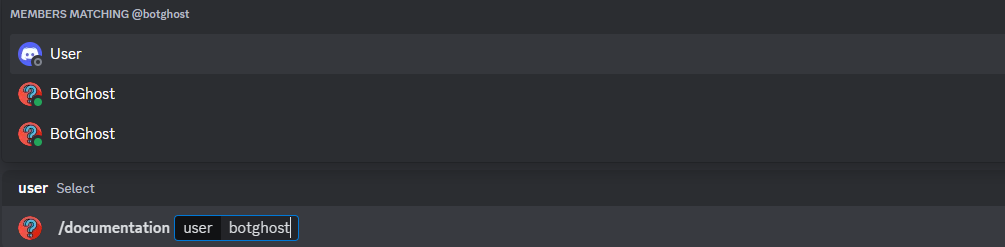
<figure><img src="https://1937909199-files.gitbook.io/~/files/v0/b/gitbook-x-prod.appspot.com/o/spaces%2F-Lm_hW5MApY3J0lRhi0M%2Fuploads%2F3KO5VcIieRrSMmHCLJXc%2Fimage_2024-06-07_181816651.png?alt=media&#x26;token=94c9074d-ba6a-4f09-850c-61d5a6064d4c" alt=""><figcaption></figcaption></figure>

You can retrieve the variable of the option via the **Clipboard** or the block itself. The format of the variable is `{option_optionname}`, where `optionname` is the [name](#option-name) of the option.

Additionally, user option variables can be combined with other variables to target the user selected in the option.  `{}` brackets must be excluded from the option when used as a target, like in the example below:

<table><thead><tr><th width="364">❌ Wrong</th><th>☑️ Correct</th></tr></thead><tbody><tr><td><code>{user_name[{option_user}]}</code></td><td><code>{user_name[option_user]}</code></td></tr><tr><td><code>{BGVAR_money[{option_user}]}</code></td><td><code>{BGVAR_money[option_user]}</code></td></tr></tbody></table>

<figure><img src="https://1937909199-files.gitbook.io/~/files/v0/b/gitbook-x-prod.appspot.com/o/spaces%2F-Lm_hW5MApY3J0lRhi0M%2Fuploads%2Fm3ugQGknMQb0fQnt0Yea%2Fimage_2024-06-08_124138860.png?alt=media&#x26;token=074a7375-02e5-44e5-b3b4-91af5ffbef7a" alt=""><figcaption></figcaption></figure>

## Option Name

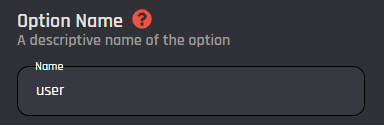
This field requires an input for your unique option name. The designated name will then be the reference for your option variable.
<figure><img src="https://1937909199-files.gitbook.io/~/files/v0/b/gitbook-x-prod.appspot.com/o/spaces%2F-Lm_hW5MApY3J0lRhi0M%2Fuploads%2FepV9xmmJooC5PYrDwyyY%2Fimage_2024-06-07_181906364.png?alt=media&#x26;token=737b237a-bbcb-4b9f-945d-a707484541c5" alt=""><figcaption></figcaption></figure>

## Option Description

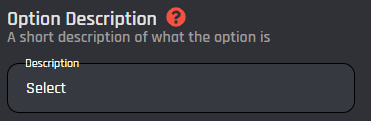
The option description field allows you to assign a custom description to your option. It is useful to describe what the option is used for.
<figure><img src="https://1937909199-files.gitbook.io/~/files/v0/b/gitbook-x-prod.appspot.com/o/spaces%2F-Lm_hW5MApY3J0lRhi0M%2Fuploads%2FskxkjohGIbNV7dgMjVk5%2Fimage_2024-06-07_181923947.png?alt=media&#x26;token=f548faec-e349-4c0b-a4e5-b8ef67fdeedf" alt=""><figcaption></figcaption></figure>

## Set Required

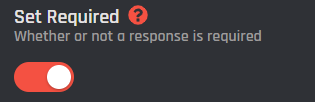
With this switch you are able to toggle if the option should be required or not in order to execute the command.
<figure><img src="https://1937909199-files.gitbook.io/~/files/v0/b/gitbook-x-prod.appspot.com/o/spaces%2F-Lm_hW5MApY3J0lRhi0M%2Fuploads%2FrObC5usM1A0DZ35MHPx8%2Fimage_2024-06-07_182022364.png?alt=media&#x26;token=fde69d8c-e568-42be-9d63-1dbdceff1611" alt=""><figcaption></figcaption></figure>