Starboard
Your server's best messages, picked by the stars members give them.
Starboard puts your server's best messages on a board for everyone to see. Members react to a message with a star, and once it has enough stars, your bot posts a card of it in your board channel. The card shows the message, who wrote it and where, and its star count stays up to date as stars come and go. One complete board is free for every bot, and Premium gives you up to five.
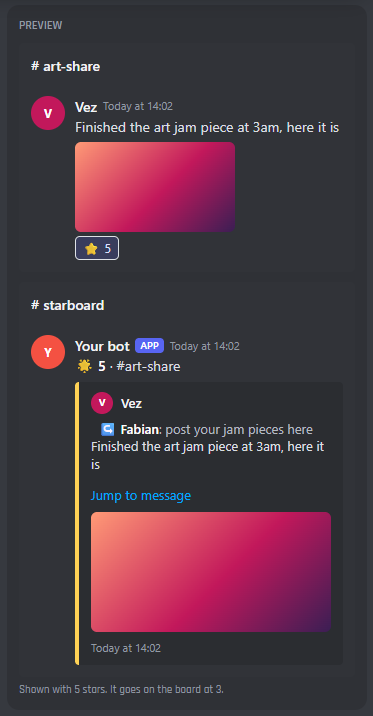
A starred message and its card on the board
Before you start
You need:
- Your bot in your Discord server. See Invite Your Bot if it isn't yet.
- A channel for the board, like
#starboard. Members should be able to read it but not write in it. - In the board channel, your bot needs View Channel, Send Messages and Embed Links.
- In the channels people star messages in, your bot needs View Channel and Read Message History, so it can count who starred a message.
Set up your board
- 1
Turn on Starboard
Open Starboard in your bot's dashboard and press Enable at the top right.

- A Enable turns Starboard on. It adds the
/starboardcommand, the Send to Starboard and Remove from Starboard right click commands, and the events Starboard needs. - B The server you're setting up. A board's channel and roles belong to one server, so pick the server first. A setting this server has its own value for is tagged with the server's name and icon.
- C Reset to Default puts the settings back to how a new Starboard starts.
- D Docs opens this page.
- A Enable turns Starboard on. It adds the
- 2
Pick the board channel
On the Boards tab, pick the channel under Post starred messages in. Check the star emoji and how many stars a message needs. See Where your board posts below.
- 3
Save
A bar pops up at the bottom of the page. Press Save Changes.

- 4
Star a message
Ask members to star a message in your server. Once it has enough stars, its card appears on the board.

- A What to do next. Once everything is done, it says your starboard is ready.
- B The steps, ticked off as you do them. Press one to go to it.
A star from whoever wrote the message doesn't count unless you turn on Count self-stars, and stars from bots never count. To test your board, ask other members to star a message.
Your boards
Each board is a channel where messages with enough stars are posted, with its own emoji, rules and card. One board is free. With Premium you can have up to five, like a hall of fame for the very best, a meme board and an art board.

- A The board you're editing, with its channel and the stars it needs. The Boards, What counts and The card tabs are for this board.
- B Another board. Press it to edit it.
- C Add a board (Premium).
- D With your first board open, the switch turns it on or off. With another board open, Remove is here instead.
Each board needs its own emoji. Two boards on the same emoji can't both get it, and the page tells you if that happens.
The tabs

- A Boards: the board's channel, emoji and stars needed, and autostar channels.
- B What counts: channels and roles left out, an age limit, whose stars count and what happens when stars are taken away.
- C The card: the card your bot posts, its colour and display tiers.
- D Leaderboard: star rewards and what members see with
/starboard. These are shared by every board. - E Staff: what staff see after Send to Starboard and Remove from Starboard.
The preview on the right shows a starred message and its card, with your settings.
Where your board posts
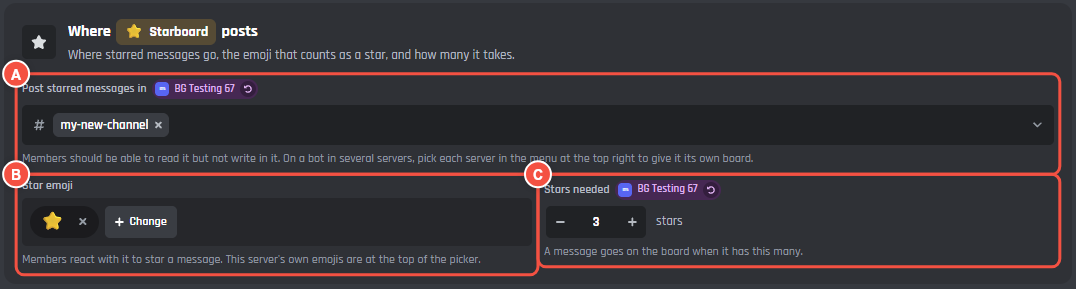
- A Post starred messages in: the board channel. On a bot in several servers, pick each server in the menu at the top right to give it its own board.
- B Star emoji: the reaction that counts as a star. It can be one of your server's own emojis.
- C Stars needed: a message goes on the board when it has this many stars.
Autostar channels
Autostar needs Premium.

- A Autostar in: your bot adds the board's emoji to every new message in these channels, so members only have to click it. Art, clips and meme channels work well. A message still needs the stars from members to reach the board, and the bot's own reaction never counts.
What counts
Channels and roles left out
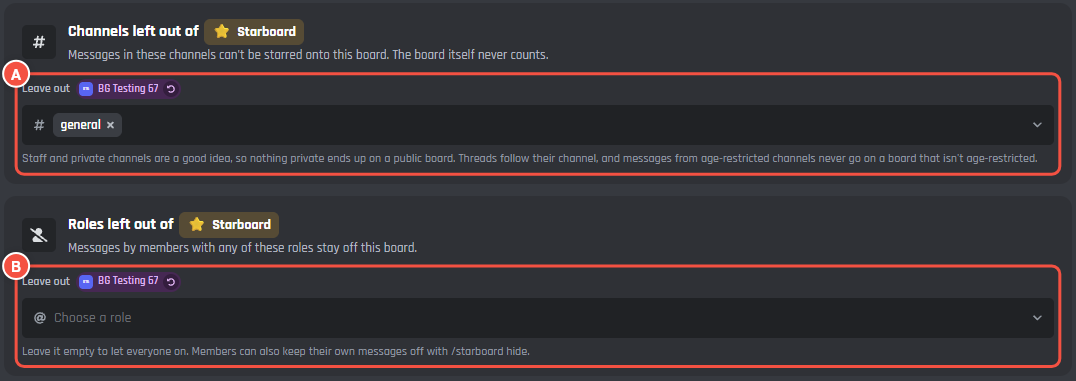
- A Channels left out: messages in these channels can't be starred onto this board. Staff and private channels are a good idea, so nothing private ends up on a public board. Threads follow their channel. The board channel itself never counts.
- B Roles left out: messages by members with any of these roles stay off this board. Leave it empty to let everyone on.
Messages from age-restricted channels, and threads in them, never go on a board.
Age limit and whose stars count
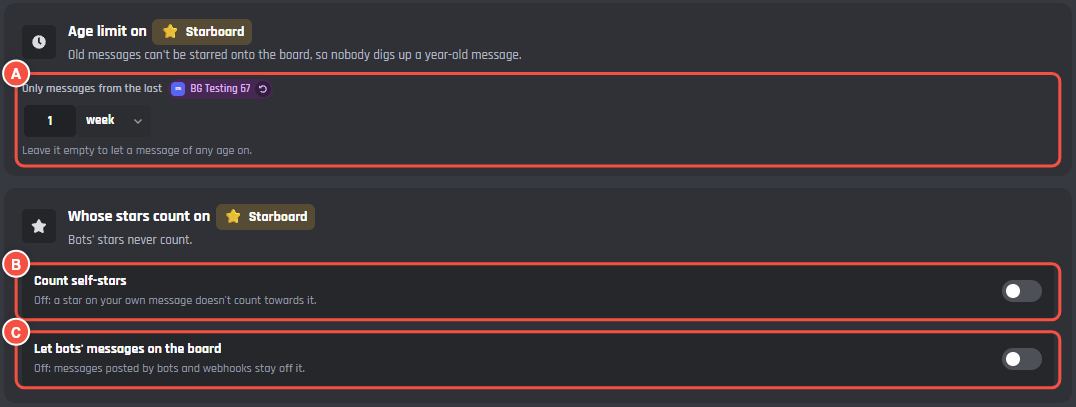
- A Only messages from the last: an age limit, like 1 week, so nobody digs up a year-old message. Leave it empty to let a message of any age on.
- B Count self-stars: off, a star on your own message doesn't count towards it.
- C Let bots' messages on the board: off, messages posted by bots and webhooks stay off it.
When stars are taken away
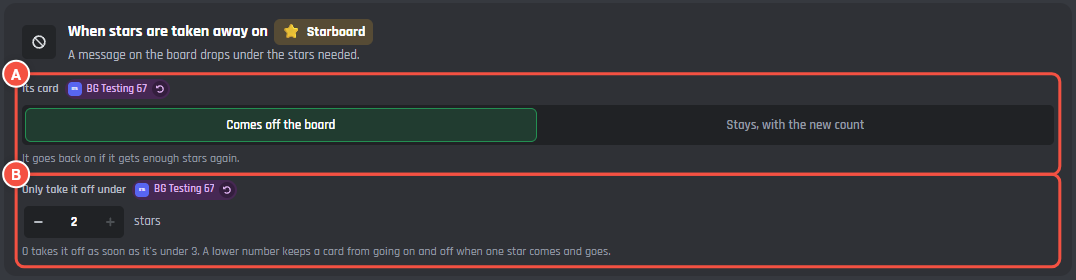
- A Its card, when a message on the board drops under the stars needed:
- Comes off the board: the card is taken down. It goes back on if the message gets enough stars again.
- Stays, with the new count: the card stays up and shows the new number of stars.
- B Only take it off under, with Comes off the board: the card only comes off once it has fewer stars than this. 0 takes it off as soon as it's under the stars needed. For example, with 3 stars needed and 2 here, a card stays up at 2 stars and comes off at 1, so it doesn't go on and off when one star comes and goes. A new message still needs the full stars needed to go on.
The card
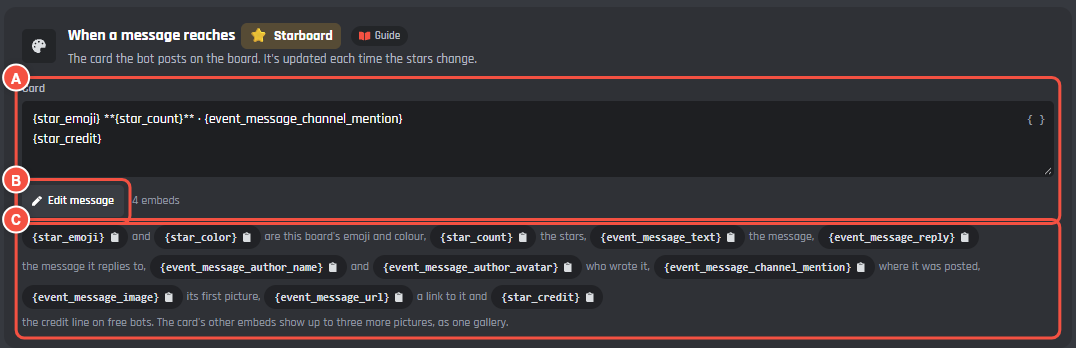
- A Card: the message your bot posts on the board. It is updated each time the stars change.
- B Edit message opens the full message builder, for the embed, its colour and its picture.
- C The variables you can use. Press one to copy it.
| Variable | What it shows |
|---|---|
{star_emoji} |
The board's emoji, or a display tier's |
{star_color} |
The board's card colour, or a display tier's |
{star_count} |
The message's stars |
{event_message_text} |
What the message says |
{event_message_reply} |
A line with the message it replies to, empty if it isn't a reply |
{event_message_author_name} |
Who wrote it |
{event_message_author_avatar} |
Their avatar |
{event_message_channel_mention} |
The channel it was posted in |
{event_message_image} |
Its first picture |
{event_message_url} |
A link to the message |
{star_credit} |
The Starboard by BotGhost line on free bots |
A message with several pictures shows up to four of them on the card, as one gallery: the card's other embeds hold the second to fourth pictures, and each one hides when there's no picture for it. A picture link pasted in the message isn't repeated in the card's text.
The card is posted and updated with the ordinary Send or Edit a Message block, so the same message variables work in your own cards. See Events.
On free bots, cards have a small Starboard by BotGhost line under them. Premium bots don't.
How cards stand out
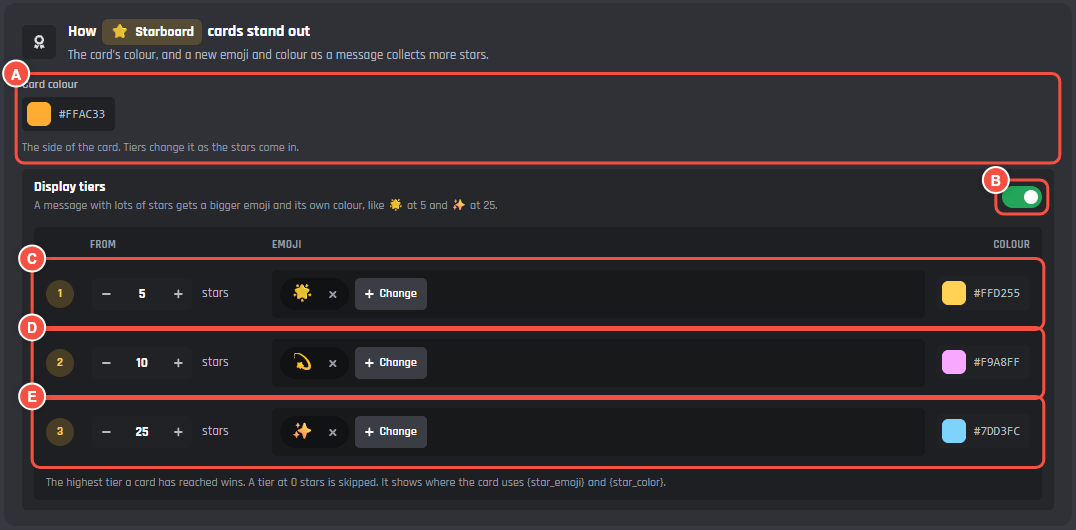
- A Card colour: the side of the card.
- B Display tiers: a message with lots of stars gets a bigger emoji and its own colour.
- C D E The three tiers. Each one starts at a number of stars and has its own emoji and colour. They start at 5, 10 and 25 stars. The highest tier a card has reached wins, and a tier at 0 stars is skipped.
Tiers show where the card uses {star_emoji} and {star_color}, as the card does when it starts.
Edits
Update cards when a message is edited is on when Starboard starts: when someone edits a message that's on a board, its card shows the new text. Turn it off to keep what the message said when it reached the board. This is for every board.
When a starred message is deleted, its card comes off the board too. When someone deletes a card on the board, your bot forgets it.
Leaderboard
Star rewards
Star rewards need Premium.
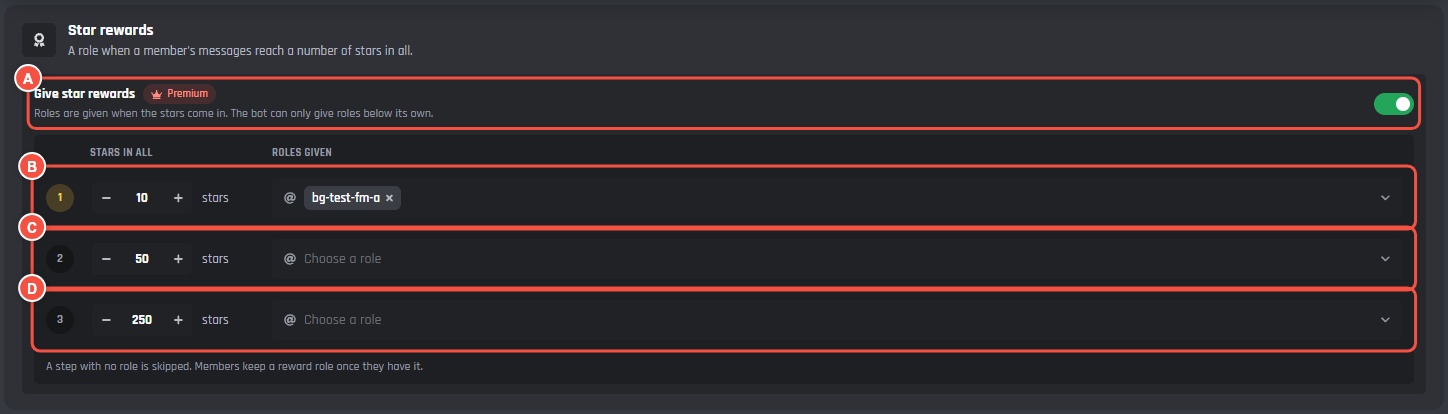
- A Give star rewards: roles are given when a member's stars come in. Your bot can only give roles below its own.
- B C D The three steps: the stars a member needs in all, and the roles they get. A step with no role is skipped. Members keep a reward role once they have it.
A member's stars are all the stars on their messages that are on a board. They go down again when a card comes off.
What members see
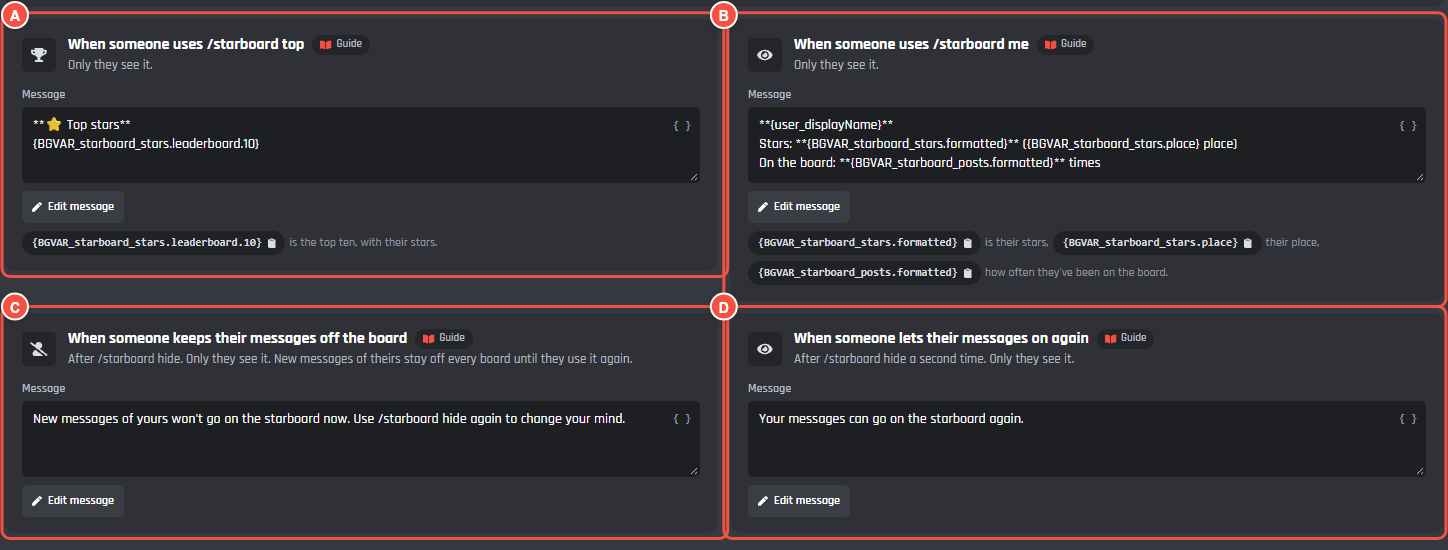
- A /starboard top: the members whose messages got the most stars.
- B /starboard me: their stars, their place and how often they've been on the board.
- C /starboard hide: when a member keeps their new messages off the board.
- D /starboard hide again: when they let them on again.
Every message is your bot's private reply, and each one lists the variables it can use.
Staff
Staff with Manage Messages right click a message, then Apps:
- Send to Starboard puts the message on board 1 now, whatever its stars. Its card shows the stars the next time they change. A message staff took off goes back on.
- Remove from Starboard takes the message off every board and keeps it off, even with enough stars. Use it on the message or on its card on the board.

- A After Send to Starboard.
- B After Remove from Starboard.
Only the staff member sees them.
Commands
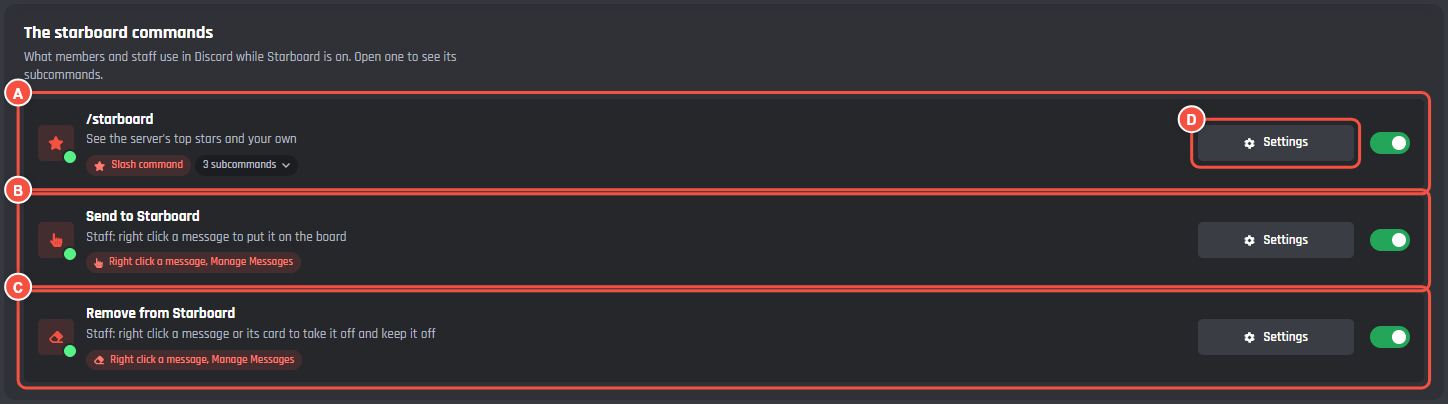
- A /starboard, for everyone.
- B Send to Starboard: right click a message, Apps, Send to Starboard. For staff with Manage Messages.
- C Remove from Starboard: right click a message or its card, Apps, Remove from Starboard. Also for staff.
- D Settings opens the command in the builder, for its permissions, cooldown and blocks. The switch turns a command on or off.
| Command | What it does |
|---|---|
/starboard top |
The members whose messages got the most stars |
/starboard me |
Your stars, your place and how often you've been on the board |
/starboard hide |
Keep your new messages off the board, or let them on again. Cards already up stay up |
| Send to Starboard | Right click a message to put it on board 1 now, whatever its stars |
| Remove from Starboard | Right click a message, or its card, to take it off every board and keep it off |
Events
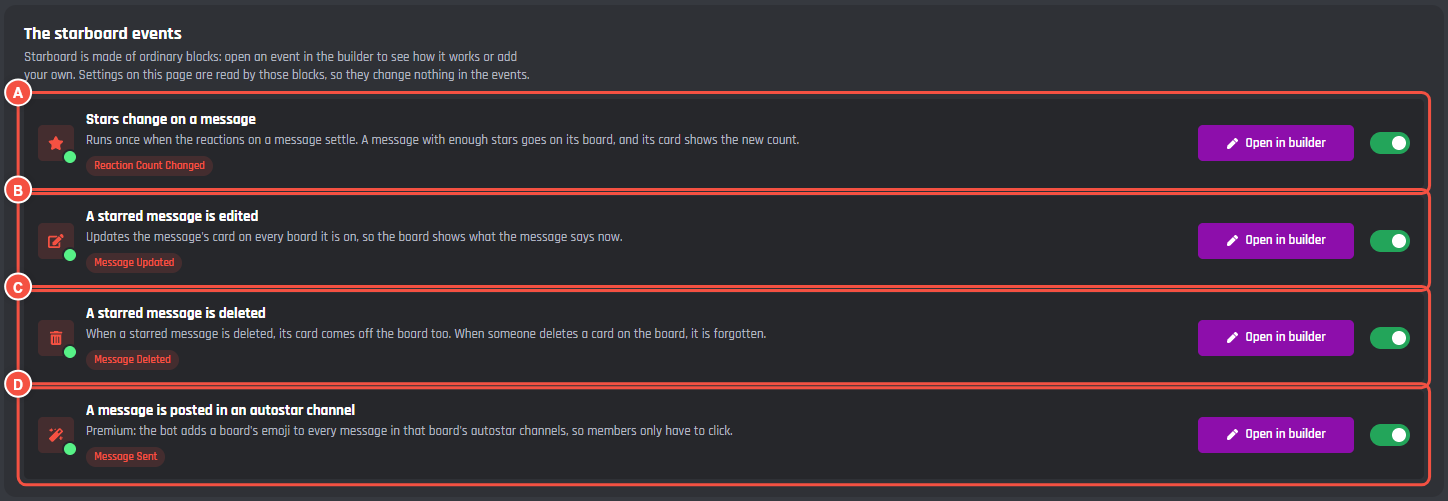
Starboard is made of ordinary builder blocks. Press Open in builder to see how an event works, or to add your own blocks. Settings on this page are read by those blocks, so changing a setting never needs the events made again.
- A Stars change on a message: runs once when the reactions on a message settle. A message with enough stars goes on its board, and its card shows the new count.
- B A starred message is edited: updates the message's card on every board it's on.
- C A starred message is deleted: takes its cards down.
- D A message is posted in an autostar channel (Premium): adds a board's emoji to new messages in its autostar channels.
You can build your own card the same way. The Reaction Count Changed event, Message Updated and message commands give you the message's details: {event_message_text}, {event_message_author_name}, {event_message_author_avatar}, {event_message_image} (and _2 to _4), {event_message_reply}, {event_message_url} and {event_message_channel_mention}. Put them in a Send or Edit a Message block.
Free and Premium
| Feature | Free | Premium |
|---|---|---|
| Boards | 1 | Up to 5 |
| Every rule, the card, display tiers and edits | ✔ | ✔ |
Leaderboard and /starboard |
✔ | ✔ |
| Send to Starboard and Remove from Starboard | ✔ | ✔ |
| Star rewards | ❌ | ✔ |
| Autostar channels | ❌ | ✔ |
| Starboard by BotGhost line on cards | Yes | No |
Common questions
A message has enough stars but no card
Check that:
- The board is on and has a channel, and your bot can send messages and embeds there.
- The stars are from other members. Your own star only counts with Count self-stars, and stars from bots never count.
- The message isn't in a channel left out or an age-restricted channel, by a member with a role left out, older than the age limit, or by someone who used
/starboard hide. - Staff didn't take it off with Remove from Starboard.
If stars came in while your bot was offline, the card catches up the next time a star is added or taken away. Staff can also right click the message and use Send to Starboard.
What happened to the old Starboard?
The new Starboard replaces the old Premium module. Bots that still have the old one on keep it as Starboard (old) in the module list until they turn it off. Its settings don't move across, so set up the new one from the start.
Can I change how Starboard works?
Yes. Everything Starboard does is ordinary events and commands. Open one in the builder to add your own blocks. If you change one there, the page marks it Changed by you, and Put it back how it was removes your changes.