Navigation
The links at the top of your bot's website, the buttons at the top right, and the footer on every page.
BotPanel > Website > Navigation sets what every page of your website shares: the links at the top, the buttons at the top right and the bottom of every page. The tab only shows on the full website, which needs BotPanel Plus. A one page layout has no menu.
Leave a part alone and the site uses the usual one, which changes by itself as you turn pages on and off. Changes go live when you press Save.
On every page
The card at the top draws your site's top bar, its phone menu and its footer, as the site has them now. Press any part of the drawing to open its settings below.
The three sections below the drawing open one at a time. A red dot beside a section's title means something in it needs fixing before you can save.
Links at the top
Pick who chooses the links: Let BotGhost pick or Pick them myself.
Let BotGhost pick
Your main pages go at the top once they're ready: Features, Commands, Premium, Leaderboards, Discover, Updates and Docs. Help pages and the rest go in the footer. A page you turn on later joins by itself.
The list shows each main page, with At the top beside the ones that show and the reason beside the ones that don't, like Turned off, Needs Sign in with Discord or Not set up: write your first guide.
Pick them myself
Your menu starts as a copy of the automatic one, and from then on it's yours to change.
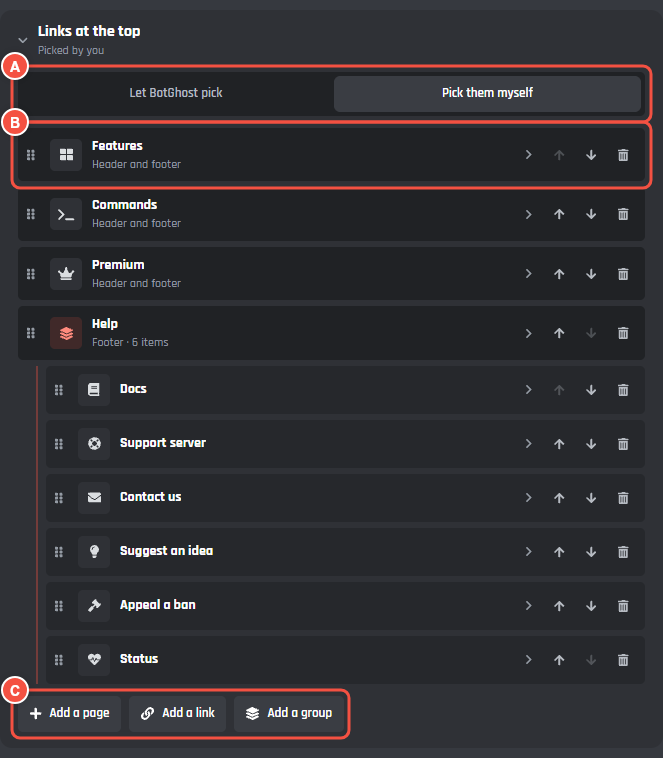
Website > Navigation > Links at the top
- A Let BotGhost pick and Pick them myself.
- B A menu item. Drag it by its handle or use the arrows to move it, press it to change it, and use the bin to remove it.
- C Add a page, Add a link and Add a group.
A menu holds three kinds of item:
- A page of your site. Add a page lists the pages that are on. Name in the menu renames it; empty uses the page's own name.
- A link to another website, like your store. It needs a Name and an Address starting with
https://, or a Discord invite. Open in is New tab (your site stays open) or This tab. - A group: a dropdown at the top and a column in the footer, holding up to 8 pages and links. Use Group on a page or link to put it in a group. Groups go one level deep.
Every item has Shows in: Header and footer, Header or Footer. Items in a group show wherever the group does.
A page that's turned off, or still needs something, stays in your menu but is hidden on the site until it's ready. Its row says why. A page you leave out of the menu still works at its own address.
To go back, press Let BotGhost pick. It warns that your own links, names and dropdowns will go: press Let BotGhost pick again to confirm, or Keep mine.
| Menu limit | |
|---|---|
| Items at the top level | 12 (the page warns past 7 in the header) |
| Items in a group | 8 |
| Pages and links in all | 40 |
| A name | 24 characters |
| A link | https:// only, up to 300 characters |
The FAQ isn't a menu item: it shows on the home page.
Buttons at the top right
Every button in one list, in the order they sit on the site. Use the arrows to move one, and the switch to show or hide it.
| Button | What it does |
|---|---|
| Vote | Opens the Vote page. Shows once the Vote page is set up. |
| Dashboard | Opens your server dashboard. Shows once Sign in with Discord is set up. |
| Sign in | Lets visitors sign in with Discord. Once they're in, it's their picture and menu. |
| Light and dark | A switch visitors use to change between light and dark. |
| Add to Discord | Adds your bot to a server. |
Vote, Dashboard and Add to Discord can be renamed: press the row and type a Name (up to 24 characters). A button that can't work yet has its switch locked off, with the reason in its row.
- Add your own button: up to 4, each with a Name, a Link starting with
https://, an Icon and a Style (Outline or Coloured). The bin icon removes one. - Coloured button: which built-in button is filled with your colour: Add to Discord, Vote, Dashboard or None. If the one you pick is hidden or can't show yet, Add to Discord takes the colour.
- Your servers for people who have the bot: signed in visitors who already have your bot in a server they manage see Your servers in place of Add to Discord. On to start with.
Once you've changed the buttons, Reset beside the section's title puts the usual ones back. Press it twice to confirm.
On a phone, the bar keeps the buttons that fit and the rest go in the phone menu. The On phones line in the drawing shows which.
Bottom of every page
The footer, one row for each part. Press a row to change its words, and use its switch to show or hide it.
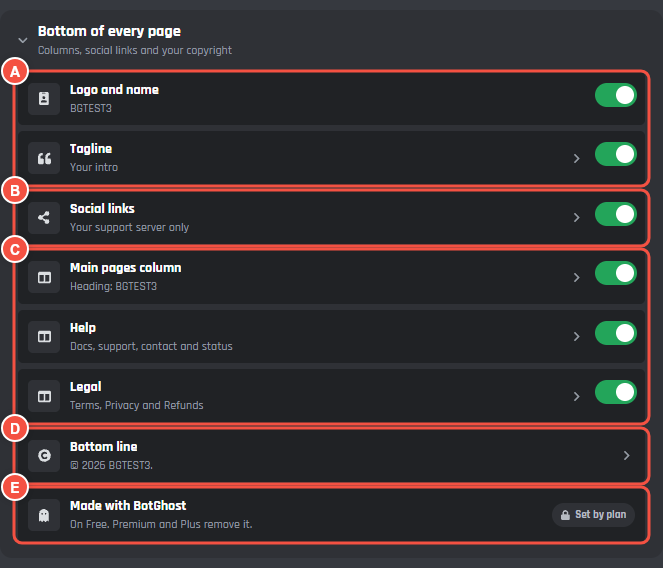
Website > Navigation > Bottom of every page
A Logo and name and Tagline.
B Social links. The line under it says what shows, like Your support server only.
C The columns of links.
D Bottom line: your copyright.
E Made with BotGhost, marked Set by plan.
Tagline: up to 200 characters. Empty uses your intro.
**Bold**and[links](https://example.com)work.Social links: up to 10. Pick the platform and paste the link: Discord, X, YouTube, GitHub, TikTok, Twitch, Instagram, Reddit, Bluesky, Kick, Patreon, Ko-fi or Website. Each link must be on that platform's own site (a YouTube link on
youtube.comoryoutu.be); Website takes anyhttps://link. Your support server shows as a Discord icon by itself when you've added its invite and no Discord link.Main pages column, Help and Legal: rename each column's heading (up to 24 characters) or hide it. Help holds Docs, Support, Contact and Status; Legal holds Terms, Privacy and Refunds. With your own menu, the first column is Your links column, its links and dropdowns come from Links at the top, and there's no Help column.
Bottom line: your Copyright, up to 120 characters, where
{year}becomes the current year. Empty, it's © this year and your bot's name. The Not made by or with Discord switch adds that line after it.Made with BotGhost: shown on Free and removed on Premium and Plus. It isn't a setting.
Once you've changed the footer, Reset beside the section's title puts the usual one back. Press it twice to confirm.
Buttons under the headline
The buttons under the home page's headline (Add to Discord, a second button of your choice and Open dashboard) aren't on this tab. They're on the home page's editor, under Pages > Home. See Pages.