Leaderboards and Discover
Leaderboards show each server's top members by a number your bot keeps. Discover lists the servers that use your bot and chose to be found.
Two pages on your website are filled by the servers that use your bot. Leaderboards shows a server's top members by a number your bot keeps for them, like XP or coins. Discover servers is a directory of servers that listed themselves, with a line about each one and a Join button.
Both come with BotPanel Plus and need sign in set up. See Plans and Sign in.
Nothing about a server shows on either page until someone with Manage Server there turns it on from On the website in their server dashboard. Turn the On the website page on in Website > Dashboard so they can find it.
Leaderboards
Make your boards
Open Website > Pages > Leaderboards. A board ranks members by one of your bot's member number variables.
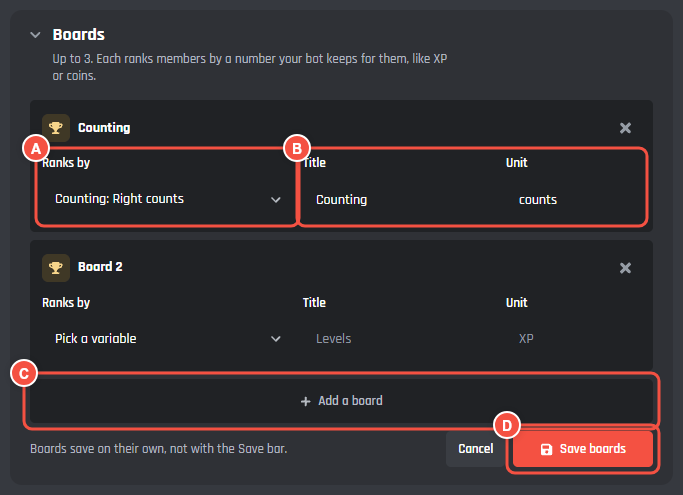
Website > Pages > Leaderboards
- A Ranks by: the variable the board ranks members by.
- B Title (up to 40 characters) and Unit (up to 16), like Levels and XP.
- C Add a board. You can have up to 3.
- D Save boards. Boards save on their own, not with the Save bar.
Ranks by lists variables made in Data Storage with type User and data type Number, kept for each server rather than shared across servers. If your bot has none, the card says so and Open Data Storage takes you there.
The Leaderboards page shows on your website once you have at least one board. Under Servers, the page tells you how many servers show their board.
Servers turn their board on
In a server's dashboard on your website, someone with Manage Server opens On the website and switches on Show this server's leaderboard on the website. The first board shows within a few minutes. After that, BotGhost works the boards out again every 30 minutes, and the page says when it last did.
Turning it off takes the server's names and numbers off your website.
What visitors see
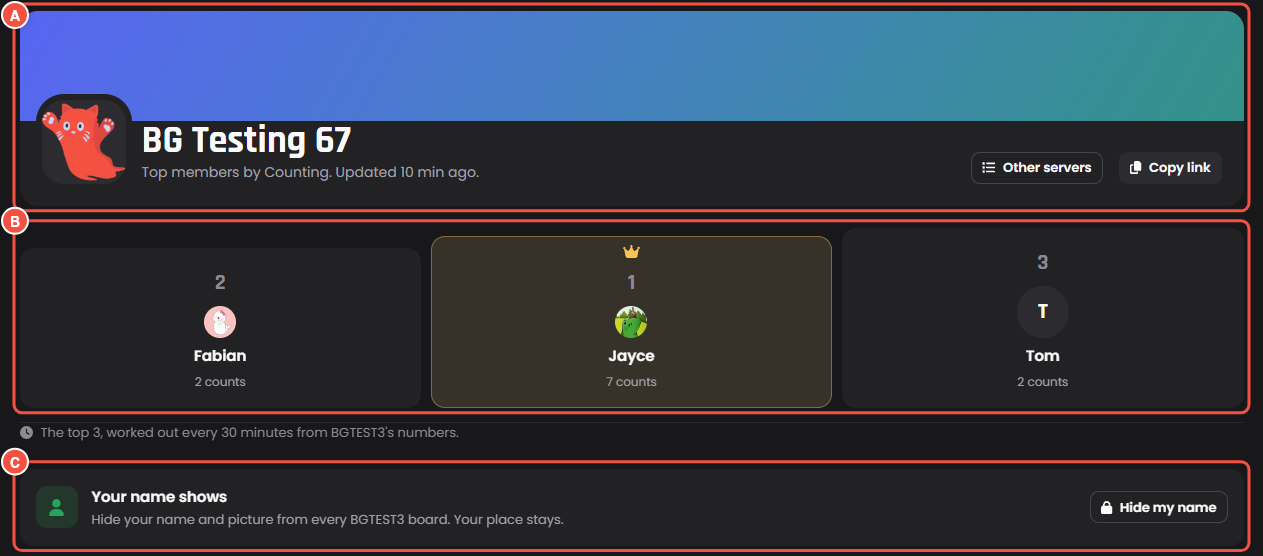
One server's leaderboard on your website, signed in
- A The server, what it ranks by and when the board was last worked out, Other servers and Copy link.
- B The top three, then everyone else down to 50th place, with their Discord names and pictures.
- C Your name shows, with Hide my name. Visitors who aren't signed in see Your name on these boards with Sign in instead.
When you made more than one board, a board picker shows under the server.
The Leaderboards page lists every server that turned its board on. A server whose first board isn't ready shows First board on its way. A search box shows once more than 8 servers are listed. Members who leave a server drop off its board.
Leave yourself off
A member signed in on your website can press Hide my name on the Leaderboards page. Their place stays on every one of your bot's boards, shown as Hidden member with no name or picture. Show my name puts it back.
Discover servers
Servers list themselves
In a server's dashboard on your website, someone with Manage Server opens On the website and switches on List this server on the website, then fills in:
- What the server is about: 10 to 200 characters, plain words, no links.
- Tags: up to 3 of Gaming, Community, Anime, Music, Art, Study, Tech, Roleplay, Esports, Memes, Support and Other.
- Invite link: an invite to that same server, set to never expire.
Pressing Save checks the invite with Discord. The listing shows the server's member count from that check, and BotGhost checks it again every 6 hours. If the invite stops working, or your bot leaves the server, the listing comes off the Discover page and the server's admins see why.
What visitors see
The Discover servers page shows the listed servers 24 at a time, with a search box, the tags to filter by, and Most members or Most active. Most active ranks servers by commands run there in the last 7 days. Each server has a Join button that opens its own invite.
Hide a listing
Open Website > Pages > Discover servers to see every listed server, with its description, member count, tags and invite. Press Hide to take one off your Discover page, and Show to put it back. The server's admins see that you hid it.
Each listing is marked Listed, Hidden by you, Invite stopped working or Bot left. A search box shows once more than 6 servers are listed, and the card shows the 200 biggest.
Page settings
Both pages take a Page title and an Intro under the title in Website > Pages, under Leaderboards and Discover servers. Leave them empty to keep the pages' own words. Each page also has switches for the parts it can do without, all on to start:
| Page | Parts you can switch off |
|---|---|
| Leaderboards | Search (shows once more than 8 servers show a board) and Show your server's board (a card telling server managers how to add theirs) |
| Discover servers | Server type filters, Sort buttons, and List your server (a card telling server managers how to list theirs) |