Tickets
Let server members contact staff through a ticket!
.png)
Some of the features of this module require a Premium Subscription to function. You can however use the module with a free subscription.
With the Tickets module you can setup a system that allows users to privately contact a role in your server through a temporary channel. Users can create tickets, close tickets, and more. Your server's moderators may add or remove users from your server's tickets.
Settings
Here you can find the settings for the Tickets module and modify them to your liking.
Panels
.png)
Manager Roles
Here you may choose roles from your server which will have access to /ticket setup.
Embeds Color
Here you may choose the color of all embeds in the panel messages.
Cooldown
Here you may choose the number of seconds users must wait between creating tickets. The minimum number of seconds you can make this cooldown is 10.
Create a Panel
.png)
Here you may setup a ticket panel that can be sent to a channel in your server using the /ticket setup command. Use the settings below to customize the panel, then click "Add" to save the panel. The new panel will appear in Active Panels.
To add more than one panel, you need a Premium Subscription.
Panel Name
Here you may choose the name of the panel. This will be used to identify it during setup, transcripts, and automations, and can only contain letters and numbers.
Panel Message
Here you may customize a plain text or embed message that will be sent to the channel in which the panel is setup, along with a button to create a ticket. All Variables can be used.
Layout
Here you may choose whether users can create a ticket with a Button or a Select Menu. Your choice will be attached to the Panel Message.
Button Color
Here you may choose the color for your button, which will show in the background of the Button / Select Menu Label text you customized. The Button Color setting is only visible if Layout is set to Button.
Select Menu Placeholder
Here you may customize the text that is displayed before selecting an option from your select menu. The Select Menu Placeholder setting is only visible if Layout is set to Select Menu.
Button / Select Menu Label
Here you may customize the text users will click to create a ticket, which will be shown on the Layout option you chose.
Select Menu Description
Here you may customize the text that will be displayed below the Button / Select Menu Label in your select menu. The Select Menu Description setting is only visible if Layout is set to Select Menu.
Emoji
Here you may choose the emoji, if any, should be displayed to the left of the Button / Select Menu Label text you customized.
Connected Panels
Here you may choose the names of the panels that should have their ticket creation button or select menu included on this panel. Use a name from the ones you created in the Active Panels settings. Do not include the # or the number that follows it at the end.
Support Roles
Here you may choose roles from your server which will have access to all created tickets on this panel, even when they're closed.
Blacklisted Roles
Here you may choose roles from your server which cannot create tickets on this panel.
Send Form
Here you may toggle whether or not to send a form or modal which will allow users to answer up to two questions with text responses before creating a ticket.
Question 1 Type
Here you may choose the size of the input box for the first question in the form or modal. The Question 1 Type setting is only visible if Send Form is toggled on.
Question 1 Text
Here you may customize the label for the first question in the form or modal. The Question 1 Text setting is only visible if Send Form is toggled on.
Question 2 Type
Here you may choose the size of the input box for the second question in the form or modal, or choose None if you would not like to add a second question. The Question 2 Type setting is only visible if Send Form is toggled on.
Question 2 Text
Here you may customize the label for the second question in the form or modal, or leave it empty if you would not like to add a second question. The Question 2 Text setting is only visible if Question 2 Type is set to Short Text Input or Long Text Input.
Ticket Name
Here you may customize the channel name for each created ticket on this panel. All Variables that are correctly formatted for channel names can be used.
Ping Support Members
Here you may toggle whether the bot will send a separate message before the Ticket Creation Message, which pings the Support Roles you chose. This can also be done using the {ping} variable anywhere in the Ticket Creation Message, if it is a plain text message.
Ticket Creation Message
Here you may customize a plain text or embed message that will be sent to tickets that are created on this panel. All Variables can be used.
Logging Channel
Here you may choose a channel from your server which will receive logs for ticket creation, closure, reopening, deletion, transcription, automation updates, member additions and removals, and errors from this panel. Leave this option empty to disable logs.
DM Ticket Creator
Here you may toggle whether the bot will direct message logs for ticket creation, closure, reopening, and member additions and removals from this panel to the creator of the logged ticket.
Ticket Mode
Here you may choose whether tickets will be created as new text channels or as new private threads in an existing text channel.
Two Step Close
Here you may choose whether tickets, when closed, will be instantly deleted (off) or will close/lock the ticket to only the Support Roles and allow them to use a new set of controls.
Open Category
Here you may choose a category from your server which will store closed tickets from this panel. The Open Category setting is only visible if Ticket Mode is set to Channel.
Close Category
Here you may choose a category from your server which will store closed tickets from this panel. The Close Category setting is only visible if Ticket Mode is set to Channel.
Channel for Tickets
Here you may choose a channel from your server which will store tickets from this panel. The Channel for Tickets setting is only visible if Ticket Mode is set to Thread.
To save the panel's settings, you need to click "Add" in the bottom-right corner of the settings. This will reset the fields so you can set up another panel.
Active Panels
.png)
When adding a new ticket panel, it and its settings will appear in this section. All ticket panels will be ordered by the number in which they were created. To view, edit, and delete the settings you selected for that panel, simply click the ticket panel you wish to do so for. You can find detailed information about each of the settings in the Create a Panel section.
To save the edits you made on the ticket panel's settings, you need to click "Edit" in the bottom-right corner of the settings. Additionally, you must re-send the panel with the /ticket setup command for the changes to take effect on a panel. You do not need to re-send the panel if it is used only for the /ticket create command.
/ticket create Command
.png)
/ticket create
Here you may toggle whether /ticket create can be used.
Panel Name
Here you may choose the panel that the /ticket create command will follow the settings for and contribute to its {panel_count} variable. Use a name from the ones you created in the Active Panels settings. Do not include the # or the number that follows it at the end.
Channel Restrictions
Here you may customize channel restrictions to allow the usage of the /ticket create command only in certain channels. Below you can find detailed information about each restriction type and how it can be used.
| Restriction Type | Restriction Details |
|---|---|
| No channel restrictions | Users will be able to use the command everywhere. |
| Disable for these channels... | Set this blacklist type if you want the command to work in all channels except the channels provided in the menu below. |
| Enable for these channels... | Set this blacklist type if you want the command to work only in the channels provided in the menu below. |
Role Restrictions
Here you may customize role restrictions to allow the usage of the /ticket create command only to certain roles. Below you can find detailed information about each restriction type and how it can be used.
| Restriction Type | Restriction Details |
|---|---|
| No role restrictions | Everyone will be able to use the command. |
| Disable for these channels... | Set this blacklist type if you want the command to work for all users, except users with at least one of the roles provided in the menu below. |
| Enable for these channels... | Set this blacklist type if you want the command to work only for users with at least one of the roles provided in the menu below. |
Transcripts
Here you may setup ticket transcripts for specific panels and manage how they are stored. Use the settings below to customize the transcript, then click "Add" to save the transcript. The new transcript will appear in Active Transcripts.
To add more than one panel, you need a Premium Subscription.
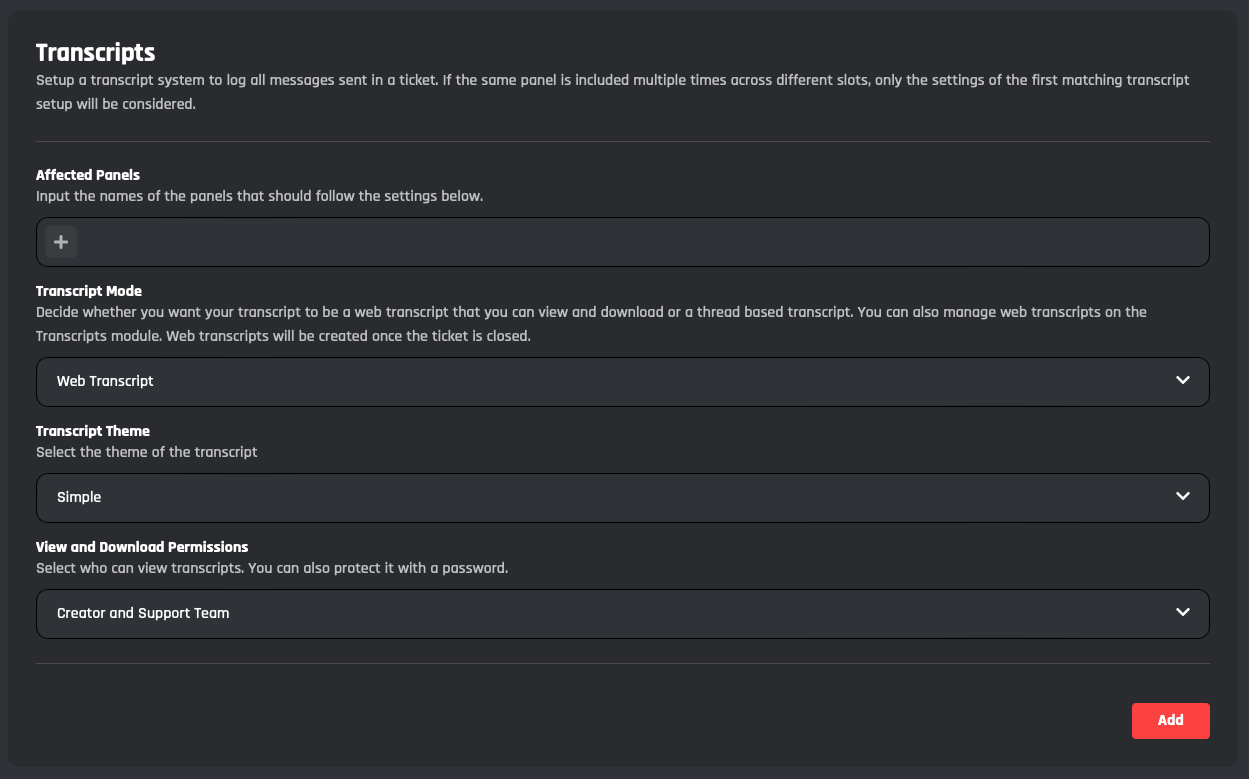
Affected Panels
Here you may choose the names of the panels that will be subject to this transcript. Use a name from the ones you created in the Active Panels settings. Do not include the # or the number that follows it at the end.
If the same panel name is included in multiple Active Transcripts that have overriding settings, the first listed transcript will be the one that takes effect.
Transcript Mode
Here you may choose the format of the tickets' transcripts. Your setting choice will apply to all new transcripts. Below you can find more detailed information about each transcript mode and how to configure them.
A web transcript comes in the form of an HTML file that can be downloaded and easily viewed in a browser.
Transcript Theme
Choose between a simple and clean transcript interface or a familiar Discord-styled UI that replicates the channel layout.
View and Download Permissions
Protect your transcripts by selecting specific permissions needed to download and access them. More information about each option is provided in the table below.
| Option | Details |
|---|---|
| Creator and Support Team | Allows access to the user that created the ticket as well as the Support Roles. |
| Support Team Only | Allows access only to the Support Roles. |
| Password | Allows access to anyone with a specific password you can set. Password must be at least 6 characters long. |
A thread transcript is based in a thread in your server and is not saved elsewhere externally.
Transcripts Channel
Here you may choose a channel from your server which transcript threads will be stored in. This will only apply to new transcripts.
Be cautious about the channel permissions used in your Transcripts Channel. Deleting a channel which contains transcript threads will also delete those transcripts. Additionally, modifying or deleting a thread which contains a transcript will modify or delete that transcript respectively. These changes are permanent and cannot be undone.
Thread Privacy
Here you may choose who can view transcript threads. Your setting choice will only apply to new transcripts, but any changes to channel permissions will apply to all transcript threads in that channel. Below you can find detailed information about each thread privacy type and how it can be used.
| Option | Details |
|---|---|
| Public Thread | Requires the View Channel permission to be enabled in the Transcripts Channel to see the transcript. A link may be sent to that channel when a transcript is created. Recommended for private channels. |
| Private Thread | Requires the Manage Threads permission to be enabled in the Transcripts Channel to see the transcript. This permission also allows users to modify and delete transcripts. Recommended for public channels. |
Add Support Members to Transcript
Here you may toggle whether all members with any of theSupport Roles, if they have the View Channel permission enabled in the Transcripts Channel, should have access to and be pinged in the transcript thread when the transcript is created.
Add Creator of Ticket to Transcript
Here you may toggle whether the creator of the ticket, if they have the View Channel permission enabled in the Transcripts Channel, should have access to and be pinged in the transcript thread when the ticket is deleted.
To save the transcript's settings, you need to click "Add" in the bottom-right corner of the settings. This will reset the fields so you can set up another transcript.
Active Transcripts
.png)
When adding a new ticket transcript, it and its settings will appear in this section. All ticket transcripts will be ordered by the number in which they were created. To view, edit, and delete the settings you selected for that transcript, simply click the ticket transcript you wish to do so for. You can find detailed information about each of the settings in the Transcripts section.
To save the edits you made on the ticket transcript's settings, you need to click "Edit" in the bottom-right corner of the settings.
Limits
Here you may setup ticket creation limits for specific panels and manage the amount of created tickets. Use the settings below to customize the limit, then click "Add" to save the limit. The new limit will appear in Active Limits.
Features in this section are limited to Premium users.
.png)
[👑] Affected Panels
Here you may choose the names of the panels that will be subject to this limit. Use a name from the ones you created in the Active Panels settings. Do not include the # or the number that follows it at the end.
If the same panel name is included in multiple Active Limits that have overriding settings, the first listed limit will be the one that takes effect.
[👑] Maximum of Open Tickets
Here you may choose the number of tickets that can be open at the same time. If a ticket is manually deleted, you may need to use the /ticket update-counts command to update the module's data.
[👑] Maximum of Active Tickets (Open + Closed)
Here you may choose the number of tickets that can exist, while opened or closed, at the same time. If a ticket is manually deleted, you may need to use the /ticket update-counts command to update the module's data.
[👑] Maximum of Open Tickets by User
Here you may choose the number of tickets that can be open with the same ticket creator at the same time. If a ticket is manually deleted, you may need to use the /ticket update-counts command to update the module's data.
[👑] Maximum of Active Tickets by User (Open + Closed)
Here you may choose the number of tickets that can exist, while opened or closed, with the same ticket creator at the same time. If a ticket is manually deleted, you may need to use the /ticket update-counts command to update the module's data.
To save the limit's settings, you need to click "Add" in the bottom-right corner of the settings. This will reset the fields so you can set up another limit.
Active Limits
.png)
When adding a new ticket limit, it and its settings will appear in this section. All ticket limits will be ordered by the number in which they were created. To view, edit, and delete the settings you selected for that limit, simply click the ticket limit you wish to do so for. You can find detailed information about each of the settings in the Limits section.
To save the edits you made on the ticket limit's settings, you need to click "Edit" in the bottom-right corner of the settings.
Automations
Here you may setup ticket auto-closure and auto-deletion for specific panels and manage if and when they are triggered. Use the settings below to customize the automation, then click "Add" to save the automation. The new automation will appear in Active Automations.
Features in this section are limited to Premium users.
.png)
[👑] Affected Panels
Here you may choose the names of the panels that will be subject to this limit. Use a name from the ones you created in the Active Panels settings. Do not include the # or the number that follows it at the end.
If the same panel name is included in multiple Active Automations that have overriding settings, the first listed automation for that panel will be the one that takes effect.
[👑] Action on Leave
Here you may choose what action will be taken if the creator of the ticket leaves the server. You can choose None (does nothing), Close Ticket, or Delete Ticket.
[👑] Auto Close
Here you may toggle whether the ticket should automatically be closed after a set number of hours of inactivity.
[👑] Hours of Inactivity
Here you may choose the duration, in hours, of inactivity that should occur before the ticket should automatically be closed. The [👑] Hours of Inactivity setting is only visible if [👑] Auto Close is enabled.
[👑] Ignore Inactivity by Supporter
Here you may toggle whether the thread should automatically be closed only if the ticket creator is responsible for the inactivity. The [👑] Ignore Inactivity by Supporter setting is only visible if [👑] Auto Close is enabled.
[👑] Auto Delete
Here you may toggle whether the ticket should automatically be deleted after a set number of hours of inactivity.
[👑] Hours of Inactivity
Here you may choose the duration, in hours, of inactivity that should occur before the ticket should automatically be deleted. The [👑] Hours of Inactivity setting is only visible if [👑] Auto Delete is enabled.
[👑] Ignore Inactivity by Supporter
Here you may toggle whether the thread should automatically be deleted only if the ticket creator is responsible for the inactivity. The [👑] Ignore Inactivity by Supporter setting is only visible if [👑] Auto Delete is enabled.
To save the automation's settings, you need to click "Add" in the bottom-right corner of the settings. This will reset the fields so you can set up another automation.
Active Automations
.png)
When adding a new ticket automation, it and its settings will appear in this section. All ticket automations will be ordered by the number in which they were created. To view, edit, and delete the settings you selected for that automation, simply click the ticket automation you wish to do so for. You can find detailed information about each of the settings in the Automations section.
To save the edits you made on the ticket automation's settings, you need to click "Edit" in the bottom-right corner of the settings.
Variables
The Tickets module allows you to use variables to reference data while customizing its Settings, Commands, and Events. You can use Basic Variables, which are available across BotGhost, and Module Variables, which are available specifically for the Tickets module. Below you can find detailed information about each module variable and how it can be used.
| Variable Reference | Variable Details |
|---|---|
{ticket} |
Returns a channel link to the current ticket |
{ticket_name} |
Returns the name of the current ticket |
{ticket_id} |
Returns the channel ID of the current ticket |
{controls} |
Returns the available Commands to be used in the current ticket |
{form} |
Returns the creator's Send Form responses for the current ticket, if applicable |
{ping} |
Returns an @mention for all Support Roles of the current panel. A notification will not be sent if placed in an embed |
{total_count} |
Returns the number of created tickets on your bot. You can optionally set a specific number of digits for the variable to return with {total_count[DIGITS]}, replacing DIGITS with the number of digits to return. Example: {total_count[3]} = 007 |
{panel_count} |
Returns the number of created tickets on the current panel. You can optionally set a specific number of digits for the variable to return with {panel_count[DIGITS]}, replacing DIGITS with the number of digits to return. Example: {panel_count[3]} = 007 |
Commands
Here you can find the commands for the Tickets module and modify them to your liking.
.png)
/ticket setup
The /ticket setup command allows you to send a ticket creation panel to any channel. The Panels settings must be configured in order for the command to run successfully.
For the panel option, use a panel name from the ones you created in the Active Panels settings. Do not include the # or the number that follows it at the end.
.png)
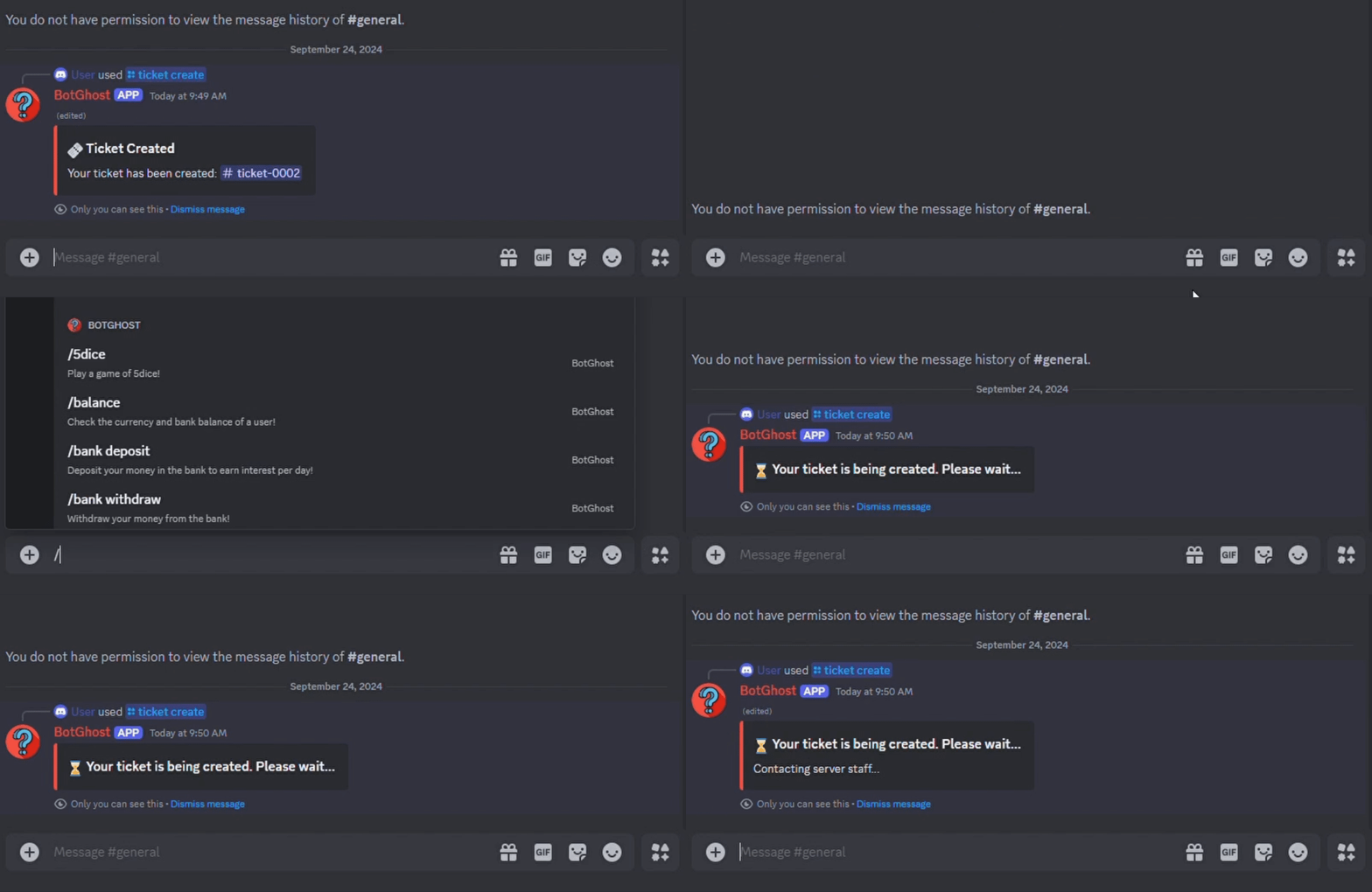
/ticket create
The /ticket create command allows you to create a ticket on any created panel. The /ticket create Command settings must be configured in order for the command to run successfully.
/ticket close
The /ticket close command allows you to close the ticket in which it is run in. This will lock the ticket to everyone except staff, allowing staff with a new set of controls to use on the closed ticket.
.png)
/ticket reopen
The /ticket reopen command allows you to reopen a ticket that was closed with /ticket close. This will undo all effects of the closure by returning the previous ticket members and controls.
.png)
/ticket delete
The /ticket delete command allows you to delete a ticket that was closed with /ticket close. This will permanently delete the channel the ticket was created in. If a ticket is manually deleted, you may need to use the /ticket update-counts command to update the module's data.
.png)
/ticket add
The /ticket add command allows you to add a user to an open ticket. The user will be able to see and send messages in the channel.
.png)
/ticket remove
The /ticket remove command allows you to remove a user from an open ticket. The user will no longer be able to see and send messages in the channel.
.png)
/ticket automation
The /ticket automation command allows you to edit a ticket's automatic closure and deletion settings based on its recent activity. The Automations settings must be configured in order for the command to run successfully.
.png)
/ticket update-counts
The /ticket update-counts command allows you to manage the number value for some of the Tickets module variables. Global Counts can be referenced with {total_count}, Panel Specific Counts can be referenced with {panel_count}, and User Specific Counts are used for user rate limits per panel.
.png)
[👑] Add Command
The Add Command button allows premium members to create a Custom Command which will have access to this module's Settings and Variables.
Events
Here you can find the events for the Tickets module and modify them to your liking.
.png)
Inactive Tickets Handler
The Inactivity Tickets Handler event checks for inactivity in a ticket, and takes action based on the settings you configured in Automations. This event is linked to the Tickets Module - Inactivity System Handler event in the Timed Messages module, which runs on the interval of every hour.
Creator Leaves Handler
The Creator Leaves Handler event checks if the user who created the ticket is still in the server, and if not, it takes action based on the settings you configured in Automations.
Thread Closure Handler
The Thread Closure Handler event checks if a ticket thread has been closed, and if so, removes the creator and members added with /ticket add from the ticket.
Transcripts Handler - New Messages
The Transcripts Handler - New Messages event adds new messages from tickets to their saved transcripts.
Transcripts Handler - Updated Messages
The Transcripts Handler - Updated Messages event updates edited messages from tickets to their saved transcripts.
Transcripts Handler - Deleted Messages
The Transcripts Handler - Deleted Messages event removes deleted messages from tickets to their saved transcripts.
[👑] Add Event
The Add Event button allows premium members to create a Custom Event which will have access to this module's Settings and Variables.
It's advised that you do not edit the commands and events unless you have a good understanding of BotGhost and its Command Builder. If you encounter any issues, you might want to reset the module for it to work again as intended.
Additionally, a copy of the edited commands / events will be created if you update the module.