Create Your First Bot
Are you new to BotGhost or did you forget how you can create a BotGhost bot? Take a look at the video or steps below to get all the information you need!
You can watch the official YouTube video here.
It should be worth noting that this token is essentially your bot’s password. You should NEVER share this to someone else. In doing so, someone can log in to your bot and do malicious things, such as leaving servers, ban all members inside a server, or pinging everyone maliciously.
If you accidentally leaked your token, click the 'Regenerate' button as soon as possible. This revokes your old token and re-generates a new one. Now you need to use the new token to login.
Step 1. Create an Application
- 1
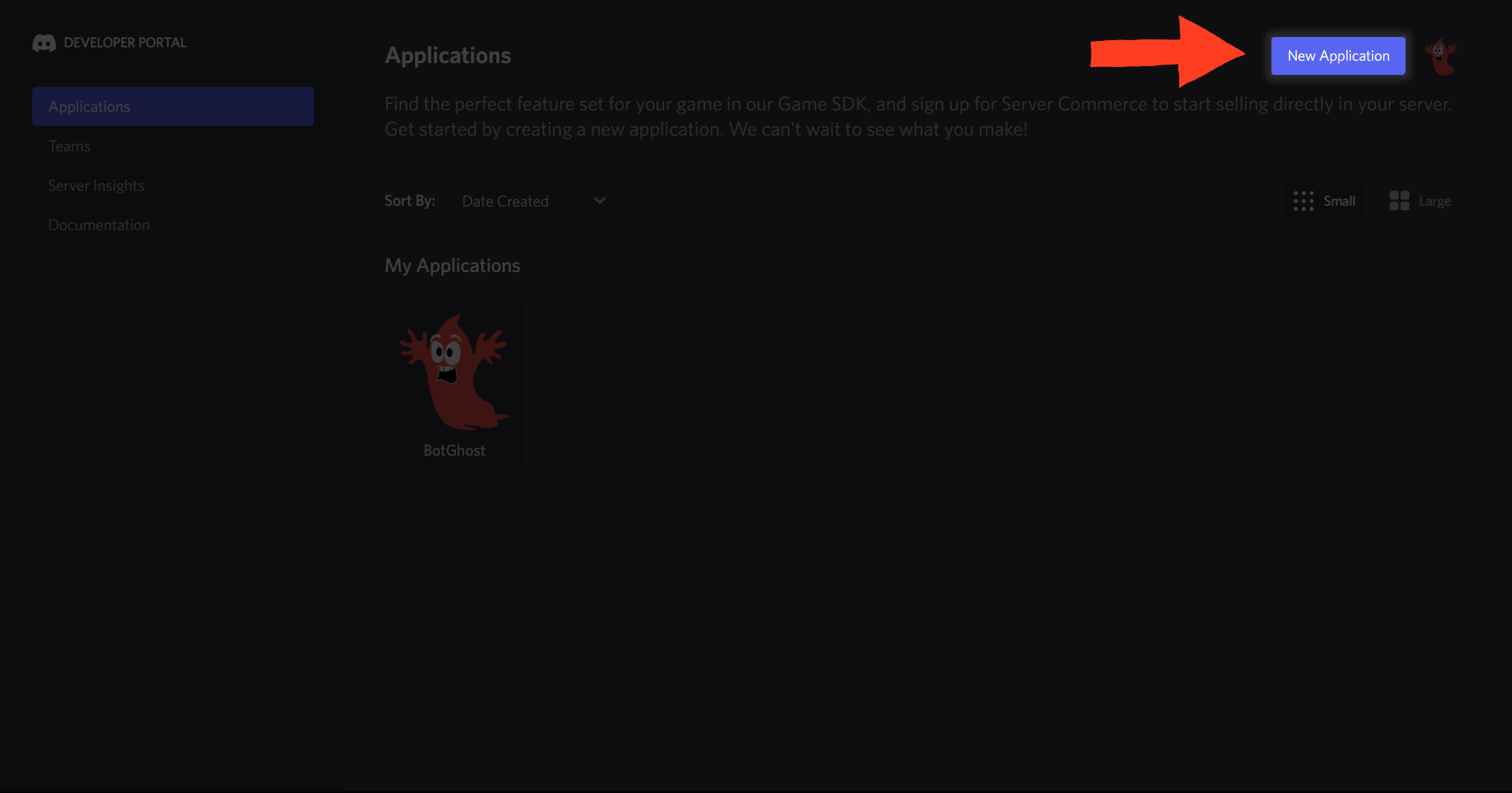
Firstly, go to the Discord Developer Portal. Click on the New Application button to create your application.
- 2
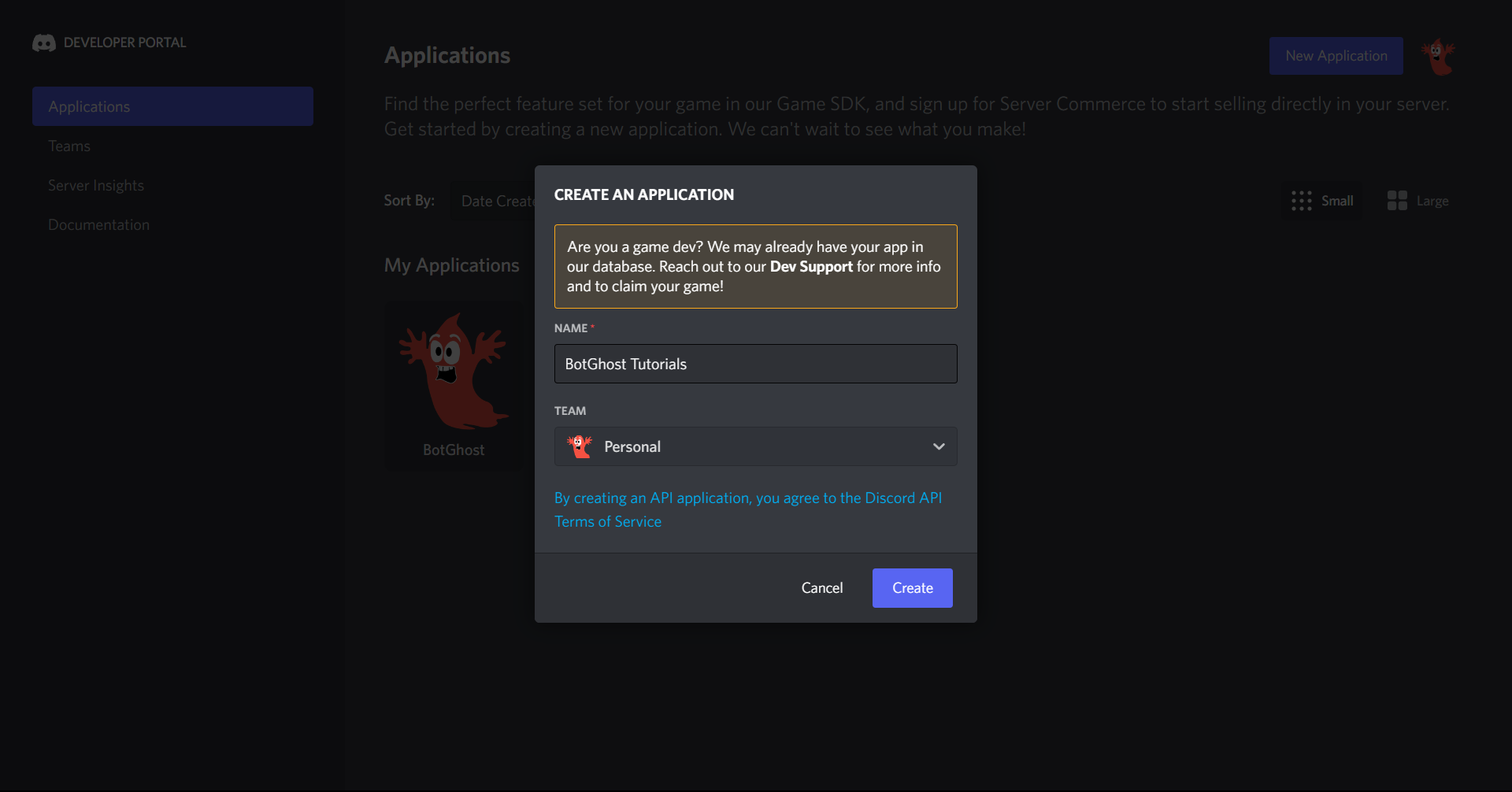
Give your application a name and click Create. This will create the application and take you to a new app management screen.
- 3
On the left sidebar, select the Bot tab. Click Add Bot on this screen. Confirm the message popup, and you're done! You're one step away from creating your first BotGhost bot!
.png)
- 4
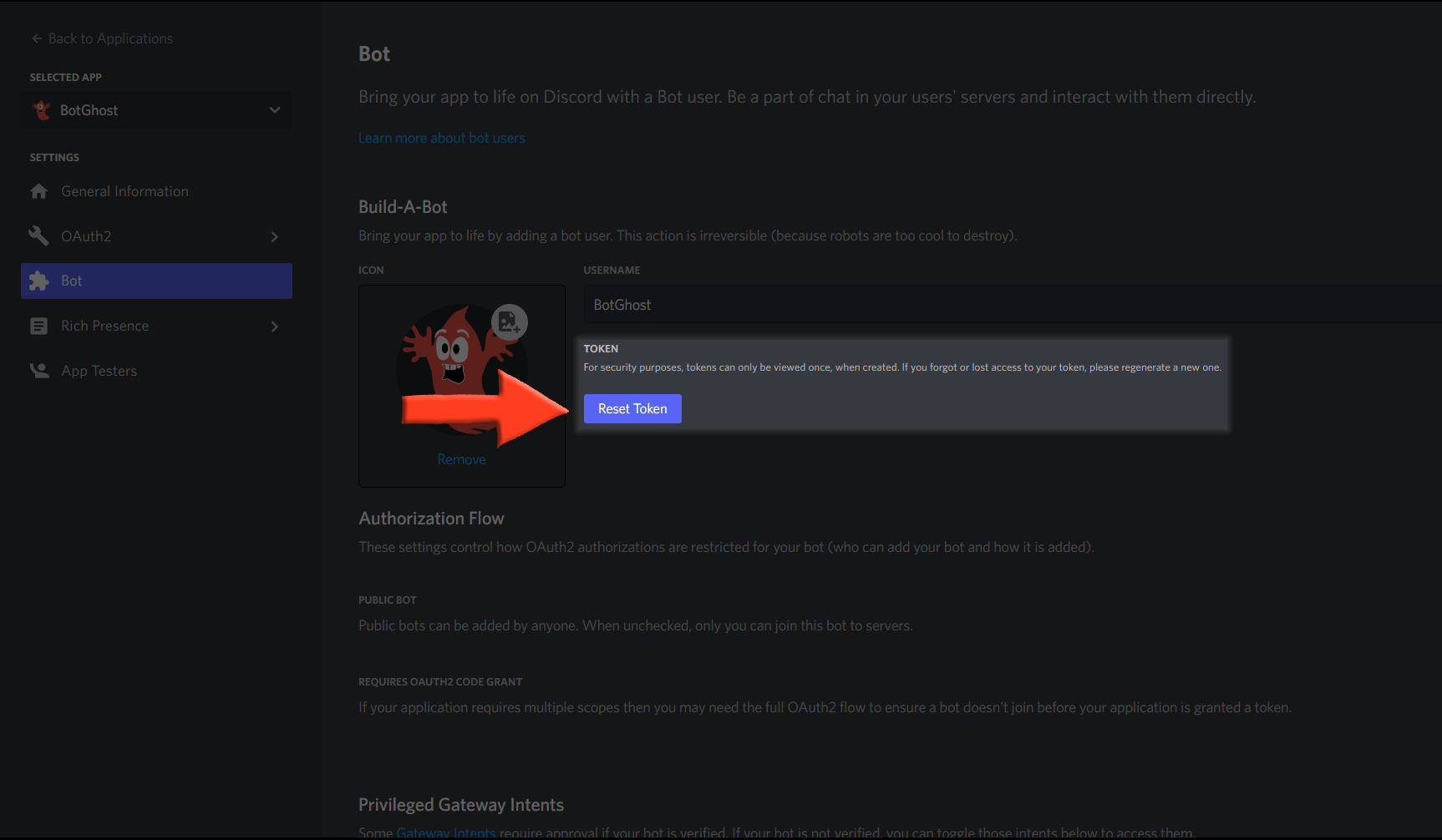
Once your bot has been created, you will notice a new page for your bot. Here, you can edit everything about your bot, including its name, profile picture, about me, and more. Under the username of the bot, you will see a "token" section. Click Reset Token, this will allow you to get the bots token. This is needed for future steps, so it is best to keep the code to the side for now. Ensure you do not lose it, nor give it to anyone else. If you do lose your token, or it gets leaked, ensure you click Reset Token immediately.
Click
.png)
Your bot token will appear. Ensure you do not lose this.
Step 2: Enable all Intents
Intents are required by some BotGhost modules. Intents allow us to choose which events their bot receives based on the data it needs to function, so it is best to enable the intents ahead of time to avoid future errors. After you've created your bot, scroll down to the intents area of the page and enable all three intents: presence, server members, and message content.
.png)
Step 3: Setting Up your BotGhost Bot
Great! You've successfully created your Discord bot, now it is time to turn it online and function. Most bots are required to be coded from scratch, although with BotGhost, you can do this without coding. By doing the following steps, you will be able to connect your bot with BotGhost, turn it online, and run commands.
- 1
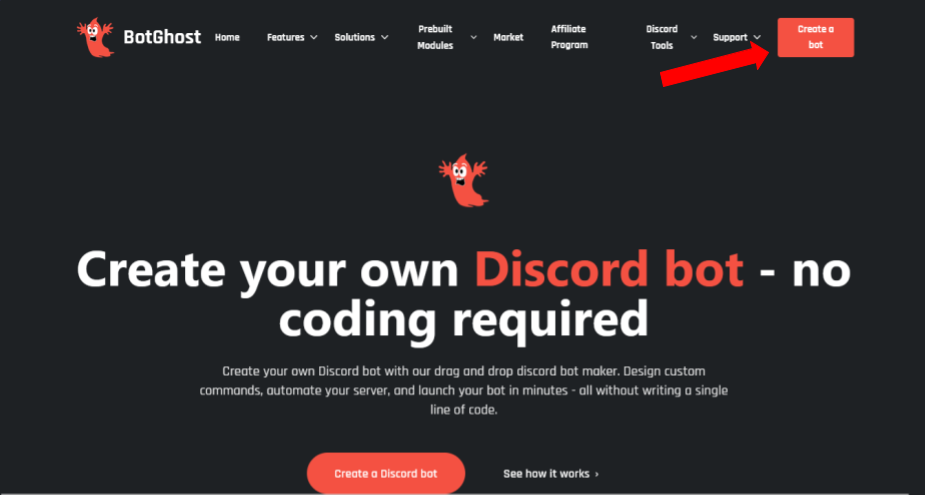
Firstly, go to BotGhost.com and click Create a Bot on the top right corner.
- 2
Once selected, you will be prompted to log in to BotGhost using one of the available authentication methods (Google, Apple, Twitter/X, or email). Detailed, platform-specific instructions are available here.
After choosing your preferred method and completing authentication, click Authorize to grant access and continue to the dashboard. The login method you select will be permanently associated with your BotGhost account for future sign-ins.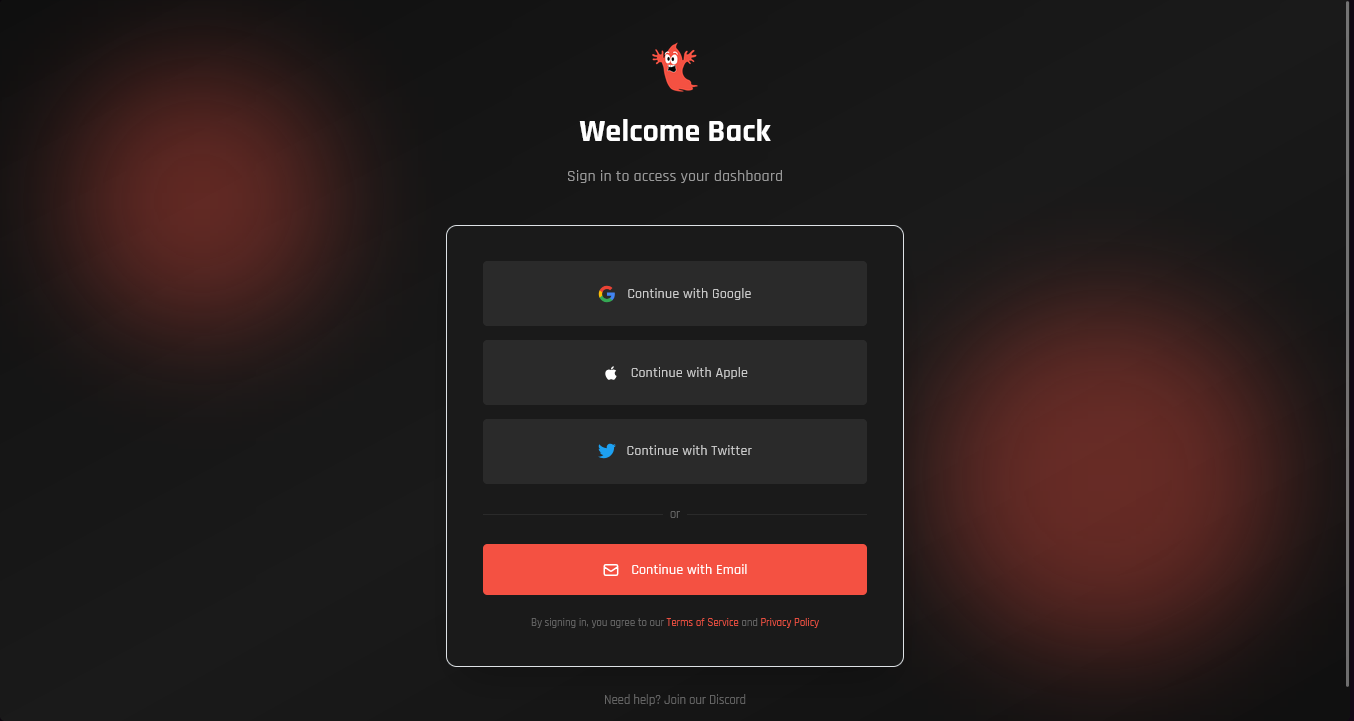
- 3
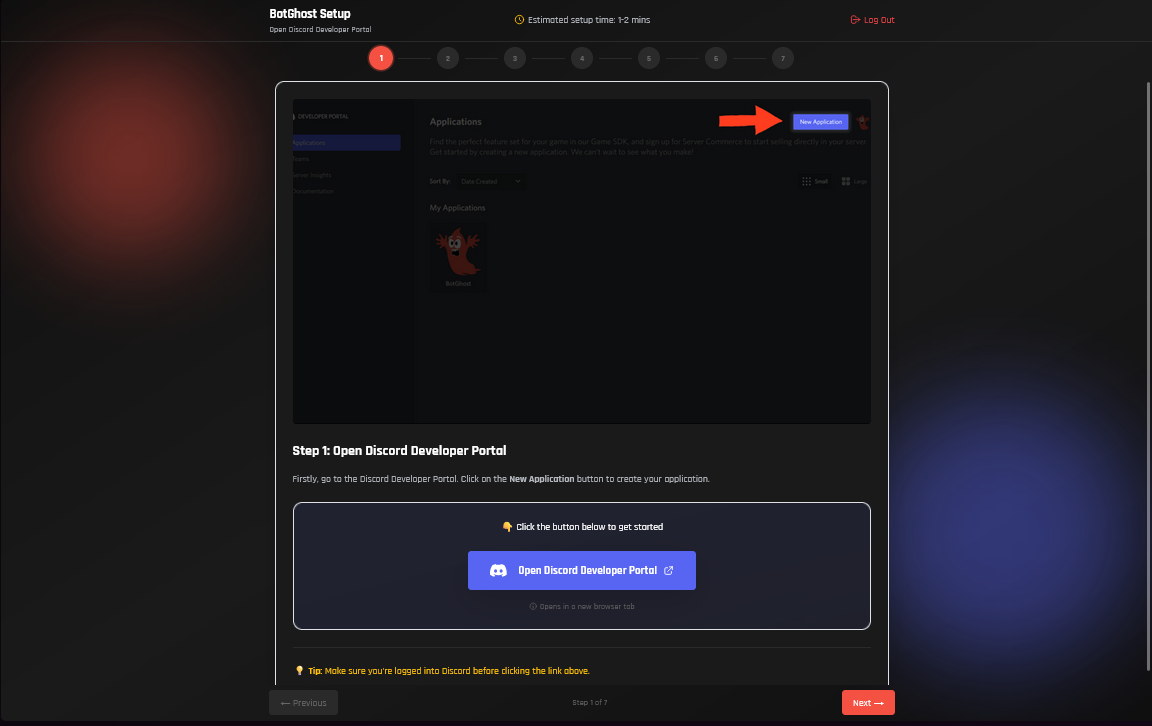
Once logged into BotGhost using your Discord account, you will be guided through a 7-step setup process to configure your Discord bot. During Step 4, you will be required to confirm that all required Privileged Gateway Intents have been enabled in the Discord Developer Portal. In Step 7, you will be prompted to copy your bot token, which acts as a secure key allowing BotGhost to access and operate your bot. If you do not have your token, review Step 1, part 4 again. Input the bots token in the Bot Token section.
- 4
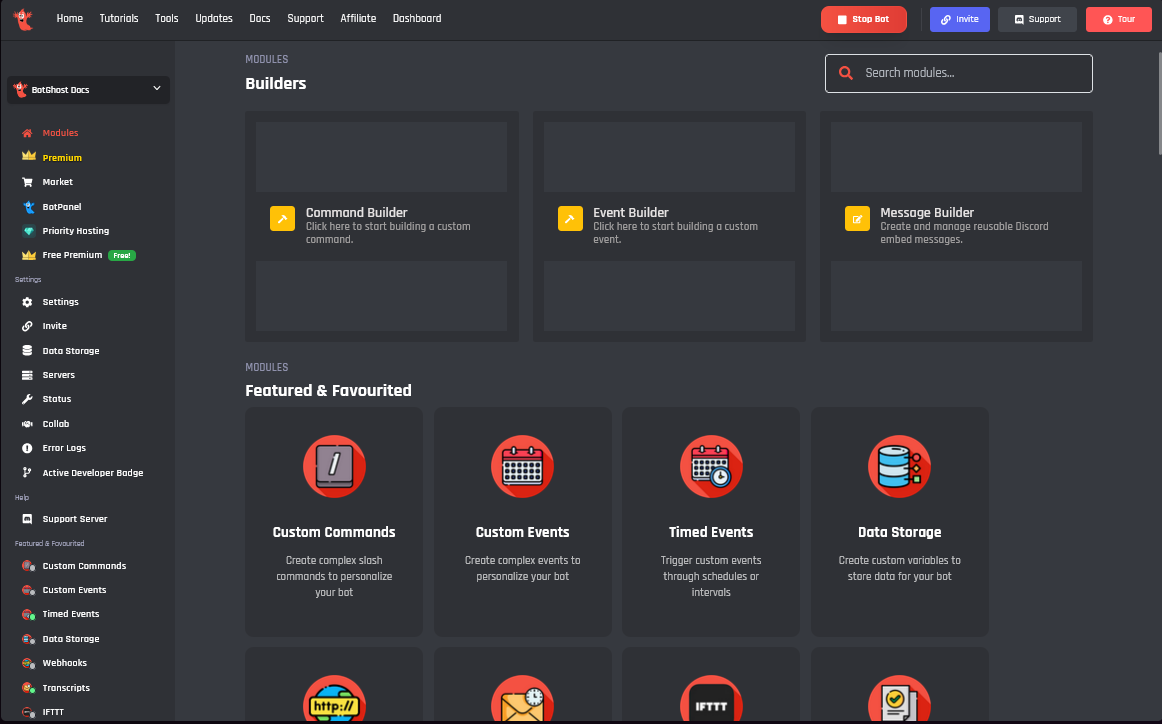
Congratulations! You've successfully created your first BotGhost bot! In the dashboard, you can configure your bot however you wish. Each module serves a purpose such as moderation, leveling, and logging. Take a look around and get a feel for it; it may take some getting used to, but once you do, creating and editing your very own bot will be easier than ever!
It should be worth noting that this token is essentially your bot’s password. You should NEVER share this to someone else. In doing so, someone can log in to your bot and do malicious things, such as leaving servers, ban all members inside a server, or pinging everyone maliciously.
If you accidentally leaked your token, click the 'Regenerate' button as soon as possible. This revokes your old token and re-generates a new one. Now you need to use the new token to login.