# Edit a Thread

<figure><img src="https://1937909199-files.gitbook.io/~/files/v0/b/gitbook-x-prod.appspot.com/o/spaces%2F-Lm_hW5MApY3J0lRhi0M%2Fuploads%2FkjLru4Gf3G7tM3b0SsKF%2Fimage_2024-05-30_162947684.png?alt=media&#x26;token=4248c069-1114-435c-9cd5-1d805f664470" alt=""><figcaption></figcaption></figure>

{% hint style="warning" %}
This action cannot be used for forum channels!
{% endhint %}

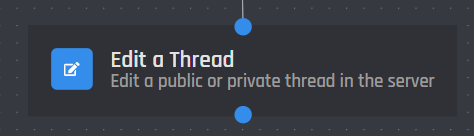
The **Edit a Thread** block enables you to edit any existing thread in your servers that the bot is in.

Each edited thread has a unique variable that you can use to reference the thread in your command and can be identified by just looking for `{edited_thread_xyz}`.

## Channel

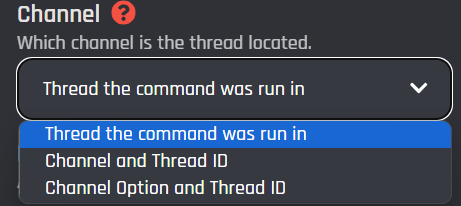
To edit a thread, you need to specify where the thread is. There are three provided options to achieve this.
<figure><img src="https://1937909199-files.gitbook.io/~/files/v0/b/gitbook-x-prod.appspot.com/o/spaces%2F-Lm_hW5MApY3J0lRhi0M%2Fuploads%2FTDxW6t2wqV8gnMAJgufP%2Fimage_2024-05-27_205448636.png?alt=media&#x26;token=0628528a-dd9f-4975-8927-cfce6a92018e" alt=""><figcaption></figcaption></figure>

{% tabs %}
{% tab title="Thread the command was run in" %}
This selection will edit the thread in the channel where the command / event was executed in. To use specific channels and [variables](https://botghost.com/docs/custom-commands-and-events/variables) use [#channel-and-thread-id](#channel-and-thread-id "mention") or [#channel-option-and-thread-id](#channel-option-and-thread-id "mention").
{% endtab %}

{% tab title="Channel and Thread ID" %}
This selection will edit the specified thread in the channel that is also specified. Both are specified by an ID not a selection.

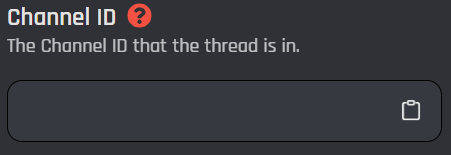
### Channel ID

This field is where you input a plain channel ID. There can be no extra symbols or spaces. [Variables](https://botghost.com/docs/custom-commands-and-events/variables) an also be used as long as it returns a plain channel ID.
<figure><img src="https://1937909199-files.gitbook.io/~/files/v0/b/gitbook-x-prod.appspot.com/o/spaces%2F-Lm_hW5MApY3J0lRhi0M%2Fuploads%2Fguoku1Cg5v0tXdM0tcLQ%2Fimage_2024-05-27_210353116.png?alt=media&#x26;token=76a59029-f250-4a00-beab-9039cdf636de" alt=""><figcaption></figcaption></figure>

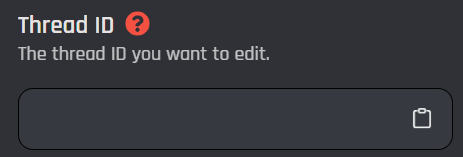
### Thread ID

This field is where you input a plain thread ID. Same as a channel ID, no symbols or spaces. [Variables](https://botghost.com/docs/custom-commands-and-events/variables) can be used.&#x20;

<figure><img src="https://1937909199-files.gitbook.io/~/files/v0/b/gitbook-x-prod.appspot.com/o/spaces%2F-Lm_hW5MApY3J0lRhi0M%2Fuploads%2FnAduxP7ZpJUYX2ScCwrs%2Fimage_2024-05-27_210408345.png?alt=media&#x26;token=a1d12e7e-df31-46dc-8fc6-70d588bf3efb" alt=""><figcaption></figcaption></figure>
{% endtab %}

{% tab title="Channel Option and Thread ID" %}
This selection will edit a specified thread ID in the channel selection via a [channel option](https://botghost.com/docs/custom-commands-and-events/options/channel-option).

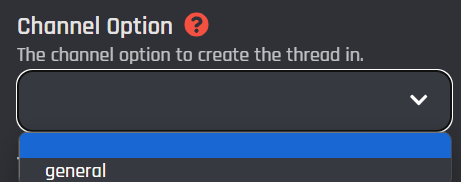
### Channel Option

This field is a selection where you can choose which option to target. This selection will only work if you have a channel option in your command.
<figure><img src="https://1937909199-files.gitbook.io/~/files/v0/b/gitbook-x-prod.appspot.com/o/spaces%2F-Lm_hW5MApY3J0lRhi0M%2Fuploads%2FN10nK9xreGIPEM61Hspb%2Fimage_2024-05-27_210749958.png?alt=media&#x26;token=c250b19b-48b5-443f-8e77-c061d2d66ccf" alt=""><figcaption></figcaption></figure>

<figure><img src="https://1937909199-files.gitbook.io/~/files/v0/b/gitbook-x-prod.appspot.com/o/spaces%2F-Lm_hW5MApY3J0lRhi0M%2Fuploads%2Fa7UgSIVII2QVkCKWUsE8%2Fimage.png?alt=media&#x26;token=a842f578-8e8e-47bd-a3fa-9ee8d67aeccf" alt=""><figcaption></figcaption></figure>

### Thread ID

This field accepts a plain thread ID with no extra symbols or spaces to target. The targeted thread ID will then be edited only if it is in that channel option. [Variables](https://botghost.com/docs/custom-commands-and-events/variables) can be used.

<figure><img src="https://1937909199-files.gitbook.io/~/files/v0/b/gitbook-x-prod.appspot.com/o/spaces%2F-Lm_hW5MApY3J0lRhi0M%2Fuploads%2FZJinVjmanVozE6EMmcN4%2Fimage.png?alt=media&#x26;token=f0d50574-82eb-43e8-9a9f-a6e0b8eb3939" alt=""><figcaption></figcaption></figure>
{% endtab %}
{% endtabs %}

## Name

This is an optional field, and it is the name of the thread that you want to edit. You can use [variables](https://botghost.com/docs/custom-commands-and-events/variables) or [options](https://botghost.com/docs/custom-commands-and-events/options) as well.

<figure><img src="https://1937909199-files.gitbook.io/~/files/v0/b/gitbook-x-prod.appspot.com/o/spaces%2F-Lm_hW5MApY3J0lRhi0M%2Fuploads%2FIQO05P5oLJ3ETO7feQrm%2Fimage.png?alt=media&#x26;token=61133294-62de-4b5c-8907-81f621456041" alt=""><figcaption></figcaption></figure>

## Auto Archive

This is an optional selection, and it is the time in which the thread will auto-archive itself. You can choose from 4 options:

* One Hour
* One Day
* Three  Days
* One Week

<figure><img src="https://1937909199-files.gitbook.io/~/files/v0/b/gitbook-x-prod.appspot.com/o/spaces%2F-Lm_hW5MApY3J0lRhi0M%2Fuploads%2FzjTmovsXC6942tyflGPW%2Fimage.png?alt=media&#x26;token=961921b9-e1be-4fad-9a04-3665101e2047" alt=""><figcaption></figcaption></figure>

## Reason

An optional field that, you can input a reason why you are editing a thread. Variables can be used in this field as well. The reason will show in your server's audit log.

<figure><img src="https://1937909199-files.gitbook.io/~/files/v0/b/gitbook-x-prod.appspot.com/o/spaces%2F-Lm_hW5MApY3J0lRhi0M%2Fuploads%2FLAstKalbPJlGOgFKAVez%2Fimage.png?alt=media&#x26;token=37e0fa60-5ec2-4e28-a52e-0db30ad7468b" alt=""><figcaption></figcaption></figure>

## Slowmode

This is an optional field, also known as rate limit per user, it allows you to set a slow mode in the thread for each user unless the user has been bypassed. This field only accepts integers, and [variables](https://botghost.com/docs/custom-commands-and-events/variables) can be used.

<figure><img src="https://1937909199-files.gitbook.io/~/files/v0/b/gitbook-x-prod.appspot.com/o/spaces%2F-Lm_hW5MApY3J0lRhi0M%2Fuploads%2FCZV3akvRzxfVtDKKtPLo%2Fimage.png?alt=media&#x26;token=095c6020-9f53-4664-ab2a-646c48176cd6" alt=""><figcaption></figcaption></figure>

## Moderators Invite

This an optional toggle that only shows if the thread type is Private Thread. It allows you to toggle whether a non-moderator can invite other users to the thread.

<figure><img src="https://1937909199-files.gitbook.io/~/files/v0/b/gitbook-x-prod.appspot.com/o/spaces%2F-Lm_hW5MApY3J0lRhi0M%2Fuploads%2FIpq8pDypc3nftF1K7M9o%2Fimage.png?alt=media&#x26;token=a9e78318-8b0f-494e-8d04-470aef04df93" alt=""><figcaption></figcaption></figure>

## Locked

An optional toggle that is used if you want to lock the thread, meaning that only moderators can send messages if the thread has been locked.

<figure><img src="https://1937909199-files.gitbook.io/~/files/v0/b/gitbook-x-prod.appspot.com/o/spaces%2F-Lm_hW5MApY3J0lRhi0M%2Fuploads%2FcXrxzCUQZjl96Hk19dyT%2Fimage.png?alt=media&#x26;token=eba24876-ba7b-479e-ae80-044ed276f4ff" alt=""><figcaption></figcaption></figure>

## Archived

An optional field, this is used when you want to archive the thread, putting it into an archived state.

<figure><img src="https://1937909199-files.gitbook.io/~/files/v0/b/gitbook-x-prod.appspot.com/o/spaces%2F-Lm_hW5MApY3J0lRhi0M%2Fuploads%2FTgwLVgKuwSM9pQ0teuiU%2Fimage.png?alt=media&#x26;token=a68468af-eae2-4689-8090-319f80d30051" alt=""><figcaption></figcaption></figure>

## Variables

You can now access various variables from the created thread and use them throughout your custom command (as long as it is in the same interaction). \
\
You can use these variables by just adding them to the end of the `{edited_thread_abcd}` variable, but before the `}`. The 4 characters "abcd" are shown in your create thread block at the top.

<figure><img src="https://1937909199-files.gitbook.io/~/files/v0/b/gitbook-x-prod.appspot.com/o/spaces%2F-Lm_hW5MApY3J0lRhi0M%2Fuploads%2FTxt0jtZMs39nYIYL2OBK%2Fimage.png?alt=media&#x26;token=aef855af-43d6-4abf-956e-d487022222fe" alt=""><figcaption></figcaption></figure>

An example to get the name would be like this: `{edited_thread_48f3.name}`.

<table><thead><tr><th width="147">Name</th><th>Description</th></tr></thead><tbody><tr><td>.name</td><td>Returns the name of the thread</td></tr><tr><td>.id</td><td>Returns the ID of the thread</td></tr><tr><td>.parent</td><td>Returns the parent channel of the thread</td></tr><tr><td>.parent_id</td><td>Returns the parent's ID of the thread</td></tr><tr><td>.archived</td><td>Returns whether the thread is archived or not (as true or false)</td></tr><tr><td>.locked</td><td>Returns whether the thread is locked or not (as true or false)</td></tr><tr><td>.invitable</td><td>Returns whether a non-moderator can invite users to the thread or not (as true or false)</td></tr><tr><td>.owner_id</td><td>Returns the thread owner's ID</td></tr><tr><td>.url</td><td>Returns the url of the thread</td></tr></tbody></table>

## Enable Success/Error Handles

Enable Success / Error Handles to detect success and errors inside of the action block. This allows you to run different actions if something goes wrong with your action. Inside of the handle, there are 2 different paths which are used to detect the outcome of the action. The green path on the bottom left side of the block indicates success, while the red path on the bottom right side of the block indicates error. You may attach action blocks to each side of the handle to get the outcome of your action block.

<figure><img src="https://1937909199-files.gitbook.io/~/files/v0/b/gitbook-x-prod.appspot.com/o/spaces%2F-Lm_hW5MApY3J0lRhi0M%2Fuploads%2FfEZAijxwiWs3yk4C3iLK%2Fimage.png?alt=media&#x26;token=52ffafb0-0e8c-4980-a111-0999d8451789" alt=""><figcaption></figcaption></figure>

The Success/Error Handles feature includes 3 different error variables you can use to get information on why the action block encountered an error. Check them out [here](https://botghost.com/docs/variables#error-variables).

<figure><img src="https://1937909199-files.gitbook.io/~/files/v0/b/gitbook-x-prod.appspot.com/o/spaces%2F-Lm_hW5MApY3J0lRhi0M%2Fuploads%2FgBCbX0HtGmaNhGXARsoA%2Fimage.png?alt=media&#x26;token=57dbe5f3-6efc-47af-9022-5196739573c3" alt=""><figcaption></figcaption></figure>