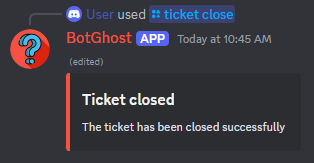
Ban a member
This action block can be used to ban a member from a server that the bot has access to.
The bot must have at least the ban member permission for this block to work and must be above the targeted user.
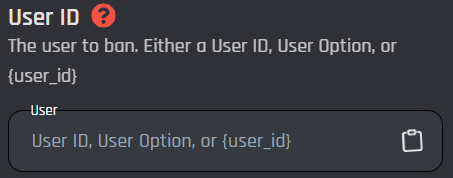
User ID
This field targets a user ID to be banned. This can be done by a user id, user option, or variable. Keep in mind the variable has to return a plain user ID with no extra symbols or spaces.
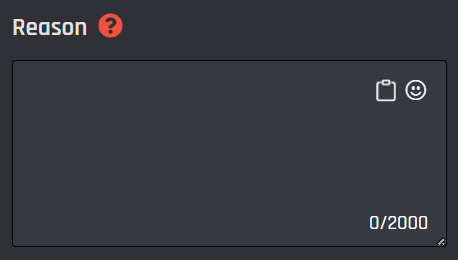
Reason
This is an optional field. In this field you can input a reason why you are banning a member. This reason will be shown in your server's audit log. Variables can also be used in this field.
Afterwards
Afterwards picks what happens once the member is banned:
- Keep them banned (to start with): a normal ban. They stay banned until someone unbans them.
- Unban straight away: a softban. The bot bans them, then unbans them a moment later. They're removed and the messages picked in Delete their messages are deleted from every channel, but they can rejoin with an invite. If Delete their messages is set to None, the block warns you that this works like a kick.
- Unban reason: optional. Shown in your server's audit log for the unban. Leave it empty and it says Softban.
{ban_banned}:trueonce the ban worked,falsewhen the ban failed.{ban_unbanned}:trueonce they're unbanned again,falsewhen the unban failed.{ban_banned}truewith{ban_unbanned}falsemeans they're still banned: only the unban failed. The block then goes down its error path with a reason starting "Banned, but the unban failed".
- Unban after a set time: a temporary ban. The bot bans them now and unbans them when the time is up, from 1 minute to 90 days, even after a restart. It shows while Undo After a Set Time is on in your Builder Settings, or when the block already uses it.
A softban also works with Ban people who aren't in the server: the bot bans the user ID, deleting their messages, then unbans it. The Honeypot module uses this to remove spam accounts and their scam messages while letting the real owner come back.
Enable Success/Error Handles
Enable Success / Error Handles to detect success and errors inside of the action block. This allows you to run different actions if something goes wrong with your action. Inside of the handle, there are 2 different paths which are used to detect the outcome of the action. The green path on the bottom left side of the block indicates success, while the red path on the bottom right side of the block indicates error. You may attach action blocks to each side of the handle to get the outcome of your action block.

The Success/Error Handles feature includes 3 different error variables you can use to get information on why the action block encountered an error. Check them out here.