SEO and sharing
How your bot's website shows up in search results, browser tabs and links people share.
The SEO and sharing card is near the bottom of BotPanel > Website > Design, above Start over. It sets whether search engines list your site, the icon and words in the browser tab, and what a link to your site looks like when someone shares it.
Every setting works on every plan and layout. Leave a field empty and the site uses your bot's name, picture and intro. Changes go live when you press Save.
Search engines and the tab icon
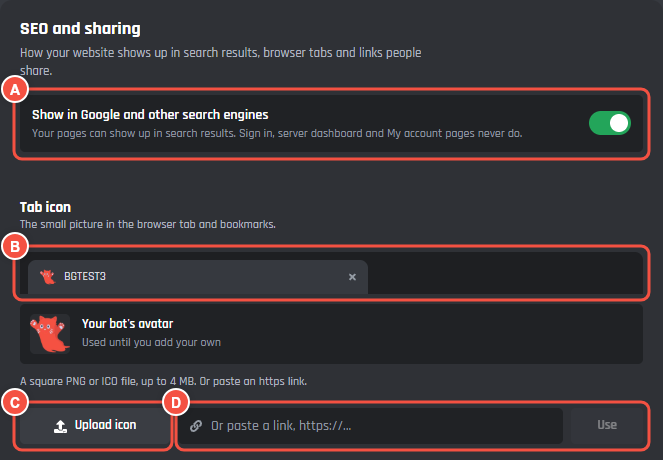
Website > Design > SEO and sharing
- A Show in Google and other search engines: on to start with.
- B A browser tab, drawn with your icon and your home page title.
- C Upload icon: pick a file from your computer.
- D Or paste a link to a picture and press Use.
Show in Google
While it's on, your pages can show up in search results. The sign in, server dashboard and My account pages are never listed, whatever the switch says.
Turn it off and search engines are asked to leave the whole site out. Pages that are already listed can take a few weeks to drop off.
Tab icon
The small picture in the browser tab and in bookmarks. Until you add your own, it's your bot's avatar.
- Upload a square PNG or ICO file, up to 4 MB. JPG and WebP work too. A picture that isn't square is cut to the square in its middle, and the page tells you when it did.
- Or paste a link that starts with
https://. - Use avatar goes back to your bot's avatar.
Uploading needs BotPanel Plus. Without it, paste a link.
Tab titles
The words in the browser tab. Search results and link previews use them as the title too.
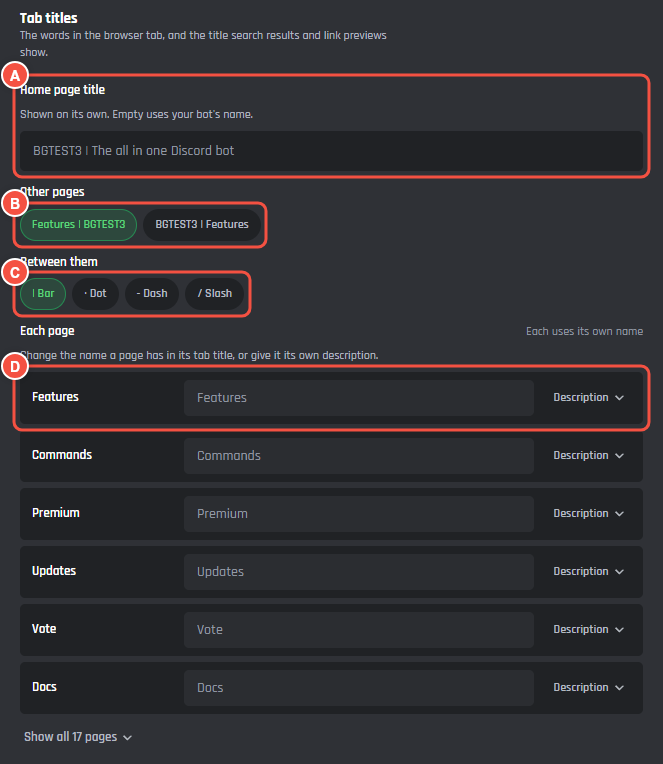
Website > Design > SEO and sharing > Tab titles
- A Home page title: the home page's whole title, up to 70 characters. Empty, it's your bot's name.
- B Other pages: the page's name first or your bot's name first. Each choice shows an example.
- C Between them: the mark between the two names: a bar, a dot, a dash or a slash.
- D Each page: a row for every page that's on, with its own title and Description.
With the page first and a bar, the Commands page's tab says Commands | Dax. With your bot first and a dot, it says Dax · Commands.
In Each page, type a new name for a page (up to 60 characters) and it replaces the page's name in its tab title. The row then shows the whole title. Description opens a box for that page's own description, up to 200 characters. Empty fields use the page's own name and the site's description.
The list shows the first six pages; Show all lists the rest. A page you turn off on the Pages tab leaves the list.
A one page site has only its home page, so it shows only Home page title.
Description and link preview
What search results show under the title, and what Discord, X and other apps show when someone shares a link to your site.
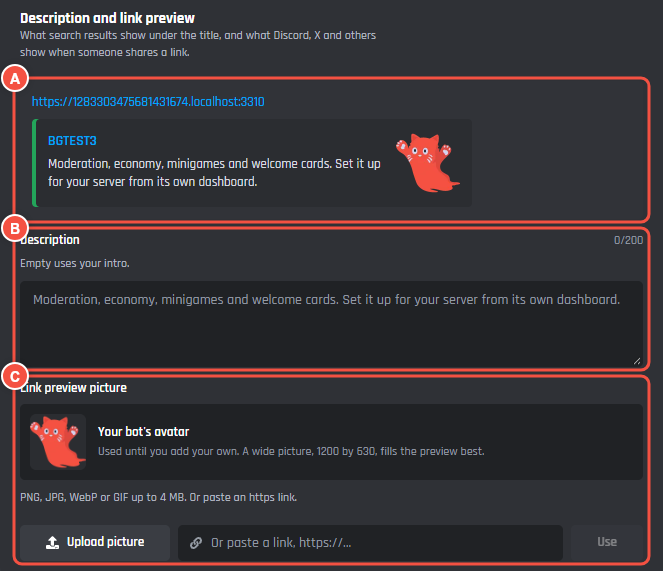
Website > Design > SEO and sharing > Description and link preview
- A A link to your site as Discord shows it: the address, your home page title, the description and the picture, with your colour down the side.
- B Description: up to 200 characters, on one line. Empty, it uses the line under your headline.
- C Link preview picture: upload a picture or paste a link. Until you add one, it's your bot's avatar.
A wide picture, 1200 by 630 pixels, fills the preview best. Upload a PNG, JPG, WebP or GIF up to 4 MB, or paste a link that starts with https://. As with the tab icon, uploading needs BotPanel Plus.
Limits
| What | Limit |
|---|---|
| Home page title | 70 characters |
| A page's own title | 60 characters |
| Descriptions | 200 characters |
| Tab icon and link preview picture | 4 MB; the icon is saved as a square PNG of up to 256 pixels |
| Links | Must start with https:// |
Titles and descriptions are plain words. HTML stops the save, and the card says what to fix.