# Send a Form
The send a form action sends a form or modal to a user and awaits their response. You can add up to 5 inputs to a form and use the responses to these inputs in other actions and conditions.
## Send a Form Connection Requirements
Form actions must **be the first reply to an interaction.** An interaction occurs when:
* A command is used
* A button is pressed
* A select menu option is selected
{% hint style="info" %}
Sending a message to a specific channel does not count as a reply.
{% endhint %}
## Form Name
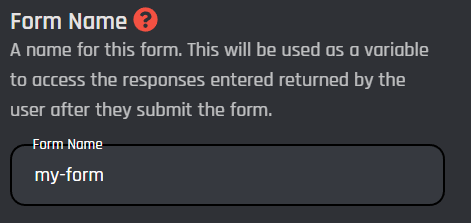
The form name serves as a variable to access the responses the user enters after they submit the form. BotGhost uses dot notation to access the individual responses to the inputs of the form. The variable always follows the format of the form name followed by the input variable.
For example, if you named your form **my-form** and had an input with the variable of **age-input**, you could access the response in other actions and conditions by using the variable **{my-form.age-input}**.
## Form Builder
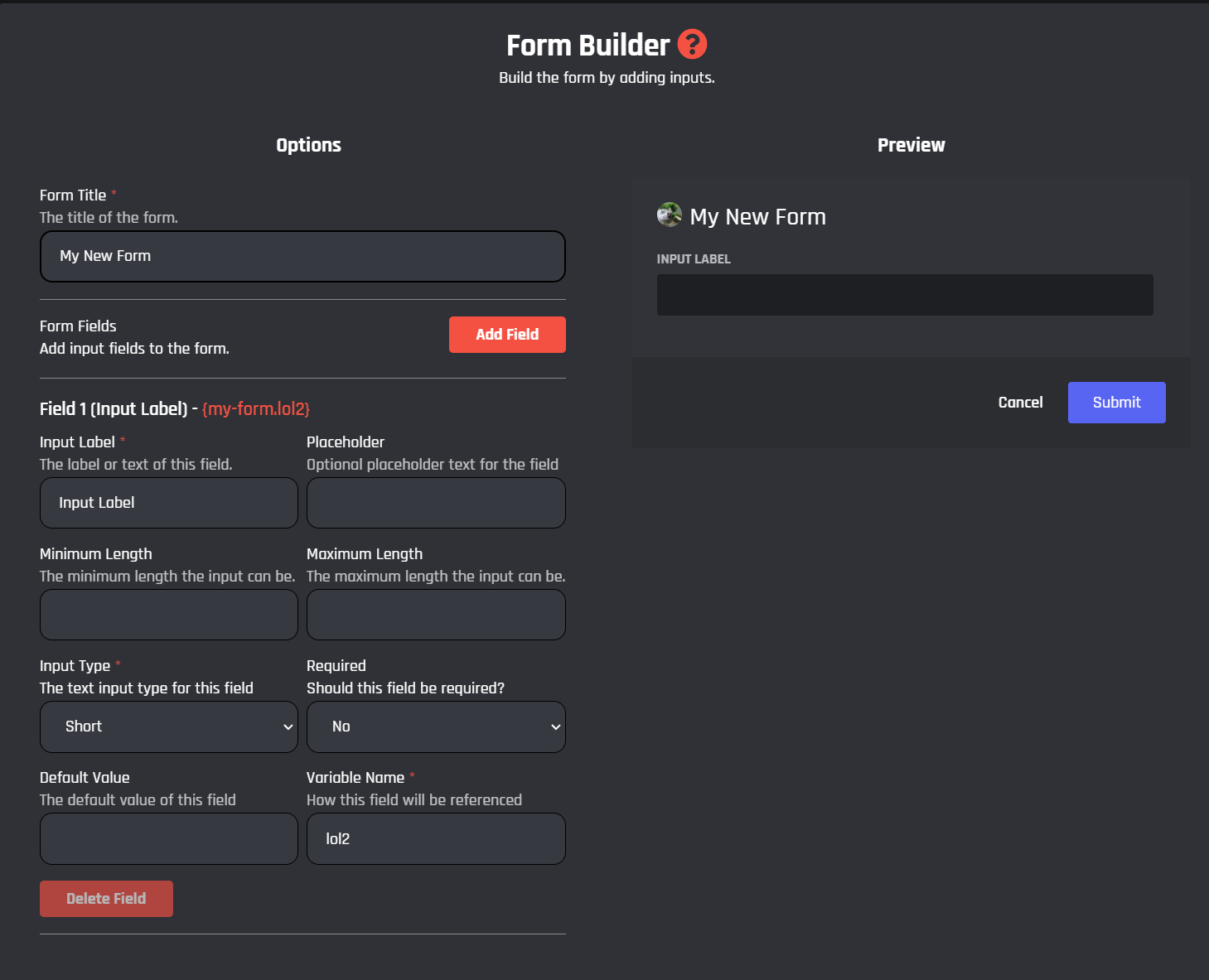
Clicking the Form Builder button after setting a form name opens up the BotGhost form builder. From here you can add up to 5 inputs to your form and configure each input individually. Any changes you make will be automatically reflected in the Form Preview to give you an idea what your form will look like in Discord.
The form builder comes preloaded with one input by default.
### Form Title
The form title is the header text of the form. This is displayed to users at the top of the form. All variables and options can be used.
### Adding Form Fields
Form fields are the individual inputs of the form. To add an input, click the **Add Field** button. You can have up to 5 inputs per form.
### Configuring Form Fields
Each field has 8 configurable options. Only the input label, input type and variable name are required.
#### Input Label
The input label is the text above the actual input of the field. All variables and options can be used in this field. This field is required.
#### Placeholder
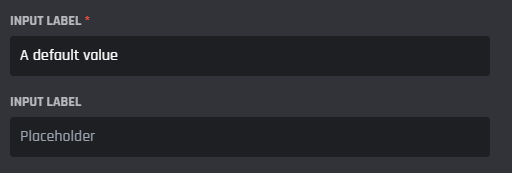
The placeholder is the background text of the input when the input is blank. All variables and options can be used in this field.
#### Minimum Length
The minimum length is the minimum number of characters that the user is required to input into this field. Ensure that the minimum length is not higher than the maximum length of the field.
#### Maximum Length
The maximum length is the maximum number of characters that the user is able to input into this field. Ensure that the minimum length is not higher than the maximum length of the field.
#### Input Style
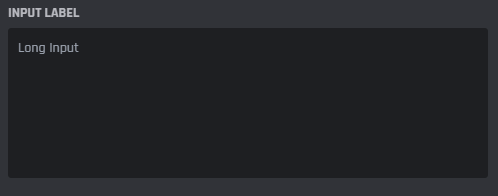
There are two input styles to choose from, either a short input or a long input. Short inputs are simple text boxes while a long input is a larger text area. You can see the size difference in the preview after changing the style.
A Short Input
A long input
#### Required
The required option toggles whether or not the user must input an answer for this field. If the field is set to required, the user will not be able to submit the form without providing an answer.
#### Default Value
The default value is the prefilled value of an input. If you set a default value when the user is shown the form that value will be prefilled for that field.
#### Variable Name
The variable name is how the value inputted by the user for that field can be accessed and used in other actions and conditions. This value is used with the form name in a variable with dot notation. After setting a variable name, you will see the associated variable to get the value of that field.
A variable name of age and a form name of my-form.
## Using Form Responses
After completing all the required fields for your form a green check mark will appear showing that the form is complete.
You can use the values submitted by the user by combining the form name with the variable name of the inputs. For example, if you had a form named **my-form** and an input with the variable name **age** you can access this response by using the variable **{my-form.age}.**
You can also see a list of all the input variables below the Form builder once you have finished configuring the required settings for your form.
These values will be specific to your form and will change for every form.