# Embed Reply

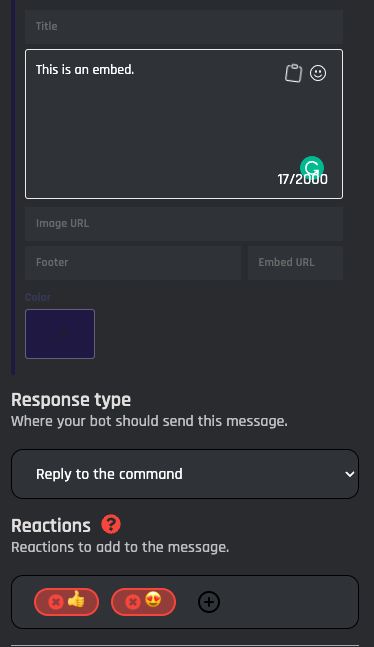
When triggered, the Embed Text Reply action responds with an embedded plain text message. This message can either reply to a command, be sent to the channel the command was used in, sent to a channel associated with an event, or edit a message sent by another action. All variables and options can be used in the content of the reply.<br>

<figure><img src="https://1937909199-files.gitbook.io/~/files/v0/b/gitbook-x-prod.appspot.com/o/spaces%2F-Lm_hW5MApY3J0lRhi0M%2Fuploads%2FZLEPQwbgslWEp9r5r6Sx%2FScreenshot%202023-02-01%20at%2011.19.42%20AM.png?alt=media&#x26;token=6ffe04ea-e920-4ab3-8a08-31cc57baaf50" alt=""><figcaption></figcaption></figure>

## Content

### Author

The author is displayed in the top left of the embed. This can be the author who used the command or any information you wish to display.

<figure><img src="https://1937909199-files.gitbook.io/~/files/v0/b/gitbook-x-prod.appspot.com/o/spaces%2F-Lm_hW5MApY3J0lRhi0M%2Fuploads%2Frh8BrvI2Dx1HeKYR2qH7%2FScreenshot%202023-02-01%20at%202.42.56%20PM.png?alt=media&#x26;token=d3af2101-5b9f-489e-a2b6-312e7ec28cbb" alt=""><figcaption></figcaption></figure>

### Thumbnail URL

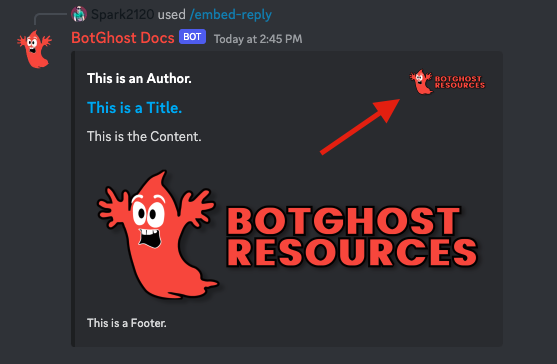
You can include a thumbnail embedded into the Embed Reply. This will display in the top right of the Embed.

<figure><img src="https://1937909199-files.gitbook.io/~/files/v0/b/gitbook-x-prod.appspot.com/o/spaces%2F-Lm_hW5MApY3J0lRhi0M%2Fuploads%2FE3Nv3NlIBQIPQ3yjXwgr%2FScreenshot%202023-02-01%20at%202.45.51%20PM.png?alt=media&#x26;token=6901e39e-c4ec-41c1-bd74-c47ae6ace589" alt=""><figcaption></figcaption></figure>

### Title

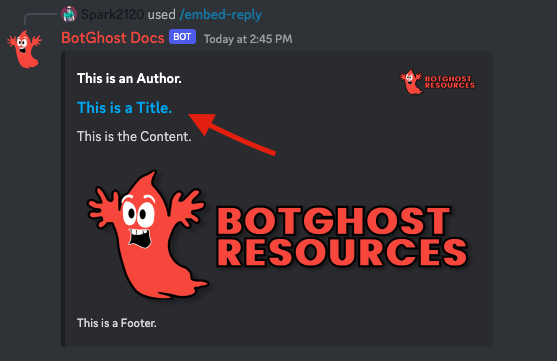
This is the title you wish to display in your Embed Reply. This will be centered above your Content Block.

<figure><img src="https://1937909199-files.gitbook.io/~/files/v0/b/gitbook-x-prod.appspot.com/o/spaces%2F-Lm_hW5MApY3J0lRhi0M%2Fuploads%2FUShAdDzAUUW7kYmNuBCu%2FScreenshot%202023-02-01%20at%202.47.17%20PM.png?alt=media&#x26;token=497b3ff4-49d2-4ef3-b1f2-fdeafc1e9ac6" alt=""><figcaption></figcaption></figure>

### Content

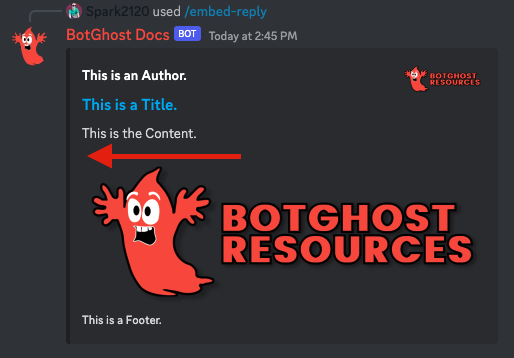
The content of the action is the actual message that the bot should reply with when the action is triggered. You can use any variable or option in the content of this reply. These can be easily added through the variable selector by clicking the **Clipboard** button.

<figure><img src="https://1937909199-files.gitbook.io/~/files/v0/b/gitbook-x-prod.appspot.com/o/spaces%2F-Lm_hW5MApY3J0lRhi0M%2Fuploads%2FG4O2H92txdW1EDIHdkP5%2FScreenshot%202023-02-01%20at%202.48.16%20PM.png?alt=media&#x26;token=f7578d02-8244-4369-99d3-b540c2d4fe51" alt=""><figcaption></figcaption></figure>

### Image URL

This will display an image in full view under the Content Block.

<figure><img src="https://1937909199-files.gitbook.io/~/files/v0/b/gitbook-x-prod.appspot.com/o/spaces%2F-Lm_hW5MApY3J0lRhi0M%2Fuploads%2FrsjfdjCQZPEM9NWScgI1%2FScreenshot%202023-02-01%20at%202.49.09%20PM.png?alt=media&#x26;token=76db532d-af64-4ef2-943a-8cac1e492f99" alt=""><figcaption></figcaption></figure>

### Footer

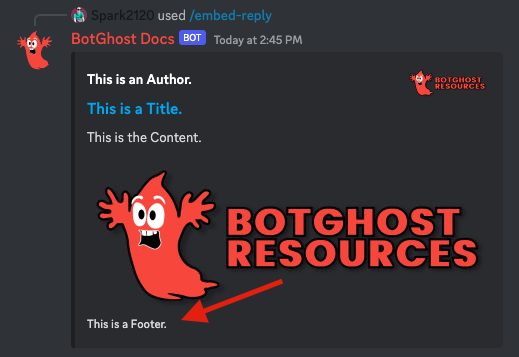
This is the small text at the bottom left of the embed.

<figure><img src="https://1937909199-files.gitbook.io/~/files/v0/b/gitbook-x-prod.appspot.com/o/spaces%2F-Lm_hW5MApY3J0lRhi0M%2Fuploads%2FvYJMt7fgQWdywJK4rzBs%2FScreenshot%202023-02-01%20at%202.49.48%20PM.png?alt=media&#x26;token=f96b9eea-0836-4364-a79f-82e8fb026a99" alt=""><figcaption></figcaption></figure>

### Embed URL

This will display the Title of the embed in blue text, you can click this to open an external page or image.

<figure><img src="https://1937909199-files.gitbook.io/~/files/v0/b/gitbook-x-prod.appspot.com/o/spaces%2F-Lm_hW5MApY3J0lRhi0M%2Fuploads%2FcaPUgpS4SHKR60xnSUeB%2FScreenshot%202023-02-01%20at%202.50.26%20PM.png?alt=media&#x26;token=44fac57c-5cce-4c8e-b753-90bf451f9c9a" alt=""><figcaption></figcaption></figure>

### Color

This is the color shown on the Left Side of the Embed Reply.

<figure><img src="https://1937909199-files.gitbook.io/~/files/v0/b/gitbook-x-prod.appspot.com/o/spaces%2F-Lm_hW5MApY3J0lRhi0M%2Fuploads%2FwRFYCGtQmkpK3PQ7aeYb%2FScreenshot%202023-02-01%20at%202.51.02%20PM.png?alt=media&#x26;token=a5536f04-8ca1-4d17-94c0-6ac054677ae4" alt=""><figcaption></figcaption></figure>

## Response Type

The Embed Reply action has three response types that change how the message of the action is sent.

<figure><img src="https://1937909199-files.gitbook.io/~/files/v0/b/gitbook-x-prod.appspot.com/o/spaces%2F-Lm_hW5MApY3J0lRhi0M%2Fuploads%2FtnuPfpykdtjc313eQrgj%2Fimage.png?alt=media&#x26;token=9e23320d-3816-4609-8185-c3778a9289c1" alt=""><figcaption></figcaption></figure>

### Reply to the command

In commands, by selecting this response type your Embed Reply message will be sent as a reply to the command. This will show who used the command and what command triggered the response. This reply can be hidden by selecting **Hide Replies** in the command settings, which can be accessed by clicking on the root node of the command (the block with the yellow border).

<figure><img src="https://1937909199-files.gitbook.io/~/files/v0/b/gitbook-x-prod.appspot.com/o/spaces%2F-Lm_hW5MApY3J0lRhi0M%2Fuploads%2FDvzdvmMuvIktrqPJOGk5%2FScreenshot%202023-02-01%20at%202.03.46%20PM.png?alt=media&#x26;token=6c2b83c4-a583-4e4e-855c-1faee1912b8c" alt=""><figcaption></figcaption></figure>

### Send the message to the channel

This response type will send the message to either the channel the command was used in or the channel associated with an event in the event builder. By using this response type, the reply will look like a normal message sent by the bot.

<figure><img src="https://1937909199-files.gitbook.io/~/files/v0/b/gitbook-x-prod.appspot.com/o/spaces%2F-Lm_hW5MApY3J0lRhi0M%2Fuploads%2FTabH0GWBGwweJdmWN2l4%2FScreenshot%202023-02-01%20at%202.05.11%20PM.png?alt=media&#x26;token=ff93d79b-c8e5-48e1-b5da-aa214d57cd17" alt=""><figcaption></figcaption></figure>

### Edit a message sent by another action

By selecting this response type you are able to edit the message sent by another action in the command or event tree.&#x20;

<figure><img src="https://1937909199-files.gitbook.io/~/files/v0/b/gitbook-x-prod.appspot.com/o/spaces%2F-Lm_hW5MApY3J0lRhi0M%2Fuploads%2FzDA5lPmq9LWIbS3iOgQv%2Fimage.png?alt=media&#x26;token=a180d3f0-0000-4941-a56f-219f09c1f999" alt=""><figcaption><p>To do so you must have another response action that your block can edit the reply of. Select another response action to be edited through the dropdown. A red outline will appear around the block that will be edited.</p></figcaption></figure>

<figure><img src="https://1937909199-files.gitbook.io/~/files/v0/b/gitbook-x-prod.appspot.com/o/spaces%2F-Lm_hW5MApY3J0lRhi0M%2Fuploads%2Fm4vcfxGDm7ER0YEGD0Th%2FScreenshot%202023-02-01%20at%202.08.21%20PM.png?alt=media&#x26;token=800fba9d-199e-44e6-a3ee-10c0d170519e" alt=""><figcaption></figcaption></figure>

### **Keep Components on Edit Message**

The keep components option lets you keep the buttons or select menu of messages you edit with other reply actions.

## Reactions

Reactions can also be added to the plain text reply. These can be added by clicking the reactions dropdown and selecting emojis.&#x20;

<figure><img src="https://1937909199-files.gitbook.io/~/files/v0/b/gitbook-x-prod.appspot.com/o/spaces%2F-Lm_hW5MApY3J0lRhi0M%2Fuploads%2Fvw2uksjnNkxsBrzI3wCw%2FScreenshot%202023-02-01%20at%202.10.09%20PM.png?alt=media&#x26;token=b66e5bdd-d35a-454e-ae4b-47f44774c34e" alt=""><figcaption></figcaption></figure>

These reactions will be automatically added to the plain text reply.

<figure><img src="https://1937909199-files.gitbook.io/~/files/v0/b/gitbook-x-prod.appspot.com/o/spaces%2F-Lm_hW5MApY3J0lRhi0M%2Fuploads%2FPeTuNGOTL8Yo2d1fv3LI%2FScreenshot%202023-02-01%20at%202.10.43%20PM.png?alt=media&#x26;token=2bfde49d-88dd-4cad-b77b-734c77bdba26" alt=""><figcaption></figcaption></figure>