# Standard Practices

## OAuth2 Code Grant

Inviting your bot is usually quite easy, although sometimes you may receive an error regarding "Bot requires a code grant."&#x20;

<figure><img src="https://1937909199-files.gitbook.io/~/files/v0/b/gitbook-x-prod.appspot.com/o/spaces%2F-Lm_hW5MApY3J0lRhi0M%2Fuploads%2FChBkKPgstZKxJ581xL0i%2Fimage.png?alt=media&#x26;token=ade8fd05-8d9a-46c7-901e-bf7131713b36" alt=""><figcaption></figcaption></figure>

This is due to the "Requires OAuth2 Code Grant" setting enabled. You can fix this by doing the following:

{% stepper %}
{% step %}
Go to the [Discord Developer Portal](https://discord.com/developers/applications) and select your bot's application.
{% endstep %}

{% step %}
Under your bot's application, go to the **Bot** tab.

<figure><img src="https://1937909199-files.gitbook.io/~/files/v0/b/gitbook-x-prod.appspot.com/o/spaces%2F-Lm_hW5MApY3J0lRhi0M%2Fuploads%2FB9s8u1ewgS0gbUIKNmTv%2Fimage.png?alt=media&#x26;token=bf536304-0681-4bda-a6d8-da7c7d0a3daa" alt="" width="210"><figcaption></figcaption></figure>
{% endstep %}

{% step %}
Under the **Bot** tab, look underneath **Authorization Flow** and locate **REQUIRES OAUTH2 CODE GRANT**.
{% endstep %}

{% step %}
Disable **OAUTH2 CODE GRANT**.&#x20;

![](https://1937909199-files.gitbook.io/~/files/v0/b/gitbook-x-prod.appspot.com/o/spaces%2F-Lm_hW5MApY3J0lRhi0M%2Fuploads%2FP2VFQuddo1r44298Ps91%2Fimage.png?alt=media\&token=4f96c72e-a7f8-449a-a278-ca181f0e2c1d)

![](https://1937909199-files.gitbook.io/~/files/v0/b/gitbook-x-prod.appspot.com/o/spaces%2F-Lm_hW5MApY3J0lRhi0M%2Fuploads%2FQXNoiwpDGE9prPBm0YkU%2Fimage.png?alt=media\&token=c3b43469-4388-4088-b7c8-82f86c687f65)
{% endstep %}

{% step %}
Retry inviting your Discord bot.
{% endstep %}
{% endstepper %}

## Privileged Gateway Intents

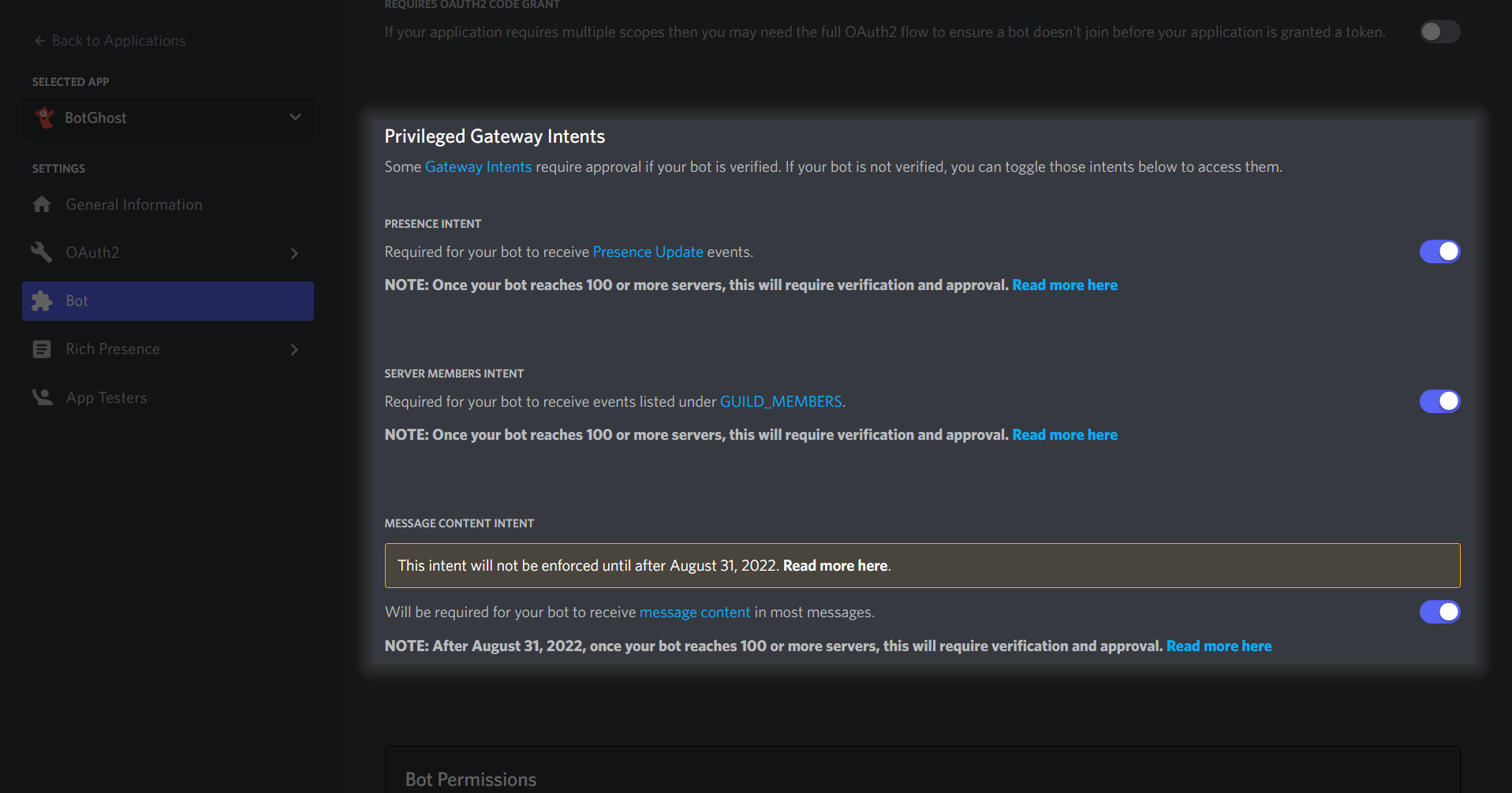
Gateway intents are very important for your bot to function. Intents are required by some BotGhost modules. Intents allow us to choose which events their bot receives based on the data it needs to function, so it is best to enable the intents ahead of time to avoid future errors. If your announcement module, autoresponder module, etc. is not functioning correctly, follow the steps below:

{% stepper %}
{% step %}
Go to the [Discord Developer Portal](https://discord.com/developers/applications) and select your bot's application.
{% endstep %}

{% step %}
Under your bot's application, go to the **Bot** tab.

<figure><img src="https://1937909199-files.gitbook.io/~/files/v0/b/gitbook-x-prod.appspot.com/o/spaces%2F-Lm_hW5MApY3J0lRhi0M%2Fuploads%2FB9s8u1ewgS0gbUIKNmTv%2Fimage.png?alt=media&#x26;token=bf536304-0681-4bda-a6d8-da7c7d0a3daa" alt="" width="210"><figcaption></figcaption></figure>
{% endstep %}

{% step %}
Under the **Bot** tab, look underneath **Privileged Gateway Intents** and enable all the following three: Presence Intent, Server members Intent, & Message Content Intent.
![](https://1937909199-files.gitbook.io/~/files/v0/b/gitbook-x-prod.appspot.com/o/spaces%2F-Lm_hW5MApY3J0lRhi0M%2Fuploads%2F6a5ofrtRDYkq9fSiBDZQ%2FStep%2011.png?alt=media\&token=b1b9f62a-94f1-4bff-a3da-3b4345c5e421)
{% endstep %}
{% endstepper %}

## Resetting Your Bot's Token

If you need to reset your bot's token, you can follow the following steps to do so:

{% stepper %}
{% step %}
Go to the [Discord Developer Portal](https://discord.com/developers/applications).
{% endstep %}

{% step %}
Select the application (bot) you want to reset the token from and locate the 'Bot' tab.&#x20;

<figure><img src="https://1937909199-files.gitbook.io/~/files/v0/b/gitbook-x-prod.appspot.com/o/spaces%2F-Lm_hW5MApY3J0lRhi0M%2Fuploads%2Fg6ewG3dvAouCmLidWCJr%2Fimage.png?alt=media&#x26;token=e64fbc6a-7cb4-40d9-a095-b6f1ae84650d" alt=""><figcaption></figcaption></figure>
{% endstep %}

{% step %}
Scroll down to the blue Reset Token button and click it.

<figure><img src="https://1937909199-files.gitbook.io/~/files/v0/b/gitbook-x-prod.appspot.com/o/spaces%2F-Lm_hW5MApY3J0lRhi0M%2Fuploads%2Fe3XA81XZGYQQdCRHscmn%2Fimage.png?alt=media&#x26;token=9fcb4522-e948-4b92-8ae8-61128bef050e" alt=""><figcaption></figcaption></figure>
{% endstep %}

{% step %}
Complete any confirmations or two-factor authentication pop-ups that appear, then click the 'Copy' button below your new bot token.

<figure><img src="https://1937909199-files.gitbook.io/~/files/v0/b/gitbook-x-prod.appspot.com/o/spaces%2F-Lm_hW5MApY3J0lRhi0M%2Fuploads%2FU834kFa3GPXj2Oy2cIhR%2Fimage.png?alt=media&#x26;token=0660f404-de7b-4081-8705-f93fd3191905" alt=""><figcaption></figcaption></figure>

{% hint style="danger" %}
Your bot's token is the 'key' to your bot, never give this to anyone!
{% endhint %}
{% endstep %}

{% step %}
Paste your new bot token in the [bot token setting](https://botghost.com/docs/general-settings-and-collaboration/settings#bot-token) on the [BotGhost dashboard](https://dashboard.botghost.com/dashboard/settings).
{% endstep %}
{% endstepper %}

## Changing Your Bot's Name

If you are unhappy with your bot's username, you can always change it through BotGhost's dashboard. You can do this by doing the following steps:

{% stepper %}
{% step %}
Go to the [BotGhost Dashboard](https://dashboard.botghost.com/dashboard).
{% endstep %}

{% step %}
On the dashboard, go to the [settings page](https://dashboard.botghost.com/dashboard/settings).&#x20;
{% endstep %}

{% step %}
On the first section of the bot settings, you can change the bot's name. *Remember to click "Save"!*

![](https://1937909199-files.gitbook.io/~/files/v0/b/gitbook-x-prod.appspot.com/o/spaces%2F-Lm_hW5MApY3J0lRhi0M%2Fuploads%2Fm7pEO2h84gKwTMj0C0ER%2Fimage.png?alt=media\&token=a3b69e18-a25d-4b53-8374-72d4ed1a51c0)
{% endstep %}
{% endstepper %}

## Changing Your Bot's Avatar

If you are unhappy with your bot's avatar, you can always change it through BotGhost's dashboard. You can do this by doing the following steps:

{% stepper %}
{% step %}
Go to the [BotGhost Dashboard](https://dashboard.botghost.com/dashboard).
{% endstep %}

{% step %}
On the dashboard, go the [settings page](https://dashboard.botghost.com/dashboard/settings)
{% endstep %}

{% step %}
On the second section of the bot settings, you can change the bot's avatar. *Remember to click "Save"!*

![](https://1937909199-files.gitbook.io/~/files/v0/b/gitbook-x-prod.appspot.com/o/spaces%2F-Lm_hW5MApY3J0lRhi0M%2Fuploads%2Fez7y5vGMiVusJQKeJps4%2Fimage.png?alt=media\&token=7ba410bd-cceb-402a-a4fd-39f4603a3a8a)
{% endstep %}
{% endstepper %}

## Restarting Your Bot

Your bot may need to restart your bot to have your bot function due to some unexpected errors. You can restart your bot by doing the following steps:

{% stepper %}
{% step %}
Go to the [BotGhost Dashboard](https://dashboard.botghost.com/dashboard).&#x20;
{% endstep %}

{% step %}
On the dashboard, go the [settings page](https://dashboard.botghost.com/dashboard/settings).&#x20;
{% endstep %}

{% step %}
On the sixth section of the bot settings, you can restart your bot. Press the button **Restart Bot**. *Remember to click "Save"!*

![](https://1937909199-files.gitbook.io/~/files/v0/b/gitbook-x-prod.appspot.com/o/spaces%2F-Lm_hW5MApY3J0lRhi0M%2Fuploads%2FBeE6D4NYMIQePbF0l8WX%2Fimage.png?alt=media\&token=95c3adb1-5607-4572-83c0-a121ea41b80a)
{% endstep %}
{% endstepper %}
