Command & Event Builder
Create your very own commands and events!
Hint: Watch this video to find out how to use the command builder or follow the steps below:
The Custom Commands & Events modules allow you to create custom commands or run actions when something happens on your server.
The "Tree" - Actions, Options and Conditions
When you have entered the command builder, you will be able to add and connect actions to the main yellow block. These actions will make your bot take actions (such as reply, set variables or send API Requests), they run in the order they are connected, starting at the yellow base block. You can also add options to your command, they can be used to input values when using the command in Discord, they can be referred to as {option_option-name}. Conditions can be used to run different actions basing on the result of a comparison between two or more values, splitting the tree in more branches.
The Sidebar
.png)
The sidebar is the section of your builder that allows you to add blocks, variables to your tree or view or update information.
It consists of 6 sections: the first one, is dedicated to all options, actions and conditions you can add to your tree. Variables allows you to view or edit your custom variables or create more. You can also check out all error logs in the Error Logs tab, represented by the red icon. The fourth section allows you to view the list of your commands or events while being in the command and event builder respectively. The timed events section allows you to, just like variables, view, edit and create timed events. Last but not least, there's a section to view all your templates.
Connecting Blocks
Desktop / PC
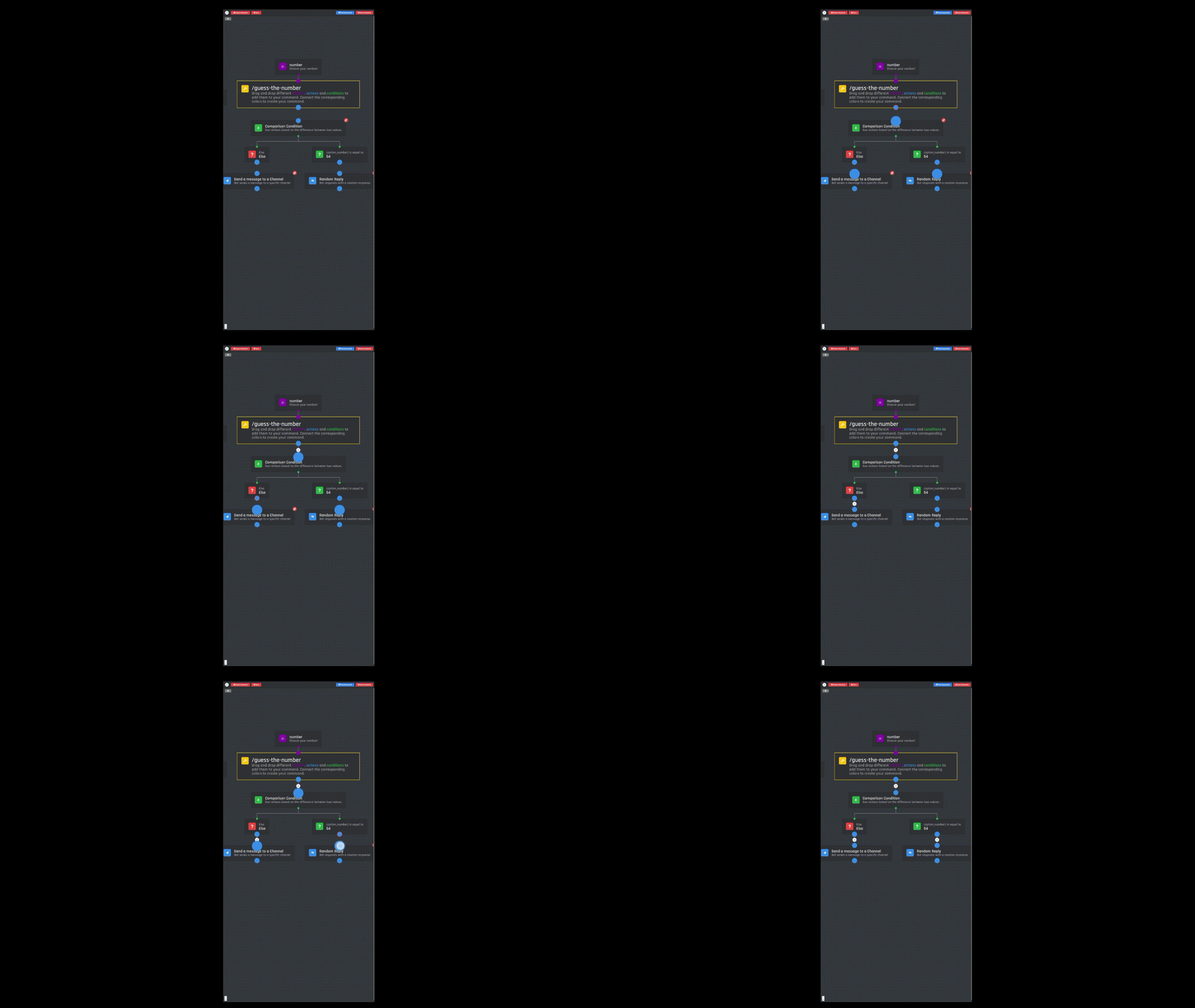
Simply press and hold the top circle on the action block to start the connection line, from here you can simply drag the connection line to the connection circle on the bottom of the block you wish to connect your action to, to complete the circuit and connect the blocks together.
.gif)
Mobile
Simply press the top circle on the action block to start the connection line, from here you can simply press the connection circle on the bottom of the block you wish to connect your action to, to complete the circuit and connect the blocks together.
Variables and Data storage
Variables are the first step in unlocking the ability for your bot to be better used in multi-server settings. Custom variables allow you to store data to be used by your bot through creating custom Global, Server Specific, Channel Specific or User specific variables. You can read more information about them in the Variables and Data Storage pages.
Block Labels
When adding blocks to the command/event builder, you will notice every block has a setting called 'Label'. This will change the name of the block from its default name to something of your choice, this is incredibly handy for pointing out key parts of the command/event, or if you are working with multiple Collab users.
.png)
More about the BotGhost Builder
| Page | Info |
|---|---|
| sharing-commands-and-events.md | Learn how to share commands or copy trees across your commands and events! |
| advanced-options.md | Learn how to use BotGhost's builder advanced customization options and keybinds! |
Command Builder
How to create a command
- 1
To create a custom command, first head over to the command builder on the dashboard.
- 2
To create a new custom command, click on the big "Command Builder" box to open the Command Builder itself.
- 3
Click on the yellow block: it represents the start of the command, and includes all general settings for your custom command. Ensure to assign your command a unique name and a description.
- 4
After that, you can customize the settings of your command, you can view some information on these settings below.
Setting Name Function Hide bot's replies Toggle to hides the replies of the bot from everyone except the person who triggered the command. Cooldown The cooldown of the command, this can be set to user specific or for the whole server. Permission Options Here you can select roles that are allowed to use the command, banned roles, required permissions to use the command an/or banned channels. - 5
You can now add actions, options and conditions to your command by dragging blocks from the left sidebar on the command builder and connect them together.
Options
Options are the purple in color blocks and are used for users to input values into the command, which can then be referenced anywhere within the command with the variable {option_option-name}. Options function when a command is about to be executed, which creates fields to be able to input values into. Additionally, options are automatically connected to the command when added. They are also only available in the command builder but are not required to be in the command. Check out the options page to learn more.
Subcommands
.png)
Subcommands are a great way to group your commands into small categories. You can for example use "economy" as the first word of all the commands of your economy system to group them together. To do so, simply add in the trigger the name of the "category" you want the command to be in with a space, followed by the command's name. You can have up to 25 subcommands per command.
You cannot have a command with the same name of a subcommand "category". This means that if you have two subcommands named /item add and /item remove, you cannot have a command named /item.
.png)
.png)
Event Builder
Events can be used to execute actions when an something happens in your Discord server. You can let them trigger with channel creations & deletions, when a user gets kicked or banned, when a role is created or deleted and much more!
How to create an event
- 1
To create a custom event, first head over to the Custom Events module on the dashboard.
- 2
Then click on the big "Event Builder" box to open the builder.
- 3
Now select an event type, this will determine on what will trigger your event. For instance, if a user joins your server, you can then have the bot greet them, like the announcement module, and DM them.
- 4
You can now add actions and conditions to your event by dragging blocks from the left sidebar on the command builder and connect them together.
To learn more about custom events, visit the events page.