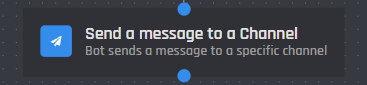
# Send a message to a channel&#x20;

{% hint style="danger" %}
While the Send a message to a channel action block is still available for use in all commands and events, it is considered old and has been replaced by the [send-or-edit-a-message](https://botghost.com/docs/custom-commands-and-events/actions/message-actions/send-or-edit-a-message "mention") action block. We advise you to use the [send-or-edit-a-message](https://botghost.com/docs/custom-commands-and-events/actions/message-actions/send-or-edit-a-message "mention") block instead, which offers more functionalities and possibilities for your message.
{% endhint %}

{% hint style="warning" %}
If you cannot see the Send a message to a channel action block in your actions list, disable the [Hide Legacy Reply Actions](https://botghost.com/docs/command-and-event-builder/advanced-options#general) setting.
{% endhint %}

<figure><img src="https://1937909199-files.gitbook.io/~/files/v0/b/gitbook-x-prod.appspot.com/o/spaces%2F-Lm_hW5MApY3J0lRhi0M%2Fuploads%2FDIYPijYcpOQePAtrpoho%2Fimage_2024-05-30_164604811.png?alt=media&#x26;token=3bb63711-8592-4b1b-bcad-21e32352b934" alt=""><figcaption></figcaption></figure>

The Send a message to a Channel action when triggered has your bot respond with a message sent to a specific channel chosen. This message can either be sent to a specified channel, a channel ID, or a variable containing a channel ID. Additionally, the message sent can be either a Plain Text message or an Embed message. All variables and options can be used in the content of the reply.

## Message Type

The message type is how you can choose between having the bot send a Plain Text or Embed message.

{% tabs %}
{% tab title="Plain Text Message" %}

<figure><img src="https://1937909199-files.gitbook.io/~/files/v0/b/gitbook-x-prod.appspot.com/o/spaces%2F-Lm_hW5MApY3J0lRhi0M%2Fuploads%2Feadqrh6mJACZ61hJMN4Q%2Fimage.png?alt=media&#x26;token=44c1b4eb-4bdd-46a0-ae9c-22df884f3fde" alt=""><figcaption></figcaption></figure>

### Content

The content of the action is the actual message that the bot should reply with when the action is triggered. You can use any variable or option in the content of this reply. These can be easily added through the variable selector by clicking the **Clipboard** button.

<figure><img src="https://1937909199-files.gitbook.io/~/files/v0/b/gitbook-x-prod.appspot.com/o/spaces%2F-Lm_hW5MApY3J0lRhi0M%2Fuploads%2FeVEIozcgCxbH6hq00GAV%2Fimage.png?alt=media&#x26;token=62cbd41f-2d29-4563-a3a9-e1a6ccfac997" alt=""><figcaption></figcaption></figure>
{% endtab %}

{% tab title="Embed Message" %}

<figure><img src="https://1937909199-files.gitbook.io/~/files/v0/b/gitbook-x-prod.appspot.com/o/spaces%2F-Lm_hW5MApY3J0lRhi0M%2Fuploads%2FIK4HCSgw0eCm8fZq9Iy4%2Fimage.png?alt=media&#x26;token=e0c4ca31-c226-4352-8dbb-53481ce4497f" alt=""><figcaption></figcaption></figure>

### Author

The author is displayed in the top left of the embed. This can be the author who used the command or any information you wish to display.

<figure><img src="https://1937909199-files.gitbook.io/~/files/v0/b/gitbook-x-prod.appspot.com/o/spaces%2F-Lm_hW5MApY3J0lRhi0M%2Fuploads%2FKGijVTniLkedgVZFZfBW%2Fimage.png?alt=media&#x26;token=7bf1ede7-4286-413f-838f-2c39c3ceb6cb" alt=""><figcaption></figcaption></figure>

### Thumbnail URL

You can include a thumbnail embedded into the Embed Reply. This will display in the top right of the Embed.

<figure><img src="https://1937909199-files.gitbook.io/~/files/v0/b/gitbook-x-prod.appspot.com/o/spaces%2F-Lm_hW5MApY3J0lRhi0M%2Fuploads%2FfjObICaHRp4ebMsKELH5%2Fimage.png?alt=media&#x26;token=54f06916-0e68-4e5e-8a0b-f0b14ca64bb1" alt=""><figcaption></figcaption></figure>

### Title

This is the title you wish to display in your Embed Reply. This will be centered above your Content Block.

<figure><img src="https://1937909199-files.gitbook.io/~/files/v0/b/gitbook-x-prod.appspot.com/o/spaces%2F-Lm_hW5MApY3J0lRhi0M%2Fuploads%2FsybsWs3pz6Ob7KtiQeB4%2Fimage.png?alt=media&#x26;token=796e8b46-5ecf-47dc-b920-2e4b24b82b09" alt=""><figcaption></figcaption></figure>

### Description

The description is the actual message that the bot should reply with when the action is triggered. You can use any variable or option in the content of this reply. These can be easily added through the variable selector by clicking the **Clipboard** button.

<figure><img src="https://1937909199-files.gitbook.io/~/files/v0/b/gitbook-x-prod.appspot.com/o/spaces%2F-Lm_hW5MApY3J0lRhi0M%2Fuploads%2Ff0sXWmIMiXsZAbZ7ac7R%2Fimage.png?alt=media&#x26;token=a635ec0e-42a0-4508-adc8-8f7ac2678886" alt=""><figcaption></figcaption></figure>

### Image URL

This will display an image in full view under the Content Block.

<figure><img src="https://1937909199-files.gitbook.io/~/files/v0/b/gitbook-x-prod.appspot.com/o/spaces%2F-Lm_hW5MApY3J0lRhi0M%2Fuploads%2Fm0HYolfJuA8eoeHL9hha%2Fimage.png?alt=media&#x26;token=c783a627-270a-4572-80b2-209aefd7692e" alt=""><figcaption></figcaption></figure>

### Footer

This is the small text at the bottom left of the embed.

<figure><img src="https://1937909199-files.gitbook.io/~/files/v0/b/gitbook-x-prod.appspot.com/o/spaces%2F-Lm_hW5MApY3J0lRhi0M%2Fuploads%2F2TOTQ1H1W6jvYI2rLMEI%2Fimage.png?alt=media&#x26;token=6b8847e1-e1fa-487b-980a-204f97b18fd5" alt=""><figcaption></figcaption></figure>

### Embed URL

This will display the Title of the embed in blue text, you can click this to open an external page or image.

<figure><img src="https://1937909199-files.gitbook.io/~/files/v0/b/gitbook-x-prod.appspot.com/o/spaces%2F-Lm_hW5MApY3J0lRhi0M%2Fuploads%2FE9FMrfPHsP7UsJTbjf9t%2Fimage.png?alt=media&#x26;token=183cefaa-d116-416e-80ac-e5d1db1b2c0c" alt=""><figcaption></figcaption></figure>

### Color

This is the color shown on the Left Side of the Embed Reply.

<figure><img src="https://1937909199-files.gitbook.io/~/files/v0/b/gitbook-x-prod.appspot.com/o/spaces%2F-Lm_hW5MApY3J0lRhi0M%2Fuploads%2FHG0I8D1ePjSIIsu8edsm%2Fimage.png?alt=media&#x26;token=68c2c967-4f1d-4d86-a020-13f69ea5c0d2" alt=""><figcaption></figcaption></figure>
{% endtab %}
{% endtabs %}

## Reactions

Reactions can be added onto both the Plain Text message or Embed message. Reactions can be added by using the selector field below the area to create the message.&#x20;

<figure><img src="https://1937909199-files.gitbook.io/~/files/v0/b/gitbook-x-prod.appspot.com/o/spaces%2F-Lm_hW5MApY3J0lRhi0M%2Fuploads%2FwVGHg9NFusq1J87sU4eH%2Fimage.png?alt=media&#x26;token=0e2e449f-2efc-4239-9faf-e322e1bcca10" alt=""><figcaption></figcaption></figure>

These reactions will be automatically added when the message is sent.

<figure><img src="https://1937909199-files.gitbook.io/~/files/v0/b/gitbook-x-prod.appspot.com/o/spaces%2F-Lm_hW5MApY3J0lRhi0M%2Fuploads%2FYckY3UdBU66n5LiAWpsK%2Fimage.png?alt=media&#x26;token=f8ecd8e0-bc27-40f5-9023-4a62ce4eb20b" alt=""><figcaption></figcaption></figure>

## Channel Type

{% tabs %}
{% tab title="Specific Channel" %}
With this channel type, a drop-down menu will be displayed with all the channels the bot has access to. One of these channels can be selected for the message to be sent.

<figure><img src="https://1937909199-files.gitbook.io/~/files/v0/b/gitbook-x-prod.appspot.com/o/spaces%2F-Lm_hW5MApY3J0lRhi0M%2Fuploads%2FFVGUIYvHrvEM5yU0YCOw%2Fimage.png?alt=media&#x26;token=82aa848d-3012-428c-bcf9-e39cb43a2b96" alt=""><figcaption></figcaption></figure>
{% endtab %}

{% tab title="Channel ID or Variable" %}
This channel type can select a channel by specifying a discord channel ID or a variable that includes a channel ID. This can be any valid type of variable. All options and variables can be used in this field.

<figure><img src="https://1937909199-files.gitbook.io/~/files/v0/b/gitbook-x-prod.appspot.com/o/spaces%2F-Lm_hW5MApY3J0lRhi0M%2Fuploads%2Fz5GmBrTdhp1Br4CgwKFk%2Fimage.png?alt=media&#x26;token=971aa266-dea0-47e7-882e-6bb5063ced3d" alt=""><figcaption></figcaption></figure>
{% endtab %}
{% endtabs %}

## Optional Variable

You can also create your own variable that can be used anywhere in the command to get the ID of the message sent by the action. This is useful when using [send-an-api-request](https://botghost.com/docs/custom-commands-and-events/actions/api-actions/send-an-api-request "mention") in your command / event and you need the ID of the message. Make sure that the name of the variable does not correspond to the name of a default variable or of an another action.

You can copy the variable by clicking the clipboard icon in the section right below the optional variable field.

<figure><img src="https://1937909199-files.gitbook.io/~/files/v0/b/gitbook-x-prod.appspot.com/o/spaces%2F-Lm_hW5MApY3J0lRhi0M%2Fuploads%2FXWPNQa93I6IbZlyz5UK2%2Fimage.png?alt=media&#x26;token=02cb3d72-d7d6-4d9d-8c58-0ce6014ea420" alt=""><figcaption></figcaption></figure>