Set Variable
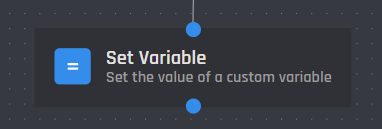
The Set Variable action when triggered sets or changes the value of any custom variable. It can be referenced in any action or condition throughout your bot's commands and events. All variables and options can be used in the content of the value.
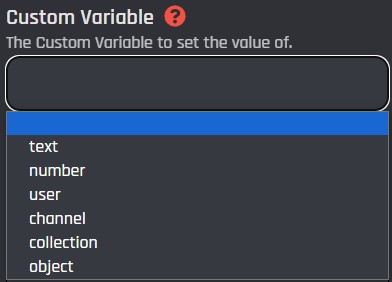
Custom Variable
In this section, you can manage which variable the bot will set. You can select from a dropdown that will display the bot's variables. Variables on this list can be added, edited, and removed using the Data Storage module.
Targets
When using the Run Equation on Variable action on a user or channel variable, a Targets section will be displayed. This will allow you to set the user or channel to set the variable for.
User Target
User Target only appears for user variables.
The Set Variable action has three options that change to whom the variable of the action is stored. Below you can find detailed information about each option and how it can be used.
.png)
By selecting this option your Variable will be stored to the user who used the most recent interaction; for example, the most recent button press, select menu choice, command run or the user who triggered the custom event.
In commands, by selecting this option your Variable will be stored to a user selected in a user option.
.png)
User Option
Here you can set the option variable for the User option (purple blocks) you are using. These can be easily added through the variable selector by clicking the Clipboard button.
By selecting this option your Variable will be stored to a user specified via their user ID.
.png)
User ID
Here you can set the ID of the user to set a variable for. You can do this by pasting an ID directly from Discord (learn how here) or using a variable that returns a user ID. These can be easily added through the variable selector by clicking the Clipboard button.
Channel Target
Channel Target only appears for channel variables.
The Set Variable action has two options that change to which channel the variable of the action is stored. Below you can find detailed information about each option and how it can be used.
.png)
By selecting this option your Variable will be stored to a channel specified via its ID.
.png)
Channel ID or Variable
Here you can set the ID of the channel to set a variable for. You can do this by pasting an ID directly from Discord (learn how here) or using a variable that returns a channel ID. These can be easily added through the variable selector by clicking the Clipboard button.
By selecting this option your Variable will be stored to the channel the most recent interaction was used in; for example, the most recent button press, select menu choice, command run or the channel of the custom event.
Server Target
Server Target does not appear for global variables.
You can optionally target a specific server with the Set Variable action. If you enter a server ID in this field, the variable will be set for that server.
.png)
Some Variable Types will display differently than others. Below you may find some general information about each type. Click on its name for more information on setting it.
| Variable Type | Information |
|---|---|
| Text Variables | A text variable stores a string of text for a server or the bot. |
| Number Variables | A number variable stores a number for a server or the bot. |
| Collection Variables | A collection variable stores multiple text values as an array. These arrays can be managed by their values and the positions of values. |
| Object Variables | An object variable stores a string of text by setting key value pairs. These strings can be accessed by dot notations. |
Text Variables
A text variable stores a string of text for a server or the bot.
Value
The value of the action is the actual message that the bot should store when the action is triggered. You can use any variable or option in the content of this value. These can be easily added through the variable selector by clicking the Clipboard button.
.png)
Number Variables
A number variable stores a number for a server or the bot.
Value
The value of the action is the actual number that the bot should store when the action is triggered. You can use any variable or option in the content of this value. These can be easily added through the variable selector by clicking the Clipboard button.
.png)
Collection Variables
Collections start at position 0.
A collection variable stores multiple values as an array. These arrays can be managed by their values and the positions of values.
Collection Operation
The manipulation type with the provided 'Custom Variable' field. There are several operations to choose from. Below you can find detailed information about each operation and how it can be used.
The Push value to front operation allows you to add a value at the first position, 0, of a collection. This will increase the position of each value ahead of it by 1.
Value
The value of the action is the actual message or number that the bot should store when the action is triggered. You can use any variable or option in the content of this value. These can be easily added through the variable selector by clicking the Clipboard button.
.png)
Examples
| Before | Value | After |
|---|---|---|
[Value 0,Value 1] |
Hello |
[Hello,Value 0,Value 1] |
[Hello,Value 0,Value 1] |
{user_name} |
[User,Hello,Value 0,Value 1] |
[User,Hello,Value 0,Value 1] |
I was stored from {channel_name} |
[I was stored from general,User,Hello,Value 0,Value 1] |
The Push value to end operation allows you to add a value at the last position of a collection.
Value
The value of the action is the actual message or number that the bot should store when the action is triggered. You can use any variable or option in the content of this value. These can be easily added through the variable selector by clicking the Clipboard button.
.png)
Examples
| Before | Value | After |
|---|---|---|
[Value 0,Value 1] |
Hello |
[Value 0,Value 1,Hello] |
[Value 0,Value 1,Hello] |
{user_name} |
[Value 0,Value 1,Hello,User] |
[Value 0,Value 1,Hello,User] |
I was stored from {channel_name} |
[Value 0,Value 1,Hello,User,I was stored from general] |
The Remove first value operation allows you to remove a value at the first position, 0, of a collection. This will decrease the position of each value ahead of it by 1.
Examples
| Before | After |
|---|---|
[I was stored from general,User,Hello,Value 0,Value 1] |
[User,Hello,Value 0,Value 1] |
[User,Hello,Value 0,Value 1] |
[Hello,Value 0,Value 1] |
[Hello,Value 0,Value 1] |
[Value 0,Value 1] |
The Remove last value operation allows you to remove a value at the last position of a collection.
Examples
| Before | After |
|---|---|
[Value 0,Value 1,Hello,User,I was stored from general] |
[Value 0,Value 1,Hello,User] |
[Value 0,Value 1,Hello,User] |
[Value 0,Value 1,Hello] |
[Value 0,Value 1,Hello] |
[Value 0,Value 1] |
The Set value at position operation allows you to add a value at any position of a collection. This will replace the old value of the collection at that position.
Value
The value of the action is the actual message or number that the bot should store when the action is triggered. You can use any variable or option in the content of this value. These can be easily added through the variable selector by clicking the Clipboard button.
.png)
Position
The position of the action is the numbered location of the value you're adding. Collection values start at 0 and increase by 1 for each value before them. You can use any variable or option in the content of this position. These can be easily added through the variable selector by clicking the Clipboard button.
Examples
| Before | Value | Set at Position | After |
|---|---|---|---|
[Value 0,Value 1] |
Hello |
0 | [Hello,Value 1] |
[Hello,Value 1] |
{user_name} |
2 | [Hello,Value 1,User] |
[Hello,Value 1,User] |
I was stored from {channel_name} |
1 | [Hello,I was stored from general,User] |
The Remove value at position operation allows you to remove a value at any position of a collection. This will decrease the position of each value ahead of it by 1.
Position
The position of the action is the numbered location of the value you're removing. Collection values start at 0 and increase by 1 for each value before them. You can use any variable or option in the content of this position. These can be easily added through the variable selector by clicking the Clipboard button.
Examples
| Before | Position | After |
|---|---|---|
[Hello,Value 0,User,Value 1,I was stored from general] |
4 | [Hello,Value 0,User,Value 1] |
[Hello,Value 0,User,Value 1] |
2 | [Hello,Value 0,Value 1] |
[Hello,Value 0,Value 1] |
0 | [Value 0,Value 1] |
The Remove value in collection operation allows you to remove the first occurrence of a value in a collection. This will decrease the position of each value ahead of it by 1.
Value
The value of the action is the actual message or number that the bot should remove from the collection when the action is triggered. You can use any variable or option in the content of this value. These can be easily added through the variable selector by clicking the Clipboard button.
Examples
| Before | Value | After |
|---|---|---|
[Value 0,Value 1,Hello,User,I was stored from general] | I was stored from {channel_name} | [Value 0,Value 1,Hello,User] |
[Value 0,Value 1,Hello,User] | Hello | [Value 0,Value 1,User] |
[Value 0,Value 1,User] | Value 1 | [Value 0,User] |
The Clear a collection operation allows you to empty, or remove all values of, a collection variable.
Examples
| Before | After |
|---|---|
[Value 0,Value 1,Hello,User,I was stored from general] | [] |
[Value 0,Value 1,Hello,User] | [] |
[Value 0,Value 1,User] | [] |
Object Variables
An object variable stores a string of text by setting key value pairs. These strings can be accessed by dot notations.
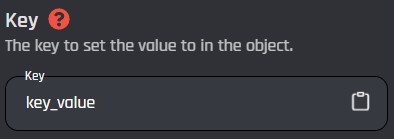
Key
The key of the object property to change the value from. You can use any existing or new key from the object variable to set a value.
Value
The value of the action is the actual message that the bot should store when the action is triggered. You can use any variable or option in the content of this value. These can be easily added through the variable selector by clicking the Clipboard button.
.png)