Invite Tracker
Motivate your server members with a count and leaderboard that keeps track of the people they invited!
.png)
This module requires a Premium Subscription to function.
The Invite Tracker module will enable members of your community to retrieve leaderboards and specific member statistics for individuals they invite.
Settings
Counter Settings
In this area is where you can configure specific messages sent when a new member is invited, roles, restrictions and more.
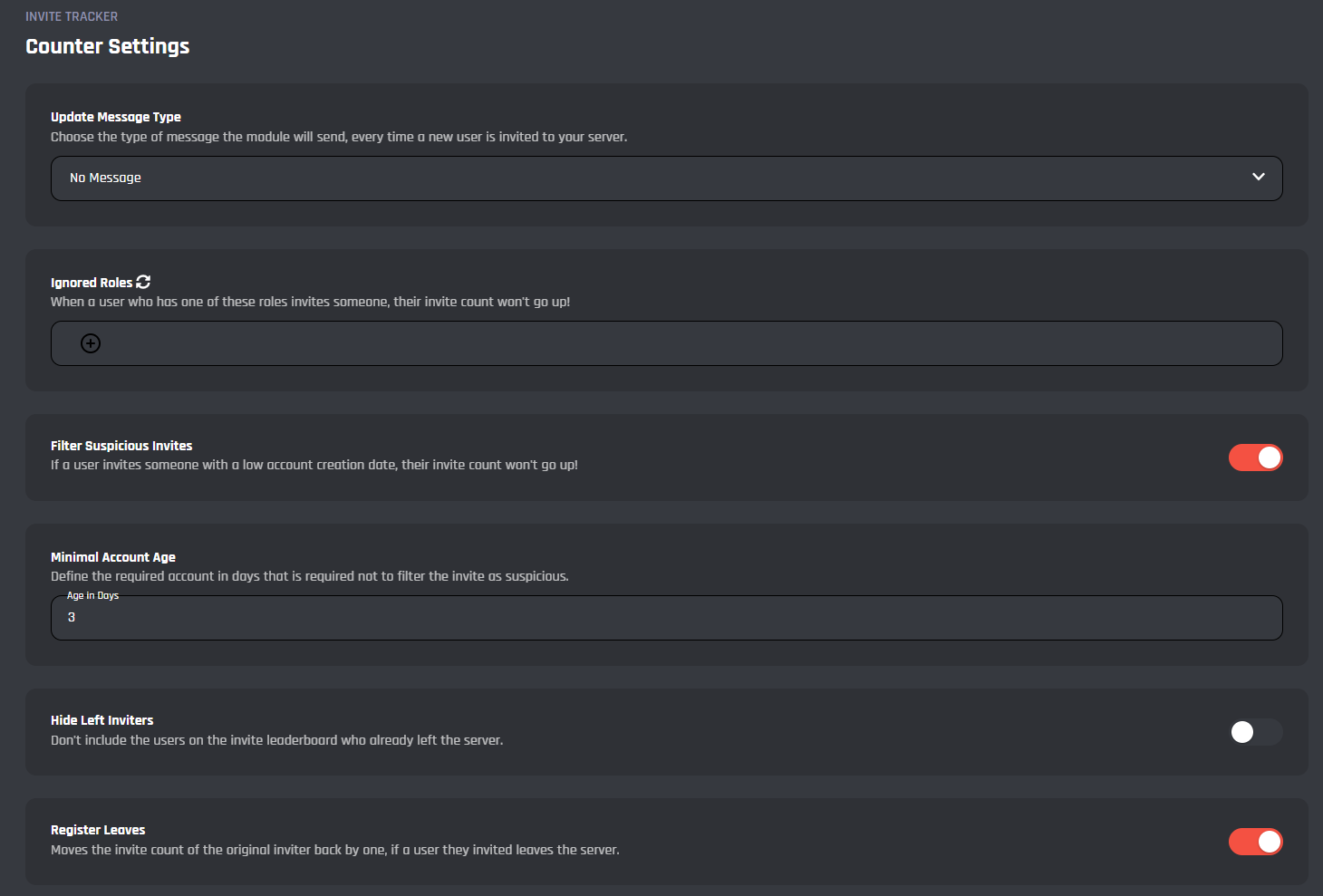
Update Message Type
This is where the type of message sent can be configured when a user is invited.
No Message will be sent in the server if this option is chosen.
If this option is selected, when a user is invited they will receive this message in their direct messages.
Update Message
Here is where you can configure the message being sent. You can use variables such as {invites} and {inviter} to show stats and more. You can also toggle the message type to choose between embed or a plain text response.
.png)
If this selection is chosen, a message will be sent to a specific channel when a user is invited into the server.
Updates Channel
Here you can choose a text or announcement channel to serve as the channel that receives the invite messages.
.png)
Update Message
Here is where you can configure the message being sent. You can use variables such as {invites} and {inviter} to show stats and more. You can also toggle the message type to choose between embed or a plain text response.
Ignored Roles
In this field you can choose certain roles to be excluded from the invite counter. This means that if they invite a user it doesn't count towards their total invites.
Filter Suspicious Invites
If this toggle is enabled, when a user with a relatively low account age is invited, it will not count towards the inviter's total invites.
Minimal Account Age
Configure the account age in days to trigger the Filter Suspicious Invites filter. Only integers can be accepted in this field. This setting is only visible when Filter Suspicious Invites is enabled.
Hide Left Inviters
If this toggle is enabled, users who left the server will not show up on the leaderboard when /invite-leaderboard is used.
Register Leaves
When this toggle is enabled, if a user that got invited by someone in the server leaves, the inviter's total invite count will decrease by one.
Role Rewards
Here is how to setup roles to be given to members when they meet a certain amount of people invited. You can have up to 10 rewards.
.png)
Required Invite Count
This field input is how many people need to be invited by a member for the role in this reward to be given.
Role Reward
The role to be given when the required invite count is met or gone beyond. Only 1 role can be selected per reward.
To save the reward's settings, you need to click "Add" in the bottom-right corner of the settings. This will reset the fields so you can set up another reward.
Active Rewards
This area is where you can manage your active role rewards and their settings.
To save the edits you made on the reward's settings, you need to click "Edit" in the bottom-right corner of the settings.
.png)
Commands
In this area, you can view and modify the commands of the Invite Tracker module. Below you may find some information on each command of the module.
.png)
/invites
This command allows you to check the number of invites of anyone in the server.
/invites-leaderboard
This command displays the leaderboard of members who invited the most users to your server. You can browse through the leaderboard by using the buttons at the bottom of the leaderboard message.
Events
In this area, you can view and modify the events of the Invite Tracker module. Below you may find some information on each event of the module.
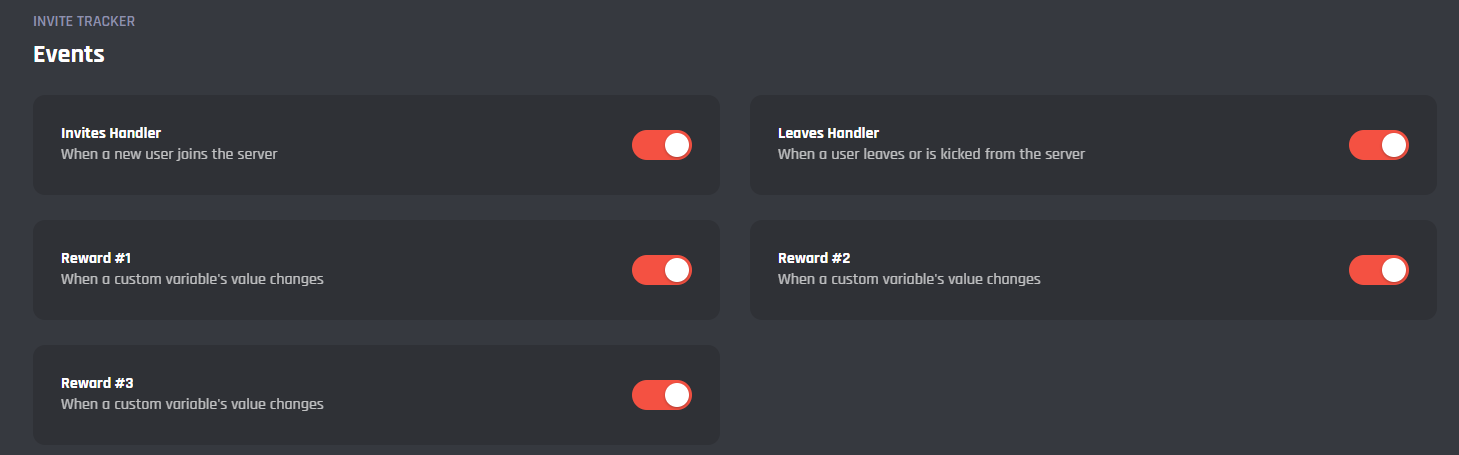
Invites Handler
This event edits the invite count for when a user gets invited to your server.
Leaves Handler
This event tracks when a user is removed or leaves the server and adjusts the invite count accordingly.
Reward #...
When a active reward is made from Role Rewards, the corresponding event will be created and automatically gives a user a role dependent on the reward settings.
It's advised that you do not edit the commands and events unless you have a good understanding of BotGhost and its Command Builder. If you encounter any issues, you might want to reset the module for it to work again as intended.
Additionally, a copy of the edited commands / events will be created if you update the module.