ChatGPT
Interact with the OpenAI ChatGPT API using commands and auto-reply.
.png)
This module requires a Premium Subscription to function.
The ChatGPT module allows users to hold conversations with their bot by using the OpenAI GPT 3.5 Turbo - GPT 4 software. Get it to tell you stories or ask some advanced questions.
Common Issues
Experiencing issues with the module? Check out the common issues below. If your issue is not listed in this page, make sure your module is updated to the latest version. If you are still experiencing issues with the module, join our support server to ask for further help.
AI commands return a 429 error
If a 429 error is returned when trying to use ChatGPT's AI commands, please try the steps below.
- 1
The OpenAI (ChatGPT) 429 error means your free trial of the API key you're using has expired. To extend your quota and continue using OpenAI, you need to enter your billing details. You can do that in the OpenAI Developer Platform.
- 2
If you're still experiencing issues, join our support server to ask for further help, we'll do our best to solve your issue!
Credentials Setup
- 1
Click here to get started. Log into OpenAI. If you haven't already, Open AI might ask you to verify your phone number before proceeding.
.png)
- 2
Once you logged in, click on the "Create new secret key button.
.png)
- 3
This will prompt you to make a key. Set Owned by "You" and give your app a name. Set the "Permissions" to all. Once done, click on "Create Secret Key"
.png)
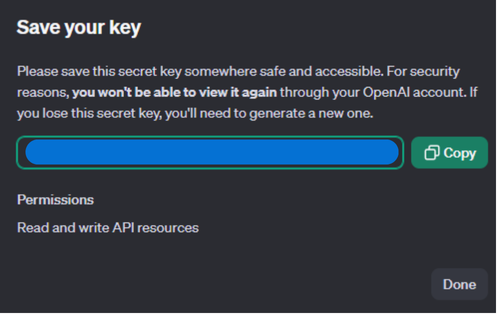
- 4
Copy your key. Make sure to not share it with anyone.
- 5
Paste your key into the BotGhost Dashboard in the OpenAI API Key field.
Settings
General Settings
In this area, you can setup and customize the general settings for the commands and events of this module.
.png)
Embeds Color
In this setting you can select the color of the embeds in this module. When the bot responds using an embed, the embed will use this color.
OpenAI API Key
In this field is where you will need to enter your OpenAI API key to be able to use the module, you can follow this guide here, to generate your own API key.
Respond Command
In this area, you can setup and customize the settings of the response command.
.png)
Response Command
You can toggle this switch to either enable or disable the respond command. This toggle needs to be enabled in order to show the settings below.
Model
In this section you can select what model of ChatGPT you want to use. The selected Model will reply to the respond command.
Channel Restrictions - Blacklist Type
In this menu you can choose the criteria you want to follow to disable the command in certain channels. In the table below you can read what you can choose from.
| Type | Details |
|---|---|
| No Channel Restrictions | If this option is selected, no channel restrictions will be applied. |
| Disable for these channels | Based on the channels input, the module will not respond in this channel. |
| Enable these channels | Based on the channels input, the module will only respond in this channel |
Channel Restrictions - Select Channels
In this channel selector you can select the channels that you wish to allow or that you wish to disallow, depending on the selection you made in the Blacklist Type.
Role Restrictions - Blacklist Type
In this menu you can choose the criteria you want to follow to blacklist certain roles from using the command. In the table below you can read what you can choose from.
| Type | Details |
|---|---|
| No Role Restrictions | If this option is selected, no role restrictions will be applied. |
| Disable for these roles | Based on the role input, the module will not respond to this role. |
| Enable these roles | Based on the channels input, the module will only respond to this role. |
Role Restrictions - Select Roles
In this channel selector you can select the roles that you wish to allow or that you wish to disallow, depending on the selection you made in the Blacklist Type.
Personality
In this field you can describe the personality the responses from the command should follow.
Edit Text Command
In this area, you can setup and customize the settings of the text command.
.png)
Edit Text Command
You can toggle this switch to either enable or disable the text command. This toggle needs to be enabled in order to show the settings below.
Channel Restrictions - Blacklist Type
In this menu you can choose the criteria you want to follow to disable the command in certain channels. In the table below you can read what you can choose from.
| Type | Details |
|---|---|
| No Channel Restrictions | If this option is selected, no channel restrictions will be applied. |
| Disable for these channels | Based on the channels input, the module will not respond in this channel. |
| Enable these channels | Based on the channels input, the module will only respond in this channel |
Channel Restrictions - Select Channels
In this channel selector you can select the channels that you wish to allow or that you wish to disallow, depending on the selection you made in the Blacklist Type.
Role Restrictions - Blacklist Type
In this menu you can choose the criteria you want to follow to blacklist certain roles from using the command. In the table below you can read what you can choose from.
| Type | Details |
|---|---|
| No Role Restrictions | If this option is selected, no role restrictions will be applied. |
| Disable for these roles | Based on the role input, the module will not respond to this role. |
| Enable these roles | Based on the channels input, the module will only respond to this role. |
Role Restrictions - Select Roles
In this channel selector you can select the roles that you wish to allow or that you wish to disallow, depending on the selection you made in the Blacklist Type.
Chat Mode
In this section you can set up the chat mode for certain channels by adding them here. When chat mode is enabled, your bot will respond to messages in a channel.
.png)
Channel
In this menu you can select the channel where you want to enable the chat mode.
Model
In this section you can select what model of ChatGPT you want to use. The selected model will be used to reply to a message.
Reply to mentions only
This toggle can be enabled if you only want the bot to respond to @mentions, or disabled when you want the bot to respond to every message.
Response Type
In this section you can select whether you want the bot to respond with plain text or embeds.
Personality
In this field you can describe the personality the responses from the bot should follow.
Role Restrictions - Blacklist Type
In this menu you can choose the criteria you want to follow to blacklist certain roles from using the module. In the table below you can read what you can choose from.
| Type | Details |
|---|---|
| No Role Restrictions | If this option is selected, no role restrictions will be applied. |
| Disable for these roles | Based on the role input, the module will not respond to this role. |
| Enable these roles | Based on the channels input, the module will only respond to this role. |
Role Restrictions - Select Roles
In this channel selector you can select the roles that you wish to allow or that you wish to disallow, depending on the selection you made in the Blacklist Type.
To save the channel's settings, you need to click "Add" in the bottom-right corner of the settings.
Your Chat Mode Channels
Here you can edit your currently active chat modes. You can use the same settings as in the Chat Mode section. You are able to edit / delete chat modes with the buttons in the bottom right. You can add up to 100 unique chat modes.
.png)
Commands
In this area, you can view and modify the commands of the ChatGPT module. Below you may find some information on each command of the module.
.png)
/respond
This command when triggered, will send an AI-generated chat response to whatever prompt you input.
/edit-text
This command when triggered will edit any text that is input.
[👑] Add Command
By clicking the add command button you can create your own command for the ChatGPT module using all the module variables and settings.
Events
In this area, you can view and modify the events of the ChatGPT module. Below you may find some information on each event of the module.
.png)
ChatGPT
This is the only event for the GPT module, it handles all the auto responses from the AI and more. You can edit the event to add new additions, fine tune responses and much more.
[👑] Add Event
By clicking the add event button you can create your own event for the ChatGPT module using all the module variables and settings.
It's advised that you do not edit the commands and events unless you have a good understanding of BotGhost and its Command Builder. If you encounter any issues, you might want to reset the module for it to work again as intended.
Additionally, a copy of the edited commands / events will be created if you update the module.